Excerpt:
QuickBooks Error 4120 can disrupt your workflow due to corrupted files, malware, or improper installation. This guide walks you through practical solutions like clearing system junk, repairing the registry, using the File Doctor tool, and reinstalling QuickBooks to resolve the issue. Addressing these causes helps restore functionality and prevents further disruptions, ensuring a smoother experience with QuickBooks.
 Add As A Preferred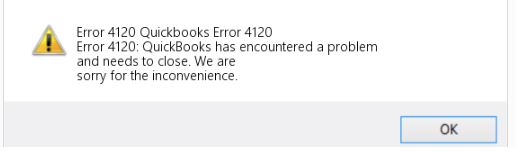
Fix QuickBooks Error 4120 by:
QuickBooks Error 4120 appears with the message: “QuickBooks has encountered a problem and needs to be shut down without any further explanation.” This error is classified as a runtime error – meaning it fires while QuickBooks is actively running, not during a scheduled task or at a predictable moment. The computer slows down, stops accepting keyboard and mouse input, freezes at random intervals, and in some cases shuts down completely.
A runtime error is different from an installation error or a network error. A runtime error means QuickBooks started correctly but hit a problem during operation – usually because a program it needs to run is missing, damaged, or being blocked by another program on the computer. Error 4120 falls into this category, and the repair path begins by identifying what on the computer is preventing QuickBooks from completing the task it was trying to do.
Error 4120 is documented as appearing both during installation and while using QuickBooks on an already-installed system. The cause in both situations is the same class of problem: a damaged Windows component, a corrupted QuickBooks installation file, a conflicting background program, or insufficient system memory. Each of these causes has a different first fix – which is why the repair sequence must follow the order of risk and invasiveness, starting with the safest and fastest actions first.
QuickBooks requires three Microsoft components to run correctly on Windows that are given below. If any one of these three components is damaged or missing, QuickBooks encounters Error 4120 because it cannot complete the task it was running:
Error 4120 is different from installation-specific errors like Error 1334 or Error 1402. Those errors fire when the QuickBooks installer itself cannot complete. Error 4120 fires after installation – when QuickBooks is already on the computer and something in the operating environment changes or breaks. This distinction matters because the repair sequence for Error 4120 starts with the running environment, not the installer.
The Windows Registry is a database that stores configuration settings for every program on the computer. A software change to QuickBooks – such as an update, a repair attempt, or the installation of another program – can leave the registry in a partially changed state.
The registry stores the settings that tell Windows how to load and run QuickBooks. A corrupted registry entry for QuickBooks causes Error 4120 because Windows reads the broken settings and cannot complete the QuickBooks load process correctly.
When QuickBooks Error 4120 occurs (typically during regular use rather than install or update), users typically see one of these messages:
No official Intuit article was located for this exact code, most commonly reported on systems with recent registry changes or aggressive antivirus settings. It’s documented only by third-party QuickBooks help sites, so this wording should be verified before being presented as Intuit’s own language.
Third-party sourcing only — not confirmed on an official Intuit page.
Error 4120 causes QuickBooks to shut down without saving the work in progress at the time the error fires. Any transaction, entry, invoice, or payroll record that was being created or edited when the error appeared is lost – because QuickBooks closed before the save could complete. Recovering unsaved work requires re-entering the data from scratch.
The error can also affect company files if it fires during a read or write operation. A company file is the database that holds all of the business’s accounting records – transactions, payroll, reports, and balances.
QuickBooks reads and writes to this file every time data is entered or a report is generated. Error 4120 firing in the middle of a write operation can leave the company file in an incomplete state, which requires the QuickBooks Rebuild Data Tool or QuickBooks File Doctor to repair.
| Unresolved Cause | What Keeps Happening as a Result |
| Conflicting background programs not closed | QuickBooks continues to hit the same memory conflict on every restart – the error fires again at the same point in the task because the competing program is still running in the background |
| Antivirus scan not run before repair steps | A virus or malware that has damaged QuickBooks files continues to damage them after each repair – the repair step fixes the file, the malware damages it again, and Error 4120 returns on the next session |
| QuickBooks File Doctor not run when company file damage is suspected | A damaged company file continues to produce Error 4120 every time QuickBooks tries to read or write to it – the error returns until the file itself is repaired, not just the program |
| Microsoft Visual C++ not reinstalled after confirmed damage | QuickBooks cannot complete the internal operations that rely on Visual C++ – the error fires at the same task every time because the missing component is still missing |
| Low disk space not addressed before repair attempts | Runtime errors from insufficient memory continue to appear – even a repaired QuickBooks installation cannot run correctly when the computer does not have enough free space to load the program into memory |
| Disk Cleanup not performed before reinstalling QuickBooks | Cache and junk files from the previous damaged installation remain on the computer and continue to consume the memory that QuickBooks needs – the reinstalled version runs on an equally congested system |
| Clean reinstall avoided out of concern about data loss | The corrupted installation files stay on the computer and continue producing Error 4120 – a clean reinstall removes only program files and does not touch company data files |
The most important diagnostic step is noting exactly what QuickBooks was doing when Error 4120 appeared. An error that fires during installation points to a damaged component or incomplete installation file.
An error that fires when opening QuickBooks points to a conflicting background program or a corrupted registry entry. An error that fires mid-task during payroll or reporting points to a company file problem or insufficient system memory.
| When Error 4120 Appears | Why This Is Happening | Recommended First Action |
| Error 4120 during QuickBooks installation – the setup process stops and the error message appears | A QuickBooks installation file is corrupt or damaged, or a Windows component needed by the installer is broken | Run a virus scan first to rule out malware, then repair Microsoft .NET Framework and the Visual C++ Redistributable Package before reattempting installation |
| Error 4120 when opening QuickBooks on a computer where it was previously working | A background program is competing with QuickBooks for system memory, or a recent software change corrupted the Windows registry entry for QuickBooks | Open Task Manager, identify and close all non-essential programs, then restart QuickBooks – if it opens, a conflicting program was the cause |
| Error 4120 mid-task – fires while entering data, running payroll, or generating a report | A company file read or write operation was blocked, or the computer does not have enough free memory to complete the task | Run QuickBooks File Doctor from Tool Hub to check and repair the company file, then run Disk Cleanup to free system memory |
| Error 4120 after an antivirus program flagged or quarantined QuickBooks files | The antivirus identified QuickBooks executable files or components as unsafe and blocked or removed them – QuickBooks cannot function without those files | Restore the quarantined files through the antivirus program, then add QuickBooks to the trusted applications list to prevent the antivirus from removing them again |
| Error 4120 returning after every repair attempt | The QuickBooks installation itself contains damage too deep for individual component repairs to fix | Perform a clean reinstall – download a fresh QuickBooks installer, rename the old installation folders, uninstall, and reinstall completely |
| Error 4120 on a computer with very little free hard drive space | Insufficient hard drive space prevents Windows from loading QuickBooks program files into memory – runtime errors appear when memory runs out mid-task | Run Disk Cleanup immediately, clear cache, back up and delete unnecessary files to free space, then restart the computer before opening QuickBooks |
Microsoft Visual C++ Redistributable Package is a set of program files that many Windows applications – including QuickBooks – need to run specific operations. These files handle tasks like memory management, calculations, and internal data processing within the application. QuickBooks documentation confirms that the Visual C++ library file is required for QuickBooks Desktop to execute programs.
If Visual C++ is not installed on the computer, QuickBooks installs it automatically. If the package becomes damaged or gets removed, QuickBooks cannot complete the operations that depend on it and returns Error 4120.
Reinstalling the Visual C++ Redistributable Package replaces the damaged files with clean ones. The package is available from Microsoft’s official website and the correct version must match what QuickBooks requires. Reinstalling it does not affect any QuickBooks data or settings – it only replaces the supporting program files.
QuickBooks File Doctor is a tool inside QuickBooks Tool Hub that scans and repairs damaged company files. A company file is the database – stored as a .qbw file on the computer – that contains all the business’s accounting records, including transactions, payroll data, reports, and balances. File Doctor can identify and fix file damage that causes QuickBooks to crash, freeze, or produce Error 4120 when it tries to read or write to the file.
File Doctor does not delete any accounting data during the repair. It reads the file, identifies damaged sections, and reconstructs them using the data it can still access. Running File Doctor is always safe to do before attempting any reinstallation step – because if the company file is the source of Error 4120, reinstalling QuickBooks will not fix it.
Disk Cleanup is a built-in Windows tool that removes temporary files, cache data, and junk files that accumulate on the computer’s hard drive over time. Every time a program runs, Windows creates temporary files to help the program operate. Over months of use, these files build up and consume hard drive space without serving any ongoing purpose.
Runtime errors in QuickBooks – including Error 4120 – are confirmed to occur when the computer does not have enough free space to load QuickBooks into memory. Memory here refers to the space Windows uses to run programs – not the hard drive itself, but the available working space the computer uses to keep programs active. A hard drive full of junk files reduces the available working space, and QuickBooks crashes when it runs out of room to operate. Running Disk Cleanup removes these unnecessary files and frees the space QuickBooks needs to run without errors.
Solutions are arranged from the fastest and safest first action to the most involved repair. Start with Level 1 – closing conflicting programs and running an antivirus scan – which resolves Error 4120 in many cases without touching any settings or files. Move to Level 2 only after confirming Level 1 did not clear the error.
| Level 1 – Close Conflicting Programs, Virus Scan, and File Doctor |
These solutions carry no risk to QuickBooks data. They identify and remove the two most common active causes of Error 4120 – a background program consuming QuickBooks’ memory, and a virus or malware damaging QuickBooks or Windows files – and check whether the company file is damaged.
| Skill Level | Risk Level | Success Probability | Approximate Time |
|---|---|---|---|
| Beginner | None | High when Error 4120 fires at startup or mid-task on a computer running multiple programs simultaneously | 5 minutes |
| Risk ExplanationClosing background programs through Task Manager only stops those programs from running – it does not delete them or change any settings. Any program closed through Task Manager can be reopened normally after QuickBooks is closed. | Solution ExplanationIncompatible programs running simultaneously with QuickBooks compete for the same system memory and cause conflicts that produce Error 4120. Closing these programs removes the competition and gives QuickBooks the memory it needs to complete its tasks without crashing. | ||
Steps to Implement Solution 1.1:
1. Press the Ctrl, Alt, and Del keys on the keyboard at the same time. A menu screen appears. Click Task Manager from the options shown. Task Manager is a Windows tool that shows every program and process currently running on the computer, including programs running silently in the background without any visible window on screen.
2. Task Manager opens to a list of running programs. Click the Processes tab at the top of the Task Manager window. This tab shows every active process – including background programs that do not show on the taskbar. Look through the list for any program that is not related to Windows or QuickBooks. Common examples include web browsers, media players, cloud backup programs, and other accounting software.
3. Click each non-essential program in the list once to select it. Then click End Task at the bottom right of the Task Manager window. A warning message may appear asking to confirm – click End Process or Yes to confirm. Repeat this for every non-essential program in the list. Do not end any process whose name starts with “Windows” or “System” – these are required for the computer to run.
4. After closing all non-essential programs, close Task Manager. Open QuickBooks and attempt the task that was producing Error 4120. If QuickBooks completes the task without crashing, a conflicting program was the cause. Note which programs were closed and add QuickBooks to the exclusions list of any antivirus that was among them. If Error 4120 still appears, proceed to Solution 1.2.
| Skill Level | Risk Level | Success Probability | Approximate Time |
|---|---|---|---|
| Beginner | None | Essential as a prerequisite – a virus or malware damaging QuickBooks files reverses every repair step taken without removing the malware first | 30–60 minutes depending on system size |
| Risk ExplanationRunning an antivirus scan does not change any QuickBooks settings or company data. The scan only identifies and removes malicious programs. If the antivirus quarantines QuickBooks files by mistake, restore them through the antivirus program and add QuickBooks to the trusted list. | Solution ExplanationA virus or malware infecting the computer can damage QuickBooks executable files and Windows system files – both confirmed causes of Error 4120. Running a full system scan before any other repair ensures that any malware is removed first, so subsequent repairs are not undone by ongoing malware activity. | ||
Steps to Implement Solution 1.2:
1. Open the antivirus program installed on the computer. Find the antivirus icon in the taskbar at the bottom right of the screen and double-click it, or search for the program name using the Windows Start button and the search bar.
2. Make sure the antivirus program has the latest virus definitions – these are updated lists of known viruses that the antivirus uses to identify threats. Most antivirus programs show a Check for Updates or Update Definitions button on their main screen. Click it and allow any updates to install before starting the scan.
3. Choose the Full Scan option – not Quick Scan. A full scan checks every file on the computer, including the QuickBooks installation folder and Windows system files. A quick scan only checks common locations and may miss malware that has embedded itself in program files. The full scan can take 30–60 minutes depending on how many files are on the computer. Allow it to run completely without interrupting it.
4. After the scan finishes, review the results. If the antivirus found and removed viruses or malware, restart the computer and open QuickBooks to test whether Error 4120 is gone. If the antivirus quarantined any file from the QuickBooks folder by mistake, open the antivirus quarantine section, find the QuickBooks files, and choose Restore or Allow. Then add the QuickBooks program folder to the antivirus exclusions list so it is not quarantined again in future scans.
| Skill Level | Risk Level | Success Probability | Approximate Time |
|---|---|---|---|
| Beginner | None – File Doctor only repairs the company file, no data is deleted | High when Error 4120 fires specifically during data entry, payroll processing, or report generation | 15–20 minutes |
| Risk ExplanationRunning an antivirus scan does not change any QuickBooks settings or company data. The scan only identifies and removes malicious programs. If the antivirus quarantines QuickBooks files by mistake, restore them through the antivirus program and add QuickBooks to the trusted list. | Solution ExplanationCompany file damage causes Error 4120 when QuickBooks tries to read or write to a section of the file that has been corrupted. File Doctor identifies the damaged sections and repairs them – allowing QuickBooks to complete the operations that were previously causing the crash. | ||
Steps to Implement Solution 1.3:
1. Download and install QuickBooks Tool Hub from Intuit’s official website if it is not already on the computer. Save the downloaded QuickBooksToolHub.exe file and open it. Follow the installation steps on screen. After installation, double-click the Tool Hub icon on the desktop to open it.
2. Click Company File Issues in the left-side menu of Tool Hub. This section contains tools for repairing company file problems. Click Run QuickBooks File Doctor. The File Doctor tool opens – it may take up to a minute to load.
3. In the File Doctor window, use the drop-down menu to select the company file. If the file does not appear in the list, click Browse and Search to find it manually. Click Check your file and network. Enter the QuickBooks Administrator password when asked. Click Next and let the scan run. The scan takes 5–15 minutes depending on the size of the company file.
4. After File Doctor finishes, restart the computer. Open QuickBooks and attempt the task that was producing Error 4120. If the task completes without error, the company file damage was the cause and File Doctor resolved it. If Error 4120 still appears, proceed to Level 2.
| Level 2 – Repair Components, Free Memory, and Clean Reinstall |
Use these solutions after Level 1 did not resolve Error 4120. These address the deeper confirmed causes: damaged Microsoft Visual C++, damaged .NET Framework, insufficient disk space, and a corrupted QuickBooks installation requiring complete replacement.
| Skill Level | Risk Level | Success Probability | Approximate Time |
|---|---|---|---|
| Intermediate | None – only the Visual C++ program files are replaced, no QuickBooks data is affected | High when Error 4120 is confirmed to be a runtime error linked to Microsoft Visual C++ – the component QuickBooks uses for internal operations | 15 minutes |
| Risk ExplanationUninstalling and reinstalling the Visual C++ Redistributable Package only replaces the supporting program files – not any QuickBooks data, company files, or settings. | Solution ExplanationQuickBooks relies on the Microsoft Visual C++ Redistributable Package to run internal operations. A damaged or incomplete Visual C++ package causes QuickBooks to crash when it tries to execute a function that depends on it – producing Error 4120. Reinstalling the package replaces the damaged files with a clean working set. | ||
Steps to Implement Solution 2.1:
1. Click the Windows Start button. Type Control Panel in the search bar and press Enter. In the Control Panel, click Programs and Features. A list of all installed programs appears on screen.
2. Scroll through the list to find all entries named Microsoft Visual C++ Redistributable. There may be multiple versions listed – such as 2013, 2015, 2017, 2019, and 2022. Click the most recent version once to select it. Click Uninstall at the top of the list. Follow the on-screen steps to remove it. Repeat for each version of the Visual C++ Redistributable that is listed.
3. Open a web browser and go to Microsoft’s official website. Search for “Microsoft Visual C++ Redistributable latest” to find the current download page. Download the version that matches the computer’s Windows type – 64-bit for most modern computers (most computers purchased after 2012 are 64-bit). If unsure, click the Windows Start button, right-click Computer or This PC, and choose Properties – the System Type line shows whether it is 32-bit or 64-bit.
4. Run the downloaded installer. Follow the on-screen installation steps. After installation completes, restart the computer. Open QuickBooks and test whether Error 4120 has been resolved.
| Skill Level | Risk Level | Success Probability | Approximate Time |
|---|---|---|---|
| Beginner | None – Disk Cleanup removes only temporary and junk files, not any QuickBooks or personal data | High when Error 4120 fires on a computer with low available disk space – confirmed as a direct cause of runtime errors in QuickBooks | 10 minutes |
| Risk ExplanationThe Windows Disk Cleanup tool removes only temporary files and cached data – it does not delete any programs, company files, documents, or QuickBooks settings. The tool shows exactly what will be deleted before anything is removed. | Solution ExplanationInsufficient hard drive space causes runtime errors in QuickBooks by preventing Windows from loading the program files into memory. Running Disk Cleanup removes junk files that have accumulated over time and restores the free space QuickBooks needs to run without crashing. | ||
Steps to Implement Solution 2.2:
1. Create a backup of the QuickBooks company file before starting. Open QuickBooks if possible, go to File > Back Up Company > Create Local Backup, and save the backup to an external drive or a separate folder. This protects accounting data regardless of the outcome.
2. Open File Explorer – the folder icon in the taskbar at the bottom of the screen. In the left panel, find This PC or Computer. The hard drive is usually labeled C:. Right-click the C: drive. Choose Properties from the small menu that appears. In the Properties window, click Disk Cleanup.
3. The Disk Cleanup tool opens and calculates how much space can be freed. A list of file categories appears with checkboxes – each shows how much space that category is using. Tick the checkboxes next to Temporary Files, Temporary Internet Files, Recycle Bin, and System Error Memory Dump Files. Do not tick the checkbox next to Downloads unless those files have already been saved elsewhere.
4. Click Clean Up System Files at the bottom. Disk Cleanup recalculates and shows additional space that can be freed from system files. Click OK and then Delete Files to confirm. The cleanup process runs – it may take a few minutes. After it finishes, restart the computer. Open QuickBooks and test whether Error 4120 has been resolved.
| Skill Level | Risk Level | Success Probability | Approximate Time |
|---|---|---|---|
| Intermediate | None – only .NET Framework component registration is changed | High when Error 4120 appears during QuickBooks installation – .NET Framework damage is a confirmed direct cause at the installation stage | 15 minutes |
| Risk ExplanationToggling .NET Framework components on and off in Windows Features only changes how those components are registered with Windows. No QuickBooks data, company files, or settings are affected. | Solution ExplanationMicrosoft .NET Framework is a required supporting component for QuickBooks Desktop. Damaged .NET Framework prevents QuickBooks from completing installation-stage operations, which produces Error 4120. Toggling each version off and back on forces Windows to re-register the component with a clean installation. | ||
Steps to Implement Solution 2.3:
1. Click the Windows Start button. Type Control Panel in the search bar and press Enter. Click Programs and Features. On the left side, click Turn Windows Features On or Off. A window opens with a list of Windows components.
2. Find .NET Framework 3.5 SP1. If it has a tick mark, click to remove it. Click OK and restart the computer. After the restart, return to the same list and put the tick mark back. Click OK and restart again. Repeat this same toggle process for .NET Framework 4.5, 4.6, 4.7, and 4.8 – each version needs to be turned off, computer restarted, turned back on, and computer restarted again.
3. After all versions have been toggled, reattempt the QuickBooks installation or open QuickBooks to test whether Error 4120 has been resolved.
| Skill Level | Risk Level | Success Probability | Approximate Time |
|---|---|---|---|
| Intermediate | Low – company data files are not deleted; have the QuickBooks license number ready before starting | Very high – replaces every installation file and removes all damage that individual repairs could not fix | 45–60 minutes |
| Risk ExplanationA clean reinstall removes QuickBooks program files only. Company data files stored in .qbw format are not deleted. Write down the product number and license number from the original purchase email before starting – reinstallation requires them. | Solution ExplanationA corrupted QuickBooks installation – caused by an incomplete install, a virus attack, or repeated interrupted updates – cannot be fixed by repairing individual components when the damage is spread across multiple installation files. A clean reinstall downloads fresh installation files, removes the damaged ones completely, and installs QuickBooks from a clean starting point. | ||
Steps to Implement Solution 2.4:
1. Note the QuickBooks product number and license number from the original purchase confirmation email from Intuit, or from the original packaging. These are required to activate QuickBooks after reinstallation.
2. Download a fresh QuickBooks installer from Intuit’s Downloads and Updates page. Choose the correct country, product name, and version year. Save the installer file to the desktop.
3. Uninstall QuickBooks through Control Panel > Programs and Features. Find QuickBooks in the list, click it, and click Uninstall/Change. Follow the steps and restart the computer after uninstalling.
4. After the restart, open File Explorer. Turn on hidden files by clicking the View tab and ticking Hidden Items. Navigate to each of the following locations and rename the QuickBooks folder found there by adding the word OLD to the end of the name: C:\Program Files\Intuit\QuickBooks 2026, C:\ProgramData\Intuit\QuickBooks 2026, C:\Users[username]\AppData\Local\Intuit\QuickBooks 2026. If any folder cannot be renamed, open Task Manager, find and end any running QuickBooks processes – QBW32.exe, QBDBMgrN.exe, QBDBMgr.exe, QBCFMonitorService.exe – then rename the folders.
5. Open the fresh installer from the desktop. Follow the installation wizard steps. Enter the product and license numbers when asked. After installation completes, restart the computer and open QuickBooks to confirm Error 4120 is gone.
Contact Intuit QuickBooks Support in the following situations. These require Intuit-side investigation and cannot be resolved through computer-side repairs alone.
Contact Intuit Support and describe all steps completed. Intuit may direct the case to an IT professional for Windows system file repair using the System File Checker tool.
If the company file does not open after File Doctor has run, and the most recent backup predates important transactions, contact Intuit Support immediately. Intuit has data recovery resources for company files that are damaged beyond what standard tools can fix.
Contact Intuit Support and provide the QuickBooks version, the number of computers affected, and the date the error first appeared – this information helps Intuit identify whether a known company file corruption pattern is involved.
Preventing QuickBooks Error 4120 requires four consistent habits:
Running multiple programs simultaneously divides the computer’s working memory between all of them. QuickBooks requires a consistent allocation of that memory to run its operations without crashing.
Closing browser tabs, media players, and other background applications before opening QuickBooks takes under one minute and removes the most common confirmed cause of Error 4120 before it has a chance to fire.
Temporary files, cache data, and log files accumulate on the hard drive every time the computer is used. Over months, they consume significant hard drive space – reducing the working memory available to programs like QuickBooks.
Running Disk Cleanup monthly takes under ten minutes and prevents the gradual space reduction that leads to runtime errors. Monthly cleanup is faster and less disruptive than waiting until the drive is full and errors force a reactive cleanup.
Antivirus definition updates can reset which programs the antivirus trusts. QuickBooks executable files and components are sometimes incorrectly flagged as unsafe after an antivirus update – removing them from the trusted list and blocking them during the next QuickBooks session.
Checking the antivirus trusted applications list after every major update ensures QuickBooks stays on the allowed list and its files are never quarantined during operation.
Error 4120 fires without warning and closes QuickBooks before any unsaved work can be committed to the company file. A company file backup taken before a large data entry session – payroll processing, month-end reconciliation, invoice batches – ensures that if Error 4120 fires mid-session, the most recent clean version of the file is always available for recovery. The backup takes under two minutes through File > Back Up Company > Create Local Backup.
Fix QuickBooks Error 4120 by:
The documented causes are: conflicting background programs competing for system memory, antivirus programs marking QuickBooks files as unsafe, virus and malware damage to Windows and QuickBooks files, incomplete or corrupted QuickBooks installation, a damaged Windows registry caused by a software change, damaged Microsoft Visual C++ or .NET Framework components, and insufficient hard drive space.
Preventing Error 4120 requires closing non-essential programs before each QuickBooks session, running monthly antivirus scans, performing quarterly Disk Cleanup, and backing up the company file before every major data entry session. These habits address every confirmed recurring cause before a runtime crash can disrupt accounting work or damage the company file.


