


QuickBooks Error Code 2107 is a payroll transmission issue that prevents users from transferring employee salaries through the Direct Deposit (DD) feature in QuickBooks Desktop. This error occurs when the payroll data cannot be processed due to damaged system files, corrupted Windows registry entries, incomplete installation, or outdated program components. The issue directly affects the accuracy and reliability of payroll distribution, resulting in payment delays and data synchronization failures.
This article outlines the primary causes of QuickBooks Payroll Error Code 2107 and provides verified technical solutions, including running the System File Checker, repairing the Windows Registry, or reinstalling QuickBooks. It further highlights preventive practices designed to preserve data integrity and sustain smooth payroll operations.
What Is QuickBooks Error Code 2107?
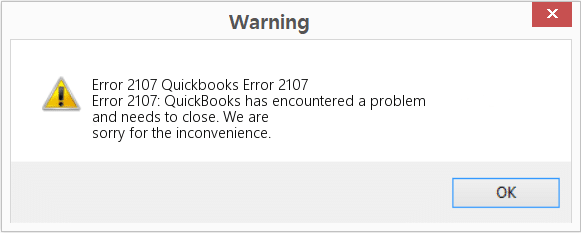
QuickBooks Error Code 2107 is a payroll transmission error that prevents the successful processing of employee payments through direct deposit in QuickBooks Desktop. The issue occurs when payroll data cannot be securely transferred to Intuit’s payroll servers, often due to damaged system files, registry corruption, or incomplete software installation.
When this malfunction occurs, users may see the following message on their screen:
“Error: Direct Deposit Information is Incomplete. Message Code 2107.”
This notification signifies that QuickBooks cannot verify or transmit payroll data required for employee salary disbursement. Payroll operations remain suspended until the root system or configuration problem is corrected.
Common Signs & Symptoms Of Error 2107 in QuickBooks Payroll
The following signs indicate the presence of QuickBooks Error Code 2107 and help identify the issue before it disrupts payroll processing.
- The error box with the QuickBooks message code 2107 itself appears on the screen.
- Also, the error crashes the program window.
- Your system responds slowly to inputs.
- Above all, the system will freeze repeatedly.
- Your accounting software will also freeze while working.
What Are The Causes Behind QuickBooks Desktop Error Code 2107?
QuickBooks Desktop Error Code 2107 typically occurs when system components or payroll settings are misconfigured. Understanding these root causes is crucial for applying the correct troubleshooting method and preventing recurring payroll transmission issues.
- Accidently, some QuickBooks records may have been erased.
- Also, the system is under virus attack.
- Running an older version of QuickBooks.
- Payroll not configured properly in multi-user mode.
- Partial or Improper installation of QuickBooks Program may cause payroll error 2107.
- Windows registry is either damaged or corrupted.
- Above all, the user has downloaded a corrupt version of the QuickBooks file.
- Something needs to be verified with your payroll data.
eBetterBooks: Quick Fix
| Problem | Solution |
| The system files have been corrupted or damaged. | Use the System File Checker (SFC) to scan for damages and repair them. Restart the system after the repair and check if the error has been resolved. |
| Windows Registry has been either damaged or corrupted. | Repair the Windows Registry. Create a copy of the QuickBooks backup file, rename it to “QuickBooks Backup Key,” and change its file type to “.reg” within the Windows Registry. This process ensures that users have a specific backup file with the right name and type for their needs. |
| The QuickBooks program is partially or improperly installed. | Use System Restore to revert the QuickBooks system to a previous state before the error occurred. |
| The QuickBooks version is not upto date and does not include new necessary bug fixes and improvements. | Issues such as this can be resolved by updating QuickBooks Desktop, as updates often include bug fixes, improvements, and configuration updates. |
How to Fix Error code 2107 cannot send Payroll issue in QuickBooks?
QuickBooks Error Code 2107 can be fixed by identifying and resolving the system or software issues that interfere with payroll data transmission. The following methods focus on repairing damaged files, updating configurations, and restoring stable communication between QuickBooks and payroll servers to ensure accurate salary processing.
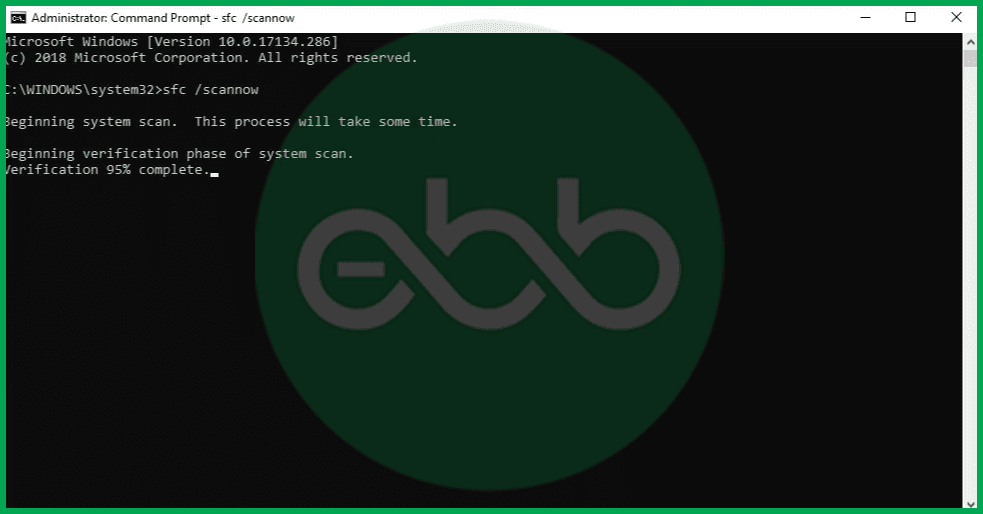
Solution 1: Using The System File Checker
The first and foremost solution is to use the system file checker, which can be done by following the below steps:
- To solve QuickBooks payroll error code, firstly, click on the start –> press windows+R keys together. It will open the run search box.
- Also, press the Ctrl+Shift keys simultaneously. It will open a permission dialogue box.
- Click YES and Press Enter to open a black screen window.
- In the black box, type SFC/Scannow and press enter key.
- The system file check will look for issues and repair them on its own.
- Finally, restart the system to check if the Error 2107 is resolved or not.
Solution 2: Repair The Windows Registry
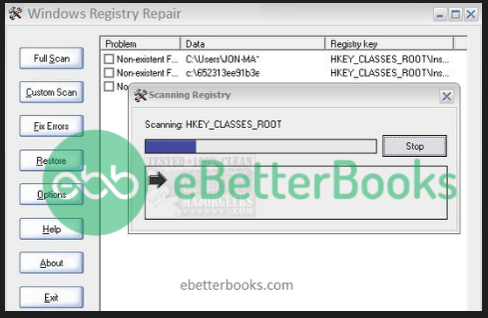
Follow these steps to fix QuickBooks error code 2107 by repairing the Windows registry:
- Firstly, go to the start menu.
- Open the Command Prompt by pressing Windows+R and typing “cmd.”
- Press Ctrl+Shift+Enter to run it as an administrator.
- Type regedit and press Enter to open the Registry Editor.
- Navigate to the File menu, select Export, and create a backup of the registry by saving the file with a “.reg” extension.
- Rename the file as “QuickBooks Backup Key” and save it.
Solution 3: Update your payroll to the latest release
To update your payroll to the latest version, follow these simple steps:
- Go to the Employees menu and choose Get Payroll Updates.
- Check the box that says Download Entire Update.
- Click Download Latest Update.
Once done, try sending your payroll again.
Note: Please back up your company files before updating QuickBooks Payroll.
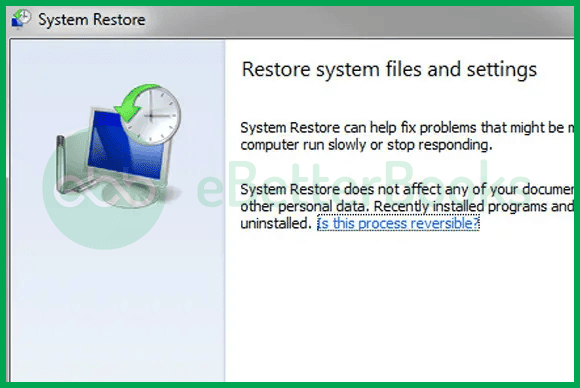
Solution 4: Use The System Restore Option
The next solution is to use the system restore option. Follow simple steps mentioned below:
- Initially, to fix payroll error code 2107, go to the start button–> type windows+R to open the run box.
- After that, type system restore in the search field and press enter.
- Select the system restore option and enter administrative details if asked.
- A Wizard of directives will pop up on the screen.
- Finally, restart the system. It will resolve the error code 2107 in QuickBooks payroll.
Solution 5: Verify If Recent Windows Updates Are Available Or Not
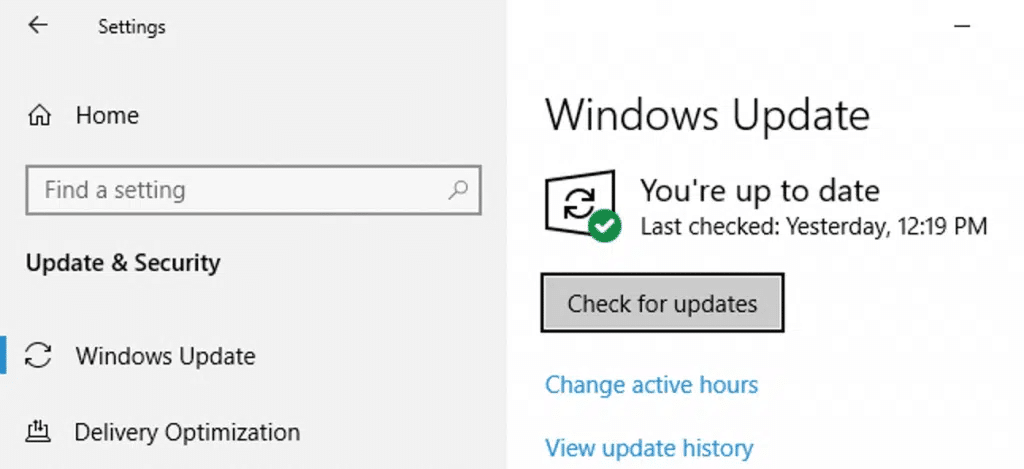
You should also verify if the recent Windows updates are available or not, by following the mentioned steps:
- Sometimes, simply updating the windows can fix QuickBooks Payroll Error 2107 and several such errors.
- Firstly, go to start–> type Updates in the search bar–> Press enter.
- Thereafter, it will show a windows update window.
- If updates are available, download and install those updates.
Reboot the system and check if the QuickBooks Payroll Error 2107 issue is resolved or not.
Solution 6: Turn off the Multi-User Mode
Switching QuickBooks to single-user mode can prevent file access conflicts.
Steps to Turn Off Multi-User Mode:
- Open QuickBooks Desktop.
- Go to the File menu at the top-left corner.
- Select Switch to Single-User Mode.
- QuickBooks will close and reopen in single-user mode.
Addition Solution to Fix for QuickBooks Error 2107
Solution 7: Delete and Recreate the Direct Deposit Paycheck
Here’s a simple guide to follow to delete and recreate a direct deposit paycheck in QuickBooks:
Deleting a Paycheck:
- Go to Banking > then select Use Register.
- Select your bank account and click OK.
- Find and open the paycheck.
- At the top of the paycheck, choose Delete.
- Confirm by entering OK.
Recreating the Direct Deposit Paycheck:
- Go to Employees > Pay Employees > Unscheduled Payroll.
- Enter the same check date and pay period as the deleted paycheck.
- Check the employee(s), then click Open Paycheck Detail.
- Uncheck Use Direct Deposit in the preview.
- Re-enter payroll details (items, rates, and hours).
- In the Other Payroll Items section, enter the DD Offset with a negative amount equal to the net paycheck.
- Press Tab to adjust net pay to $0.
- Click Save & Close, then Continue.
- select Create Paychecks.
Solution 8: Reinstall QuickBooks to Fix Error 2107
Reinstalling QuickBooks can resolve Error 2107 if the issue is caused by corrupted files or a faulty installation. Follow these steps to do a clean reinstall:
Step 1: Back Up Your Company File
- Open QuickBooks Desktop.
- Go to File > Backup Company > Create Local Backup.
- Save the backup to a secure location.
Step 2: Uninstall QuickBooks
- Press Windows + R, type appwiz.cpl, and hit Enter.
- Find QuickBooks in the list, select it, and click Uninstall.
- Follow the on-screen instructions and restart your computer.
Step 3: Reinstall QuickBooks
- Download the latest QuickBooks version from Intuit’s official website.
- Run the installer and follow the setup instructions.
- Enter your license and product key when prompted.
- Once installed, open QuickBooks and restore your company file.
Solution 9: Restoring Deleted QuickBooks Files
QuickBooks Error 2107 often occurs when essential files related to payroll processing are missing or deleted. Restoring these files can help resolve the issue by ensuring QuickBooks has the necessary data to process payroll transactions correctly.
Steps to Restore Deleted QuickBooks Files:
- Check the Recycle Bin:
- Open the Recycle Bin on your computer.
- Look for any deleted QuickBooks (.QBW, .QBB, .QBX) files.
- Right-click and select Restore if found.
- Use QuickBooks Auto Data Recovery (ADR):
- Navigate to your QuickBooks company file location.
- Look for files named .adr (Auto Data Recovery).
- Copy and rename the most recent backup, removing “.adr.”
- Open QuickBooks and check if the issue is resolved.
- Restore from a Backup:
- Open QuickBooks and go to File > Open or Restore Company.
- Select Restore a backup copy (.QBB).
- Follow the prompts to restore the most recent backup.
- Use Windows File History (If Enabled):
- Right-click the folder where QuickBooks files were stored.
- Click Restore previous versions and select a backup version.
Solution 10: Using QuickBooks File Doctor to repair damaged files
QuickBooks File Doctor is a built-in tool that automatically detects and fixes damaged company files and network issues, which may be causing Error 2107 in QuickBooks.
Steps to Use QuickBooks File Doctor:
- Download & Open QuickBooks Tool Hub
- If you don’t have it, download QuickBooks Tool Hub and install it.
- Open QuickBooks Tool Hub and go to the Company File Issues tab.
- Run QuickBooks File Doctor
- Click Run QuickBooks File Doctor and select your company file.
- Choose Check File Damage Only, then click Continue.
- Enter QuickBooks Admin Credentials
- Enter your QuickBooks Admin Password and click Next.
- Wait for the Scan to Complete
- The scan may take a few minutes, depending on file size.
- If errors are found, follow the on-screen instructions to fix them.
- Restart QuickBooks and Check if Error 2107 is Resolved
- Open QuickBooks and try running payroll or direct deposit again.
Best Practices to Prevent QuickBooks Error 2107 in the Future
Implementing preventive measures helps maintain smooth payroll processing and reduces the risk of encountering QuickBooks Error 2107 in the future.
- Keep QuickBooks and Payroll Tax Tables Updated – Updates fix bugs, improve security, and ensure payroll processes run smoothly. Always stay on the latest version.
- Maintain System Security – Malware or system corruption can interfere with QuickBooks. Use antivirus software and avoid suspicious downloads.
- Keep Windows Updated – An outdated operating system can cause compatibility issues. Ensure Windows updates are installed to maintain stability.
- Back-Up Company Files Regularly – Data loss or corruption can trigger errors. Frequent backups protect your business from unexpected issues.
- Use a Stable Internet Connection – Payroll processing relies on a strong, uninterrupted connection. Avoid slow or public networks to prevent transaction failures.
Conclusion!
QuickBooks Error Code 2107 is a critical payroll transmission issue that affects direct deposit and salary processing in QuickBooks Desktop. By identifying the root causes, such as corrupted system files, damaged registry entries, or outdated software, and applying verified fixes like running the System File Checker, repairing the Windows Registry, or reinstalling QuickBooks, users can restore stable payroll functionality. Regular system maintenance, software updates, and secure data backups are essential for preventing the recurrence of this error and maintaining reliable payroll operations.
Hopefully, the information given above will be useful to you. But if you are still facing any kind of issues with your software and need professional assistance regarding accounting, bookkeeping & accounting software-related issues, then feel free to get technical support with us at +1-802-778-9005, or you can email us at support@ebetterbooks.com
Still have questions? Explore our detailed FAQs.
Disclaimer: The information outlined above for “How to Fix Error Code 2107 in QuickBooks Desktop Can’t Make Direct Deposits?” is applicable to all supported versions, including QuickBooks Desktop Pro, Premier, Accountant, and Enterprise. It is designed to work with operating systems such as Windows 7, 10, and 11, as well as macOS.