 Add As A Preferred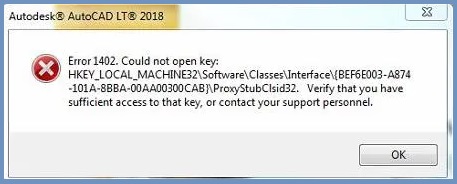
Fix QuickBooks Error 1402 by:
QuickBooks Error 1402 appears with the message “Error 1402: Could not open key” or “Error 1402: Could not open key: UNKNOWN\Components.” Intuit confirms this error fires during QuickBooks Desktop installation or update when the installer cannot access a specific Windows Registry key – either because the key’s permissions are locked, damaged, or have not been granted to the installer program.
The Windows Registry is a database that Windows uses to store settings and configuration information for every program installed on the computer. Every time QuickBooks installs or updates, the installer reads and writes to specific locations in this registry.
Error 1402 fires when the installer reaches one of those locations and finds it cannot open the key – because the permission to access that location has not been granted to the installer, or the key has been damaged.
Error 1402 also appears when Microsoft .NET Framework or MSXML components are damaged. These are supporting programs that Windows and QuickBooks both rely on during installation.
Intuit confirms that damage to these components is a direct cause of Error 1402 at the installation stage – independent of registry permission issues. Both causes produce the same error message, which is why the repair sequence must move from the automatic tool first, to Windows updates, to component repair, and finally to registry permission correction.
QuickBooks Desktop installation happens in stages. The installer unpacks the installation files, registers supporting Windows components, writes configuration data to the Windows Registry, and then completes the setup.
Error 1402 fires in the registry-writing stage – after the files have been unpacked but before the installation can write its settings to Windows. This is why the error message names a specific registry key path: that is the exact location where the installer stopped and could not proceed.
Error 1402 is different from Error 1334, which fires when the installation file itself is damaged or missing. Error 1402 means the installation file reached Windows successfully but was then blocked at the registry access stage.
Error 1603 fires when the Windows Installer service – the Windows tool that manages all software installations – has its own internal problem. Error 1402 is narrower: it points specifically to a permissions or damage problem at one registry location, not the entire installer system.
The “UNKNOWN\Components” text in the Error 1402 message refers to a registry key whose location Windows could not resolve during the installation. The word UNKNOWN appears in the error message when the registry key path contains an identifier that Windows cannot match to a known location on the computer – which happens when registry keys have been left in an incomplete or damaged state by a previous interrupted installation attempt.
When QuickBooks Error 1402 occurs (typically while installing QuickBooks Desktop, or the first time you open it right after installing), users typically see one of these messages:
Error 1402 belongs to the same Windows Installer/registry-permissions family as 1712, 1603, and 1722, most commonly appearing on systems with restricted registry permissions or leftover files from a prior install. Intuit’s fix centers on running the QuickBooks Install Diagnostic Tool and repairing the relevant Windows components.
The existence and cause of Error 1402 are confirmed via Intuit’s own article “Fix Error 1402 when installing QuickBooks Desktop”; the specific “Couldn’t Open Key” wording comes from third-party sources only.
Error 1402 stops the installation or update process completely at the point where registry access fails. Every step of the installation that was supposed to follow the blocked registry write does not happen – leaving QuickBooks either unable to open at all, or running in a partially installed state where specific features are missing or broken.
A partially installed QuickBooks cannot process payroll, access company files reliably, or run reports correctly – because the registry entries that tell Windows how to handle those features were never written during the interrupted installation. Users who try to open QuickBooks after a failed installation interrupted by Error 1402 often see the program freeze, crash, or display additional errors – all caused by the incomplete installation state.
| Unresolved Cause | What Keeps Happening as a Result |
|---|---|
| Install Diagnostic Tool not run first | Every manual repair step that follows takes more time and carries more risk than the automated tool – skipping the tool means spending 30-60 minutes on manual repairs that the tool could have completed automatically in 20 minutes |
| Windows updates not installed before reattempting installation | The installation continues to fail at the same registry stage on every retry – outdated Windows creates compatibility gaps that prevent registry operations from completing, and retrying without updating changes nothing |
| .NET Framework and MSXML damage not repaired | QuickBooks cannot complete the component registration steps during installation – the installer reaches the broken component, cannot proceed, and returns Error 1402 on every new attempt |
| Registry permissions at HKEY_LOCAL_MACHINE\SOFTWARE\Classes not corrected | The installer cannot open the registry key on every attempt – the permissions block is still in place and the error returns every single time the installation or update is retried |
| Registry edited without a backup created first | An incorrect registry change cannot be undone – without a backup export saved before editing, a wrong change can prevent Windows from starting correctly and requires a Windows repair or reinstall to recover |
| Installation retried while third-party programs are running | Background programs – especially antivirus and security software – continue to intercept the installer’s registry access attempts and trigger Error 1402 on every attempt until Selective Startup is used to disable them |
| Selective Startup not used after all other steps fail | Third-party background programs that are confirmed as the blocking cause keep running – the installation continues to fail until these programs are suspended using Selective Startup mode |
The exact wording of the Error 1402 message narrows down the cause before any repair step is taken. An error message that includes “UNKNOWN\Components” points to a registry key left in a damaged state by a previously interrupted installation.
An error message that includes a specific registry path starting with HKEY_LOCAL_MACHINE points to a permissions problem at that exact location. Both produce Error 1402 but require slightly different approaches within the repair sequence.
| When Error 1402 Appears | Why This Is Happening | Recommended First Action |
| Error 1402 during a fresh QuickBooks Desktop installation on a computer that has never had QuickBooks before | Registry permissions at HKEY_LOCAL_MACHINE\SOFTWARE\Classes are locked, or .NET Framework and MSXML components are damaged | Run the QuickBooks Install Diagnostic Tool from Tool Hub – Intuit confirms this resolves the majority of Error 1402 cases automatically |
| Error 1402 during a QuickBooks update – installation was previously working | A Windows update or third-party software change altered registry permissions after the last successful update | Install all pending Windows updates first, restart, and reattempt the update – if Windows was the cause, the update resolves the permission gap |
| Error 1402 with the exact message “Could not open key: UNKNOWN\Components” | A previous QuickBooks installation or update was interrupted before it could finish – it left behind incomplete registry entries that the new installation cannot resolve | Run the Install Diagnostic Tool first, then correct registry permissions at HKEY_LOCAL_MACHINE\SOFTWARE\Classes if the tool does not clear the error |
| Error 1402 returning immediately after the Install Diagnostic Tool has run | The registry permissions at HKEY_LOCAL_MACHINE\SOFTWARE\Classes are still locked – the tool repaired components but the permissions at this specific key were not changed | Manually correct registry permissions by following the registry repair steps, always creating a backup of the registry first |
| Error 1402 during a clean reinstall after uninstalling QuickBooks | Leftover registry keys from the previous installation are still present and still have incorrect permissions – the new installation hits the same locked keys | Rename the old QuickBooks installation folders before reinstalling, and correct registry permissions before starting the new installation |
| Error 1402 disappears after disabling antivirus but returns when antivirus is re-enabled | The antivirus software is actively blocking the installer’s registry access – it is treating the registry writes as a security threat | Use Selective Startup to disable all non-Windows programs, complete the installation, then add QuickBooks to the antivirus trusted applications list before re-enabling it |
The Windows Registry is a central database that stores configuration information for Windows itself and for every program installed on the computer. Every time a program opens, it reads its settings from the registry. Every time a program is installed or updated, it writes new settings into the registry. The registry is organised like a filing system with folders – called keys – and each key contains settings that a specific program or Windows function depends on.
Editing the registry incorrectly can prevent Windows from starting. A single wrong change can remove a setting that Windows needs to boot, display the desktop, or run programs. The Microsoft Q&A documentation on Error 1402 explicitly warns: “Modifying REGISTRY settings incorrectly can cause serious problems that may prevent your computer from booting properly.” This is why a registry backup must be exported before any registry editing step – the backup allows the exact change that caused the problem to be reversed completely.
Every key in the Windows Registry has a list of users and programs that are allowed to read it or change it. This list is called the permissions list. “Full Control” is the highest level of permission – it means the user or program can read the key, write to it, and change who else has permission to access it. Intuit’s fix for Error 1402 requires granting Full Control to the “Everyone” user group at the HKEY_LOCAL_MACHINE\SOFTWARE\Classes key – this covers all users on the computer and removes the permission block that the QuickBooks installer is hitting.
Granting Full Control to Everyone is a targeted, limited action at a specific registry key. It does not open the entire registry to unrestricted access. After the QuickBooks installation completes, Windows manages the downstream permissions automatically – the Everyone Full Control setting at this parent key does not remain as an ongoing security gap.
Selective Startup is a Windows mode that starts the computer with only the essential Microsoft programs and services running – all third-party programs, including antivirus software, startup applications, and background services, are disabled. Intuit confirms that third-party programs blocking the QuickBooks installer’s access to registry keys is a confirmed cause of Error 1402. Running the QuickBooks installation in Selective Startup removes every third-party program from the equation, leaving only Windows itself active during the installation process.
Selective Startup is not the same as Safe Mode. Safe Mode loads a minimal version of Windows with limited display and network capability. Selective Startup loads a full normal Windows session but with non-Microsoft services disabled – which means the QuickBooks installer runs exactly as it would normally, just without third-party interference.
Solutions are arranged from the safest and most automated first action to the most involved manual repair. Start with Level 1, which Intuit recommends as the primary fix. Move to Level 2 only after confirming Level 1 did not clear the error.
| Level 1 – Install Diagnostic Tool and Windows Update |
These solutions carry no risk to QuickBooks data or Windows settings. The Install Diagnostic Tool repairs components automatically. Windows updates add patches that resolve registry compatibility issues. Neither step touches the registry manually or changes any QuickBooks configuration.
| Skill Level | Risk Level | Success Probability | Approximate Time |
|---|---|---|---|
| Beginner | None | High – Intuit confirms this as the primary recommended solution for Error 1402 and it resolves the majority of cases | 20-30 minutes |
| Risk ExplanationThe Install Diagnostic Tool only repairs QuickBooks installation components and the Microsoft components QuickBooks depends on. No company data, registry settings, or Windows configurations are changed. | Solution ExplanationIntuit’s official Error 1402 documentation lists the Install Diagnostic Tool as Solution 1 – the first and primary recommended fix. The tool scans and repairs .NET Framework, MSXML, and Microsoft Visual C++ components that the QuickBooks installer needs to complete registry operations. Running this tool before any manual step saves time and avoids unnecessary registry edits. | ||
Steps to Implement Solution 1.1:
1. Close QuickBooks completely before starting. If QuickBooks is open, go to File in the top menu and click Exit. Confirm it is fully closed – check the taskbar at the bottom of the screen to make sure no QuickBooks window is minimised there.
2. Download QuickBooks Tool Hub from Intuit’s official website. Intuit recommends version 1.4.0.0 or the most current version available. Save the downloaded file – named QuickBooksToolHub.exe – to the desktop or the Downloads folder so it is easy to find. Open the file and follow the on-screen installation steps. Accept the terms and conditions when asked. After installation finishes, a QuickBooks Tool Hub icon appears on the desktop.
3. Double-click the QuickBooks Tool Hub icon to open it. The program opens with a list of categories on the left side of the screen. Click Installation Issues. This section contains tools for repairing QuickBooks installation problems.
4. Click QuickBooks Install Diagnostic Tool. The tool opens and begins scanning and repairing automatically. The process can take up to 20 minutes – do not use the computer for other tasks during this time, as other activity can interrupt the repair. Wait for the completion message before doing anything else.
5. Restart the computer after the tool finishes. After the restart, reattempt the QuickBooks installation or update. If it completes without Error 1402, the tool resolved the issue. If Error 1402 still appears, proceed to Solution 1.2.
| Skill Level | Risk Level | Success Probability | Approximate Time |
|---|---|---|---|
| Beginner | None | High when outdated Windows is confirmed as the cause – Intuit lists Windows updates as Solution 2 for Error 1402 | 15-30 minutes including restart time |
| Risk ExplanationInstalling Windows updates does not change any QuickBooks data, registry settings, or company files. Windows updates only add patches, security fixes, and compatibility improvements to the operating system. | Solution ExplanationIntuit confirms that outdated Windows creates compatibility issues that prevent QuickBooks installation from completing registry operations correctly. Installing all pending Windows updates brings the operating system to a state where registry operations that QuickBooks needs can complete without being blocked by unpatched compatibility gaps. | ||
Steps to Implement Solution 1.2:
1. Click the Windows Start button at the bottom left of the screen. Type Windows Update in the search bar and press Enter. The Windows Update settings page opens – this is where Windows checks for and installs available updates.
2. Click Check for Updates. Windows searches for all available updates for the computer. A list of pending updates appears after the check completes. Click Install All or Download and Install to start applying every available update.
3. Restart the computer when prompted. Some Windows updates require a restart before they take effect. After the restart, check the Windows Update page again to confirm no further updates are pending. Some updates only become available after earlier ones are installed – repeat the check until the page shows the computer is fully up to date.
4. After the computer is fully updated, reattempt the QuickBooks installation or update. If it completes without Error 1402, the Windows update resolves the issue. If Error 1402 still appears, proceed to Level 2.
| Level 2 – Repair Windows Components and Fix Registry Permissions |
Use these solutions after Level 1 did not resolve Error 1402. These steps address the deeper confirmed causes: damaged .NET Framework and MSXML, locked registry permissions, and third-party program interference. Each step is safe when performed in the correct order with a registry backup taken before any registry editing begins.
| Skill Level | Risk Level | Success Probability | Approximate Time |
|---|---|---|---|
| Intermediate | None – only the component registration is changed, no QuickBooks data is affected | High when Error 1402 appears during fresh installation – Intuit confirms .NET Framework and MSXML damage are direct confirmed causes | 15-20 minutes |
| Risk ExplanationRepairing .NET Framework through Windows Features and re-registering MSXML through the Command Prompt only affects how those supporting components are registered with Windows. No QuickBooks data, company files, or account settings are changed. | Solution ExplanationIntuit confirms that damaged .NET Framework and MSXML are direct confirmed causes of Error 1402. The .NET Framework repair uses the same toggle method as documented for Error 1334. MSXML repair re-registers the MSXML6.dll file with Windows using the Command Prompt, restoring the component’s ability to support QuickBooks installation. | ||
Steps to Implement Solution 2.1:
1. Repair .NET Framework first. Click the Windows Start button. Type Control Panel in the search bar and press Enter. Click Programs and Features. On the left side, click Turn Windows Features On or Off. A list of Windows components appears with checkboxes. Find .NET Framework 3.5 SP1 in the list. If it has a tick mark, click to remove the tick mark. Click OK and restart the computer. After the restart, return to this same list and put the tick mark back in the .NET Framework 3.5 SP1 checkbox. Click OK and restart again. Repeat this on-off-restart-on process for .NET Framework 4.5, 4.6, 4.7, and 4.8.
2. Repair MSXML after .NET Framework is done. Click the Windows Start button. Type CMD in the search bar. Right-click Command Prompt in the search results and choose Run as Administrator. A black window with white text opens. For a 64-bit computer (most modern computers), type the following and press Enter: cd\windows\syswow64. Then on the next line type: regsvr32 MSXML6.dll and press Enter. A small confirmation box appears – click OK. For a 32-bit computer, skip the first command and type only the regsvr32 MSXML6.dll line.
3. Restart the computer after both repairs are complete. Reattempt the QuickBooks installation or update. If Error 1402 does not appear, the component repair resolved the issue. If Error 1402 still appears with the “Could not open key” message, proceed to Solution 2.2 to fix the registry permissions directly.
| Skill Level | Risk Level | Success Probability | Approximate Time |
|---|---|---|---|
| Intermediate – requires careful navigation inside the Windows Registry Editor | Medium – a registry backup must be created before any changes are made; incorrect changes can prevent Windows from starting | High for errors showing “Could not open key: UNKNOWN\Components” – this is the direct fix confirmed by Intuit’s community documentation | 15 minutes |
| Risk ExplanationThe Windows Registry controls how Windows operates. Creating a backup before editing allows any change to be reversed if it causes a problem. Do not edit any registry key other than the one specified in these steps. If the backup step is skipped and a wrong change is made, Windows may not start correctly. | Solution ExplanationIntuit’s community documentation and the Microsoft Q&A thread on Error 1402 both confirm that granting Full Control permissions to “Everyone” at HKEY_LOCAL_MACHINE\SOFTWARE\Classes resolves the “Could not open key” error. This step gives the QuickBooks installer the access level it needs to complete the registry write operations that Error 1402 is blocking. | ||
Steps to Implement Solution 2.2:
1. Create a registry backup before making any changes. Click the Windows Start button. Type regedit in the search bar. Right-click the Registry Editor in the results and choose Run as Administrator. The Registry Editor window opens – it looks like a file explorer with a tree of folders on the left side.
Click File at the top of the Registry Editor. Click Export. Choose a location to save the backup – the desktop is easy to find. Type a name for the backup file, such as RegistryBackup_today’s date. Click Save. This backup file can be used to restore the registry exactly as it is right now if anything goes wrong.
2. Navigate to the correct registry key. In the Registry Editor, the left side shows a tree of folders. Click the arrow next to HKEY_LOCAL_MACHINE to expand it. Click the arrow next to SOFTWARE to expand it. Click Classes in the list. The Classes folder is now highlighted and selected.
3. Click Edit in the top menu of the Registry Editor. Choose Permissions from the dropdown. A Permissions window opens. Click Advanced at the bottom of the Permissions window. Another window opens. Click Add. A text field appears labeled Enter the object name to select. Type the word Everyone in this field. Click Check Names – Windows confirms the entry by underlining it. Click OK.
4. Back in the Permissions window, find the Everyone entry that now appears in the list. Place a tick mark in the Full Control checkbox next to Everyone. Click OK to close the Permissions window. Click OK again to confirm. Close the Registry Editor by clicking the X at the top right corner.
5. Restart the computer. After the restart, reattempt the QuickBooks installation or update. If it completes without Error 1402, the registry permissions fix resolved the issue. If Error 1402 still appears, proceed to Solution 2.3.
| Skill Level | Risk Level | Success Probability | Approximate Time |
|---|---|---|---|
| Intermediate | Low – Selective Startup is fully reversible; all programs return to normal after the computer is restarted with normal startup re-enabled | High when antivirus or third-party software is confirmed as the cause – Intuit lists this as the final solution for Error 1402 caused by third-party interference | 20-30 minutes |
| Risk ExplanationSelective Startup temporarily disables all non-Microsoft background programs. It does not delete or damage any installed software. All programs return to their normal state after switching back to Normal Startup and restarting. Keep a copy of the QuickBooks product and license numbers accessible before starting. | Solution ExplanationIntuit confirms using Selective Startup to install QuickBooks Desktop as the recommended resolution when third-party apps block the installation. Antivirus and security programs that run in the background can intercept the installer’s registry write attempts and trigger Error 1402. Selective Startup suspends all of these programs for the duration of the installation. | ||
Steps to Implement Solution 2.3:
1. Back up the QuickBooks company file before starting. Open QuickBooks if it is currently accessible. Go to File > Back Up Company > Create Local Backup. Save the backup to a location outside the QuickBooks folder – an external drive or a different folder on the computer. Also write down the QuickBooks product number and license number from the original purchase email or packaging.
2. Press the Windows key and the letter R on the keyboard at the same time. A small Run window appears. Type msconfig in the text field and click OK. The System Configuration window opens.
3. Click the General tab at the top of the System Configuration window. Choose a Selective Startup. Make sure the Load System Services checkbox has a tick mark in it. Remove the tick mark from Load Startup Items – this disables all third-party startup programs.
4. Click the Services tab at the top of the System Configuration window. Check the box labeled Hide All Microsoft Services at the bottom of the list. This hides all Windows-required services so they remain running. Click Disable All.
This disables all remaining non-Microsoft services. Find Windows Installer in the list and make sure its checkbox has a tick mark – Windows Installer must remain active for QuickBooks to install. Click OK.
5. Restart the computer when prompted. After the restart, the computer runs in Selective Startup with only Windows services active. Attempt the QuickBooks installation now. After the installation completes successfully, press Windows + R again, type msconfig, and go back to the General tab.
Choose Normal Startup and click OK. Restart the computer to return to normal operation. After the restart, open QuickBooks and add it to the antivirus trusted applications or exclusions list so the antivirus does not block it again.
Contact Intuit QuickBooks Support in the following situations. These require investigation beyond what computer-side repairs can resolve.
An error that returns after all four have been completed in order points to a Windows system file problem that is beyond standard QuickBooks repair. Intuit recommends contacting an IT professional at this stage. Contact Intuit Support to confirm whether the QuickBooks installation files are intact on their end before involving an IT professional.
This situation requires a deeper Windows repair and is beyond standard user-level fixes. Contact Intuit Support and describe the exact error message text, including the full path after “Could not open key,” to help the agent identify whether the missing key indicates a corrupted Windows installation.
Contact Intuit Support to confirm whether the QuickBooks version being installed is compatible with the current Windows version, as an incompatible combination produces Error 1402 that no individual repair step can fix.
Preventing QuickBooks Error 1402 requires four consistent habits:
Windows updates include patches that fix registry operation compatibility between Windows and third-party installers like QuickBooks. Checking for and installing all Windows updates before starting any QuickBooks installation or major update takes under five minutes and removes the compatibility cause of Error 1402 before it can block the process. Checking Windows Update once per month is enough to keep compatibility gaps from accumulating.
Antivirus software updates can reset the list of programs the antivirus trusts – removing QuickBooks without warning and then blocking its registry access on the next update attempt. After every antivirus definition update, open the antivirus program, go to its trusted applications or exclusions section, and confirm QuickBooks and the QuickBooks installer are still listed. Catching a removed permission immediately after an antivirus update prevents it from triggering Error 1402 during the next scheduled QuickBooks update.
An installation or update interrupted partway through – by a power failure, a forced restart, or closing the installer window early – leaves incomplete registry entries at HKEY_LOCAL_MACHINE\SOFTWARE\Classes.
These incomplete entries produce the “UNKNOWN\Components” version of Error 1402 on every subsequent installation attempt because the new installer finds the broken entries and cannot resolve them. Allowing every QuickBooks installation and update to finish completely, including the final restart, prevents this specific cause from building up.
The Install Diagnostic Tool repairs .NET Framework, MSXML, and Visual C++ components that Windows updates and third-party programs can damage over time without any visible warning. Running the tool quarterly – through QuickBooks Tool Hub > Installation Issues > QuickBooks Install Diagnostic Tool – takes 20 minutes and catches component damage before it has a chance to block the next QuickBooks update with Error 1402.
Fix QuickBooks Error 1402 by
Intuit confirms the direct causes: damaged .NET Framework and MSXML components, locked or damaged registry permissions at the HKEY_LOCAL_MACHINE\SOFTWARE\Classes key, outdated Windows creating registry compatibility gaps, and third-party programs blocking installer registry access.
The Microsoft Q&A documentation on Error 1402 confirms the registry permission fix – granting Full Control to Everyone at the Classes key – as the accepted resolution for the “Could not open key: UNKNOWN\Components” message specifically.
Preventing Error 1402 requires keeping Windows updated, confirming antivirus permissions for QuickBooks after every antivirus update, never interrupting a QuickBooks installation mid-process, and running the Install Diagnostic Tool quarterly as a maintenance step. These four habits address every confirmed recurring cause before a locked registry key, a missing Windows update, or a blocked antivirus permission can stop a QuickBooks installation from completing.


