Excerpt:
This guide offers a step-by-step approach to effectively record and manage grants using QuickBooks, ensuring financial transparency and compliance. It covers essential practices for nonprofits and small businesses to track grant income and expenses, allocate funds accurately, and generate clear financial reports. By following best practices and avoiding common mistakes, organizations can maintain accountability, optimize resource allocation, and build trust with funders while safeguarding the integrity of their financial records.
 Add As A Preferred
Recording and managing grants accurately in QuickBooks is essential for nonprofit organizations to ensure financial compliance, accountability to donors, and long term sustainability. This resource provides expert, step by step instructions for setting up and tracking grant income and expenditures in both QuickBooks Desktop and QuickBooks Online. The core methodology involves using dedicated income accounts alongside specialized tracking features, primarily Class Tracking, to segregate restricted funds and link specific expenses back to the correct grant source. Proper setup supports the generation of necessary financial reports, such as the Profit & Loss by Class, which demonstrates effective fund utilization and compliance with donor terms. Furthermore, the guide addresses crucial accounting nuances, including the proper recording of quarterly grant installments versus the full amount (following the cash basis principle), the correct allocation of indirect overhead costs using journal entries, and essential monthly reconciliation practices to prevent errors and ensure audit readiness.
Key facts and solutions for effective grant management in QuickBooks:
A grant is a financial contribution provided to non profit organizations for particular projects or programs. Accounting for grants is important in managing the funds and ensuring compliance with financial standards.
Proper grant management not only ensures that the funds received are put to the right use, but it also strengthens the organization’s accountability and credibility with donors, grant providers, and the public. This level of transparency fosters trust and demonstrates that the nonprofit is utilizing its resources effectively and in alignment with the terms of the grant.
Nonprofit accounting, which involves detailed tracking and allocation of grant funds, is crucial in maximizing the positive impact of the grants. By accurately managing these funds, nonprofits can sustain their operations, advance their mission, and deliver long-term benefits to the communities they serve.
Furthermore, successful grant management supports the organization’s financial sustainability, enabling it to secure future funding and continue delivering on its objectives.
Recording grants in QuickBooks is essential for keeping accurate financial records and ensuring that grant funds are used correctly for specific programs. By properly tracking your grants, you can maintain compliance with fund regulations, provide clear reports to stakeholders, and ensure full accountability for how funds are spent.

QuickBooks offers integrated grant management tools that make it easy to track disbursements, allocate budgets, and monitor expenses. For example, you can use class tracking to categorize grant-related income and expenses, or set up specific fund tracking categories to keep an eye on how each grant is being used.
Effective grant tracking isn’t just about compliance—it also helps you manage your organization more efficiently. With QuickBooks, you can generate reports that show where funds are going, identify potential cost-saving opportunities, and make sure resources are allocated where they’re needed most.
The grant management system helps you organize your grant income and expenditures in the correct way and ensure compliance with all the required standards.
The following steps should be followed to setup a grant in QuickBooks:
You can record the grant as a deposit to your business account. Simultaneously, you can create a profile of the agency where the funds have appeared and the account to categorize the grant.
Follow the steps mentioned below:
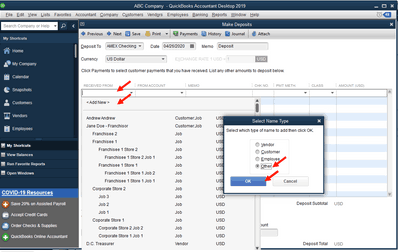
Step 1: Navigate to Make Deposit
Step 2: Select the Account
Step 3: Click the Add New option
Tap on the RECEIVED FROM menu and select the Add New option.
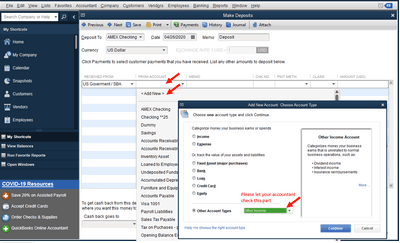
Step 4: Select the FROM ACCOUNT
Click on the FROM ACCOUNT menu, then click on the Add New option.
Step 5: Save the Changes
After this, enter a memo and the amount and click the Save & Close option.
Although this deposit will appear under Other Income, it will be located in the Income section on your Profit and Loss report, thus lessening the total of your expenses. You may stop there.
If you want to decrease/reduce the total amount of the specific expense account in relation to the use of this grant, you can do so through journal entry. However, I advise you to consult your accountant on the specific accounts to use when preparing the report.
Recording the grants in QuickBooks Online is very crucial to make sure that the funds are accurately tracked and accounted for. This process will help keep the correct records of your finances and make sure that you are able to report the grant on your taxes correctly.
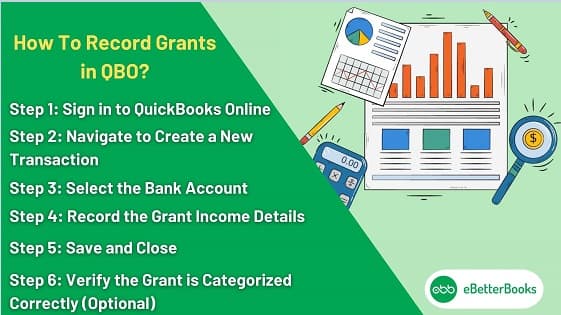
Follow the steps mentioned below to record a grant in QBO:
Step 1: Sign in to QuickBooks Online
Step 2: Navigate to Create a New Transaction
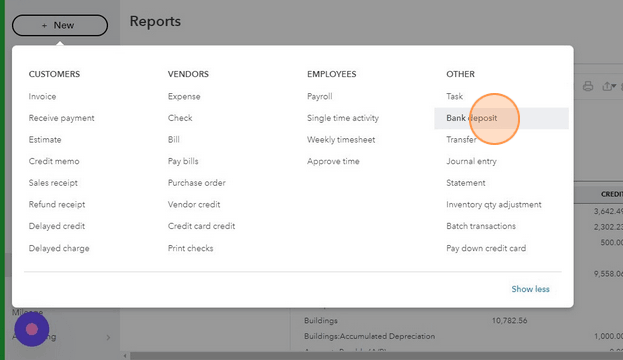
Step 3: Select the Bank Account
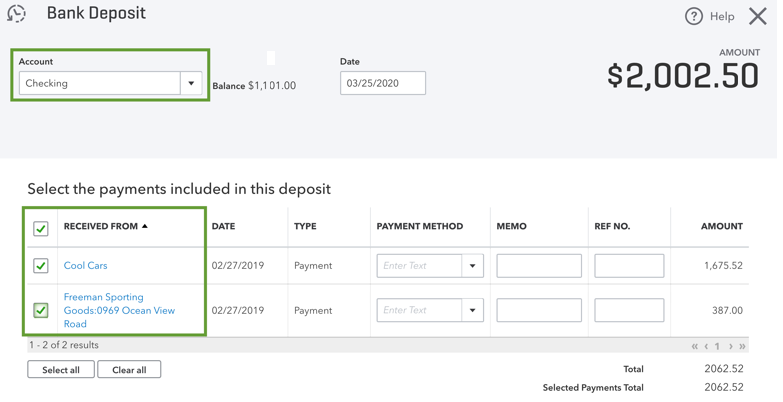
Step 4: Record the Grant Income Details
Step 5: Save and Close
Step 6: Verify the Grant is Categorized Correctly (Optional)
To categorize a grant in QuickBooks, follow these steps:
Settings > Chart of Accounts).If the grant has restrictions or is for specific expenses, consider using classes or projects to track its use properly.
How to use classes or projects and link the grant to the appropriate account for better tracking and reporting.
In QuickBooks, there are different types of grants you can track and manage:
QuickBooks helps you track and manage these grants, ensuring you stay organized for accounting, reporting, and compliance purposes.
To generate reports for grant tracking in QuickBooks, follow these steps:
Before generating reports, ensure that grants are properly tracked using Classes or Customers/Jobs.
Now that grants are set up, run reports to track income and expenses.
When you’re recording grants in QuickBooks, it is important to avoid some very common mistakes for accurate financial tracking and reporting. Whether you’re using QuickBooks Desktop or QuickBooks Online, there are common mistakes to avoid to maintain compliance and ensure proper grant management:
Below are a few points that you should consider while recording Grants:
Best Practice:
Set up a separate fund account to track all grant-related income and expenses. This allows you to create clear financial reports and ensures compliance with grant requirements.
Best Practice:
Create detailed classes or customer jobs in QuickBooks Desktop to monitor expenses by grant. This ensures that all expenditures are aligned with the grant’s budget and requirements.
Best Practice:
Set a monthly schedule to reconcile grant accounts. Regular reconciliations help you catch errors early and ensure accurate fund tracking and reporting.
Best Practice:
Use the allocation feature to apply indirect costs to the appropriate grant fund, ensuring that all project-related expenses are accounted for.
Best Practice:
Create a specific income account and an expense account for each grant you manage. This will allow for better tracking and reporting in QuickBooks Online.
Best Practice:
Set up clear categories for grant income and expenses in QuickBooks Online. Use tags or classes to distinguish between different grants and ensure accurate reporting for each.
Best Practice:
Schedule monthly reconciliations in QuickBooks Online. This ensures that your financial records reflect the actual status of your grant funding and that no discrepancies go unnoticed.
Best Practice:
Utilize the “Projects” feature in QuickBooks Online to manage grants. This tool allows you to track income, expenses, and profitability by project (or grant) and provides a clear overview of how funds are being utilized.
Recording grants in QuickBooks is very important for maintaining accurate financial records, successfully managing grant funds, and tracking the utilization of grants for particular programs or initiatives.
Here are some best practices for recording grants in QuickBooks:
In both cases, maintain clear documentation and transparency to ensure compliance with donor expectations.
To record a grant refund in QuickBooks, follow these steps:
Step 1: Navigate to the Bank Deposit Screen
Step 2: Enter Deposit Details
Step 3: Save the Deposit
Step 1: Open the Make Deposits Window
Step 2: Enter Deposit Information
Step 3: Save and Close
Tracking grant expenses in QuickBooks is essential for accurate financial reporting, especially for nonprofits managing multiple grants. Utilizing the Class Tracking feature allows you to categorize and monitor each grant’s income and expenses effectively. Here’s a step-by-step guide for both QuickBooks Online (QBO) and QuickBooks Desktop (QBD) users:
Step 1: Enable Class Tracking
Step 2: Create Grant-Specific Classes
Step 3: Categorize Grant Expenses by Class
Step 4: Generate Grant Reports
Step 1: Enable Class Tracking
Step 2: Set Up Grant-Specific Classes
Step 3: Assign Expenses to Classes
Step 4: Generate Class-Based Reports
Recording grant revenue accurately in QuickBooks is essential for nonprofits to ensure proper financial tracking and compliance. Below is a detailed, step-by-step guide for both QuickBooks Online (QBO) and QuickBooks Desktop (QBD) users.
Step 1: Enable Donor Tracking
Step 2: Set Up the Grantor as a Donor
Step 3: Record the Grant Income
Step 4: Track Expenses Related to the Grant
Step 5: Generate Grant Reports
Step 1: Set Up the Grantor as a Customer
Step 2: Create an Income Account for Grants
Step 3: Record the Grant Funds Received
Recording government grants accurately in QuickBooks is essential for maintaining precise financial records and ensuring compliance with accounting standards. Below is a detailed, step-by-step guide tailored for both QuickBooks Online and QuickBooks Desktop users.
Important Considerations:
By following these steps, you can effectively record and manage government grants in QuickBooks, ensuring accurate financial tracking and compliance with accounting standards.
Here’s a detailed, step-by-step guide to understanding and managing grants within QuickBooks:
Grants are usually considered taxable income unless otherwise specified. Make sure to consult a tax professional to confirm the taxability of each grant received.
Regularly review the following reports in QuickBooks to stay on top of grant management:
Adhere to grant-specific conditions, such as reporting requirements or spending restrictions, to avoid penalties.
By following these steps, you’ll be able to efficiently manage grants and ensure accurate tax reporting in QuickBooks. Always consult a tax professional for specific advice.
Accounting for split expenses is crucial for maintaining compliance with donor restrictions. The validated method involves utilizing Class Tracking to separate the expense at the transaction level.
This approach allows you to run a Profit & Loss by Class report, which accurately shows the inflows and outflows specific to each fund, ensuring correct reporting for donors.
You should only record the installment amount you have actually received as income or a deposit.
The choice impacts how you view and report financial information. For grant tracking, both methods are viable in QuickBooks Desktop, depending on the required focus:
Recommendation: Many experts prefer Classes for tracking restricted funds because they align with functional expense reporting (IRS Form 990) and allow for easier allocation of shared expenses across funds.
Indirect costs (overhead) must be systematically allocated to the grants they support, ensuring compliance with grant requirements, such as the OMB Uniform Guidance for federal funds.
This method, often called “Allocating Below the Line,” keeps the individual expense accounts clean but uses the Class dimension to show the full, true cost of the grant on the P&L by Class report.
Since QuickBooks cannot deposit a negative value by itself, the refund process requires one of the following methods to correctly reduce your bank balance and Grant Income account.
No, but it is a major internal control flag that requires immediate review and documentation.
Reasons for a temporary deficit in a restricted grant report:
Compliance Risk: The risk occurs if the deficit is permanent or if unrestricted funds were used without the board’s official designation. Significant deficits or failure to properly document the temporary use of unrestricted funds can lead to audit findings and loss of donor confidence.
You should reconcile all grant-related bank and balance sheet accounts monthly without exception.
While some large organizations may opt for weekly or daily reconciliation, monthly is the minimum frequency recommended by accounting experts for maintaining financial accuracy and compliance.


