Excerpt:
Overpayments in QuickBooks Online can result from errors like incorrect invoice amounts, duplicate payments, or processing mistakes. This guide provides clear steps to resolve overpayment issues, including applying credits to future invoices or issuing refunds to customers and vendors. By following these procedures, businesses can maintain accurate financial records and prevent reimbursement issues, ensuring smooth transactions and customer satisfaction.
 Add As A Preferred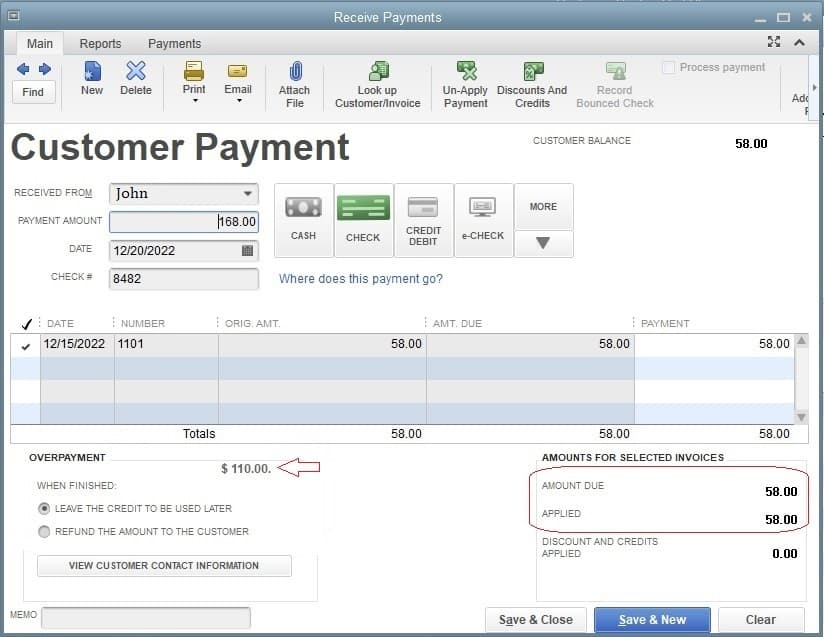
Resolving customer overpayment issues within QuickBooks Online is a common financial challenge for businesses, and this overview details the essential procedures for accurate resolution. Overpayments, which occur due to duplicate entries, incorrect invoice reading, or manual entry errors, necessitate accurate accounting to prevent distorted financial reports and maintain customer satisfaction.
The core solution involves classifying the excess payment correctly using one of three methods: applying the funds as a Credit Memo against future invoices, processing an immediate cash return using a Refund Receipt, or managing a vendor-related refund through a Vendor Credit. Effective management requires careful reconciliation, clear communication with the customer about the resolution path, and diligent avoidance of common mistakes like misapplying credits or delaying refunds.
By following these structured steps for customers, vendors, and even tax overpayments, businesses ensure accurate financial records and prevent future issues through improved invoicing and payment application practices.
Highlights (Key Facts & Solutions)
Users can record their repayments when the other party overpays them using the QuickBooks online refund tool. Then, you have three options for returning the overpayment: using the credit against the prepared invoice, adjusting the amount on the subsequent invoice, or immediately refunding the party with a check.
Regardless of your method, you must be sure to update information on the QuickBooks program.
Customer overpayment issues in QuickBooks Online typically occur due to several common reasons:
| Conditions | Error Causes | Solutions |
| Apply Credit to Invoice | Overpayments occur due to clients paying more than the invoice amount | Verify invoice totals to avoid overpayments. Apply credits to outstanding invoices. |
| Refund to Customers When an Invoice has been Paid | Payment mistakes or misreading of invoice amounts lead to overpayments. | Educate customers on the correct payment process and refund procedures. |
| Refund to Vendors When a Bill has been Paid | Payment processing errors result in unintended vendor overpayments. | Double-check payment amounts and refund vendors properly. |
| Refund to Vendors on a Credit Card | Credit card overpayment mistakes occur during purchases. | Educate on using credit cards properly and managing refunds. |
| Refund for Returned Goods/Services | Misallocation of payments due to incorrectly recorded returned items/services. | Misallocation of payments due to incorrectly recorded returned items/services. |

To fix the QuickBooks Online Refund Customer Overpayment issue, follow the below instructions:
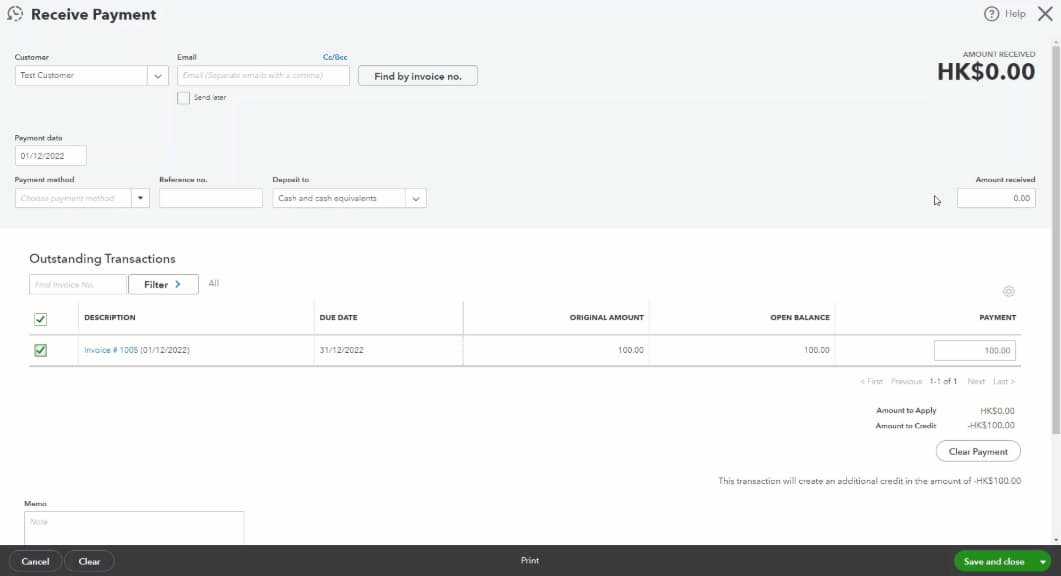
Customers who overpay might have their excess funds applied to future invoices as credit.
Steps:
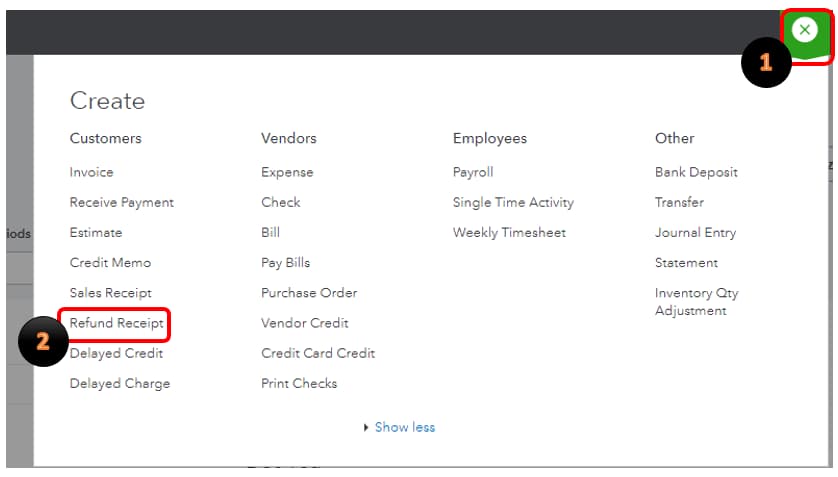
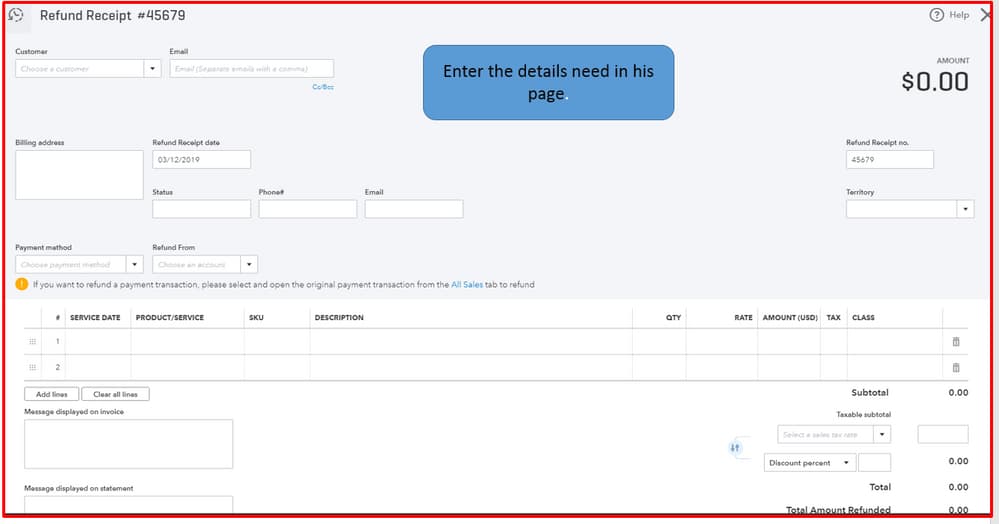
If the consumer wishes to have their overpayment reimbursed rather than used as credit:
Steps:
For refunds from vendors after a paid bill:
Steps:
For refunds credited to your credit card:
Steps:
Process refunds for returned products or services:
Steps:
These procedures must be followed to refund a deposit in QuickBooks Pro, Online, or Enterprise:
3. Locate the Customer:
4. View Customer Transactions:
5. Identify the Deposit:
6. Issue a Refund:
7. Record the Refund:
8. Save and Close:
Ensure all necessary information is correct, then click “Save” to record the Refund.
9. Verify the Refund:
Verify the customer’s transactions again to be sure the Refund was recorded correctly.
If a customer overpays an invoice in QuickBooks Online, you can easily manage it by following these steps:
This process ensures you keep accurate records while managing overpayments efficiently in QuickBooks Online.
When dealing with overpayments in QuickBooks Online, it’s important to follow the right steps to ensure accurate financial records. Here’s how you can effectively manage them:
By following these steps, you can maintain accurate records and ensure smooth transactions in QuickBooks Online.
When managing customer overpayments in QuickBooks Online, it’s easy to make errors that can affect your financial records and customer relationships. Here are some common mistakes to avoid:
If you’ve overpaid taxes in QuickBooks, you can either apply it to a future tax payment or request a refund. Here’s how to manage it:
1. Apply to a Future Tax Payment
2. Request a Refund
You can also apply the overpayment to a previous year if needed.
To avoid overpayment issues in QuickBooks Online, follow these best practices:
Additional Tools:
If an overpayment occurs:
These steps will help you prevent overpayment errors and keep your QuickBooks Online accounting accurate and efficient.
Conclusion
The measures mentioned above are rather simple to carry out. However, there may be times when trying to follow the stages leaves you stranded. You may contact our professionals in this circumstance, and they will assist you in addressing QuickBooks Refund Customer Overpayment problems or resolving the challenges you are having with updating the records.
They will either speak with you over the phone, log into your system remotely, or complete the entire process on your behalf. As a result, you shouldn’t be concerned if you become stuck at any moment. Please feel free to contact our professionals at 1-802-778-9005.
When an overpayment is mistakenly applied, you need to un-apply the payment first. In QuickBooks Online (QBO), locate the incorrectly applied Payment or Refund Receipt in the Customer’s transaction list. Open the payment, uncheck the associated invoice(s), and save it. This will move the overpayment back into the customer’s account as a credit. You can then correctly apply that credit to the right invoice or customer.
No, you should process the refund back to the original credit card. Issuing a check for a credit card payment causes discrepancies in your merchant account reporting and QBO reconciliation. The best practice is to use the Refund Receipt tool in QBO, ensuring you select the original payment method (the credit card account) to process the funds reversal through your payment processor.
A Credit Memo is an internal accounting record used to reduce the amount a customer owes you. For an overpayment, it marks the excess funds as a credit that can be applied to a future invoice. A Refund Receipt is used when you are immediately sending money back to the customer (via check, cash, or credit card reversal), thereby removing the overpayment entirely from your accounts.
This often happens when the payment was recorded as a generic Deposit or was mistakenly categorized directly to a revenue account instead of being received against the customer’s account. To fix this, you must undo the deposit or expense transaction. Then, correctly re-record the payment using the Receive Payment function, matching it to the customer and allowing the excess to correctly create a customer credit balance.
When you create a new invoice for that customer, and they have an outstanding credit balance, QBO will usually prompt you automatically. If not, when you go to Receive Payment for the new invoice, the system will show the available Credit from the previous overpayment at the top right of the payment screen. You must click to apply this credit before recording any new payment amount. This is crucial for clearing the credit balance.
This step addresses the reciprocal situation: Your business is the customer who overpaid the vendor. If you overpaid a bill, the vendor may send you a refund check or apply a credit to your account. In QBO, you record the vendor’s refund using a Vendor Credit transaction. This credit can then be used to reduce the amount you pay on a future bill from that specific vendor.
A customer overpayment on a standard invoice does not affect sales tax liability immediately because sales tax is calculated on the value of the goods or services provided, not the total cash received. If you later issue a Refund Receipt for the overpaid amount, that portion of the refund is simply a return of principal and also has no sales tax implications. Only refunds related to returned goods or services will affect your sales tax payable.