Excerpt:
Recording customer prepayments in QuickBooks ensures accurate financial tracking by classifying funds received in advance as liabilities until the service or product is delivered. This practice helps manage accounts receivable, provides clearer cash flow forecasts, and supports better budgeting decisions. By following proper steps for setting up liability accounts, entering prepayments, and linking them to customer invoices, businesses can avoid common mistakes and maintain transparent financial records.
 Add As A Preferred
Customer Prepayments are also known as Customer Deposits, where funds are received from customers in advance of the delivery of goods or services. These prepayments are accounted for as liabilities until the products or services are provided.
When a customer provides a prepayment, it affects the balance sheet by increasing the company’s liabilities and cash/assets.
By recording customer prepayments in QuickBooks, businesses can ensure that their financial records accurately reflect the amount of revenue already earned, providing a clear picture of their outstanding receivables. This practice also allows you to get more accurate cash flow forecasts and make better decisions related to budgeting and resource allocation.
Recording customer prepayments in QuickBooks is crucial to accurately manage accounts receivable and maintain robust financial management practices within the business.
By recording customer prepayments in QuickBooks, businesses can ensure that their financial records accurately reflect the amount of revenue already earned, providing a clear picture of their outstanding receivables. This practice also allows you to get more accurate cash flow forecasts and make better decisions related to budgeting and resource allocation.
Integrating prepayments into the bookkeeping system offers streamlined tracking and reconciliation of customer balances, reducing the occurrence of errors or fraudulent activities, and ensuring complete transparency in financial reporting.
Some customers may pay you in advance if you raise an invoice for the products or services provided. Customer prepayments are also known as Payments in Advance / Payments on Account.
For recording customer repayments, you need to:
This is typically found in the main menu of your accounting software. It allows you to manage various financial transactions.
The Chart of Accounts is a listing of all accounts used in your business’s general ledger. This is where you will create the new liability account.
Look for a button labeled “New” or “Add” within the Chart of Accounts section. This action initiates the process of setting up a new account.
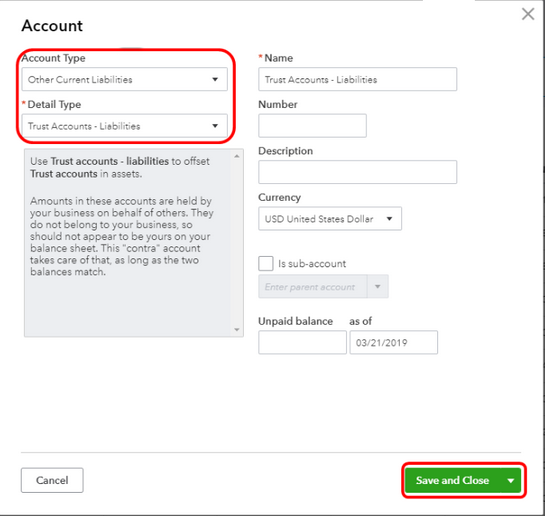
In the Account Type drop-down list, choose “Current Liabilities.” This category includes obligations that are expected to be settled within one year, such as prepayments from customers.
You’ll see another drop-down menu after selecting Current Liabilities for more specific classifications. Choose “Current Liabilities” again to ensure your account is correctly categorized.
In the name field, type a descriptive name for your account, such as “Customer Prepayments.” This helps you and others understand the purpose of the account at a glance.
Tip: If a small number of Customers pay you in this way, you can create Sub-Accounts for each Customer as this will make it easier for you to track the amounts paid.
Finally, confirm your entry by clicking on the “OK” or “Save” button. This action will create your new Current Liability account.
Click on the Gear icon (⚙️) located in the upper right corner of your screen. From the dropdown menu, select Products and Services.
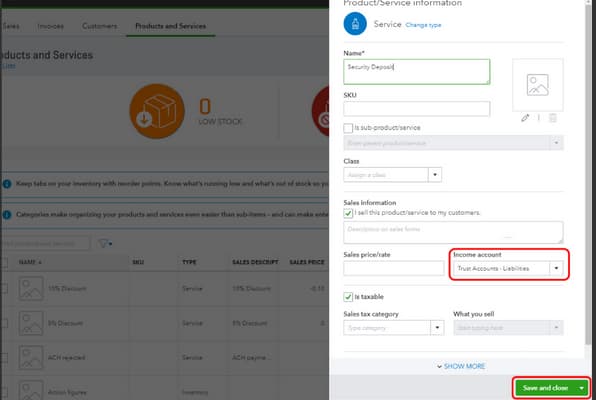
Click on the New button to initiate the creation of a new product or service. Choose Service from the options presented.
In the Name field, enter a descriptive name for your service, such as Customer Prepayments.
Hover over the Income Account field. A drop-down menu will appear. Select the account you created in Step 1 from this drop-down list.
After entering all necessary information, click on the Save and Close icons to finalize the creation of your service item.
Click on + New. Select Sales Receipt from the dropdown menu.
Choose the Customer Name from the list. Set the Payment Date to reflect when the payment was received. Select the Bank Account where the money was deposited.
In the PRODUCT/SERVICE field, click on the Prepayments account that you created in Step 2. Enter the Amount Received in the Amount column.
Press Save, and then close the window.
For any subsequent payments made in advance of an invoice being raised, repeat steps 1 through 5 (3a-3e).
Click on + New. Select Invoice from the dropdown menu.
Enter the customer details as you normally would. List all services provided in the line items section to ensure that each service is detailed appropriately.
On the last line of the invoice, select the customer prepayment item that you created in Step 2.
Type the amount of prepayments as a negative value (e.g., -100.00).
Double-check all entries for accuracy. Save/Send: Once confirmed, save or send the invoice as required.
IMPORTANT – The amount in Step 4d needs to be entered as a negative with a VAT code selected before, as this ensures VAT isn’t counted twice.
Locate the invoice that requires payment. You can typically find this under the “Invoices” or “Accounts Receivable” section. Click on the invoice to open it.
Look for the Receive Payment button, usually located at the top right-hand corner of the invoice page. Click on this button to initiate the payment process.
In the payment window that appears, locate the Amount box. Enter the amount you are paying towards the balance due on the invoice. Ensure that this amount reflects any prepayments already applied.
After entering the payment amount, review all details to ensure accuracy. Click on the Save and Close tabs to finalize the transaction and update your records.
To identify the amount of prepayments made to a Supplier, you are recommended to run the following report:
Customer prepayments, also known as customer deposits, are payments you receive from a customer before an invoice is created and the product or service is delivered.
Important: You can manage and use customer prepayments in QuickBooks Enterprise 24.0 or later.
Prepayments
Note: If you use Prepayments and then turn multi-currency on, Prepayments will be turned off.
It is important to create and save a new sales order or open any existing sales order.
Note: If you don’t have sales orders turned on in your company file, you’ll have to enable it first.
Note: You can opt for Layout Designer to adjust the position of these fields under the print template.
Note: you can also click Apply for credits on an invoice to apply for prepayment credits.
There are two reports you can run to see open prepayments and open prepayment balances: the Open Prepayments by Customer and the Open Sales Order by Customer reports. Here’s how to run and customize them.
This report allows you to access all open prepayments you’ve received that you haven’t applied to an invoice.
You can customize this report to include prepayments that have been fully applied to invoices.
The Prepayment Open Balance has been added to this report. You can customize this report to show open estimates and sales orders.
The report will update to display both open sales orders and estimates with their open prepayment balances.
You can edit a Prepayment if it hasn’t been applied to an invoice. But once it’s been applied to an invoice, you’ll have to delete the prepayment (this will also delete the two linked general journal entries) and then create a new Prepayment.
Prepayments, like other customer payments, can be refunded. If the payment hasn’t been deposited to your bank, you can delete the prepayment and the sales entries it’s applied to (sales order, estimate, and invoice). However, if the prepayment has been deposited to your back, you can either create a credit memo and apply it to another invoice or write a check to the customer.
You’re recommended to set up and use an item which has a liability account on it to hold customer deposits. Yes, it’s also a liability since you received the prepayment before providing the services. This way, although your business is holding the deposits, no sales income is posted until it’s applied.
Once you open the liability account you’ve created, do you only see A/R? With this, let’s make sure you’ve set them up correctly, as well as the Receive payment.
So, let’s record the upfront deposits you received from your customer. Follow the steps below to record upfront customer deposits in QuickBooks:
Navigate to the Customers menu and choose Enter Sales Receipts.
From the Customer: Job drop-down list, select the appropriate customer or job.
If the Deposit To field appears, select the account where you want to deposit the funds. If this field does not appear, the funds will be recorded as Undeposited Funds, which can be deposited later.
Choose the payment method used for the deposit.
Fill in the necessary details, such as Date and Sale No., in their respective fields.
In the Detail section, choose the Upfront Deposit item you created from the Item drop-down list.
Enter the amount of the deposit or retainer in the Amount field.
Click on Save and Close to complete the entry.
To record the Payment as a Deposit, here’s how:
Recording customer prepayments accurately is crucial for maintaining financial integrity and ensuring proper cash flow management.
Here are some common mistakes to avoid:
One of the most significant errors is treating prepayments as revenue before the corresponding goods or services have been delivered.
Prepayments should be recorded as liabilities, specifically under accounts such as Unearned Revenue or Customer Deposits.
Recognizing these amounts as revenue prematurely can lead you to overstate income statements and misleading financial reports which can affect business decisions and investor perceptions.
Another common mistake is not linking prepayments to the respective customer accounts. This negligence can result in balance mismatches and complicate the reconciliation process.
When prepayments are not tagged to specific customers it becomes challenging to track outstanding liabilities and apply payments accurately against future invoices which leads to confusion during audits or financial reviews.
Refrain from forgetting or delaying the application of prepayments to invoices can create discrepancies in accounting records. It is important to apply prepayments promptly once the related service or product is delivered.
It ensures that the liability is reduced accordingly and that the revenue is recognized accurately in financial statements. Delays can lead to complications in cash flow management and may result in customer dissatisfaction if their payments are not reflected correctly.
Effectively managing customer prepayments is vital for accurate accounting and healthy cash flow. This guide covers advanced QuickBooks techniques, from handling partial payments to automating workflows. Each strategy is designed to help you streamline operations, improve financial clarity, and maintain strong customer relationships. Whether you’re managing multiple projects or adapting to industry-specific needs, these insights will empower you to optimize your prepayment processes with precision and confidence.
Partial prepayments and split payments in QuickBooks are useful for improving cash flow management and offering flexibility to customers. To implement them correctly, follow these structured steps:
Customer prepayments for multiple projects can lead to confusion and misallocations if not managed properly. To handle them effectively in QuickBooks, follow these best practices:
Prepayments are handled differently across industries, and understanding their application is key to accurate financial management.
Here’s how prepayments function in key sectors and how QuickBooks supports these workflows:
Adjusting prepayments correctly is crucial to ensure your financial records remain accurate and compliant.
Follow these key steps to handle prepayments when invoices are changed or cancelled:
Automating prepayment processes in QuickBooks helps reduce manual effort, eliminate common errors, and improve overall cash flow tracking.
To streamline this, follow these steps and use recommended tools:
Understanding the nuances of customer prepayments is key to maintaining accurate financial records and improving cash flow management. This section explores crucial supplementary topics, including the difference between prepayments and retainers, accounting impacts, and best internal control practices. You’ll also learn how to reconcile accounts efficiently and use custom reports to gain actionable insights. These insights will help you avoid errors, optimize workflows, and make smarter financial decisions with QuickBooks.
Prepayments and retainers both involve upfront customer payments but serve different purposes. Prepayments are advances for specific goods or services, recorded as liabilities until delivery. Retainers are deposits for ongoing or future services, often used by consultants or agencies, and may be drawn down over time. In QuickBooks, prepayments link directly to invoices, while retainers require careful tracking to apply against multiple bills. Understanding these differences helps maintain accurate records, avoid revenue misstatements, and manage customer expectations clearly. Proper classification ensures compliance and improves financial reporting accuracy.
Prepayments impact cash and accrual accounting differently, affecting when revenue and expenses are recognized. In cash accounting, prepayments are recorded as income only when received, improving immediate cash flow visibility. In accrual accounting, prepayments are treated as liabilities until the product or service is delivered, ensuring revenue matches earned periods. QuickBooks supports both methods, allowing businesses to track prepayments accurately and comply with accounting standards. Understanding these distinctions helps you maintain clear financial records, avoid misstated income, and make informed budgeting decisions based on your accounting approach.
Strong internal controls on customer prepayments protect your business from errors, fraud, and mismanagement. Start by segregating duties—ensure different employees handle receipt recording, bank deposits, and reconciliation. Use approval workflows for large prepayments, and maintain detailed documentation linking payments to customers and invoices. Regularly reconcile prepayment liability accounts in QuickBooks to catch discrepancies early. Implement audit trails and restrict access to sensitive financial data. These practices improve accuracy, safeguard cash flow, and enhance stakeholder confidence in your financial reporting.
Reconciling prepayment accounts regularly is crucial for accurate financial reporting. At month-end and year-end, review all customer prepayments recorded in QuickBooks. Match prepayment balances against invoices issued to ensure proper application. Identify any unapplied or misclassified amounts and correct them promptly. Reconciliation helps detect errors, prevents revenue misstatements, and ensures your liability accounts reflect true obligations. Consistent closing processes improve audit readiness and provide management with reliable cash flow and profitability insights.
Custom reports in QuickBooks help you analyze prepayment trends and understand customer payment behaviors. By filtering data by date, customer, or job, you can identify which clients frequently make prepayments and their typical amounts. Monitoring these patterns aids in forecasting cash flow, tailoring payment terms, and improving customer relationship management. Custom reports also highlight delayed applications or unapplied prepayments, allowing timely corrective actions. Leveraging these insights strengthens financial planning, reduces risks, and supports strategic decision-making.
Thus, Customer Prepayments (Customer Deposits) are used when you receive a payment from a customer, but there is no invoice that the payment can be settled against. These types of payments help you to manage accurate financial records and ensure that your company’s cash flow is effectively monitored.
Incorrectly classifying prepayments as revenue rather than liabilities can lead to overstated income figures, resulting in misleading financial statements and potential audit failures. This misclassification may cause discrepancies in tax reporting, increasing the risk of penalties and interest charges by tax authorities, as reported by 42% of businesses facing tax compliance issues. Furthermore, inaccurate classification complicates cash flow analysis and budget planning, potentially leading to poor business decisions and financial instability.
Failing to reconcile prepayment accounts monthly increases the chance of unnoticed errors, such as duplicated payments or misapplied credits, which can skew financial reports and customer balances. According to a survey, 38% of small businesses reported cash flow issues directly linked to reconciliation lapses. Additionally, lack of regular reconciliation undermines internal controls, raising the risk of fraud and making audits more time-consuming and costly.
Customer prepayments boost a company’s current liabilities, which can reduce working capital if not managed properly, potentially signaling liquidity constraints to investors. This affects liquidity ratios like the current ratio, which, if skewed by large prepayments, may misrepresent a company’s ability to cover short-term obligations. Studies show that 45% of companies with significant prepayments face challenges in presenting clear liquidity metrics, impacting creditworthiness and financing options.
Implementing segregation of duties ensures that the person recording prepayments is different from the one reconciling accounts, reducing fraud risks. Using automated alerts for unusual prepayment amounts or frequencies helps detect potential fraudulent activities early, supported by data showing a 30% decrease in fraud cases with such controls. Regular audits combined with employee training on prepayment policies also reinforce accountability and improve financial transparency across the organization.
Sales Tax or VAT should not be calculated or posted when you receive the prepayment. The prepayment is a liability (Unearned Revenue), not yet a sale. Tax is only due and recognized when the prepayment is applied to a final invoice and the service or goods are delivered (when the revenue is legally earned). This is why you must enter the prepayment as a negative line item on the invoice to ensure the tax is calculated correctly on the full amount of the sale, but only once.
Unearned Revenue (Customer Prepayments) is a Liability account, representing money you owe back to the customer (either in service or cash) because you have received the funds but haven’t earned them yet. Accounts Receivable (A/R) is an Asset account, representing money the customer owes to you for services or goods that have already been delivered. The act of applying a prepayment to an invoice moves the amount from the Liability (Unearned Revenue) side to the Asset (A/R) side, simultaneously booking the income.
Multi-currency settings introduce exchange rate fluctuations that affect the valuation of prepayments, potentially causing discrepancies in liability and revenue accounts. QuickBooks disables prepayments when multi-currency is turned on, limiting businesses’ ability to track advance payments accurately across currencies. According to financial software users, 28% report challenges reconciling prepayments due to currency conversions, complicating financial reporting and cash flow management in global operations.
If the customer cancels and you issue a refund, you must first ensure the prepayment has not been applied to an invoice. You would then issue a refund check or create a Credit Memo (if the funds were originally recorded as Undeposited Funds or the process needs a proper audit trail). The refund transaction should reduce the Cash account and also reduce the Customer Prepayments (Liability) account, bringing the liability balance down to zero for that customer.
A large balance in the Customer Prepayments (Unearned Revenue) account means your business has a significant obligation to perform services or deliver goods in the future. While this looks good for cash flow, it is a liability. It signals that you need to focus on fulfilling those pending orders to convert the unearned liability into earned revenue on your Profit & Loss Statement.
Applying prepayments to multiple invoices across different fiscal periods complicates revenue recognition and may cause timing mismatches in financial statements, impacting compliance with accounting standards. This often requires meticulous tracking to ensure prepayments are correctly allocated without double counting or omission, which, according to studies, causes reconciliation errors in over 35% of companies. Additionally, managing these allocations manually increases administrative burden and the risk of miscommunication between accounting and sales teams.
Prepayments provide upfront cash that can smooth out cash flow fluctuations typical in seasonal businesses, improving liquidity management and operational planning. However, if not properly tracked or applied, they can create misleading cash flow projections, causing 33% of seasonal businesses to overestimate available funds. Accurate recording of prepayments helps predict resource needs and avoid cash shortages during off-peak periods, supporting more reliable budgeting and growth strategies.
Delaying the application of prepayments to invoices postpones revenue recognition, which can distort financial statements and mislead stakeholders about a company’s performance. This delay may cause non-compliance with accounting standards like IFRS and GAAP, exposing the business to regulatory risks and potential penalties. Studies indicate that 29% of companies face audit adjustments due to improper timing in revenue reporting linked to prepayment delays, highlighting the importance of timely application.
QuickBooks reports like “Open Prepayments by Customer” help businesses analyze which customers frequently pay in advance, aiding cash flow forecasting and credit management. Tracking these trends can reveal seasonal or project-based payment patterns, allowing tailored sales strategies and improved customer relationships. According to industry surveys, companies using such reporting tools see a 25% improvement in predicting payment cycles and reducing overdue accounts.
Companies should conduct regular training sessions focused on recording, applying, and reconciling prepayments in QuickBooks to minimize errors and ensure compliance. Providing clear, documented procedures and real-world examples enhances understanding, which 60% of firms report improves accuracy in financial entries. Additionally, encouraging cross-department communication between sales and finance teams fosters accountability and streamlines the prepayment workflow.
Prepayments in progress billing serve as upfront funds that secure project financing and reduce credit risk, helping contractors manage cash flow effectively. They must be carefully tracked to ensure they’re correctly applied against incremental invoices, which aids in compliance with revenue recognition standards specific to long-term contracts. Studies show that 40% of construction firms report improved project financial management when integrating prepayments with progress billing in QuickBooks.
Common errors include failing to match prepayments to the correct invoices, double counting prepayments, and neglecting to update liability accounts, all of which distort financial statements and cash flow reports. Avoiding these requires consistent monthly reconciliation, clear documentation, and use of QuickBooks reports to track open prepayments, reducing errors by up to 35%. Additionally, training accounting staff on proper procedures ensures accuracy and streamlines audit processes.
The best internal control is segregation of duties. Specifically, ensure that the person who records the initial sales receipt (posting the payment to the liability account) is not the same person who creates the final invoice and applies the prepayment (recognizing the revenue). This two-step process adds a verification layer, drastically reducing the risk of prematurely recording the cash received as earned revenue.
Automating prepayment workflows in QuickBooks minimizes human errors by standardizing data entry, ensures timely application of prepayments to invoices, and enhances real-time tracking of customer deposits. Automation reduces processing time by up to 50%, according to industry benchmarks, and improves financial visibility by integrating with payment gateways and reporting tools. This leads to better cash flow management, fewer reconciliation issues, and strengthened compliance with accounting standards.


