Highlights (Key Facts & Solutions)
- File Size Limitation: QBDT files must be under 4,000,000 total targets (for QBDT 2022 and newer) to convert. The total target count is viewable in the QBDT Product Information screen (press F2 or Ctrl+1).
- Target Limit Solution: If the file exceeds the limit, use the Condense Data utility, but always create an archive backup first, as the utility permanently removes closed transaction detail.
- File Location Requirement: The company file must be stored on the local C-drive, not a network drive, and the path should not be excessively long (Intuit recommends avoiding paths that are too deep).
- Multi-User Mode: To avoid access errors, the QBDT file must be switched to Single-User Mode before initiating the export.
- Payroll Solution: Payroll data does not fully migrate; paychecks convert as regular checks. If encountering errors related to existing employees, the safest solution is to migrate the QBDT file to a new QBO company where payroll has not been activated yet.
- Data Integrity Check: To fix errors like “Unable to verify financial data,” users must run QBDT’s Verify Data and Rebuild Data utilities, always starting with the required backup.
- Subscription and Admin Access: The QBO subscription must be active, and the migrating user must be signed in as the Primary Admin or Company Admin on both the QBDT file and the QBO account.
Overview
It’s common to encounter errors related to payroll, company file size, failed conversion attempts, data that needed to be converted, corrupt data, etc. While converting from QuickBooks Desktop to QuickBooks Online. You’re not alone in facing these challenges.
Remember, there are solutions to every problem. By following the solutions provided in this article, you can resolve the errors encountered during the conversion from QuickBooks Desktop to QuickBooks Online, ensuring a smooth conversion process and reducing any anxiety you may have.
Numerous users opt to transition from QuickBooks Desktop to QuickBooks Online for improved accessibility and time efficiency. However, this shift can become challenging due to various errors encountered during the conversion process.
Common Causes of QuickBooks Desktop to QuickBooks Online Migration Errors
Migrating from QuickBooks Desktop to QuickBooks Online can be a straightforward process, but several common errors may arise during or after the transition.
Here are the key causes of these errors:
- Corrupted Data Files: If your company file is damaged or corrupted, it can prevent successful migration.
- File Location: Errors often occur if the company file is stored on a network drive or in a location that is too deep within folders (more than four folders deep).
- Outdated Software: If you use an outdated version of QuickBooks Desktop can lead to migration failures.
- User Permissions: Errors may also occur if the user attempting to migrate does not have the necessary permissions in QuickBooks Online.
- Internet Connectivity Issues: Problems with internet connectivity can hamper the migration process which results in error messages.
Unsupported File Types: The QuickBooks Migration Tool may fail if you attempt to transfer unsupported file types, such as backup files or certain system configuration files ( .xls, .xlsx ).
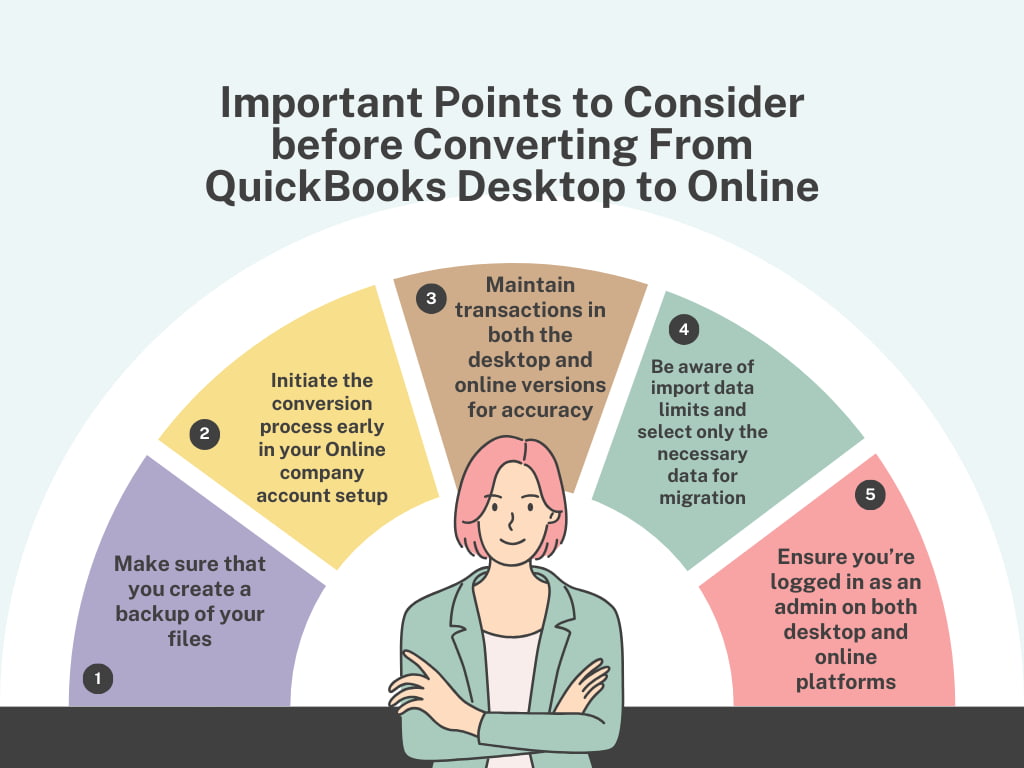
Important Points to Consider Before Converting From QuickBooks Desktop to Online

Here is the list of some important points that you need to know at the beginning of converting QuickBooks Desktop to Online:
- Make sure that you create a backup of your files so that you can save them in the unlikely event of data loss during conversion.
- Initiate the conversion process early in your Online company account setup.
- Maintaining transactions in both the desktop and online versions is crucial for ensuring data accuracy during the conversion process. This step helps cross-verify the data and identify any discrepancies that need to be resolved before the final migration.
- Be aware of import data limits and select only the necessary data for migration.
- Ensure you’re logged in as an admin on both desktop and online platforms.
Most Common Errors while Converting from QuickBooks Desktop to Online
Error 1: Please delete all employees already entered in QuickBooks Online
Users may encounter errors indicating, “Please delete all employees who have already entered QuickBooks Online.” This error disrupts the process and may lead to duplicate entries, complicating data migration.
Follow the steps below to solve this error:
When migrating data from QuickBooks Desktop to QuickBooks Online, replacing employees’ data can be challenging due to their integration with payroll items, year-to-date history, and other payroll setup elements. QuickBooks Online might find it difficult to transfer this interconnected data seamlessly.
Follow these tips to avoid data loss or duplication, which can complicate the conversion process. Tips:
QuickBooks Online won’t allow you to delete employees with paychecks or pay history. To move your data, you’re required to create a new QuickBooks Online company without payroll set up.
Solution:
For Windows users
This error might occur when your payroll is locked in QuickBooks Desktop while it is in QuickBooks Online or if there is no payroll information. This error can prevent the successful transfer of payroll data from QuickBooks Desktop to QuickBooks Online.
Turn on payroll on the desktop by following the steps below:
- First, open the Edit menu and select Preferences.
- Now, select Payroll and Employees.
- Then, choose the Company Preferences option.
- Lastly, select Full Payroll or Online Payroll.
For Mac users:
- QuickBooks Desktop for Mac doesn’t have a payroll feature. You also don’t have the option to import a company file online with existing payroll information.
- You can disconnect Intuit Online payroll from your QuickBooks Desktop for Mac and then export transactions directly from QuickBooks Online instead.
Error 2: Your file is too big to export
This error occurs during the conversion process because of the limitations on the size of the file being transferred. QuickBooks Online imposes restrictions on the amount of data that can be transferred, and if the file exceeds this limit, the error message Your file is too big to export displays. The users are required to choose the data to export selectively.
Solution:
When moving the file from QuickBooks Online, you’re supposed to check the number of targets in the QuickBooks Desktop Company file. QuickBooks Desktop CA, QuickBooks Desktop UK, and QuickBooks MAC versions have a limit of 350,000 targets.
Alternatively, QuickBooks Desktop Pro/Premier 2020, latest release and newer (CA), and QuickBooks Desktop Pro/Premier 2018, latest release and newer (US), have a limit of 75,000 targets. If the number of files exceeds the limit, then try condensing the QuickBooks Desktop file by following the steps mentioned below:
- First, open QuickBooks, and then Click on File.
- Now, select the Utilities option.
- Then, choose the Condense Data.
- In the wizard, select the required option and then choose Begin Condense.
Error 3: There was a problem checking this company for import eligibility
This error There was a problem checking this company for import eligibility typically arises during the conversion process due to several reasons:
- The user is not the primary admin, company admin, or accountant in the QuickBooks Online company.
- There is an issue with QuickBooks Online Payroll account services.
- The user didn’t sign in to their Online account before importing data.
- The setup interview in QuickBooks Online was not completed.
- Attempting to move data more than 60 days after the subscription date.
Solution:
These factors can prevent the company from being eligible for data import, hindering the conversion process until the issues are resolved. Follow the steps below to fix this issue:
- Sign in to your QuickBooks Online Company and complete the setup interview questions.
- Ensure you’re signed in as primary or company admin to move your data from QuickBooks Desktop.
- Save your company address again.
Note: If the error persists, consider creating a new Online account. However, to avoid any complications, ensure that you cancel your old subscription first.
If you don’t want to start a new account, follow these:
- First, log in to QuickBooks Online.
- Now, navigate to Settings and select Account and Settings.
- Then, on the Company tab, Edit the address section.
- After that, choose Save, then Done.
- Lastly, Re-import into QuickBooks Desktop.
Error 4: Error in processing data for QuickBooks Desktop for Mac
This error often occurs during the conversion process, particularly if you don’t have the latest release of QuickBooks Desktop for Mac installed. The error arises as a notification or pop-up message within the QuickBooks Desktop interface. It indicates the message “Error in processing data for QuickBooks Desktop for Mac.” It will include details about the specific issue encountered during the processing.
This error hampers the conversion process by interrupting the flow of data transfer from QuickBooks Desktop for Mac to another platform or version. Without successfully processing the data, the migration or conversion cannot proceed smoothly, potentially leading to delays or incomplete data transfer.
Solution:
Follow the steps below to solve this issue:
- Select QuickBooks, then check for QuickBooks Updates.
- Install any available updates.
- Restart QuickBooks.
Note: If the issue persists, check for data damage by running QuickBooks, verifying, and rebuilding utilities.
Error 5: We can’t export your data. It may be on a network drive
This error arises when attempting to export data from QuickBooks Desktop. It typically occurs if your Desktop company is located on a drive other than your local C-drive or if it’s open in multi-user mode. Such configuration can prevent the export process from accessing the necessary files, resulting in this error message.
This error hampers the conversion process by preventing the export of data from QuickBooks Desktop. Without successfully exporting the data, it cannot be transferred to the desired destination, such as QuickBooks Online or another accounting software.
As a result, the migration process will be halted, the conversion will be delayed, and potential disruptions to business operations will occur.
Solution:
Follow the steps below to solve this error:
- First, locate your company data file in QuickBooks.
- Now, close QuickBooks Desktop.
- Then, copy the company file to the local C-drive location.
- After that, open the company file in QuickBooks Desktop from the new location.
- Choose the File option, then choose the Switch to Single-user mode.
- Lastly, choose Company and select the Export Your Company File to QuickBooks Online option.
Error 6: Export QBDT data to QBO: ERROR
This error typically occurs if the path to your company file is more than four folders deep. For example, if the file path resembles C:\My Stuff\QuickBooks files\My Company\2016\Work Files\data.qbw, it exceeds the maximum depth allowed for successful data export.
When the file path exceeds the maximum depth allowed, the export process fails, halting the migration. As a result, the data intended for transfer remains inaccessible in the QuickBooks Online platform, disrupting the conversion timeline and impeding the transition to the new accounting system.
Solution:
Follow the steps below to resolve this error:
- First, navigate to your company data file in QuickBooks.
- Now, close QuickBooks Desktop.
- Then, copy your company file to a new folder on your local C-drive, such as c: new folder my company. Lbw.
- From the new location, open your company file in QuickBooks Desktop.
- Lastly, choose Company, then select Export Your Company File to QuickBooks Online option.
Error 7: Failed
This message typically appears if you’re not using the latest release of QuickBooks Desktop. Updating your company file is necessary to ensure compatibility with the migration process to QuickBooks Online. To resolve this error, update your QuickBooks Desktop to the latest release and attempt to migrate to QuickBooks Online again.
This error hampers the conversion process by indicating failure in migrating data to QuickBooks Online. With Successful data migration, the transition to QuickBooks Online can proceed as planned, resulting in delays and potential disruptions to business operations.
Error 8: You can’t import because the QuickBooks Online company has been canceled
This error arises because a canceled QuickBooks Online subscription renders the Company inaccessible for data import. As a result, the conversion process is halted, requiring resolution such as reactivating the QuickBooks Online subscription.
Solution:
Follow the steps below to solve this error:
- First, Sign in to your QuickBooks Online Company.
- Now, choose the Settings option, then Account and Settings.
- Then, choose the Billing & subscription option.
- Lastly, select the Resubscribe or Subscribe option (if the company was from a trial), and enter your billing info.
Error 9: Your connection timed out
This error appears during the conversion process due to connection issues or browser-related issues. When attempting to access or transfer data, a timeout may occur if the connection between the user’s device and the server is interrupted or unstable.
Additionally, browser-related issues such as incompatible settings or extensions can also contribute to this error.
Solutions:
Follow the instructions below to solve this issue:
- Check internet connection stability.
- Restart the browser page.
- Clear browser cache and cookies.
- Try a different web browser.
- Clear browser cache and cookies.
Error 10: Error: FAIL Server returned error 500
This error typically occurs due to server-side issues on QuickBooks Online’s end. Temporary server maintenance, network congestion, or technical glitches could cause this.
Solution:
To resolve this error during the QuickBooks Desktop to Online process, if you already have a qbw file on your local drive, ensure to address any potential data loss issues beforehand.
Important Tip: If the issue still needs to be resolved, it might be due to corruption in the company file. In that case, you can use the Verify and Rebuild Data tool in QuickBooks.
Transitioning from QuickBooks Desktop to QuickBooks Online may cause errors, such as subscription issues, outdated software, or data location conflicts. Due to the conversion’s complexity, hiring an expert is advisable for a smooth transition.
Error 11: “The file you’re trying to import is in use by another user or program.”
This error happens if the QuickBooks Desktop company file is open or being accessed by another program, preventing it from being exported to QuickBooks Online.
Solution for Windows:
- Ensure QuickBooks is in Single-User Mode:
- Open QuickBooks Desktop, go to File > Switch to Single-User Mode.
- Close QuickBooks Desktop after switching.
- End conflicting programs:
- Press Ctrl + Shift + Esc to open the Task Manager.
- Look for any QuickBooks-related processes (e.g., qbupdate.exe) and click End Task.
- Retry the export.
Solution for Mac:
- Close QuickBooks Desktop:
- Make sure no other users or applications are accessing the company file.
- End QuickBooks processes:
- Open the Activity Monitor from Applications > Utilities.
- Look for any QuickBooks-related processes and force quit them.
- Reattempt the export after restarting the QuickBooks Desktop app.
Error 12: “Error: Unsupported file type for conversion.”
This error occurs if you attempt to convert a QuickBooks Desktop file that is not supported for conversion to QuickBooks Online. It typically happens with non-US versions of QuickBooks or very old versions of QuickBooks Desktop.
Solution for Windows:
- Check QuickBooks Desktop version compatibility:
- Only U.S., U.K., and Canadian versions of QuickBooks Desktop are supported for conversion to QuickBooks Online.
- Ensure you are using the latest version by selecting Help > Update QuickBooks Desktop > Update Now.
- Try the conversion again.
Solution for Mac:
- Check the QuickBooks version:
- QuickBooks Desktop for Mac can export data to QuickBooks Online, but you must have the latest release.
- To check, open QuickBooks, go to QuickBooks > Check for QuickBooks Updates.
- Update to the latest version and retry.
Error 13: “Unable to verify financial data”
This error occurs if QuickBooks Online is unable to validate the data from QuickBooks Desktop during the import process, often due to corrupted or invalid data.
Solution for Windows:
- Run the Verify and Rebuild Tool:
- Open QuickBooks Desktop.
- Go to File > Utilities > Verify Data.
- If errors are found, run File > Utilities > Rebuild Data.
- Retry the export after verifying and rebuilding.
Solution for Mac:
- Verify and Rebuild Data:
- Open QuickBooks Desktop for Mac.
- Go to File > Utilities > Verify Data.
- If there are issues, select Rebuild Data to fix them.
- Reattempt the data export to QuickBooks Online.
Error 14: “QuickBooks Online does not support multi-currency”
This error can occur if the multi-currency feature is enabled in QuickBooks Desktop, but QuickBooks Online cannot import multi-currency data properly.
Solution for Windows:
- Disable Multi-currency:
- Open QuickBooks Desktop and go to Edit > Preferences > Multiple Currencies.
- Switch back to a single currency before exporting your data.
- Export your company file again.
Solution for Mac:
- Check Currency Settings:
- QuickBooks Desktop for Mac may not support multi-currency, so this issue is less likely to occur.
- However, multi-currency is enabled on the desktop version. In that case, you’ll need to deactivate it manually or opt for a QuickBooks Online version that supports multi-currency before proceeding with the export.
Error 15: “QuickBooks is unable to locate PDF viewer.”
This error may occur when QuickBooks is trying to generate or access PDF-related features (like reports or invoices) during the conversion process, and the system needs help locating or accessing a compatible PDF viewer. This could interrupt the data export or conversion process.
Solution for Windows:
- Check for missing PDF components:
- Ensure Adobe Reader is installed. If not, download and install it from Adobe’s official website.
- Open Adobe Reader, go to Edit > Preferences > Internet and ensure “Display PDF in browser” is checked.
- Repair QuickBooks installation:
- Open Control Panel > Programs > Programs and Features.
- Select QuickBooks, then click on Uninstall/Change and choose Repair.
- Ensure QuickBooks is running with admin privileges:
- Right-click on the QuickBooks Desktop icon and select Run as Administrator.
- Update the PDF Printer:
- Open QuickBooks, and go to File > Printer Setup.
- Select any form that uses a PDF (e.g., Invoice).
- Make sure the selected printer is “QuickBooks PDF Printer” or any available PDF printer.
Solution for Mac:
- Ensure Preview or Adobe Acrobat is set as the default PDF viewer:
- Open Finder > Applications, right-click on any PDF file, and select Get Info.
- In the “Open with” section, choose Preview or Adobe Acrobat, and click Change All to apply this setting to all PDFs.
- Check for QuickBooks and OS compatibility:
- Make sure both your Mac OS and QuickBooks Desktop for Mac are updated to their latest versions.
- Restart QuickBooks and attempt the conversion again.
Frequently Asked Questions (FAQs)
1. After condensing my data to reduce file size (Error 2), how do I recover the detailed transactions that were removed?
When using the Condense Data utility to reduce your file size below the required target limit, QuickBooks removes the detail of closed transactions (invoices, bills, etc.) from the cutoff date and replaces them with summary journal entries. This action is permanent and cannot be undone within that condensed company file.
- Solution: You cannot recover the detail in the condensed file. However, the pre-condensed data is saved in a special archive file.
- Archive File Name: QuickBooks automatically creates and saves a full backup copy of the original company file, typically naming it with the word “Historical” and the date of the condense (e.g.,
[Original File Name] Historical.QBW). - Access: This archive file holds all the original, detailed transactions, allowing you to access historical information for audits or reporting.
- Archive File Name: QuickBooks automatically creates and saves a full backup copy of the original company file, typically naming it with the word “Historical” and the date of the condense (e.g.,
2. Why is my Balance Sheet different in QuickBooks Online (QBO) even after a successful conversion?
It is common to see differences in financial reports, particularly the Balance Sheet, immediately following a Desktop-to-Online migration. This results from the differing architecture between the two platforms, especially in handling tax and payroll liabilities.
- Common Causes of Discrepancies:
- Payroll History: Paychecks from the Desktop version convert as regular checks in QBO, and granular payroll transaction details will not automatically transfer. This can affect liability accounts.
- Sales Tax Liabilities: QuickBooks Desktop sometimes manages sales tax differently than QBO. During conversion, some sales tax balances tied to Accounts Receivable or Accounts Payable in Desktop may be moved to a Suspense or Prior Period liability account in QBO.
- Reconciliation Discrepancies: Unreconciled transactions or data integrity issues in the Desktop file can lead to incorrect opening balances in QBO.
- Verification Step: Run the Trial Balance report for the day before conversion in both Desktop and Online, and check specific differences line by line to identify the source of the variance.
3. What is the actual “target limit” that triggers the “file is too big to export” (Error 2), and how can I check my count?
The conversion limit is not based on the file size in megabytes (MB) but on the total number of targets (or detail lines) within your QuickBooks Desktop company file.
- Target Limit: The maximum limit varies slightly by version but is generally 350,000 targets for older versions and 4,000,000 targets for recent versions of QuickBooks Desktop Pro, Premier, and Enterprise (2022 and newer).
- How to Check Your Count:
- Open your QuickBooks Desktop company file.
- Press the F2 key (or Ctrl+1 on Windows, Command+1 on Mac) to open the Product Information window.
- Locate the Total Targets number displayed in this window.
4. Why does QBO not allow me to delete employees with paychecks (as noted in Error 1), and what is the safest way to handle this payroll data?
QuickBooks Online prohibits the full deletion of any employee records with existing pay history because this data is tied to federal, state, and local tax compliance requirements (e.g., W-2s and tax filings). Deleting the record would compromise this legally required historical data.
- Safest Approach for Migration: The recommended solution is to create a new, clean QuickBooks Online company file without setting up payroll beforehand.
- Inactivation: If an employee has pay history, you should mark them as inactive in both the Desktop and Online files instead of attempting deletion. This retains the legal payroll record while removing the employee from active lists.
- Payroll Setup: Set up and enable QBO payroll after the initial data migration to avoid conflicts with Desktop’s payroll structure.
5. I encountered Error 5 (“We can’t export your data. It may be on a network drive”). Is switching to single-user mode enough, or do I need to move the file?
You must complete both actions to resolve this specific error, as the issue involves both file access mode and file location stability.
- Step 1: Move the File: You must copy the company file from the network drive to a local drive, such as the C-drive. The conversion utility requires direct, reliable access, which is not guaranteed over a network.
- Step 2: Switch to Single-User Mode: Once the file is on the local C-drive, open it in QuickBooks Desktop and switch to Single-User Mode (File > Switch to Single-user Mode). This ensures no other users or background processes are locking the file, guaranteeing the export process has exclusive access.
6. If I am getting the error about multi-currency (Error 14), and I disable the feature, what critical data is lost?
Disabling the multi-currency feature in QuickBooks Desktop is a common step to facilitate migration (as QBO handled multi-currency differently or not at all in earlier versions), but it is a highly destructive action that cannot be reversed.
- Lost Data: Disabling multi-currency will permanently and irreversibly delete the following types of data:
- All foreign currency transactions.
- All exchange rate history records.
- Any accounts and names designated as multi-currency.
- Recommendation: If multi-currency data integrity is critical, do not disable the feature. Instead, hire an Intuit-certified ProAdvisor or use a specialized third-party migration tool designed to handle complex multi-currency conversions.
7. I am getting Error 13, “Unable to verify financial data.” Is running Verify Data and Rebuild Data safe, and what does it do?
Yes, running the Verify Data and Rebuild Data utilities is the official, intended method provided by Intuit to repair data corruption within a QuickBooks Desktop file. It is generally safe, provided you follow the backup protocol.
- Process and Safety:
- Verify Data: This tool scans the company file for structural data damage, logical errors, and misplaced links between transactions.
- Rebuild Data: If damage is found, this utility attempts to fix the errors. A backup is mandatory; QuickBooks prompts you to save a backup file (e.g.,
[File Name] Before Rebuild.qbw) before starting the rebuild. This backup acts as a safety copy in the rare event the repair process causes new issues.