Highlights (Key Facts & Solutions)
- Primary Solution: The fastest, official fix is using the QuickBooks Tool Hub to run the Quick Fix My Program utility, which resolves core program file damage and conflicts.
- Key Diagnostic Step: Hold the Ctrl key while opening QuickBooks to force the application to the “No Company Open” window, confirming the program is functional and isolating the issue to the company file or its path.
- File Corruption Fix: The error is often solved by renaming the QBWUSER.INI file, which forces QuickBooks to generate a new, clean configuration file, bypassing corruption that prevents the program from launching.
- Conflict Isolation: If the issue is persistent, testing with a sample company file determines if the problem lies with the Windows installation/program files (if the sample fails) or the user’s specific company data (if the sample opens).
- Advanced Troubleshooting: For systemic issues, the user should create a new Windows administrator account to rule out a damaged or corrupt original Windows user profile.
- Antivirus/Firewall Conflict: If the error occurs in multi-user mode, temporarily disabling the antivirus is a diagnostic step; the permanent fix is adding QuickBooks program files and ports as exceptions in the security software.
Learn how to fix QuickBooks Desktop Not Responding Error
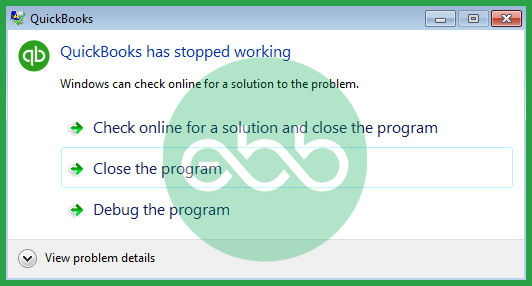
QuickBooks users often have to deal with this prompt: QuickBooks has stopped working. As the name suggests, this error relates to the time when QuickBooks stops working altogether. With this blog, we will learn why users face this issue. Also, we will understand how to deal with this problem through various methods.
QuickBooks is a widely used accounting application for those who don’t have any background related to accounting. Hence, many SMEs have this software. However, it has lots of bugs, also known as QuickBooks Error.
What is this Error: QuickBooks has stopped working or not responding to the issue?
Whenever the user faces this issue, their QB program stops working suddenly or Or maybe you didn’t get an error, but the program is frozen. Hence, it can hamper your efficiency and put you at risk of losing your data.
Here is what happens when they see the QuickBooks has stopped working error:
Why Does It Happen?: QuickBooks Has Stopped Working Issue
There are several reasons why this issue might occur.
For instance:
- The hard drive is corrupt.
- Another program in the system is hindering the work of QuickBooks.
- The user is facing an installation error.
- Program files/ windows OS are damaged.
- QBWUSER.INI file is missing/ corrupt/ damaged.
- The company name is lengthy.
Symptoms of QuickBooks Issue of non-responsiveness

- QuickBooks Desktop won’t open and crash repeatedly if it opens.
- QuickBooks has stopped working error messages will occur frequently.
- Your system will freeze frequently, and it won’t respond when the user gives inputs.
- The OS will suddenly shut down.
- Your device will freeze regularly and will not respond to the input commands.
- The operating system shuts down without any reason whatsoever.
We can avoid such errors in the future by always keeping the application updated. Hence, keep the regional QuickBooks setting as per US time and use appropriate regional settings.
How To Resolve The Issue: Solutions
Before trying to resolve QuickBooks Has Stopped Working or Not Responding Error, follow these steps:
- Firstly, restart the PC and open QuickBooks software
- After that, go to start –> All Programs –> Right-click on QuickBooks
- Press the Ctrl key and open the application.
Solution 1: Install Tool Hub and Run Quick Fix My Program
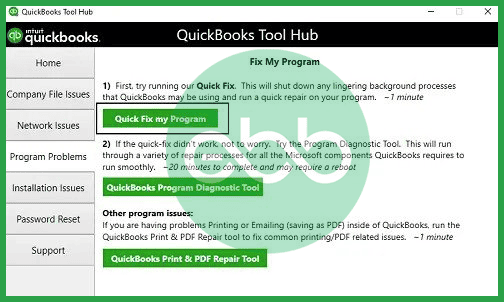
QB Tool hub is a program released by Intuit to fix many errors that the application faces. Here is how you can utilize the tool and fix QuickBooks has stopped working, won’t open or QuickBooks is not responding.
- Firstly, close QuickBooks, and download the QuickBooks tool hub file from the official website of Intuit.
- After that, save the EXE file(QuickBooksToolHub.exe) in a place where you can access it.

- Run the file and complete the installation. After that, an icon of the tool hub will appear. Open the tool hub after its installation.
- Go to Tool Hub –> Program Problems –> Quick Fix My Program.
- At last, open QB Desktop and the data file.
Hopefully, this will resolve the persistent issue.
Solution 2: Using Clean Install and Diagnostic Tool
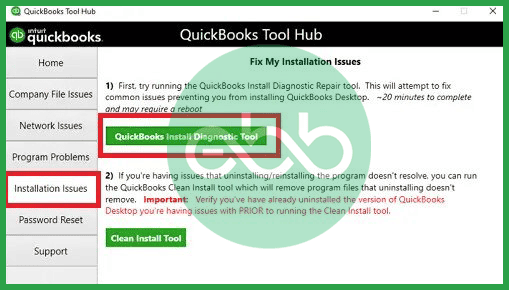
- Firstly, open the Tool Hub that you just installed in solution 1.
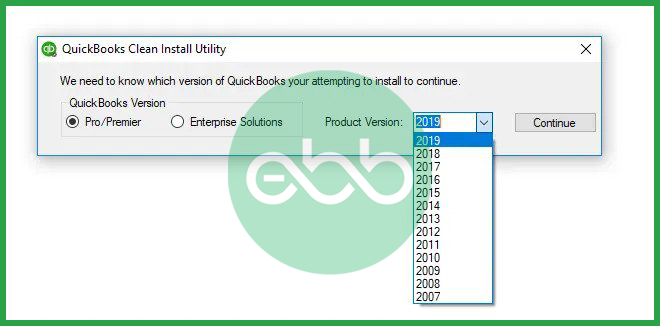
- After that, go to Installation Issues –> Clean Install Tool.

- Subsequently, a QuickBooks Clean Install Utility window will open. Choose the version that you are using and complete the process.
- After the clean install process ends, start with installing the QuickBooks Install Diagnostic Tool.

- Open QuickBooks –> Installation Issues –> QuickBooks Install diagnostic tool.
- Run the process and wait for several minutes till it scans errors and resolves them.
At last, reboot the system and check if QuickBooks has stopped working or not responding, not opening error is fixed or not.
Solution 3: Renaming The QBWUSER.INI
When the user performs this step, it will remove the list of previously opened company files. Hence, you have to open the company file manually.
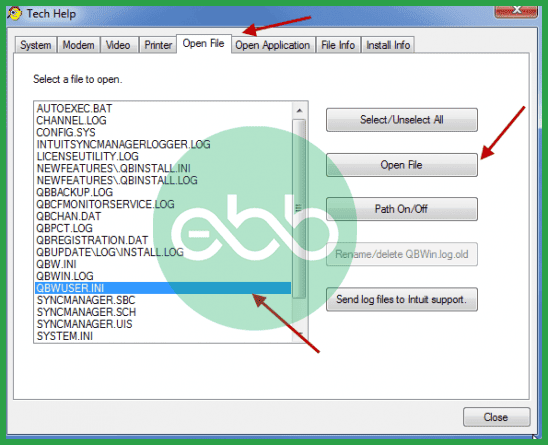
- Firstly, enable all hidden files and folders. Now open the folder that has the QBWUSER.ini file in it.
- Go to this path: Location: Users[Your user name]AppDataLocalIntuitQuickBooks 2025
- After that, rename the QBWUSER.ini file by adding .old at the end of the file name.
- Finally, rename the EntitlementDataStore.ecml file. When the user opens the program after renaming the files, they need to check if they can open the sample company file.
- If the sample file opens successfully but the company file does not then copy the file to another location. Also, open the file from a new location.
- When you successfully open the company file from another location, it means that the previous location/ folder was damaged or had faulty permissions.
- However, if you still can’t open the company file, then this might be damaged.
- Restore the previous backup of the file to replace the damaged one.
- Lastly, if you can’t open the sample company file, there might be an issue with QuickBooks installation.
Usually, this resolves the QuickBooks Stopped Working Error. Subsequently, the accounting software auto-generates a new QBWUSER.INI file.
Solution 4: Disable the Antivirus Temporarily
Below are the steps to disable the antivirus temporarily to solve this error:
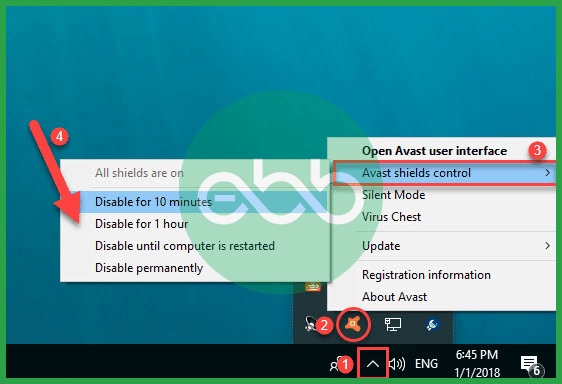
- To fix this issue, restart the PC.

- Open the QuickBooks Desktop. If the error persists, turn off the windows defender and antivirus.
- Lastly, restart the device and check if this technique has fixed the error or not.
Solution 5: Create a New Admin User
If the windows installation is damaged, the user can try making a new admin user.
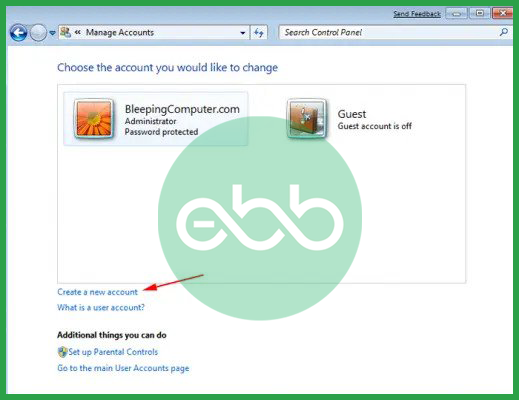
- Firstly, go to start–> Control Panel –> Add or remove user account link.
- After that, the user will see a Manage Accounts Dialog box. Here they need to click the create a new account option.
- Give it a name and choose the create admin account.
- After that, click the create account tab and open the company file with a new admin account.
Hopefully, if QuickBooks won’t open, it will resolve the problem.
Solution 6: Use the Refresher Tool
Using the refresher tool will solve the issue of QuickBooks not responding, and this can be done by the following steps:
- Firstly, close QuickBooks and download the QuickBooks refresher tool.
- After that, run this file and open the QBRefresher Tool.
- Click the Fix my QuickBooks option. This will check the system for any issue and fix it automatically.
At last, open the QuickBooks to check if the issue is resolved or not.
You can also try QuickBooks System Repair Tool, restore an existing company, and make a new qbtest folder if the above mentioned methods don’t work.
Solution 7: Use the QuickBooks System Repair Tool
The QuickBooks System Repair Tool is one of many tools contained in the QuickBooks Tool Hub and addresses problems resulting from corrupt program files or damaged parts.
Steps to Use:
- Visit Intuit’s official website and download the QuickBooks Tool Hub.
- In this case, go to the Tool Hub and click on the Program Problems tab.
- Choose QuickBooks Program Diagnostic Tool, click OK, and allow the system to go through the tool.
- Try to shut down your computer and start QuickBooks again.
Solution 8: Open the Company File from a New Folder
If the location of a company file is problematic or the file itself has become corrupt, then creating a new folder may solve the problem.
Follow the below steps:
- Find the file of your company ending with the extension .QBW.
- Now, make a fresh folder at your icons on the desktop or at any of the drives.
- In this respect, replace the company file with this new folder.
- To access the TVP file, choose the Open or Restore Company option on QuickBooks and then open the folder with the company’s data.
Solution 9: Use the Disk Cleanup Tool and Remove any Remaining File
The presence of temporary files and other objects that disorganize the operating system can cause QuickBooks to slow down. The Disk Cleanup Tool is responsible for cleaning the computer system of unnecessary files in a bid to create room in the computer for other operations.
Steps to Use:
- Press the windows key + r , then type cleanmgr and hit enter.
- Select the drive where QuickBooks is installed (usually C:).
- Select checkboxes such as Temporary Files and Recycle Bin, and then press OK.
- Type ACCEPT to continue all changes that are bound to take effect after you have restarted the system.
Conclusion
We hope this article can assist you to fix the error. If the above-shown solution does not fix your problems effectively, it’s best to get technical assistance from a professional. Get in contact with eBetterBooks tech Support at +1-802-778-9005 for technical help and they will help you to troubleshoot your issues efficiently.
FAQs!
1. What is the fastest, official Intuit method to stop QuickBooks from freezing or crashing?
The quickest and most reliable solution recommended by Intuit is to use the QuickBooks Tool Hub and run the Quick Fix My Program utility.
- Action: This tool automatically shuts down all QuickBooks background processes and runs a fast repair on the core application files.
- Purpose: It resolves common performance bottlenecks and background conflicts that cause the program to suddenly stop or become unresponsive.
- Access: The QuickBooks Tool Hub is downloaded from the official Intuit support website.
2. Why is using the Ctrl key important when attempting to open a company file after a crash?
Holding the Ctrl key while double-clicking the QuickBooks desktop icon bypasses the usual automatic file loading process.
- Function: This action forces QuickBooks to open to the No Company Open window instead of immediately trying to load the last company file accessed.
- Diagnosis: If QuickBooks opens successfully using this method, it indicates that the application itself is functional, and the issue is likely either:
- The specific company file is damaged.
- The folder location of the company file has faulty network permissions.
This simple diagnostic step helps isolate the root cause quickly, saving the user unnecessary troubleshooting time on the program installation itself.
3. What is the QBWUSER.INI file, and why does renaming it fix the “not responding” error?
The QBWUSER.INI file is a configuration file used by QuickBooks Desktop to store essential initialization and user-specific settings.
- Stored Data: It holds the list of recently opened company files, specific program settings, and potentially paths.
- The Fix: If this file becomes corrupted or damaged, QuickBooks may crash while trying to read it upon launch, causing the “stopped working” error.
- Renaming Action: By renaming the file (e.g.,
QBWUSER.INI.old), the user forces QuickBooks to treat the file as missing. Upon the next launch, the program automatically generates a new, clean, undamagedQBWUSER.INIfile, thereby eliminating the corruption-related crash. - User Note: After renaming, the list of previously opened company files will be erased, and the user must manually browse to and open their file again.
4. How can I efficiently troubleshoot whether the problem is with my Windows computer or the QuickBooks program itself?
The most effective way to determine the source of the crash is to attempt to open a sample company file provided by Intuit.
- Test 1 (Sample File Opens): If the sample file opens successfully, the computer’s Windows operating system and the QuickBooks program installation are likely sound. The problem is isolated to your specific company file or its network location.
- Test 2 (Sample File Fails): If the sample file also fails to open or causes a crash, the issue is systemic, pointing to:
- Damaged QuickBooks installation files.
- Damaged or outdated Microsoft core components (.NET Framework, Visual C++).
- A damaged Windows operating system profile.
If the sample file fails, prioritize using the QuickBooks Install Diagnostic Tool from the Tool Hub.
5. What are the key preventative measures to keep QuickBooks from running slowly or crashing?
Preventative maintenance focusing on system cleanliness and file integrity can significantly reduce the frequency of crashes.
- File Naming: Ensure the QuickBooks company file name is under 35 characters and does not contain any special characters. Lengthy names can contribute to crashes.
- Updates: Keep the QuickBooks Desktop application and the Windows operating system fully updated to receive the latest bug fixes and patches.
- Disk Integrity: Regularly run a disk scan and repair utility (such as Windows Error Checking) on the drive where QuickBooks is installed to check for bad sectors.
- Data Health: Periodically use the QuickBooks Verify Data utility to check the company file for internal data damage before issues escalate.
6. If the QuickBooks Tool Hub fails to resolve the crash, what is the next most advanced step within the system troubleshooting?
If the Tool Hub’s diagnostics do not work, the next advanced step is to check if the issue is tied to a damaged Windows user profile by creating a new local administrator account.
- Reason: If the current Windows profile has corrupt settings, faulty permissions, or conflicts with other applications, QuickBooks may crash only under that profile.
- Process:
- Create a brand new local Windows user account with Administrator privileges via the Windows Settings or Control Panel.
- Log out of the current user profile and log in using the new administrator account.
- Attempt to launch QuickBooks and open the company file from this new, clean environment.
If QuickBooks works perfectly under the new user, the original Windows profile is the source of the problem.
7. Why do solutions sometimes involve disabling my antivirus or Windows Defender temporarily?
Antivirus and firewall software can sometimes misidentify QuickBooks processes or its necessary network connections as a threat, causing the program to stop working or freeze when trying to access data.
- Conflict Point: This is most common when QuickBooks attempts to open a company file located on a network server (multi-user mode). The security software blocks the required communication ports.
- Temporary Disable: Temporarily disabling the antivirus is a diagnostic step to confirm if the security software is the conflict source.
- Permanent Fix: If disabling the antivirus resolves the issue, the permanent solution is not to leave it disabled, but to add QuickBooks and its related files (like
QBW32.EXEand the Database Server Manager) as exceptions within the firewall and antivirus settings.
Disclaimer: The information outlined above for “How to Fix QuickBooks has Stopped Working or not Responding Error?” is applicable to all supported versions, including QuickBooks Desktop Pro, Premier, Accountant, and Enterprise. It is designed to work with operating systems such as Windows 7, 10, and 11, as well as macOS.