QuickBooks Point of Sale (POS) users encountering the “Failed to Open Company File” error require an immediate, structured resolution to restore business operations. This critical issue, which prevents access to essential sales and inventory data, typically results from two main areas: interruptions to core database services or corrupted program files. To begin troubleshooting, the user must log in as a Windows administrator and confirm that the Intuit Entitlement Service and the QBPOS Database Manager services are both running automatically. A crucial diagnostic step is creating a new sample file, which quickly determines if the fault lies with the existing company data file or the POS software installation itself. The confirmed next steps depend on this diagnosis: data-related issues are corrected by restoring the most recent verified data backup, while software-related issues require repairing or performing a clean reinstallation of the POS application. Prevention focuses on maintaining these stable server components and implementing consistent, reliable data backups.
Highlights (Key Facts & Solutions)
- Primary Causes: The file access failure is caused by inactive database services, restricted Windows permissions, firewall/antivirus blocks, damaged company files, or corrupted software installation components.
- Administrative Access is Required: Troubleshooting steps like modifying services, repairing software, or adjusting permissions must be performed while logged in as a Windows administrator.
- Service Check: The first technical solution is to confirm the required services are running, specifically:
- Intuit Entitlement Service: Handles the software’s licensing and registration.
- QBPOS Database Manager (vXX): Hosts and manages access to the company data file.
- Key Diagnostic Step: Open a Sample Company File. If the sample file opens, the existing data file is damaged. If the sample file fails to open, the core POS software installation is faulty.
- Data Damage Fix (If Sample File Opens): The most reliable data recovery action is to Restore a backup company file from a recent, known-good backup.
- Software Damage Fix (If Sample File Fails): The confirmed next step is to Repair QuickBooks Desktop POS Software via the Windows Control Panel, or perform a clean reinstallation if the repair is unsuccessful.
- Best Practice for Prevention: The most critical proactive measure is to ensure the QBPOS Database Manager service is set to Automatic startup and that regular, verified backups are maintained.
Error Message When Opening Your Company File in Point of Sale
QuickBooks Point of Sale generates specific error messages when the system cannot establish a stable connection with the company data file. These messages appear during the initial file-loading process and indicate that the POS application is unable to read, validate, or communicate with the stored data. When this failure occurs, the system may display one of the following notifications:
- โFailed to open company Fileโ
- โError: Unable to connect to your company data fileโ
- โLogin to company file failedโ
- โConnection is brokenโ
Read also: QuickBooks POS Client Cannot Connect to Server
Possible Reasons why QuickBooks POS (Point of Sale) fails to open your company file
QuickBooks Point of Sale (POS) fails to open a company file when the system cannot read, locate, or authenticate the data file. The issue typically results from damaged file components, incorrect file paths, restricted network locations, outdated or incomplete POS installations, blocked connections from antivirus or firewall settings, inactive POS database services, or insufficient file permissions. These conditions prevent POS from establishing the required read and write access to the company file.
The following factors may have been the main reasons for QuickBooks POS (Point of Sale) Failed To Open Company File:

- The company file accessed during the previous session is damaged.
- The connection between QuickBooks POS and the company file is interrupted.
- The QuickBooks Desktop Point of Sale Database Manager service is inactive.
- QuickBooks POS is attempting to reconnect to the company file during startup.
- The company file has been moved, renamed, or stored in an unavailable location.

Things To Consider Before You Troubleshootโ QuickBooks POS Failed To Open Company File
- Restart the Computer- To start all the services and improve performance, you must restart the computer.
- Log in as Administrator- Ensure you are logged in as an administrator so you may make all the trustworthy changes without any limitations.
Guide to QuickFix QuickBooks POS Failed To Open Company File According to Causes
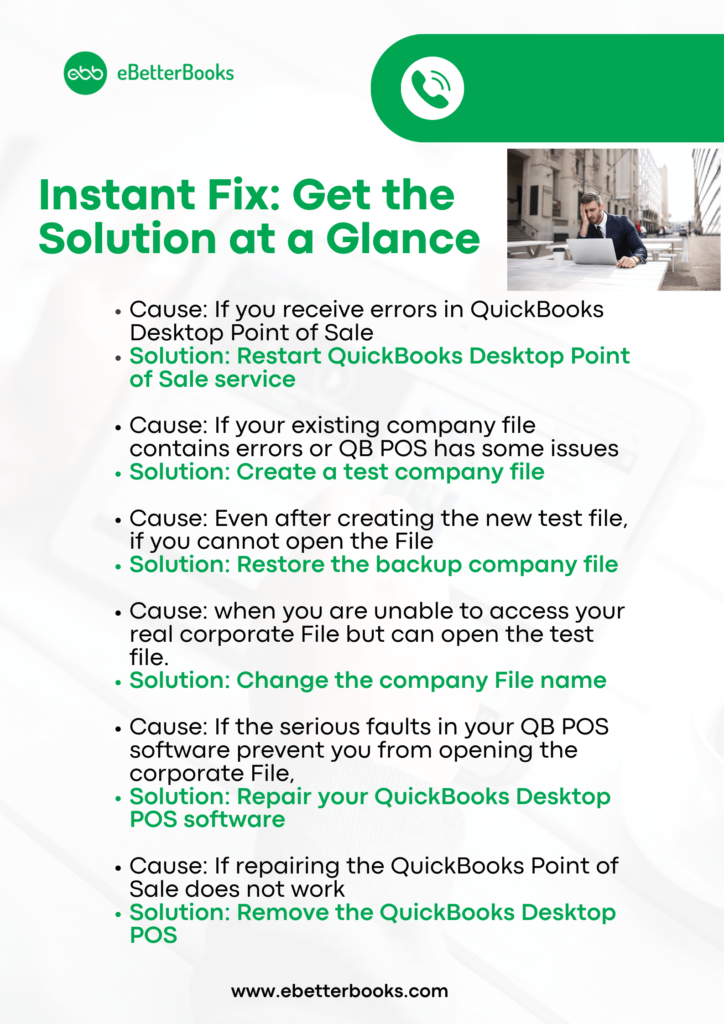
| Error Cause | Solution |
| If you receive errors in QuickBooks Desktop Point of Sale | Restart QuickBooks Desktop Point of Sale service |
| If your existing company file contains errors or QB POS has some issues | Create a test company file |
| Even after creating the new test file, if you cannot open the File | Restore the backup company file |
| when you are unable to access your real corporate File but can open the test file | Change the company File name |
| If the serious faults in your QB POS software prevent you from opening the corporate File, | Repair your QuickBooks Desktop POS software |
How to Fix QuickBooks Point of Sale Wonโt Open Company File?
The QuickBooks Point of Sale Wonโt Open Company File issue occurs when the system cannot establish a stable connection with the company data file during startup. Troubleshooting steps such as restarting POS services, creating a test file, restoring a backup, renaming the existing file, or repairing the software help restore proper file access and allow the system to recognize the company file correctly.
Letโs go through each approach in more detail:
Solution 1: Restart QuickBooks Desktop Point of Sale service
- Close the โQuickBooks Desktop Point of Saleโ Application.
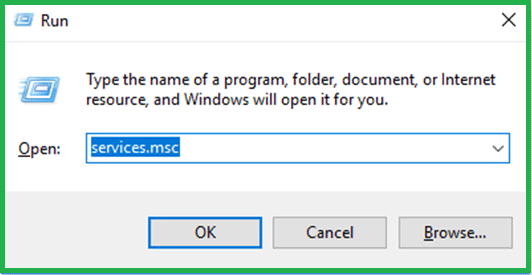
- Then, press โWindows + Rโ simultaneously to open the โRunโ window.
- Start entering โservices.mscโ into the text field after that.

- To continue, click the โOKโ button.
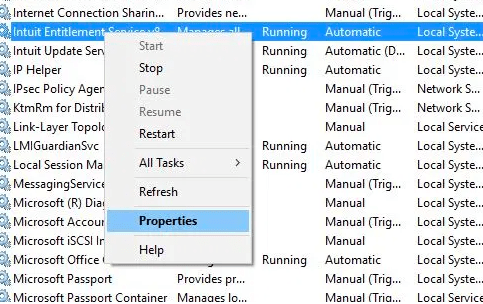
- Look for the โIntuit Entitlement Serviceโ when you enter the โServicesโ panel.

- Double-click the service once youโve located it. If there are many choices, choose the one with the most variations.
- When you go to the โStartup Type,โ select โAutomaticโ from the drop-down menu under the โGeneralโ tab. You must set the service status to โRunningโ in this case.
- Now, go to the โLog Onโ tab.
- Check the box before โAllow service to interact with desktopโ and choose the โLocal System account.โ
- Select the โApplyโ button and the โOKโ button.
- Go to the โRecoveryโ tab next.
- After that, choose โRestart the Serviceโ from the options for the first, second, and succeeding failures.
You can attempt to access the company file after restarting the QuickBooks Desktop POS service. Continue with the following fix if QuickBooks Point of Sale cannot open the company file.
Solution 2: Verify Permissions
Ensure that your user account has read/write access to both the file and the folder where it’s stored. This should resolve most access-related issues and allow you to open the company file.
Solution 3: Create a test company file
- Switch to QuickBooks Point of Sale.
- Go to File> Company Operations.
- Select Create a New Company, then click Next.
- Give a company name, โTest,โ and click โCreate.โ
- If the Test File opens, an issue with an existing file is reported. (If this applies to you, continue directly to step 4). OR
- If the Test File wonโt open, there may be a software problem to blame. (If this applies to you, continue to step 3).
Solution 4: Restore a backup
- Go to File> Company Operations.
- Select Restore from Backup, then press Next.
- Click Browse, then choose Browse to an alternative backup file.
- Now go to C:UsersPublicPublic DocumentsIntuitQuickBooks POS XXDataโ Your Company Nameโ Backup. XX represents the software version.
- Click Open after selecting the most recent Backup.
- To confirm, click Next and enter โYes.โ
- To restore the backup company file, click OK.
Solution 5: Rename your company file
- Close QuickBooks POS (Point of Sale).
- Go to C:UsersPublicDocumentsIntuitQuickBooks Desktop Point of Sale XXDataโ Company File.โ XX represents the version.
- To rename the company file, use a right-click and select Rename.
- Change the name of a company file now.
- Switch to QuickBooks Point of Sale.
- Go to File> Company Operations.
- Click Next after selecting Open existing company.
- Now open the File by following the on-screen instructions.
Solution 6: Repair QuickBooks Desktop POS Software
- Close QuickBooks Point of Sale.
- Press the Windows +R keys simultaneously to open the Run command.
- Select OK after typing Control.
- Select features and programs > programs from the menu.
- Select QuickBooks Desktop POS from the list of programs, and then click Repair (at the very top of the program list).
- Click Yes if asked.
Solution 7: Reinstall the QuickBooks Desktop Point of Sale
- Go to the QuickBooks Download Page.
- Click Search after choosing the country, product, edition, and version.
- Click on Download now.
- Click on QuickBooksPOSVXX.exe twice. XX represents a productโs version.
- Allow permissions by selecting Yes.
- To continue with the QBPOS InstallShield Wizard, click Next.
- Click Next after accepting the License Agreement.
- Click Install.
- The setup procedure begins and could take some time to complete.
- When finished, click Finish.
Best Practices to Prevent QuickBooks POS Failed To Open Company File
Updated software, proper permissions, stable network configurations, and secure data folders reduce the risk of file damage or access errors. These practices help QuickBooks Point of Sale maintain a consistent and reliable connection to the company file.
- Maintain Regular Backups: Create frequent backups of the company file to avoid data loss and ensure you have a clean file available if corruption occurs.
- Keep QuickBooks POS Updated: Install the latest POS updates and patches to prevent compatibility issues and maintain stable file communication.
- Use Stable Network Connections: Ensure the server and workstations operate on a reliable network to avoid file path interruptions and connection drops.
- Verify File and Folder Permissions: Grant full control permissions to authorized users on the POS data folder to prevent access failures.
- Monitor POS Database Services: Check that the QuickBooks POS Database Manager service remains active to support consistent file access.
- Avoid Moving or Renaming Company Files: Keep the company file in its default directory to prevent file-path mismatches that block POS from locating the data.
- Adjust Security Software Settings: Allow QuickBooks POS through antivirus and firewall settings to avoid blocked connections and service interference.
- Maintain Enough Storage Space: Ensure the server or workstation has sufficient free disk space to support smooth file operations and updates.
Conclusion!
The QuickBooks POS Failed To Open Company File issue results from file damage, service interruptions, permission restrictions, or configuration errors that prevent the system from loading the company data. The troubleshooting steps outlined in this guide provide a structured path to restore file access by validating services, confirming permissions, testing alternate files, repairing installations, or reinstalling the software when necessary. Applying these solutions restores a stable connection to the company file and allows QuickBooks Point of Sale to resume normal business operations without further disruption.
Hopefully, the above-given information is useful for you. But if you still facing any kind of issues with your software and need professional assistance, regarding accounting, bookkeeping & accounting software-related issues then feel free to get in touch with us at +1-802-778-9005, or you can mail to us at: support@ebetterbooks.com
FAQs
What is the difference between the “Intuit Entitlement Service” and the “QuickBooks POS Database Manager” service?
These two services must be running simultaneously on the server computer for QuickBooks Point of Sale (POS) to connect and function correctly.
- Intuit Entitlement Service: This service manages the licensing and validation of your POS software. If it is stopped or corrupted (often through the entitlement file), the POS application cannot verify its usage rights and will fail to open the company file or even launch.
- QuickBooks POS Database Manager (QBPOS Database Manager vXX): This is the core service responsible for hosting, reading, and writing company data across a network. If this service is inactive, the POS application (both server and client workstations) cannot establish the necessary connection to the data file.
What is the exact default location for the QuickBooks POS company data and backup files?
Knowing the default file path is essential for renaming damaged files, verifying Windows folder permissions, and restoring backups.
The file paths are typically located in the public user profile to facilitate multi-user access:
- Default Company Data File Location (Working File): The file is usually a
.qbwfile.C:\Users\Public\Public Documents\Intuit\QuickBooks\Company Files(This is the path for QuickBooks Desktop, but the same principle of Public Documents applies to POS files.)
- QuickBooks POS Data File Location: The POS data file is located in a version-specific folder, where
XXis the POS version (e.g., 18, 19).C:\Users\Public\Public Documents\Intuit\QuickBooks POS XX\Data
- Default Backup File Location: Backup files are generally found within a subfolder of the main data directory.
C:\Users\Public\Public Documents\Intuit\QuickBooks POS XX\Data\Your Company Name\Backup
When troubleshooting, why must I specifically log in to Windows as an Administrator?
You must log in to the Windows operating system as an administrator before performing any advanced troubleshooting steps, especially on the server computer.
This is necessary because:
- Service Modification: Only an administrator has the permissions to access the Windows Services (
services.msc) utility to stop, start, or change the Startup Type and Log On credentials for services like the QBPOS Database Manager. - File Permissions: Setting or verifying Full Control permissions on the company file folder for the QBDataServiceUserXX requires administrative rights.
- Software Repair: Running the Repair or Uninstall/Reinstall process for the QuickBooks POS application modifies core program files and registry keys, which are restricted to administrative accounts.
My company file is damaged. What is the essential order of recovery actions before contacting support?
When the issue is confirmed as data-related (by opening the test file), a specific sequence of data recovery actions is used to minimize data loss and repair the file.
The essential order is:
- Action 1: Restore a recent backup file. The quickest and most reliable fix is restoring a
.qbbor similar backup file that is known to be clean and stable. - Action 2: Utilize the built-in data utilities. Run the Verify Data utility to diagnose the damage, followed by the Rebuild Data utility to attempt to automatically fix the structural issues within the company file.
- Action 3: Use the QuickBooks File Doctor. If available, this tool (part of the QuickBooks Tool Hub) can diagnose and fix both company file data damage and network connectivity problems.
I cannot open the test company file. What does this indicate, and what is the confirmed next step?
If a newly created, empty test company file fails to open, the problem is not with your original data’s integrity, but with the core software installation or the local Windows environment.
- Indication: The POS application itself is corrupted or damaged, or a non-Intuit component (like a firewall or antivirus program) is blocking the software’s ability to run locally.
- Next Step: The confirmed next steps are focused on correcting the program installation:
- Repair the QuickBooks Desktop POS Software via the Windows Programs and Features menu.
- If the repair fails, proceed to a complete reinstallation of the POS software, downloaded from the official Intuit website.
What is the single most critical proactive measure to prevent this file access error?
While multiple maintenance steps are helpful, the single most critical action for preventing the catastrophic “Failed to Open Company File” error is to manage the server environment effectively.
The most critical proactive measure is:
- Monitor and maintain the POS Database Server Manager. Ensure the QBPOS Database Manager service is always running on the designated server computer, set to Automatic startup, and has the correct firewall exceptions. This ensures consistent, stable hosting and access to the data file, mitigating the leading cause of file corruption and access interruption.
What is the specific service name I need to look for to restart the database manager in the Windows Services panel?
To manually restart the service, you must identify the correct name in the Windows Services management console (services.msc).
The name you need to look for will follow a version-specific naming convention:
- Service Name:
QBPOS Database Manager vXX(or sometimesQuickBooksDBXXfor related desktop versions) - Explanation: The
XXin the name represents the version number of your installed QuickBooks Point of Sale software. For example, if you are running POS Version 18, the service name is likely to beQBPOS Database Manager v18.
Disclaimer: The information outlined above for โHow to Fix QuickBooks POS (Point of Sale) Failed To Open Company File?โ is applicable to all supported versions, including QuickBooks Desktop Pro, Premier, Accountant, and Enterprise. It is designed to work with operating systems such as Windows 7, 10, and 11, as well as macOS.