Excerpt:
If you're encountering the QuickBooks error "The file you specified cannot be opened," this guide addresses the common causes and provides step-by-step solutions. Issues like damaged files, lack of admin rights, outdated software, and incorrect security settings can prevent QuickBooks from accessing necessary payroll files. By following the recommended fixes—such as repairing files, updating software, or adjusting settings—you can resolve the issue and ensure smooth payroll processing.
 Add As A Preferred
The QuickBooks error, “The file you specified cannot be opened,” is a common barrier to running payroll, frequently triggered during tax form access or liability payments. This comprehensive guide details the reasons behind the disruption, primarily identifying file corruption, inadequate administrative privileges, outdated software, and overly aggressive Windows security settings (like UAC and firewalls) as the culprits. Resolution relies on applying official tools, notably the QuickBooks File Doctor, and executing system-level changes. Critical fixes include consistently running the application as an administrator and meticulously configuring Windows file permissions. The core takeaway is that a structured, step-by-step approach efficiently solves this recurring technical hurdle.
Highlights: Key Facts and Solutions
The error message “The file you specified cannot be opened. Make sure that it is not currently being used by another program or a read only file. The Windows error was “The file exists” in QuickBooks typically occurs when the file that you want to access is not found in the system. This error is caused.
This issue can arise due to several reasons, including:
Learn why “The file you specified cannot be opened” and “The File exists.” Errors appear while using QuickBooks payroll, and knowing these reasons can be helpful in fixing this problem, which can ensure that the software works smoothly.
Follow these steps to rebuild the damaged company file within QuickBooks to restore its integrity.
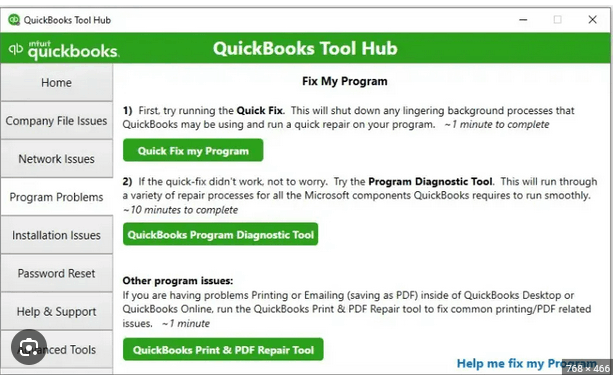
Follow the below steps to run QuickBooks File Doctor if the Error persists:
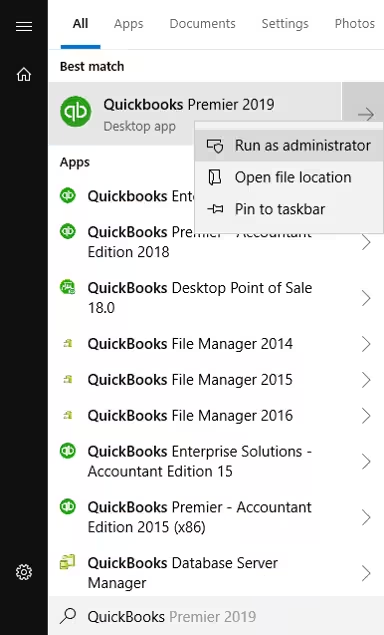
Run QuickBooks with administrator rights to ensure it can access all the required files.
Follow the below steps:
Update QuickBooks to the latest version for better compatibility with all the company files.
Follow these steps to adjust the User Account Control, which can allow QuickBooks to access all the required files properly:
Reconfigure the internet security settings to allow QuickBooks to communicate and access company files without interruptions.
Follow these instructions to adjust the file permissions in Windows to ensure that QuickBooks can access the files it needs:
Intuit releases patches, feature upgrades, and bug fixes on a regular basis to resolve known problems and increase the reliability of the software. Increase your efficiency in financial management by making sure you have access to the newest tools and features by keeping your version of QuickBooks up to date.
Moreover, upgrades frequently contain significant security patches that secure your financial data from threats. Maintaining software compatibility and avoiding any problems in a seamless experience when handling your business’s money all depend on keeping up with QuickBooks upgrades.
Running QuickBooks as an administrator is a simple but efficient method to keep accounting procedures running smoothly and continuously. This lowers the possibility of mistakes by granting QuickBooks the required rights to carry out different operations and access files without limitations.
The file you specified cannot be opened.” Error in QuickBooks occurs as a result of standard User accounts not having the necessary rights to access some files or system resources that QuickBooks needs.
You may be sure that your important financial data is safeguarded from data loss, system malfunctions, and unforeseen problems by regularly backing up your company file. QuickBooks has a number of backup choices, such as manual and automated backups to local or cloud storage.
In any circumstances, data corruption or other unanticipated issues, you may restore your financial data to a prior condition with the help of these backups, which provide you peace of mind. Frequent backups serve as a safety net, guaranteeing the security of your financial data and the continuity of your business activities.
Make sure the network can manage the traffic when several people view your firm file at once via a network. Data failures, file corruption, and slow performance can all be caused by an overloaded network.
You should set up a reliable network architecture, which includes employing switches, routers, and high-speed internet connections, to avoid this. Update your network gear frequently to stay up with the expansion of your company.
To keep your QuickBooks software functioning properly and avoid errors, regular maintenance is necessary. Cleaning up your data files and doing regular updates are examples of maintenance duties.
QuickBooks releases updates to fix bugs, enhance security, and improve performance. You can secure data integrity and guarantee compatibility with the newest features by keeping your program updated.
Bottom Line
“The file you specified cannot be opened” issue in QuickBooks is a recurring error but can be fixed easily. This article has all the relevant troubleshooting methods which can be performed easily.
However, if you still need help with QuickBooks, accounting, or bookkeeping, then feel free to get in touch with us at +1-802-778-9005 or mail us at support@ebetterbooks.com. Our professionals are there to assist you 24/7.
This is a key indicator that the problem is not data damage, but a system access restriction (Permissions, Firewall, or UAC). The QuickBooks File Doctor (a verified Intuit tool) successfully repairs file corruption, but it cannot permanently fix an overly aggressive Windows firewall or missing file permissions. The error instantly returns because the security setting immediately blocks QuickBooks when it tries to re-access the file.
Next Step: You must immediately prioritize running QuickBooks as Administrator and manually verifying Windows permissions for the folder that contains your company file.
No, Intuit and Microsoft strongly advise against permanently disabling UAC (“Never Notify”). UAC is a vital Windows security layer that protects your system from unauthorized changes and malware.
Tips: You should temporarily disable UAC only for troubleshooting (to isolate the cause). The correct and secure solution is to re-enable UAC to the default setting and instead grant the necessary Full Control permissions specifically to the QuickBooks application and company file folders (a core step in most troubleshooting guides).
In a multi-user environment, the fix often requires steps on both the server (where the company file is hosted) and your workstation.
1. Server Side Fixes: Check hosting settings, ensure the QuickBooks Database Server Manager is running, and verify Windows File Permissions and Firewall exclusions.
2. Workstation Side Fixes: Ensure hosting is turned off on your computer (Solution 3/4.2 in search results) and that you run as Administrator.
This means your Windows user profile does not have the necessary local Administrator privileges. You cannot proceed with this critical troubleshooting step until you gain those rights.
You must contact your IT department or network administrator. They need to either perform the “Run as Administrator” step for you or temporarily grant your account the elevation required.
No, QuickBooks is not a security threat, but its real-time database access and network communication patterns can be flagged as suspicious by aggressive antivirus or security suites.
The Fix: You must create explicit exclusions in your antivirus and firewall settings for the QuickBooks program folder and its key executable files, such as: QBW32.exe and QBDBMgrN.exe.
This confirms the issue is tied to either the permissions on the temporary folders QuickBooks uses for forms or an out-of-date payroll subscription/tax table. Payroll files are often highly protected, triggering the error if access is denied.
Specific Check:
1. Ensure your QuickBooks Payroll subscription is active and the latest tax table update has been successfully downloaded.
2. Run the QuickBooks program as Administrator before attempting to pay liabilities or generate forms.
If you have systematically verified and applied the solutions, the problem is likely beyond basic configuration and requires specialized diagnosis.
1. Expert Assistance: This often points to deeper issues like: Corrupt Windows Profile, Registry damage, or unique file locks.
2. Action: Contact a Certified QuickBooks ProAdvisor or Intuit Technical Support.
To locate the path of your QuickBooks company file, follow these simple steps:
1. In QuickBooks, Go to the File Menu: Click on the File menu at the top left of the QuickBooks window.
2. Select “Open or Restore Company”: This will open a window showing your recently used files.
3. File Path Display: The path to your company file will be displayed in this window.
Default File Location
Note: If you’re unsure where your file is saved, QuickBooks Desktop company files are usually stored in the default location: C:\Users\Public\Public Documents\Intuit\QuickBooks\Company Files


