Excerpt:
The QuickBooks Conversion Tool helps businesses seamlessly transfer data from various accounting software to QuickBooks Desktop, including Sage 50 and Quicken. It ensures secure migration of company files, preserving data integrity and simplifying the transition. This tool addresses compatibility issues, minimizes data loss risks, and supports a range of file types. Whether upgrading to a newer QuickBooks version or switching platforms, the Conversion Tool ensures a smooth, hassle-free process, keeping your financial data safe and accessible.
 Add As A Preferred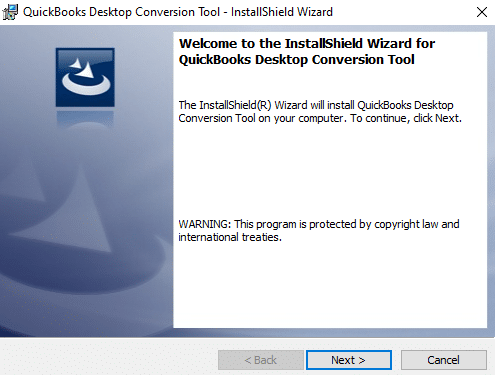
QuickBooks Conversion tool helps you to transfer your company file from one software to another or between the different versions within QuickBooks without compromising your data security. This tool is one of the most preferred tools provided by Inuit.
With the help of this conversion tool, you can move your company file from a variety of different programs. This allows you to access the QuickBooks files from other software like Excel, Word, and other third-party software or a program. Whether you’ve to convert from QuickBooks 2023 to QuickBooks desktop 2024 pro, premier or enterprise versions.
It ultimately helps you to streamline various business tasks such as invoicing, expense tracking, payroll processing, reporting and inventory management. Due to its wide acceptance, this tool is completely safe and secure for all small or mid-sized business owners as it protects your file from any disruptions, malfunctions or accidental data loss.
QuickBooks is a robust accounting software used for bookkeeping, invoicing, financial reporting and payroll management among many business owners comes up with multiple versions like Pro, Premier and Enterprise and can be easily installed on both Windows and iOS.
To get started with setting up your financial tracking and managing your business accounts efficiently, you will first need to access the guide Quickbooks Software Download page to acquire the correct installer version suited for your system configuration and subscription plan.
Despite having unlimited features and functionalities, QuickBooks has its own limitations including less industry and business-specific features, limited user access, lack of integrations and automations between other systems.
Below we’re presenting a comprehensive checklist for the users who don’t know how to download and use the QB conversion tool or check if the tool is working smoothly with your system or not before switching from one QuickBooks software to another.
For seamlessly download the QuickBooks conversion tool, adhere to the steps below:
Once you’ve downloaded the QB Conversion tool in your system, now it’s time to start using it.
Below are the steps that will help you in making the best out of the conversion tool:
Here’s list of what can be seamlessly transferred to QuickBooks Desktop or what not:
| What can be Converted? | What cannot be Converted? |
| Account Lists Employee Lists Inventory Details Customer Lists & Transactions Vendor Lists & Transactions Account balances Employee profile and contact info Payroll General Ledger account balance info Accounts Receivable and Accounts Payable Profit & Loss Monthly Balance Sheets Paychecks | Payroll transactions and employee year-to-date info Work tickets Fixed Assets Individual employee wage or deduction information Closed or partially closed Sales orders, Purchase orders and Estimates Paychecks, year-to-date adjustments |
Here’s a list of reasons why you need to use the QB conversion tool for migrating your company file from one software to another.
All the features and functionalities are as follows:
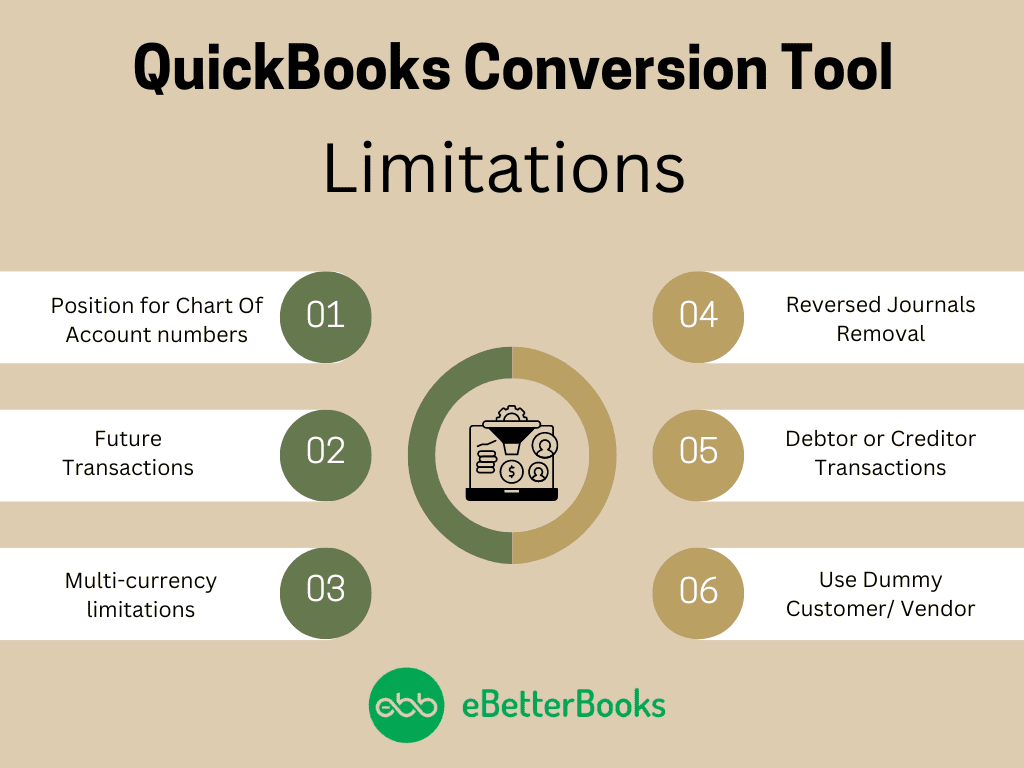
Even though the tool is full of features, there are certain limitations of this conversion tool as well. These limitations are related to the importing data, transactions, and account balances from other financial software into QuickBooks.
Below we’ve mentioned the each one:
Note: You can only convert the versions of Sage 50 and QuickBooks desktop from the same region which means if you are having a US version of Sage 50, then you are recommended to convert it to the US version of QuickBooks desktop only.
You need to use the QuickBooks conversion tool if you want to move your Sage 50 data automatically to QB desktop.
Here’s how to download and use the tool on your system:
Before you start the data conversion process and switch from Sage50 to QuickBooks desktop, adhere to all these precautionary steps to ensure a smooth transition:
Note: If your Sage50 data file is located on a server, perform the conversion on the server computer.
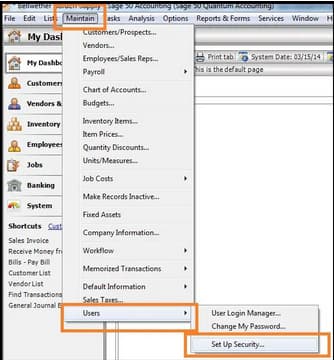
Important: Make sure you have full admin user access to perform the following steps.
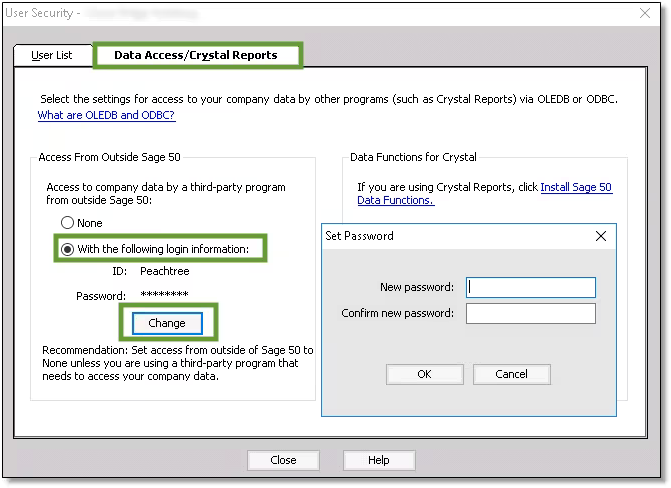
Note: you can’t change the ID field.
Remember: The new password must have 8 characters or less. Exceeding this limit will cause issues with the conversion tool.
Adhere to the below-listed steps to help you get started with the conversion process:
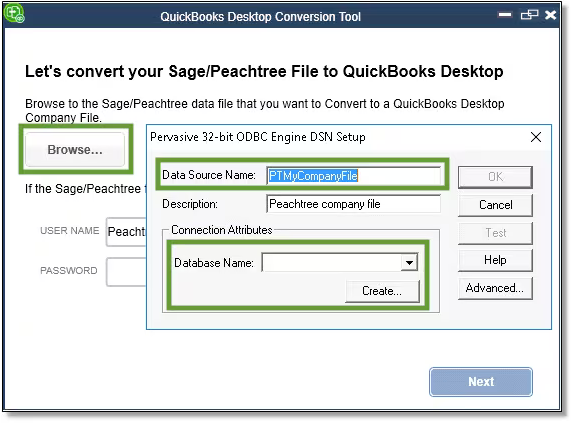
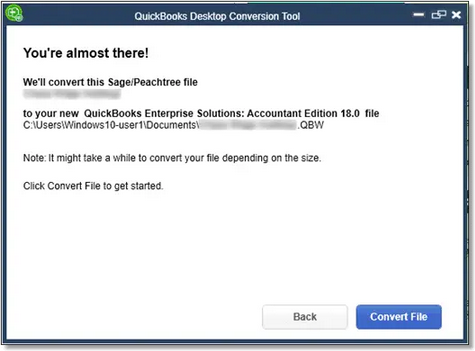
Note: this prompt can be seen twice.
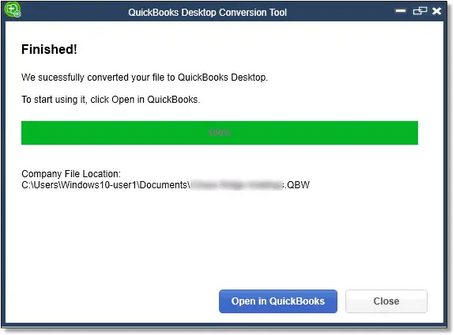
Once the conversion tool transfers your data successfully, choose Open in QuickBooks and review your data in QuickBooks to ensure everything is there.
Later, check the transfer log:
If you’re a Quicken user with 2011 or later versions, you can use QB conversion tool to transfer your data from Quicken to QuickBooks desktop using the steps below:
Note: If the QuickBooks and Quicken are from the same year then the tool is not required. This tool is only installed when QuickBooks is newer than Quicken.
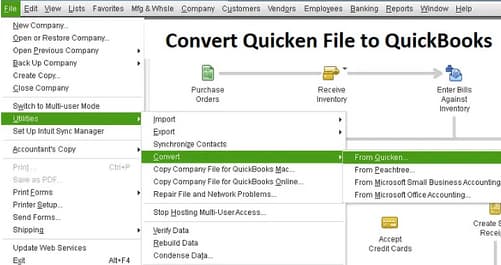
If you get an error that says, “It looks like something went wrong”, we can help:
If you get an error that says, “We just need a little more info”, we can help.
Conclusion
This is how you can easily move your company file from one software to another using the QB conversion tool and get hassle-free transition. This tool helps you to remove discrepancies and double-entries in your converted data and ensure that it is aligned or categorized properly and transferred accurately to your new software.
However, if you have any doubt or query related to this conversion tool or the entire migration process then sign up and connect with professionals to access your crucial business data in the most suitable environment tailored to your business needs.
QuickBooks gives you the flexibility to create reports and to get insights about your business. You can export them to Excel if you want to use your reports outside of QuickBooks. Also, export all your QuickBooks transaction data.
Below are the steps for conversion:
Note: If you’re missing data when you open the report in Excel, the file’s in a protected view. In Excel, you’ll need to choose Enable Editing to view the full report.
QuickBooks conversion tool allows you to convert the company file from other programs. This further helps you to use QuickBooks files with software like Excel, word, and other third-party programs. It is a free downloadable tool that easily imports business data, balances, and transactions so you can continue running your business where you left off.
You can use a CSV (Comma Separated Values) QFX, QBO, OFX, or TXT file type, Google Sheets, or an XLS/XLSX file to import information from Excel to QuickBooks Online.
While most migrations are done within a few hours or even minutes, the conversion tool typically takes between 12 and 24 hours, and online-to-online migrations typically take between 24 and 48 hours.
QuickBooks migration can fail due to various reasons such as data integrity issues, incompatible formats, unsupported data versions, data size and complexity, system configuration issues, software or hardware glitches and more.


