+1-802-778-9005
Home>>Become An Expert With QuickBooks Training & Certification Additional Guide – Keep your QuickBooks Software Healthier How to Restore the Backup or Company File in QuickBooks Desktop

Submit Your Details to Continue Reading

Protecting business financial data necessitates routine use of QuickBooks Desktop’s backup and restore functions to safeguard against file corruption, hardware failure, or other data loss events. The system creates a compressed backup file, identified by the .qbb extension, which comprehensively captures accounting data, lists, and templates; however, Payroll Forms must be secured through a separate manual process. When data damage occurs, the protocol requires users to first employ the internal Verify Data tool to diagnose the issue, followed by Rebuild Data to attempt automatic repairs. If repair fails, the restoration process converts the secure .qbb backup into a new, active company file (.qbw). A critical security step during restoration is the obligation to select a unique file name and new storage location to prevent accidentally overwriting the existing, potentially corrupt, company file. This structured procedure is vital for maintaining business continuity and preserving accurate financial records.

Highlights (Key Facts & Solutions)

  • Backup File Extension: QuickBooks Desktop creates a backup file with the .qbb extension, capturing all core accounting data, but excludes Payroll Forms, which require manual backup.
  • Data Integrity Check: Before restoration, data is checked using two utility tools:
    • Verify Data: Scans the company file for internal inconsistencies or structural damage (corruption).
    • Rebuild Data: Attempts to fix the corruption detected by the Verify process.
  • Restoration File Creation: The restoration process converts the compressed backup file (.qbb) into a new, usable company file (.qbw).
  • Overwriting Prevention: To prevent accidentally overwriting the existing file, the user must select a unique file name and a different folder location when saving the restored .qbw file.
  • Version Compatibility: Backups from an older version of QuickBooks can be restored to a newer version (upgrading the file); conversely, newer version backups cannot be restored to an older version due to file structure incompatibility.
  • Missing Transactions: Any transactions entered after the .qbb backup was created will be missing from the restored file and must be manually re-entered or recovered using advanced Auto Data Recovery tools.
  • Point of Sale (POS) Distinction: The Point of Sale version has a separate, dedicated backup and restore procedure and uses a different file extension (.qpb for backups).

Multiple Instances when you need to restore the Company File Backup in QuickBooks Desktop!

There are a variety of situations in which you are required to create your company file backup; a few of them are as follows:

  • The company file gets damaged and canโ€™t be repaired using QuickBooks Verify and Rebuild data utility. 
  • If another user is already logged in to your company file from a different workstation or youโ€™re having trouble accessing the same. 
  • All your essential company file data is accidentally or mistakenly deleted. 
  • The QB company file is affected due to malware or virus attacks, and it is almost impossible to prevent data loss. 
  • Due to power outages or hardware failure, you may have to restore the company file backup. 
  • If your system crashes or you need to undo recent changes, you can use your backup company file at this point. 

What is the โ€œPathโ€ for QuickBooks Backup File, and where is it located?

The searchable value or file extension for QB Backups is *.qbb, and its default location is: C:\Users\Public\Public Documents\Intuit\QuickBooks.

Steps to Backup Company Data in QuickBooks Desktop

Backing up your company data in QuickBooks Desktop is crucial for data security and recovery. Hereโ€™s a detailed guide on how to perform this task effectively.

Step 1: Access the Backup Menu

  • Navigate to the File menu in QuickBooks and select Back Up Company from the dropdown options.

Step 2: Choose Backup Type

  • In the new window, select Backup Copy to create a copy of your company file.

Step 3: Select Local Backup

  • Select Local Backup when prompted to save the backup on your local device.

Step 4: Choose Backup Location

  • You will need to specify where you want to save the backup file. Select the Browse to navigate to the desired folder or location on your computer or external device.

Step 5: Save on Local or External Devices

  • Save the backup of your data on any local device such as your computerโ€™s hard drive or an external device including USB flash drive or external hard drive.

Step 6: Setup Preferences

After selecting the location for your backup data, you need to proceed to set up your backup preferences:

  • Include the date and time in the backup file name for easy identification.
  • Specify the number of backup copies you wish to keep at one time.
  • Set reminders for regular backups.
  • Choose to verify that the company data is correct before saving. 

Step 7: Confirm Saving Process

  • Confirm that you want to save the file on your local device by selecting Yes, then click on Next.

Step 8: Choose Backup Timing

  • Decide when you want to save your file. You can select either to create a backup immediately or you can set up automatic backups scheduling backup timings.

Step 9: Recommended Scheduling Option

  • It is advisable to select the second option, โ€œNow and Schedule Future Backups,โ€ so that QuickBooks can handle future backups automatically.

Step 10: Schedule Backup Settings

Once you opt for scheduling, you’ll be prompted to set up how often backups occur:

  • Set it to back up when closing the file after a certain number of uses.
  • Alternatively, choose a specific schedule (recommended) for regular backups.

Simple Steps to Restore QuickBooks Company File Backup!

When you restore a backup file, QuickBooks makes use of the backup company file (.qbb) to create a new company file (.qbw). 

Important: Make sure you move your backup file to your local hard drive if it is available on an external device like a USB or a hosting service like Box. Then, adhere to the steps below.
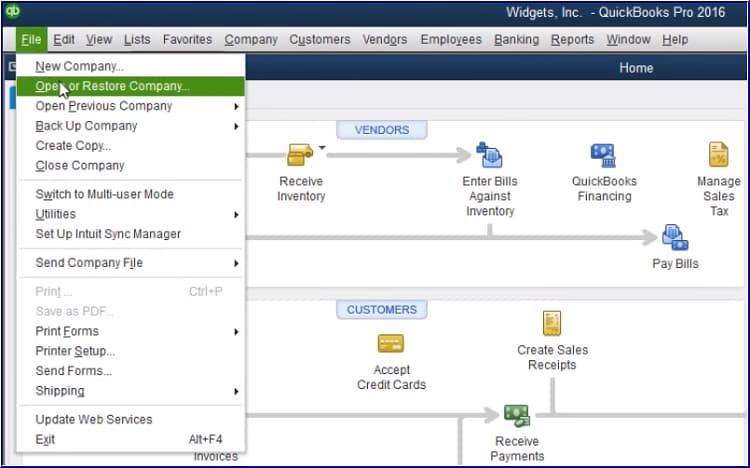
  1. Firstly, navigate to the File menu in QuickBooks and then choose Open or Restore Company.
Navigate to the File menu in QuickBooks Desktop, then select Open or Restore Company to proceed with restoring a backup file
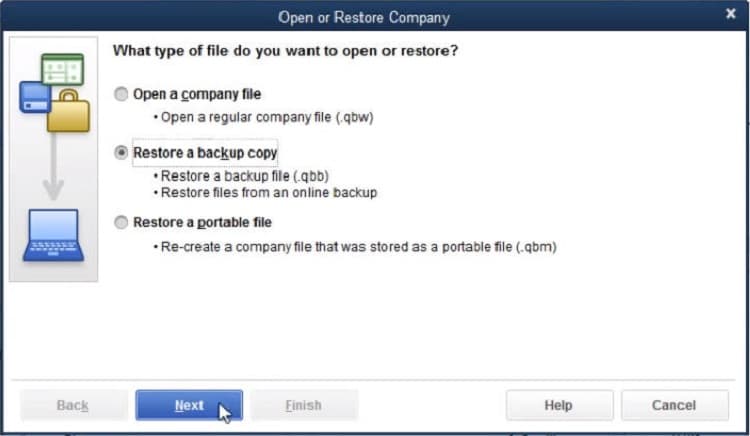
  1. Now, select Restore a backup copy (.Qbb) and then press Next.
Choose the option 'Restore a backup copy (.Qbb)' in QuickBooks Desktop and click the Next button to continue
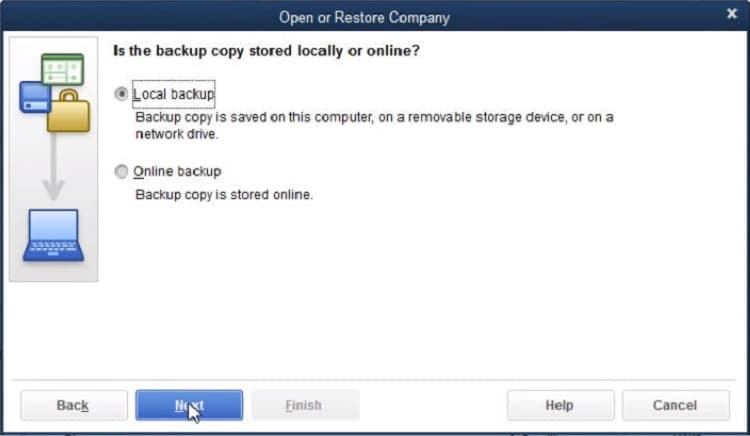
  1. Click on Local Backup and hit the Next tab again.
Opt for Local Backup in QuickBooks Desktop and press the Next button to finalize the restoration process
  1. After this, browse your computer for your backup company file. It will look like this: [Your company name].qbb.
  2. Choose the folder to determine where to save your restored company file. Then press Open.
    Note: You may overwrite your data in case you open the backup in the same folder as your existing company file. To avoid overwriting, you can rename your existing file or the backup so the names you enter are different or unique. Or you can save the backup in a separate folder.
  3. Once done, click Save to save the restored backup file using the drop-down menu.
    Note: If you get any messages related to overwriting your data, it is advisable to select the option that best fits your needs. Avoid overwriting anything unless you know you want to.
  4. At last, you have a new company file you can work from.

How to Create or Restore the Backup Files in QuickBooks Desktop Point of Sale?

Create a Backup

Creating backup files in QuickBooks Desktop Point of Sale is important to secure your data against potential loss due to software issues, data corruption or hardware failures. 

Steps to create a backup:

Step 1: Access the Backup Option

  • Begin by navigating to the File menu in QuickBooks. 
  • Select the Back up Data option. It will start the backup process and allow you to save your current data securely.

Step 2: Specify Backup Location

  • Choose wherever you want to store your backup file. You have two options:
    • Default Location: Select the default location if you prefer to save the backup in the default folder on your local drive. This is generally the easiest method as it requires no additional configuration.
    • Specify Alternate Location: Select this if you wish to back up your data to a different location such as a network drive or an external portable drive. You will then need to browse and specify the desired path for your backup file.

Step 3: Complete the Backup Process

Proceed by clicking on Backup after selecting your preferred location. This action will prompt QuickBooks to start creating the backup file. Once the process is complete, click Finish to conclude the operation.

Restore a Backup

A backup is basically a compressed copy of your data saved at a location outside the company data folder. Before you open this data in QuickBooks Desktop Point of Sale, it is mandatory to restore the backup file. 

Note: The restored data will replace the data in the existing file if you restore a file to a name already in a default folder.

  1. To begin with, choose Company Operations from the File menu.
  2. Now, select Restore from Backup under the Start Company window and then press Next.
  3. Type a filename in the Company Name field.
  4. Decide the location you wish to restore from:
    1. Select Restore from default backups to restore from a default folder.
    2. Click on Browse to alternate backup files to restore from a network or removable drive.
  5. Hit the Next tab and then press Close.

QuickBooks Desktop Point of Sale will restore (decompress) and copy the backup files into your working directory. Youโ€™ll get a prompt to insert sequential restore disks if itโ€™s required.

FAQ

What data is not included in a standard QuickBooks Desktop backup (.QBB file)?

A standard QuickBooks Desktop backup file (.qbb) captures the vast majority of your accounting data, lists, templates, and related files (like the Loan Manager and Cash Flow Projector). However, it does not include certain data that must be managed or backed up separately:

  • Payroll Forms: The backup generally does not automatically include your saved payroll forms.
    • Action Needed: Users must manually print copies or save the folder containing the payroll tax forms ([your company name] Tax Forms) from their system to ensure their safety.

What is the difference between the Verify Data and Rebuild Data utilities, and when should I use them before restoring?

The Verify Data and Rebuild Data utilities are sequential tools used for checking and repairing data integrity issues within your company file:

  • Verify Data: This is a diagnostic tool that scans your company file to find the most common internal inconsistencies, structural damage, or corruption.
    • Result: It tells you if there are “no problems” or if your data “has lost integrity,” indicating damage.
  • Rebuild Data: This tool attempts to fix the corruption found by the Verify process by re-indexing the database and correcting structural errors.
    • Procedure: Always run Verify Data first. If data damage is reported, run Rebuild Data. If damage persists after rebuilding, restoring from a clean backup is the final step.

I restored my backup file successfully, but now I am missing transactions. What happened?

If transactions are missing immediately after a successful restore, it means the missing data was created in the time between when the backup was made and when the file was restored. Restoring the backup reverts the file to its state at the time of the .qbb creation.

  • Cause: Any transactions entered or downloaded after the specific date and time of the backup are not contained in the restored company file.
  • Resolution: You must manually re-enter or re-download all transactions that occurred during this data loss window. You may also use the QuickBooks Auto Data Recovery (.qbw.adr and .tlg.adr) files to attempt to recover the most recent transactions, a process more complex than a standard restore.

Can I restore a QuickBooks backup file (.QBB) created in an older version of QuickBooks to a newer version?

Yes, this is generally permitted and is the correct way to upgrade your file:

  • Restoring to Newer Version: You can restore a backup file created in an older version (e.g., 2022) to a newer version (e.g., 2025). QuickBooks will automatically update the file format when creating the new .qbw file.
  • Restoring to Older Version: You cannot restore a backup file created in a newer version to an older version. Due to changes in file structure, QuickBooks will issue an error because the file is not backward-compatible.

What is the minimum file size requirement for a valid QuickBooks backup file (.QBB)?

While there is no official file size limit for a company file (.qbw), a very small backup file (.qbb) is often an indicator that the file is not a complete or valid backup.

  • Minimum Size Recommendation: It is widely recommended to ensure your backup file is not less than 6 MB (or 6,000 KB).
  • Action: If your .qbb file is smaller than this minimum, there is a high chance it is corrupt or incomplete, and you should attempt to create a fresh backup from the working company file immediately.

How do I prevent accidentally overwriting my existing, non-corrupt company file during the restore process?

Overwriting a good company file with a damaged or older restored file is a significant risk. The main strategies to prevent this are:

  • Rename the Restored File: When prompted to save the new .qbw file after the restore, ensure you type a unique file name that is different from your current working company file (e.g., use “CompanyName_Restored_[Date]”).
  • Use a New Location: Browse and save the restored file to a completely separate folder on your local hard drive, such as a new folder on your Desktop named “QB Restore Test.”

Does the restored company file require the same password, and what if I have forgotten the Admin password?

The newly restored company file (.qbw) will maintain the user accounts and passwords that were active in the original file at the time the backup was created.

  • Password Requirement: Yes, you will need the correct Administrator (Admin) password for that company file to access it after the restoration is complete.
  • Forgot Password: If you have lost or forgotten the Admin password, QuickBooks Desktop provides a specific automated password reset process, which typically involves:
    • Clicking “I forgot my password” on the sign-in screen.
    • Providing a token sent to the email address registered in the Customer Account Management Portal (CAMPS).