Excerpt:
Printing checks in QuickBooks Online is a crucial operational task that requires precise software setup and hardware alignment to avoid costly errors and maintain accurate financial records. The process centers on recording checks via the + New button, marking them for Print later to queue the transactions, and then accessing the Print Checks menu to execute the batch job. The most critical step involves a meticulous Print Setup using sample prints on plain paper to verify alignment against the physical check stock. If misalignment occurs, users must employ the drag-and-drop grid tool within the setup screen to fine-tune margin adjustments or ensure print scaling is disabled (set to 100 percent or Actual Size) in the local print dialogue box. Two primary check styles are supported: Standard (three checks per page, ideal for high-volume payments) and Voucher (one check with two stubs, highly recommended for payroll and detailed vendor tracking due to superior documentation). Successful check printing depends on the user verifying printer settings like portrait orientation and letter-size paper, alongside troubleshooting common print quality and error messages for a seamless accounts payable workflow.
 Add As A Preferred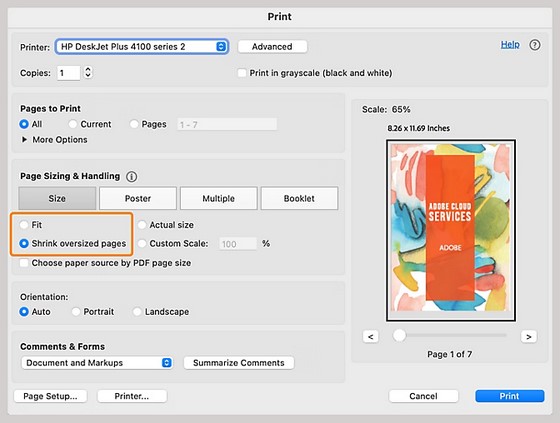
Highlights (Key Facts & Solutions)
Overview
Printing checks is an essential task for many businesses, and QuickBooks online makes the entire printing process easy and seamless. Whether you’re printing checks as part of your company payroll or to pay bills, knowing how to print checks is an important part of handling your day-to-day business operations.
QuickBooks Online simplifies this process with its built-in check printing features. By printing checks directly from this accounting software, you can complete the payment process faster and keep your financial records organized and updated at the same time. Plus, avoid manually entering your checks one by one, as QB Online categorizes your check register when you reconcile your accounts.
Before you learn how to print checks in QuickBooks Online, it’s important to ensure your settings and checks are properly configured.
Here’s a checklist you need to remember:
Important: If you don’t have any specialized check paper available, normal printer paper still works in a pinch. Most home and office printers are able to print checks, so you should be fine if your printer is set up to print letter-size (8.5”x11”) paper.
Whenever you create a check for your expenses, you can print your check directly in QuickBooks Online. Make sure your printer is set up for QuickBooks so your checks align and print out correctly.
Here’s how to do the print setup and adjust your printer settings:
If the sample print doesn’t line up with the blank check, you are recommended to use Adobe Acrobat for printing checks. Adobe Reader is required to print both Standard and Voucher checks.
Here’s how to download it and set it as your default PDF viewer:
If the alignment looks good, then you’re ready to print on your regular checks.
If the check still doesn’t line up, follow these steps to fine-tune your check alignment:
Note: The numbers on the vertical and horizontal fields are adjustable and let QuickBooks know exactly where to print the check amount.
Note: Check the alignment of your sample against a blank check.
If things are lined up properly, you’re all set. You’re ready to print on your regular blank checks.
You may need to adjust the scale on your print dialog box if the sample print is still off. When you select the print option in QuickBooks, your default print dialog box opens. Depending on your setup, this might be the print dialog from your browser, Adobe Acrobat, or your printer’s driver. The steps for adjusting the scale or page size vary for each printing experience. Below we’ve mentioned how to adjust the scale of your tool in Adobe Acrobat, Brother Printers, HP printers, and Canon printers.
Adjust Print Scale in Adobe Acrobat
Below are two ways to adjust print scale in Adobe Acrobat; automatically and manually
Automatically scale to fit Paper
Acrobat can size the pages of a PDF to fit the selected paper size.
Manually scale using percentages
You can magnify or reduce a PDF by an exact percentage.
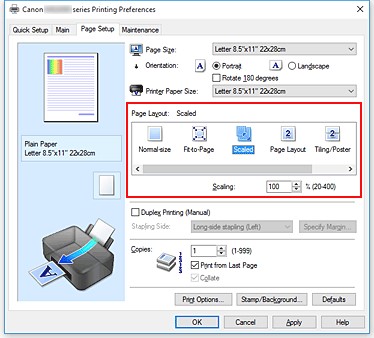
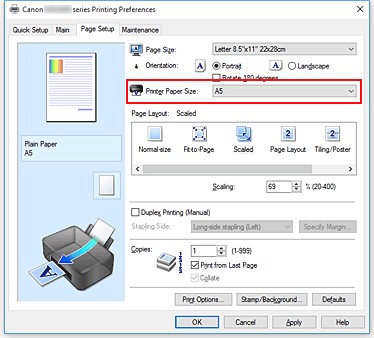
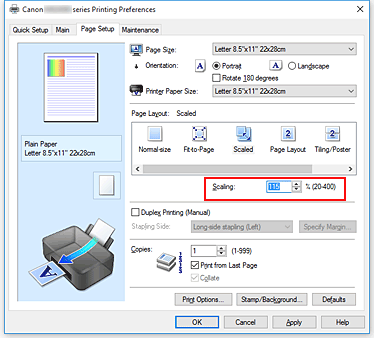
Adjust Print Scale in common Canon Printers
Note: If the printer paper size is smaller than the Page Size, the page image will be reduced. However, if the printer paper size is larger than the Page Size, the page image will be enlarged.
Adjust Print Scale in common Brother Printers
To adjust the default settings of the printer driver, click here.
Scale or Resize the printout in common HP Printers
To Find and change print settings, such as paper type and size, color or black and white, and print quality in HP Printers, click here.
After creating a cheque to pay for expenses, you can print the cheque directly in QuickBooks Online. You can set up your print settings for either standard or voucher cheques. Here’s how to print checks you’ve already recorded in QuickBooks.
To get started, go through the print checks setup to get your printer and cheques lined up right. When the setup’s done, your settings are saved for future use.
Note: Before you start, load some blank paper into your printer for your test prints. This way, you won’t waste actual checks if you need to fix the check alignment.
If the check still doesn’t line up, Here’s How to Fix Check Alignment in QuickBooks Online:
Note: If you need to reuse a check number, uncheck the Print later checkbox. Once you save the check, make sure you’re aware the check number already exists.
Now, as your checks are in the queue, you can print them.
Note: If you need to change the type of check you’re printing (standard or voucher), open the print setup and change your check type.
Tip: you can do a test print on plain paper first to check the alignment and save checks from being wasted.
However, if your checks don’t print properly, select the Some Checks Need Reprinting option or the option to keep checks in the Print Checks list. You may need to open the print setup and adjust your alignment settings.
Standard checks come three to a page, so you might end up with a spare check or two. You can print leftover checks the same way as a regular check. You can get a reusable Intuit Forms Leader to avoid paper jams in your printer. This lets you attach your leftover checks to the form so you can run it through your printer as a full sheet.
Want to print cheques without the voucher? You’re just required to change your check type to Standard.
In QuickBooks Online, you can print two types of checks: standard checks and voucher checks.
When setting up check printing, you can choose the check type you’re using, and QuickBooks will save your preference for future use.
QuickBooks Online does not have an option specifically labeled Print Blank Checks. However, you can print checks that are partially filled in, and here’s the correct process for printing checks:
This method allows you to print checks with flexibility, but for fully blank checks, consider using pre-printed check paper, as QuickBooks Online isn’t designed for entirely blank check printing.
Paying bills and printing checks in QuickBooks Online is simple and can help you keep track of your expenses efficiently.
Here’s a quick guide to make the process easy for you:
Printing multiple/batch checks in QuickBooks Online is easy when you follow these steps:
To print a payroll check in QuickBooks Online, follow these simple steps:
Printing a check register for a specific period in QuickBooks Online (QBO) is easy.
Here’s how to do it:
There are a variety of reasons why different errors take place when printing checks in QuickBooks Online, such as issues with printer setup, browser settings, or incorrect printer alignment.
Let’s discuss all of them:
Problem: The printed checks don’t align with the preprinted sections like payee name, amount, or date fields.
If your checks are printing misaligned, such as the signature line (if pre-printed) not printing in the right place, you may need to do several test prints to find the correct setting. No two printers are exactly the same, so settings that work with one printer may not work with yours.
Solution: Check your print window:
Problem: You may notice streaky or patchy printing on your checks. If this happens, it’s almost certainly a problem with the printer itself.
Solution: Make sure your printer’s:
Plus, if glossy or extra-thick stock paper is chosen for your checks, you may have to deal with several print-related issues. Your printer may not be designed to print on this type of paper, which causes streaky printing and/or alignment issues.
Problem: Information such as payee name, amounts, or date, are blank or partially missing on the printed check.
Solution:
Problem: The printer uses the wrong paper size or jams when printing checks:
Solution:
Problem: The text on the printed check appears distorted, blurry, or unclear.
Solution:
Problem: QuickBooks Online generates an error message when trying to print a check.
Solution:
Problem: Printed checks do not match the format of your check stock (e.g., using voucher checks but printing in standard format).
Solution: Make sure you’ve selected the correct voucher style or standard format based on the checks you’re using.
Problem: The print preview in QBO looks correct, but the physical printed check is misaligned or incorrect.
Solution: Adjust the scaling settings in the print dialog and disable any scaling options that adjust the size of the document.
Bottom Line!
Checks can be used to make bill payments, as gifts, or to transfer sums between two people or entities. They are generally seen as a more secure way of transferring money than cash, especially with large sums. Printing checks in QuickBooks Online is important to get quick, accurate and updated financial reports. But you need to ensure that your printer settings need to be configured properly to avoid alignment and printing errors.
This issue is almost always caused by an incorrect setting in the local print dialogue box or printer driver, overriding the precise alignment settings established in QuickBooks Online. The print preview uses the form data correctly, but the printer or browser is scaling the document.
The check alignment grid is the primary tool within QuickBooks Online to precisely adjust your print position to match your physical check stock. It is accessed by selecting Print Setup, followed by No, continue setup (often twice) after printing a test page.
QuickBooks checks are essentially PDF documents, and relying on built-in browser PDF viewers can introduce unpredictable scaling and margin errors. Intuit recommends using Adobe Reader for its precise control over printing specifications.
QuickBooks Online supports different check formats based on the paper stock you use:
This is a hardware issue related to the printer’s components or consumables, which is separate from QuickBooks Online alignment problems. Print quality is critical for bank readability and fraud prevention.
A generic print error often points to browser conflicts or outdated drivers rather than a problem with the QuickBooks Online file itself.
Still have questions? Explore our detailed FAQs.


