Excerpt:
Recording non-taxable income accurately in QuickBooks Desktop and Online is a necessity for maintaining tax compliance and generating truthful financial reports. The content details the validated process of establishing a dedicated Income Account in the Chart of Accounts for revenue sources that the IRS (Internal Revenue Service) does not consider taxable, such as inheritances, gifts, and loans received. It strongly emphasizes that segregation of these funds is critical; merely marking a transaction as "non-taxable" is insufficient, as this primarily controls sales tax rather than income categorization. The instructions provide clear, step-by-step guides for both platforms, including the specific use of the Undeposited Funds workflow in the Online version to ensure clean bank reconciliation. The article further offers expert operational advice covering common mistakes, necessary tax settings for contractors and payroll, and methods for customizing the Profit & Loss Report to separately track all non-taxable revenue.
 Add As A Preferred
Highlights (Key Facts & Solutions)
Overview
Record Non-Taxable Income in QuickBooks is important for businesses. QuickBooks provides a specific field for non-taxable income, making it easy to track different sources of income without affecting their taxable income.
Items marked as “non-taxable” by IRS are:
When non-taxable revenue is recorded correctly, it ensures that accounting rules and tax laws are followed and the financial statements truthfully represent the company’s financial status.
In QuickBooks, non-taxable income is revenue that the IRS does not consider taxable. It could include gifts, inheritances, and other forms of insurance proceeds, as well as some types of government benefits based on IRS rules.
In QuickBooks, non-taxable income refers to earnings that are not subject to taxation. Properly categorizing these transactions ensures accurate financial reporting.
Common Types of Non-Taxable Income:
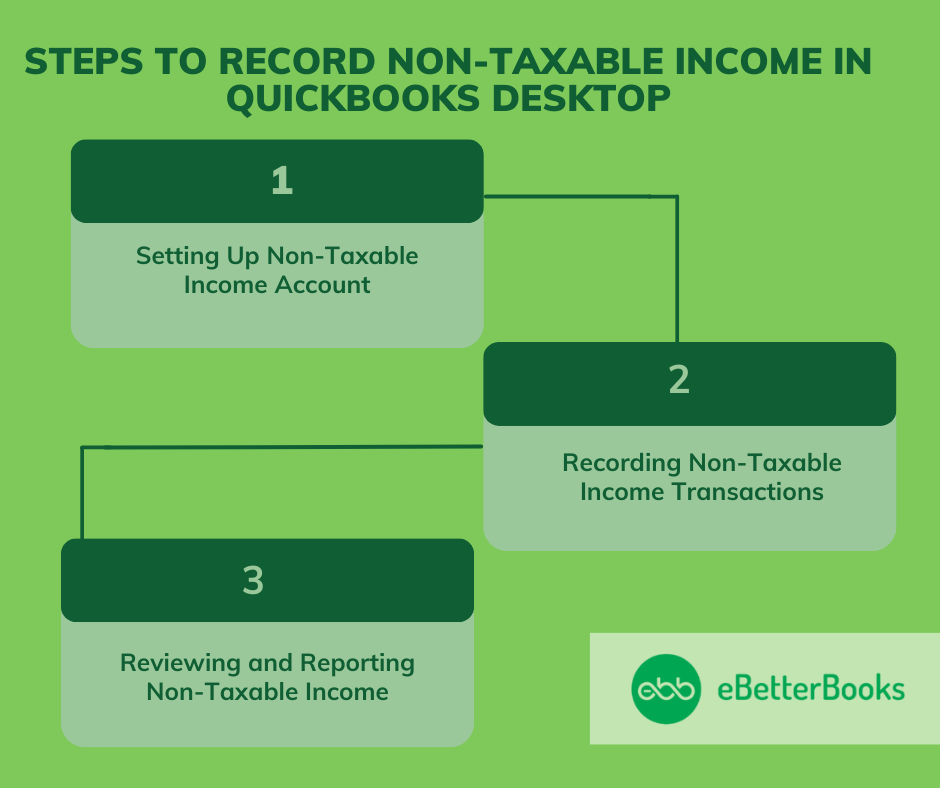
Record non-taxable income in QuickBooks Desktop, create a new income account, categorize the income as non-taxable, and then enter the payment details under this account.
Following the step-by-step information below:
To set up a non-taxable income account in QuickBooks Desktop, go to Lists > Chart of Accounts, create a new Income account, name it “Non-Taxable Income,” and save.
To record non-taxable income, go to Customers > Create Sales Receipts. Choose or create a customer, select “Non-Taxable Income” from the account list, enter the amount, and click Save & Close.
To review non-taxable income, generate a Profit & Loss report from Reports > Company & Financial. Customize the date range, ensure “Non-Taxable Income” is included, then review, save, or print the report.
Processing invoices as non-taxable income
When you send an invoice to a customer, it is considered income because you know that it is earned revenue. This principle dictates that income is recognized when earned, not necessarily when received. To ensure the invoice is not taxable, you can exempt the item/product or service, and the tenant should also be exempted.
After recording the non-taxable income, the next step is to create a bank deposit that affects Accounts Receivable. This deposit allows you to apply the invoice. Then, you can match the bank feeds in the deposit you created, giving you full control over your financial transactions.
You must enter all the transactions that you want to deposit in the undeposited funds account. This account has everything you need before you record a deposit.
Download and categorize transactions by date or service. Click +New, select Receive Payment, choose the customer, check the invoice, and deposit to Undeposited Funds. Review details and click Save and Close or Save and New.
To combine transactions, click + New, select Bank Deposit, choose the deposit account, check each transaction, ensure the total matches your deposit slip, then click Save and Close or Save and New.
Note: Make sure the total of the selected transactions matches your deposit slip. Use your deposit slip as a reference.
Maintaining accurate records of non-taxable income is essential for clear financial management and compliance with tax regulations. Follow these steps to ensure proper documentation:
When recording non-taxable income in QuickBooks, avoid these common mistakes:
By avoiding these mistakes, you can ensure accurate financial records and tax compliance when handling non-taxable income in QuickBooks.
Here’s a table with examples of non-taxable income in QuickBooks:
| Non-Taxable Income Type | Description | Example |
| Loans Received | Money borrowed from a bank or lender, requiring repayment. | Business loan or line of credit |
| Owner’s Equity Contributions | Personal funds invested by the owner into the business. | Owner depositing personal savings into the business account |
| Gifts and Inheritances | Money or assets received without providing goods/services. | Gift from a family member |
| Insurance Proceeds | Payouts from insurance claims for business-related events. | Property damage compensation from insurance |
| Tax Refunds | Refunds from overpaid taxes in previous years. | State or federal tax refund |
| Interest on Municipal Bonds | Earnings from tax-exempt state or local government bonds. | Interest from investing in municipal bonds |
| Certain Scholarships and Grants | Financial aid for educational purposes, not taxable. | Scholarship for tuition or research grants |
| Gifts from Customers or Clients | Non-reciprocal gifts received that aren’t part of business income. | A client gives a gift (not for services) |
This table helps you quickly understand different types of non-taxable income and their examples in QuickBooks.
Setting up non-taxable income for a business involves ensuring the correct categorization of income that is not subject to tax. This includes understanding which sources of income qualify and how to set them up in financial and tax systems. Here’s a step-by-step guide:
Non-taxable income includes:
To customize taxable sales data, click on Reports, select Taxable Sales Detail, then choose Customize. Adjust the date range in the General drop down to refine the report.
Step 1: Access Taxable Sales Option
Step 2: Customize the data
Create a sales report, use the Filter option to select non-taxable sales and set Distribution Account to “All Income/Expense Accounts.” Review the report and click “Run Report” to finalize.
Step 1: Access the Filter option
Step 2: Review the report
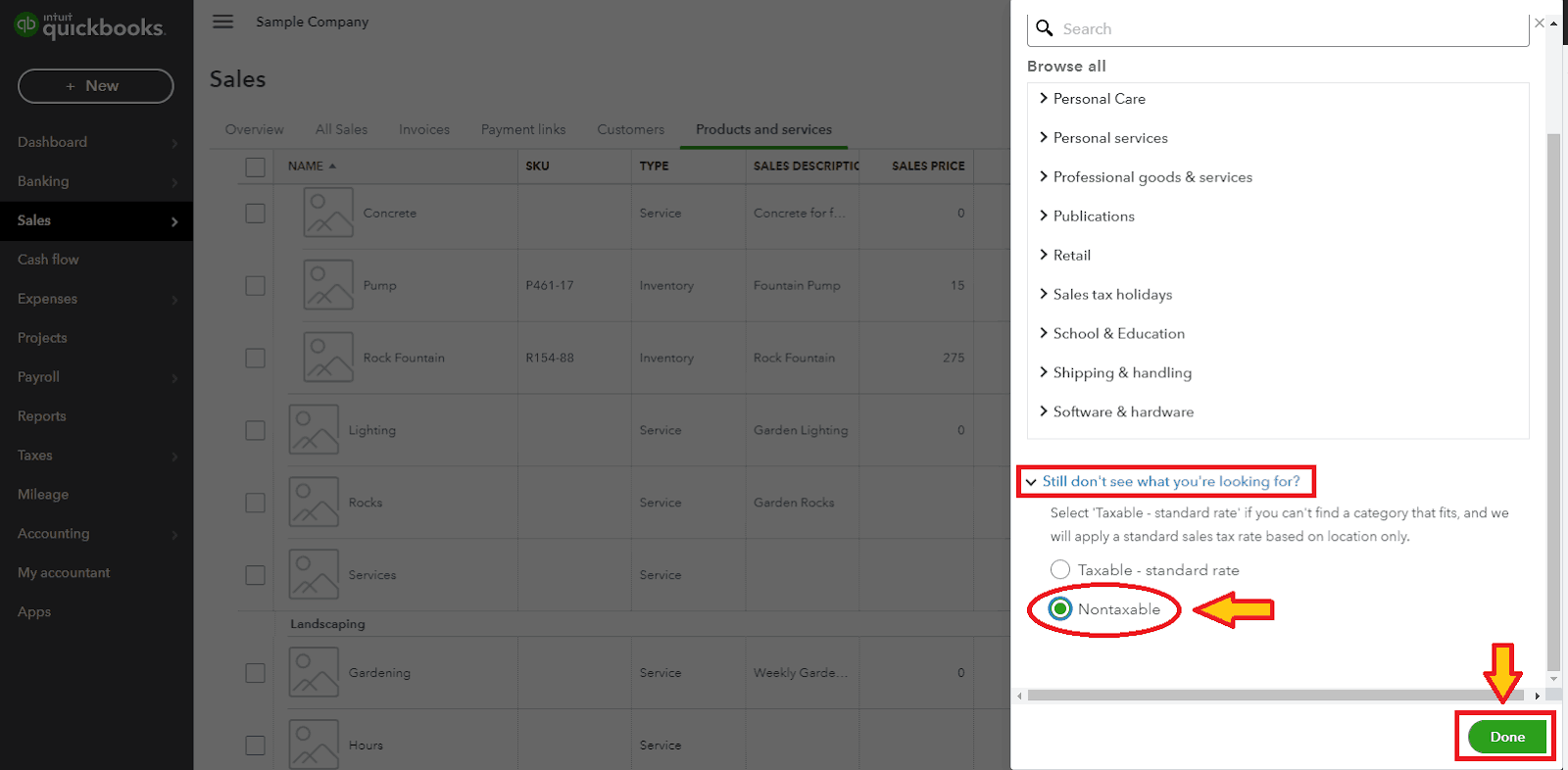
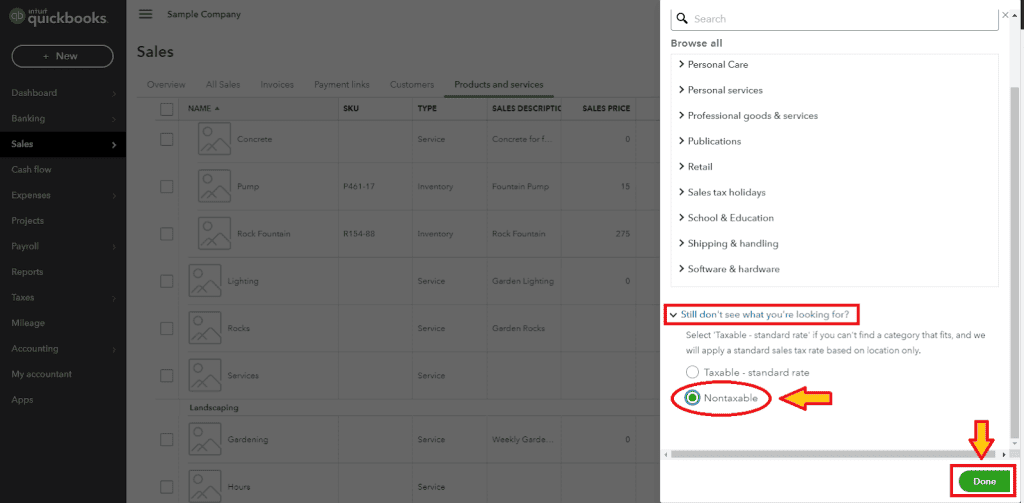
To make an item non-taxable in QuickBooks, follow these steps:
1. Go to the Products and Services List
2. Find the Item
3. Edit the Item
4. Set the Taxability
5. Save the Changes
6. Verify the Change
Contractors often receive non-taxable income, which is money that is not subject to federal income tax, such as gifts, certain insurance payouts, or some reimbursements. Managing non-taxable income properly in QuickBooks is crucial for accurate financial reporting. Here’s how you can record non-taxable income in QuickBooks for contractors:
Step-by-Step Process:
To create and customize non-taxable income reports in QuickBooks, follow these steps:
Step 1: Set Up Non-Taxable Income Accounts
To ensure non-taxable income is properly tracked, you need to create specific income accounts in your Chart of Accounts.
Step 2: Record Non-Taxable Income Transactions
After creating your income account, you can now record non-taxable income transactions.
Step 3: Customize Your Report to Show Non-Taxable Income
To view the non-taxable income on your reports, you will need to customize the Profit and Loss (P&L) report.
Step 4: Save the Customized Report for Future Use
Once your report is customized, you can save it so you don’t have to redo these steps every time.
Step 5: Access and Use Your Customized Report
Now that you’ve saved your customized non-taxable income report, it’s easy to access whenever you need it.
To record non-taxable income in QuickBooks Payroll for employees, follow these steps:
By following these steps, you ensure that non-taxable income is accurately recorded and excluded from tax calculations in QuickBooks Payroll.
In QuickBooks, before recording, determine which income sources are non-taxable according to IRS guidelines. Common examples include:
For a comprehensive list, refer to IRS Publication 525.
Non-taxable income must be entered into QuickBooks to maintain accurate financial records and guarantee compliance with accounting standards. By classifying these transactions accurately, businesses can make better judgements and better grasp their financial health.
Effectively handling non-taxable income in QuickBooks facilitates financial management and strategic planning in addition to streamlining accounting procedures, all of which support the general expansion and success of the company.
No, simply using a non-taxable tax code on a transaction is not sufficient for proper financial reporting, as the transaction may still post to a general taxable income account.
The Undeposited Funds workflow is not specifically required only for non-taxable income, but it is essential for maintaining accurate bank reconciliation and cash flow matching for any payment received against an invoice in QuickBooks Online.
Yes, non-taxable income will appear on your standard Profit & Loss (P&L) Report because it is still revenue for your business. To view it separately, you must customize the P&L report.
Steps for reporting non-taxable income separately:
According to IRS guidelines (specifically Publication 525), not all revenue is taxable. Small businesses and individuals often receive the following types of non-taxable funds that must be accurately separated in QuickBooks:
No, the payer is generally not required to issue a Form 1099 for payments that are classified purely as non-taxable reimbursements or gifts.
No, it is not necessary to create a separate income account for every individual non-taxable item, but you must ensure the item points to a specific non-taxable category account.
When using QuickBooks Payroll, recording non-taxable income (such as specific mileage reimbursements or non-taxable bonuses) correctly is crucial to prevent over-withholding and incorrect W-2 reporting.
Steps for non-taxable payroll items:


