Excerpt:
Recording a loan deposit in QuickBooks requires precise categorization to maintain an accurate balance sheet and avoid significant tax reporting errors. Businesses must distinguish between cash and non-cash assets while setting up liability accounts to track principal and interest separately according to current accounting standards. Improperly recording a loan as income is a frequent mistake that inflates revenue and misrepresents a company's financial health to stakeholders. By establishing a dedicated liability account and using the bank deposit feature, users ensure that their books reflect real world obligations and maintain audit readiness for the 2025 fiscal year. Proper management includes monthly reconciliation and the correct application of payments to ensure the liability balance decreases over time while interest is accurately expensed.
 Add As A Preferred
Highlights (Key Facts & Solutions)
Overview
Organizations take loans so that they can support capital investment for building new premises, obtaining equipment, or commencing product development and research. When the company receives the loan amount, it is certain that they record a loan in QuickBooks as a liability in the accounts and keep track of each loan taken along with the return done to reduce the liability. Using QuickBooks as your accounting application, you can quickly set up a liability account for both short-term and long-term loans.
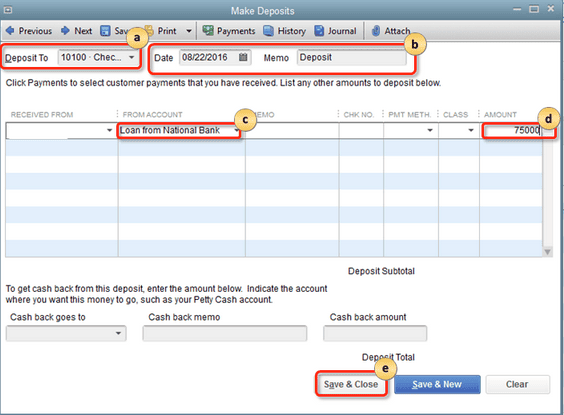
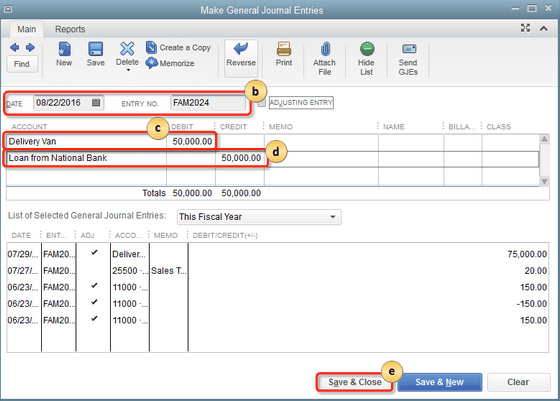
Cash and non-cash asset loans like vehicles and office equipment are called liabilities for your company. QuickBooks allows you to track the amount of the loan and record your payments so you can remain at the top of it. To record a loan deposit in QuickBooks Desktop, set up a liability account and vendor, then make a deposit entry. For cash loans, use “Make Deposits” under Banking. For non-cash loans, create an asset account and enter a journal entry.
Follow the steps below to record a loan deposit in QuickBooks:
Note: These steps can be followed for both QuickBooks Desktop Windows and Mac.
When you record a loan in QuickBooks, then you’re required to select a liability account for it.
Follow the steps below to set up a liability account for your loan:
Other Current Liability: Utilize this for short-term loans payable over one year.
Long-Term Liability: Utilize this for long-term loans payable over a longer period.
Make a new vendor for the bank or company you need to pay for the loan.
Make an expense account so you can track interest payments or fees.
Now that you have set up a liability account for the loan follow the steps below to record the loan amount.
Create an asset account
Enter a journal entry
Important Note:
To record a loan receivable in QuickBooks Desktop, create a loan account under Chart of Accounts, then use “Make Deposits” to record the loan payment. Assign the amount to the asset account and interest income account as needed.
We can begin by creating the Loan account. Follow the steps below to record loan receivable in QuickBooks desktop:
After making the account, you will have the option to record the loan payment. Follow the tapes below:
In QuickBooks Online, you have the option to create a liability account to record the loan and its payments. To record a loan deposit in QuickBooks Online, set up a liability account under Settings > Chart of Accounts, enter the loan balance, and create a journal entry. For repayments, use the Check option to categorize payments and interest.
To learn how you can set up your liability account to track the loan follow the steps mentioned below:
First, you’re required to create a liability account so you can record the loan.
Follow the steps below:
A new loan will display the full balance to be paid back. If the money from the loan has been deposited into your bank account:
An earlier loan added to QuickBooks Online was not totally paid back, so it should be set to the current payoff balance.
Note: The beginning balance will be posted to Opening Balance Equity, which will balance the transaction in the chart of accounts. You add a balance once in the liability account during step 2, and then your bank feeds display the deposited loan amount; you’re required to make a second journal entry when you record the Deposit.
Note: The opening balance entry in the liability account made the first journal entry in the account’s register. Follow the steps below to create a journal entry:
Confirm the amounts. You need to have a similar amount in the Credit column on one line and the Debit column on the other. This will show the accounts are balanced.
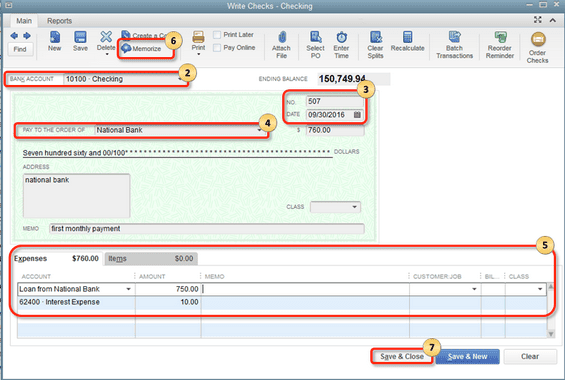
When you’re all set to return the loan, follow the steps mentioned below to record each repayment.
Now enter the following in the Category details field of the Check:
It’s crucial to record loan deposits at regular intervals to ensure that the company’s accounts are up-to-date at the end of each fiscal period.
Properly categorizing a loan deposit in QuickBooks ensures accurate financial tracking. Follow these steps based on your QuickBooks version:
Tip: You can also use QuickBooks Loan Manager to track loan payments and receive payment reminders.
Tracking loan deposits in QuickBooks Online and Desktop ensures accurate financial reporting and helps manage liabilities effectively. Here’s how you can do it:
Run a Loan Account QuickReport for detailed tracking
When your business receives a loan, it’s essential to record it correctly in QuickBooks to track your liabilities and repayments accurately. Here’s how you can enter a loan deposit in both QuickBooks Online and QuickBooks Desktop.
By properly recording the loan deposit, you ensure accurate financial records and easier tracking of loan repayments.
Managing loans in QuickBooks goes beyond simple data entry—it demands precision, proper categorization, and consistent tracking to keep your financial reports clean and compliant. From avoiding common mistakes like misclassifying loans as income, to adjusting balances for early repayments, handling refinancing, recording foreign currency loans, and reclassifying incorrect entries, each step plays a crucial role in maintaining transparency. By following the right process for every loan-related transaction, businesses can prevent costly errors, ensure accurate tax filings, and gain a clear financial picture for better decision-making.
Many businesses make errors while recording loan deposits in QuickBooks. First, they wrongly categorize the loan as income, which inflates revenue, misstates liabilities, and affects tax filings. Second, they skip creating a dedicated liability account, causing confusion in loan tracking, repayment history, and balance sheet accuracy. Third, they fail to split principal and interest, leading to wrong expense reporting, incorrect financial ratios, and audit issues. Avoiding these 3 mistakes ensures accurate records, compliance with tax laws, and clarity in financial reports. Always double-check account types, transaction details, and repayment splits before saving any loan entry.
When you make early or partial repayments in QuickBooks, accuracy is key. First, update the liability account to reflect the reduced principal, ensuring your balance sheet, loan history, and repayment schedule stay correct. Second, record the interest separately so expense totals, tax deductions, and cash flow statements remain accurate. Third, adjust the loan amortization in QuickBooks Loan Manager to maintain correct payment forecasts, interest calculations, and budget planning. By following these 3 actions, you prevent overpayment errors, improve loan tracking, and maintain transparency in financial reports for better decision-making.
When refinancing a loan in QuickBooks, follow 3 clear steps. First, close the old loan account by recording the payoff amount, ensuring the liability balance, payment history, and interest totals are correct. Second, set up a new liability account for the refinanced loan to separate terms, interest rates, and repayment schedules. Third, record any refinancing costs as expenses, keeping tax deductions, profit analysis, and cash flow reports accurate. These steps help maintain clean records, avoid confusion between old and new loans, and give you precise data for future financial planning and audits.
Foreign currency loans require 3 key steps for accuracy. First, enable the multicurrency feature in QuickBooks to track exchange rates, currency gains/losses, and international transactions correctly. Second, create a liability account in the loan’s currency to maintain accurate balances, repayment amounts, and historical conversion data. Third, update exchange rates regularly to ensure loan valuations, interest expenses, and financial reports reflect real market conditions. Following these steps prevents misstatements in accounts, ensures compliance with accounting standards, and provides a true picture of your global financial obligations.
Reclassifying wrong loan entries in QuickBooks needs 3 focused actions. First, run a Transaction Detail by Account report to identify errors in account type, amount, or category. Second, use the Reclassify Transactions tool (in Accountant view) to move entries to the correct liability account, ensuring accurate balances, repayment tracking, and expense records. Third, verify adjustments by reviewing the updated Balance Sheet, loan history, and tax-related reports. These steps help eliminate reporting mistakes, improve financial accuracy, and maintain compliance with accounting standards.
Choosing between liability and equity financing affects cash flow, control, and your balance sheet. In QuickBooks, proper loan recording ensures accurate cash flow statements, correct tax deductions, and clear liability tracking. This guide covers financing differences, loan impacts on cash flow, tax rules, monthly reconciliations, and repayment forecasting—helping you maintain accuracy, stay compliant, and make informed financial decisions.
Liability financing and equity financing differ in 3 major ways. First, liability financing, like loans, requires repayment with interest, affecting cash flow, debt ratios, and future borrowing capacity. Second, equity financing raises funds by selling ownership, impacting control, profit-sharing, and long-term decision-making. Third, liabilities appear on the balance sheet as debts, while equity represents ownership capital, influencing financial statements, investor perception, and business valuation. Knowing these differences helps you choose funding that aligns with repayment ability, growth plans, and risk tolerance, ensuring your QuickBooks records accurately reflect your business’s financial structure.
Loan deposits impact your cash flow in 3 clear ways. First, they increase cash inflows in the financing activities section, improving liquidity, working capital, and immediate spending power. Second, they create a matching liability, which affects future cash outflows, repayment obligations, and interest costs. Third, improper categorization can distort operating cash flow, mislead profitability analysis, and confuse investors. In QuickBooks, recording the loan correctly ensures accurate cash flow statements, helps monitor debt servicing capacity, and supports better financial decision-making. Tracking these effects gives a real picture of how borrowing impacts your business’s short- and long-term cash position.
Business loans have 3 main tax considerations. First, the principal repayment is not tax-deductible, so recording it correctly avoids overstating expenses, misreporting profits, and triggering audits. Second, interest payments are tax-deductible, reducing taxable income, improving after-tax cash flow, and supporting strategic borrowing. Third, loan-related fees may qualify as deductible expenses, affecting yearly deductions, compliance with tax rules, and accurate QuickBooks expense tracking. Properly categorizing these in QuickBooks ensures your liability account, expense reports, and tax filings align with regulations. This approach helps minimize tax liabilities, maintain audit readiness, and give a precise view of loan-related financial impacts.
Monthly reconciliation of loan accounts requires 3 essential practices. First, match QuickBooks loan balances with lender statements to detect errors, missing payments, or interest miscalculations. Second, verify that principal and interest amounts are split correctly, keeping liability accounts, expense reports, and tax records accurate. Third, review all related journal entries to ensure proper categorization, correct payment dates, and alignment with bank transactions. Consistent reconciliation improves financial accuracy, prevents unnoticed discrepancies, and supports timely decision-making. In QuickBooks, this process also strengthens audit readiness, enhances transparency, and maintains a clear repayment history for both short-term and long-term loans.
Forecasting loan repayments in QuickBooks involves 3 key steps. First, run the Loan Manager or custom liability reports to project principal reductions, interest costs, and payoff dates. Second, analyze cash flow reports alongside repayment data to assess liquidity, budgeting needs, and future debt capacity. Third, adjust repayment schedules in QuickBooks when making extra payments, refinancing, or changing terms to keep forecasts accurate. These steps help predict financial obligations, avoid cash shortages, and plan investments confidently. Leveraging QuickBooks reports gives you a clear timeline for debt clearance, better interest management, and improved overall financial strategy.
In conclusion, recording a loan deposit in QuickBooks, whether it is a Desktop version or Online version, the process is simple and straightforward. So if the liability and asset accounts are correctly established, businesses can easily trace their loans and keep financial records up to date. Accurate categorization of the amount borrowed, interest paid, and principal reduction will help the accounting records remain updated.
This is a frequent error that happens when a deposit is incorrectly categorized to an Income account instead of a Liability account. In QuickBooks, income accounts track revenue from sales, while liability accounts track debt. If you see your loan proceeds on a Profit and Loss report, your revenue and tax obligations will be overstated. To correct this, find the transaction in your register and re-categorize it to a Long-Term Liability or Other Current Liability account.
Lenders often deduct fees, such as a 200 dollar origination fee, from a 10,000 dollar loan, resulting in a 9,800 dollar deposit. To record this accurately:
Choosing the correct account type is essential for an accurate Balance Sheet. Use these criteria:
QuickBooks Loan Manager was officially discontinued in QuickBooks Desktop versions starting with the 2022 release. If you are using a newer version of QuickBooks Desktop or any version of QuickBooks Online, you must track your loan amortization manually or use third-party apps. Users with older, supported Desktop versions can still access it under the Banking menu.
When your business acts as the lender, the money owed to you is a “Loan Receivable,” which is an asset. To record this:
Your loan balance remains static if the entire payment is categorized as “Interest Expense.” To reduce the debt, you must split the transaction in the Expense or Check window:
Standard accounting practice is to record the loan when the funds are received or the asset is placed in service. Recording a liability before receiving the cash will artificially increase your reported assets and debt, leading to an inaccurate Balance Sheet. For the most precise records, enter the transaction on the date the funds hit your bank account.


