Excerpt:
Recording insurance claim payments in QuickBooks ensures accurate financial records, streamlines transaction tracking, and improves financial management. By properly categorizing incoming claims and associated expenses, businesses can maintain transparency, track balances, and manage accounts efficiently. This process supports tax compliance and informed decision-making by providing up-to-date financial data on claims, helping businesses manage both income and reimbursements effectively.
 Add As A Preferred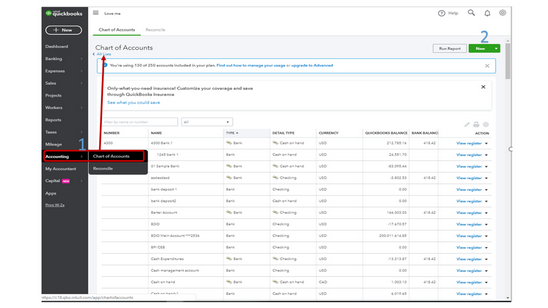
Accurately recording insurance claim payments in QuickBooks is a critical bookkeeping function that requires distinguishing reimbursements from ordinary revenue to maintain tax compliance and financial clarity. The process, necessary for both Desktop and Online versions, focuses on utilizing bank deposit features and specific non-revenue accounts to correctly track the funds and reconcile them against related expenses, particularly handling out-of-pocket costs like deductibles and non-cash transactions involving third-party payments.
Extractive Highlights (Key Facts and Solutions)
An insurance claim payment refers to the compensation provided to a policyholder by the insurance company or adjuster as a result of a covered claim, typically involving reimbursement for damages, settlements, or policy benefits.
These payments can encompass different types of claims, including property insurance, bodily injury, damaged goods, or liability claims. The process of receiving an insurance claim payment involves the policyholder submitting a claim, which is then reviewed by the insurance adjuster to determine the coverage and extent of compensation. Adjusters play a crucial role in assessing the validity of the claim and negotiating the payment amount.
The insurance company validates the claim (or denies the claim). If it is approved, the insurance company will issue payment to the insured or an approved interested party on behalf of the insured. Insurance claims cover everything from death benefits on life insurance policies to routine and comprehensive medical exams. In some rare cases, a third party is able to file claims on behalf of the insured person, but generally, only the person listed on the policy is entitled to claim payments.
A paid insurance claim serves to compensate a policyholder against financial loss. An individual or group pays premiums as consideration for the completion of an insurance contract between the insured party and an insurance carrier.
The most common insurance claims involve costs for medical goods and services, physical damage, loss of life, liability for the ownership of dwellings (homeowners, landlords, and renters), and liability resulting from the operation of automobiles.
Recording insurance claim payments in QuickBooks is crucial for:
Below we’ve listed how to enter a manual transaction for the insurance claim you wanted to record. It can be easily implemented in QuickBooks Desktop.
The payment is not an income. You have to enter it as a deposit instead. Before moving ahead, create an account to track the entry.
Here are the steps to be followed:
Step 1: Navigate to the Lists menu and select a Chart of Accounts. Then, press New from the Account drop-down menu.
Step 2: Choose an account type, then click Continue.
Step 3: Fill out the account details and then hit the Save & Close buttons.
Let’s see how:
Step 1: Select Make Deposits from the Banking menu. Then, close (X) the Payments to Deposit window.
Step 2: Under the Make Deposits window, choose the correct accounts.
Step 3: Add the payment to the Amount field.
Step 4: Enter other necessary details and then press Save & Close.
To record the Insurance Claim payment in QuickBooks Online, You need to create an account to track the entry and then make a deposit. Adhere to the steps listed below.
Step 1: Click the Accounting menu on the left panel and then choose a Chart of Accounts to open the All Lists page.
Step 2: Select the New menu in the upper right corner of your screen to access the Account window.
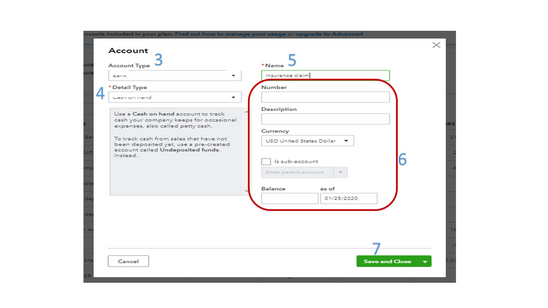
Step 3: Herein, hit the Account Type drop-down menu to choose the account you want to use.
Step 4: Opt for the correct Category under the Detail Type drop-down menu.
Step 5: Enter a Term that will identify the account in the Name field.
Step 6: Fill out the remaining fields and then press the Save and Close tabs.
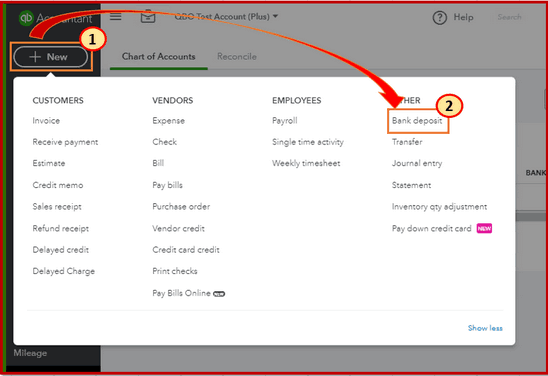
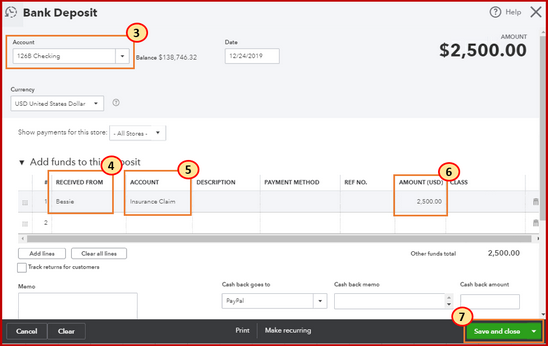
Step 1: Hit the New menu in the upper left corner and then select Bank Deposit under the Other section.
Step 2: Navigate to the Add funds to this deposit section to input the entry on the Bank Deposit page.
Step 3: Choose the appropriate recipient from the Received from column and then enter the account previously created in the Account field.
Step 4: Type the Amount and then fill out the remaining field boxes.
Step 5: Click the Save and Close tabs.
Step 1: Head to the +New icon and then select Bank Deposit.
Step 2: Opt for the Add funds to this deposit section to input the entry on the Bank Deposit page.
Step 3: From the Account column, select the Other Income account.
Step 4: Choose the class the insurance claim will be linked to under the Class section.
Step 5: Enter all other necessary details, then press Save and Close.
You are recommended to create a new account to categorize and track the insurance claim in QuickBooks Online.
Below are the steps for the same:
Step 1: Navigate to the Gear icon at the top right corner of your screen and then choose a Chart of Accounts under Your Company.
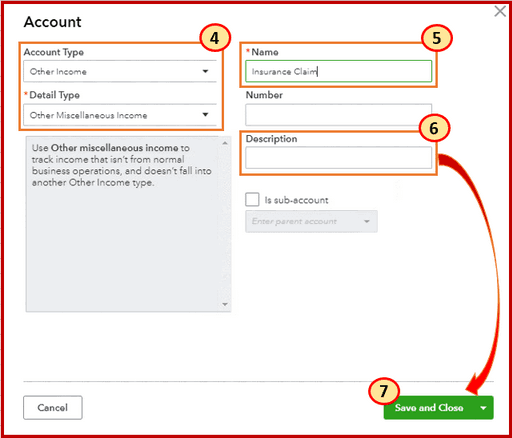
Step 2: Press New and select an Account and Detail Type.
Step 3: Enter the name of the account in the Name field.
Step 4: Add a Description if required. Then, press the Save and Close buttons.
Once done, make a bank deposit and categorize it under the account created above.
Step 1: Click the + New button at the left navigation bar. Then, select Bank Deposit under Other.
Step 2: Choose the account you want to deposit the money into from the Account drop-down menu.
Step 3: Enter the name of the Payee under the Received from field.
Step 4: Select the insurance account created before in the Account field.
Step 5: Write down the Amount, then hit Save and Close icons.
Recording health insurance reimbursement payments in QuickBooks ensures accurate financial records and compliance with tax regulations. Below are detailed, step-by-step instructions for both QuickBooks Desktop and QuickBooks Online.
Set Up a Health Insurance Expense Account
Create a Payroll Item for Health Insurance
Assign the Payroll Item to Employees
Process Payroll with the Reimbursement
Set Up Health Insurance Reimbursement
Process Payroll Including the Reimbursement
By following these steps, you can accurately record health insurance reimbursement payments in both QuickBooks Desktop and QuickBooks Online.
Recording a vehicle insurance claim payment in QuickBooks ensures your financial records accurately reflect the reimbursement. Here’s how to do it in both QuickBooks Desktop and QuickBooks Online:
QuickBooks Desktop:
QuickBooks Online:
To accurately record a refund from an insurance claim in QuickBooks, follow these detailed steps:
Matching insurance claim payments with bank transactions in QuickBooks ensures accurate financial records. Here’s a step-by-step guide to help you through the process:
Recording an insurance claim payment in QuickBooks involves accurately reflecting the received funds in your financial records. Here’s a step-by-step guide to creating a journal entry for such transactions:
1. Create an Insurance Claim Income Account:
2. Record the Insurance Claim Payment via Journal Entry:
3. Verify the Entry:
Important Considerations:
Accurately recording insurance claim payments in QuickBooks is crucial for maintaining precise financial records. However, several common errors can occur during this process. Here’s a detailed guide to help you avoid these mistakes:
Here’s a step-by-step guide to help you identify and rectify these duplicates:
1. Identify Duplicate Entries:
2. Verify Authenticity:
3. Remove Duplicate Entries:
4. Reconcile Accounts:
To ensure timely follow-up on insurance claim payments, configure automated reminders in QuickBooks:
For comprehensive instructions, consult QuickBooks’ guide on creating automated payment reminders.
Managing insurance claims in QuickBooks involves a series of steps to accurately record and track transactions, ensuring your financial records reflect the impact of claims. Here are best practices to guide you through the process:
By following these practices, you can effectively manage insurance claims in QuickBooks, ensuring your financial records are accurate and up-to-date.
Accurately recording insurance claim payments in QuickBooks safeguards your business’s financial health. It ensures precise income and expense tracking, helping prevent discrepancies in accounting records. Proper documentation of claims strengthens audit readiness and supports strategic financial decisions. Businesses that maintain accurate claim records report up to 35% fewer accounting errors annually.
Insurance claims vary widely, including property, vehicle, health, and liability claims. Each type impacts QuickBooks differently. For example, property claims often involve fixed asset adjustments, vehicle claims affect repair expenses, and health claims influence payroll reimbursements. Understanding these distinctions helps in accurate categorization and avoids misreporting. In 2023, 65% of small businesses reported challenges tracking claims due to claim type confusion. QuickBooks users must assign correct accounts to claims to maintain clean financial data. Proper entry improves audit readiness, simplifies tax filing, and supports better cash flow management. Knowing claim types boosts efficiency by 40% in bookkeeping.
Customizing QuickBooks reports helps track insurance claims accurately and saves time. You can create specific reports showing claim income, expenses, and reimbursements separately. For example, 72% of accountants use custom reports to reduce errors by 35%. Setting filters for date, claim type, and accounts gives detailed insights in seconds. These reports highlight outstanding claims, improving follow-up by 50%. Custom reports also support better cash flow forecasting and tax compliance. Using memorized reports automates monthly tracking, cutting manual work by 60%. With tailored data, businesses make informed decisions faster and avoid costly mistakes.
Insurance deductibles affect claim payments and bookkeeping accuracy. Deductibles are out-of-pocket costs, reducing claim reimbursements by a fixed amount or percentage. In 2024, 58% of businesses overlooked deductibles, causing balance sheet errors. To record deductibles in QuickBooks, log full expenses, then record reimbursement separately. This method tracks actual costs and reimbursed amounts clearly. Deductibles can be entered as expenses, ensuring tax deductions are accurate. Proper handling avoids inflated income reports and supports audit compliance. Accounting for deductibles improves financial clarity by 45%, helping businesses maintain realistic profit margins and avoid surprises during tax season.
Documenting insurance claims thoroughly is vital for QuickBooks audit trails. Keep all claim forms, payment receipts, correspondence, and repair invoices organized digitally or physically. In 2023, 70% of businesses faced audit delays due to poor documentation. Use QuickBooks attachments feature to link documents directly to transactions, reducing retrieval time by 50%. Proper records ensure transparency, ease reconciliation, and support tax reporting. Maintain consistent naming conventions and date stamps for easy tracking. Well-documented claims streamline audits, minimize penalties, and improve trust with insurers and accountants. Strong audit trails boost business credibility and reduce dispute risks by 40%.
Integrating insurance claim data with QuickBooks Payroll streamlines reimbursements and ensures accuracy. For example, health insurance claim reimbursements often affect employee payroll records and tax withholdings. In 2024, 62% of businesses using integration reported a 30% reduction in payroll errors. Linking claims to payroll items helps track company contributions versus employee deductions clearly. This integration speeds up payroll processing by automating reimbursements and avoids duplicate entries. It also supports compliance with tax laws, reducing audit risks by 25%. Proper setup saves time, improves reporting accuracy, and ensures employee benefits are accounted for correctly.
Recording insurance claims accurately in QuickBooks is essential for maintaining clean financial records and ensuring compliance. Even minor errors can lead to misreported income, tax issues, and cash flow disruptions. Implementing systematic processes and regular reviews can boost accuracy by up to 50%, helping businesses stay audit-ready and financially transparent. This approach also speeds up reimbursements and simplifies year-end reporting.
Businesses often struggle with managing insurance claims in QuickBooks due to complex claim types, inconsistent documentation, and improper categorization. Studies show 58% of small businesses face delays in claim processing because of inaccurate entries. Common challenges include mismatched accounts, overlooked deductibles, and failure to reconcile deposits. These issues lead to financial reporting errors and tax complications. Implementing a structured claim management process can reduce errors by up to 40% and speed up reimbursements by 30%. Awareness and training on QuickBooks’ features specifically for insurance claims improve accuracy and streamline workflows, saving valuable time and reducing stress.
Training your accounting team on insurance claim entries in QuickBooks boosts accuracy and efficiency. Research shows that companies providing specialized training reduce entry errors by 45%. Start with basic claim types, then teach correct account selection and reconciliation techniques. Use real-life scenarios and QuickBooks tutorials to enhance learning. Regular refresher courses every 6 months keep skills updated. Encourage documentation best practices to support audits. A well-trained team can cut claim processing time by 35%, improve financial reporting, and reduce costly mistakes, strengthening overall business compliance and trustworthiness.
Integrating third-party apps with QuickBooks simplifies insurance claim management, reducing manual errors and saving time. About 55% of businesses using such apps report a 40% increase in claim processing speed. These apps automate data import, categorize transactions accurately, and generate detailed claim reports. Popular tools offer real-time syncing, improving financial visibility and ensuring timely reimbursements. Automation cuts reconciliation errors by 30% and helps maintain compliance with accounting standards. Choosing the right app enhances workflow efficiency, allowing businesses to focus more on core operations while keeping claim records accurate and up to date.
Insurance claim payments directly impact business cash flow and liquidity. On average, delayed claim reimbursements cause 25% cash flow shortages in small businesses. Recording these payments promptly in QuickBooks ensures real-time tracking of incoming funds and helps forecast cash availability. Proper categorization of claims versus expenses prevents cash flow miscalculations. QuickBooks users who manage claims efficiently report a 30% improvement in cash flow stability. Additionally, timely insurance payments help businesses maintain vendor payments and payroll without disruptions. Accurate claim management safeguards against unexpected financial gaps and supports sustainable business growth.
Effective communication with insurance adjusters ensures smooth claim processing and accurate records in QuickBooks. Clear, timely exchanges reduce claim disputes by 35%. Always document conversations, keep copies of submitted forms, and confirm payment schedules. Share detailed repair or loss information backed by QuickBooks reports to support your claim. During reconciliation, regularly match received payments with QuickBooks entries to identify discrepancies early. Prompt communication helps resolve issues faster and prevents reconciliation errors that can delay financial reporting. Strong insurer relations combined with diligent bookkeeping save time, reduce errors, and enhance claim recovery outcomes.
Insurance claim payments are paid out once a claim has been verified, and they financially indemnify the insured for a loss that is covered under the policy. This payment is sometimes paid directly to a care provider (as with health insurance), but usually, it is sent to the insured in the form of a check.
When you record insurance claim payments in QuickBooks, it removes old assets from your books, determines the profit or loss received from the insurance company, and perfectly holds any additional funds related to asset disposal.
This is a critical distinction often missed: most property and casualty insurance claim payments are generally not considered ordinary taxable income, but rather a reimbursement for a loss. The payment is typically a recovery of basis (the cost of the asset or property) or a restoration of the asset’s pre-loss value.
In QuickBooks: You should not categorize the payment as a regular Sales or Service Income account. Instead, the claim payment is best recorded against the asset account (to reduce its basis) or against the expense account that incurred the related repair/replacement cost. If the payment exceeds your asset’s basis (leading to a gain), only the excess is recognized as income, often categorized as Other Income: Insurance Proceeds. This approach prevents inflating your revenue and avoids paying income tax on money that merely replaces a loss.
This scenario requires a specific three-step accounting process in QuickBooks to ensure the full expense, the deductible, and the reimbursement are all accurately tracked, supporting a clean audit trail.
1. Record the Full Expense (Bill): Enter a Bill (or Expense) for the total repair cost. Categorize this full amount to the appropriate expense account (e4.g., Vehicle Repair Expense or Equipment Repair Expense). This correctly registers your total cost of the loss.
2. Record the Claim Payment (Deposit): Use Make Deposits to record the cash received from the insurer. Instead of crediting an income account, credit the same Vehicle Repair Expense account used in Step 1.
3. Resulting Balance: After the deposit, the Vehicle Repair Expense account will have a residual debit balance. This remaining balance is your true, out-of-pocket cost, which represents the deductible amount plus any depreciation the insurer withheld. This is the amount you will ultimately claim as a business deduction.
Yes, for robust financial management and audit readiness, using an A/R-related approach is the best practice for tracking an open claim—especially for larger, slower-moving claims.
The Problem: Waiting for an insurance check creates a timing mismatch between when the expense (repair bill) is recorded and when the cash (reimbursement) is received.
The Solution: Create a specific Other Current Asset account, such as Insurance Claims Receivable.
1. Debit (Increase) Insurance Claims Receivable: When you file the claim, debit this account for the expected reimbursement amount. Simultaneously, credit a temporary Income: Insurance Proceeds account. This books the anticipated recovery.
2. Debit Bank/Credit Receivable: When the cash arrives, debit your Bank Account and credit (reduce) the Insurance Claims Receivable account.
When the insurer pays a third party (like a vendor or dealership) on your behalf, you still need to record the full cycle to accurately reflect the transaction’s impact on your assets. This requires a Journal Entry or a two-part transaction using a Clearing Account.
Journal Entry Method (Simpler):
1. Debit the new Fixed Asset account (e.g., Vehicles) for the full purchase price of the new vehicle.
2. Credit the Insurance Claims Receivable account (or the loss account) for the portion the insurer paid.
3. Credit the Bank/Loan Account for the amount you paid out of pocket (or financed).
Clearing Account Method (Preferred by many ProAdvisors):
1. Record the full purchase price as an expense/asset using the insurer and yourself as payees.
2. Use a zero-balance Clearing Account (a bank type account) as the “payment method” for the insurer’s portion. This simultaneously records the payment received from the insurer and the payment sent to the vendor, zeroing out the clearing account.
Health insurance reimbursements processed through payroll must be handled correctly to comply with tax regulations, specifically regarding the taxability of the payment.
In QuickBooks Payroll: You need to set up a specific Payroll Item for the reimbursement.
1. For Non-Taxable Reimbursements: If the employee provides documentation showing qualified expenses (like a Section 105 HRA), the payroll item should be set up as Non-Taxable (not subject to Federal, State, Social Security, or Medicare taxes). This is often categorized as a standard reimbursement and linked to a Health Insurance Expense account.
2. For Taxable Reimbursements: If the payment is a stipend or an unqualified reimbursement without proper documentation, the item must be set up as Taxable (subject to all payroll taxes).
You must allocate the lump sum payment across distinct categories to prevent misstatement on your Profit & Loss (P&L) and Balance Sheet. The claim payment is not uniformly categorized.
1. Property Replacement (Balance Sheet): The portion intended to repair or replace fixed assets (building, equipment) should be credited to the relevant Fixed Asset Account or a temporary loss account on the Balance Sheet. This reduces the basis of the asset (or the loss incurred).
2. Loss of Income/Temporary Operating Expenses (P&L): The portion intended for Business Interruption or covering temporary rental costs (like a temporary office) is often considered taxable income by the IRS because it replaces revenue the business would have earned. This portion must be recorded as Other Income: Business Interruption Proceeds on the P&L.
1. Accessing the Trail (QuickBooks Desktop): Go to Reports > Accountant & Taxes > Audit Trail.
2. Accessing the Trail (QuickBooks Online): Go to Gear Icon > Audit Log.
3. Verification Steps: Filter the log by the date the transaction was created and the user who entered it. Review the “Event” column to confirm that the initial entry (Deposit or Journal Entry) was made correctly. More importantly, check for subsequent “Deleted” or “Modified” entries. If a sensitive claim payment has been modified, the Audit Log will show the user, the time, and the original and new values, allowing you to quickly spot potential errors or unauthorized changes.
Applying an insurance claim payment against outstanding repair bills or expenses in QuickBooks Desktop requires linking the received deposit as a vendor credit:
Step 1: Record the received payout as a deposit
– Go to the Banking menu and select Make Deposits.
– Select the primary bank account where the insurance funds were credited.
– In the Received From column, select the insurance company name or create them as a vendor.
– In the From Account column, select an account such as Insurance Claims Receivable or the specific expense account used to record the original loss.
– Enter the payout total in the Amount column and click Save & Close.
Step 2: Enter the original repair or restoration bill
– Navigate to the Vendors menu and click Enter Bills.
– Choose the service provider or contractor performing the repairs in the Vendor field.
– Select the relevant expense account (e.g., Repairs and Maintenance) under the Expenses tab, type the total bill amount, and click Save & Close.
Step 3: Apply the payout credit to offset the bill
– Navigate back to the Vendors menu and select Pay Bills.
– Check the checkbox next to the vendor repair bill you created.
– Click the Set Credits button near the bottom of the window.
– Under the Credits tab, select the recorded insurance deposit transaction.
– Click Done, then select Pay Selected Bills to complete the application process.


