


Highlights (Key Facts & Solutions)
- Platform Differences: QuickBooks Desktop uses the Record Merchant Service Deposits screen to enable Auto Match, while QuickBooks Online uses the Expenses tab and Bank Feed matching.
- Cost Efficiency: ACH payments are highly cost-effective, typically costing $0.20 to $1.50 per transaction, leading to up to 80% savings compared to percentage-based credit card fees (1.5% to 3.5%).
- Returned Payments: When an ACH payment is returned, the required accounting action is to reverse the original payment via a Journal Entry or Deposit Reversal and record the associated Bank Service Charges fee.
- Audit Trail Best Practice: Always enter “ACH” in the transaction reference number field for easy filtering in reports (like Transaction Detail by Account) and to improve reconciliation matching.
- Security and Compliance: ACH processing is governed by NACHA rules; QuickBooks assists by providing 128-bit SSL encryption and logging customer authorization for compliance.
- Error Red Flags: During bank reconciliation, watch for three red flags indicating an error: Unmatched Deposits, Duplicate Entries, and transactions missing the required “ACH” reference tag.
- Automation Benefit: QuickBooks’ Auto Match feature reduces manual data entry and reconciliation time by a reported 80 percent by automatically creating, matching, and categorizing electronic payments.
Overview
Recording an ACH payment in QuickBooks Desktop/Online is important to help businesses track their finances properly. Recording these payments well keeps the QuickBooks Desktop or Online records clean. This guide will lead you through the easy steps to include ACH payments in your documentation.
What Is an ACH Payment and How Does It Work?
An ACH payment or Automated Clearing House payment is an EFT that transfers cash between financial organizations through an intermediary system. They utilize it to pay employee wages and bills and transfer funds due to its affordability, and security is paramount.
It plays an important role in financial management by enabling businesses to collect payments from customers efficiently, pay vendors, and manage payroll. ACH payments enhance banking operations by reducing the dependence on paper checks and manual processes, leading to cost savings and increased operational efficiency. They integrate effortlessly with accounting systems, ensuring the accurate and timely recording of financial transactions, which is essential for maintaining precise and up-to-date financial records.
Here’s how it works:
- Initiation: The payer provides a release to transfer an agreed sum of money via a bank or other online payment provider.
- Processing: The transaction moves to the ACH network, where it is processed in batches to meet the one—and two-business-day settlement goal.
- Settlement: Payments are made between the payer’s and payee’s accounts, which usually take a day up to 3 business days.
Why use ACH payments?
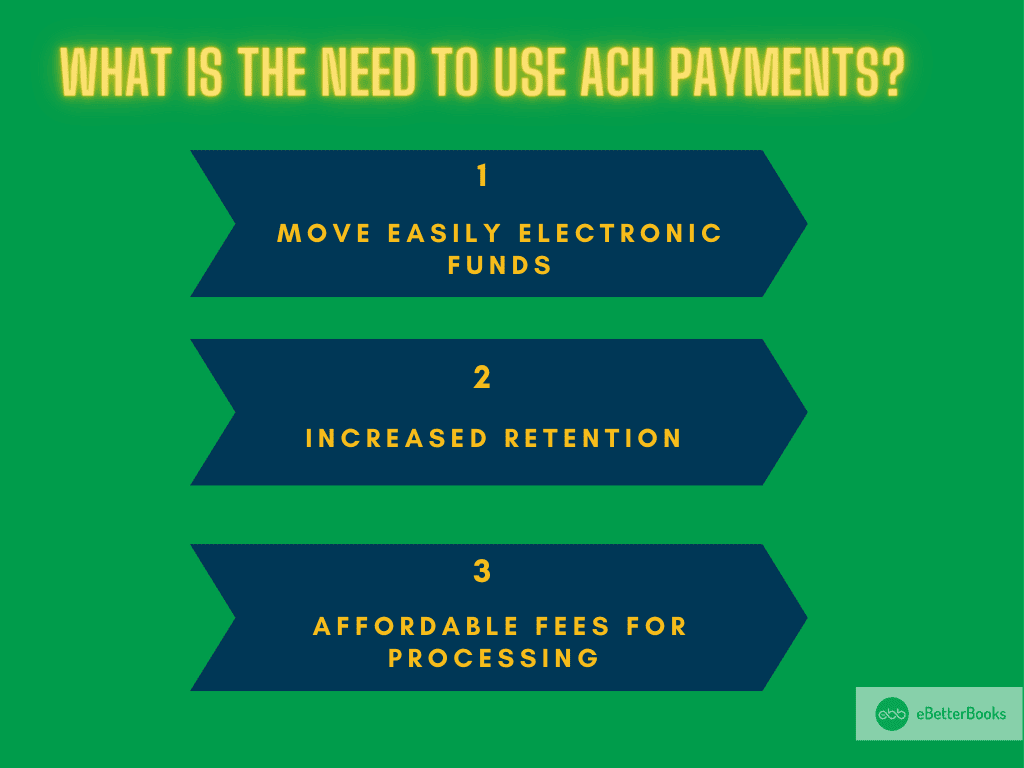
You can get the advantages mentioned below by using the ACH payments:
- ACH payments offer several advantages that make them an essential choice for businesses and individuals:
- Cost-Effective: The cost of ACH payments is generally cheaper than that of credit card payments or wire transfers, making them cheaper for businesses.
- Convenient and Efficient: They make the regular fund transfer process more efficient and less time-consuming for frequent activities such as salary, utility bills, and subscription dues.
- Secure: The ACH network is governed and protects their fund transfers through encryptions to enhance security and reliability.
- Environmentally Friendly: ACH payments also help decrease paper checks, resulting in a higher sustainability of the payment method.
- Reliable Recordkeeping: Such transactions are easily traceable, thus improving financial management and clearing of accounts.
How to Record an ACH Payment in QuickBooks Desktop?
ACH payments can be entered in QuickBooks Desktop by categorizing customer payments, reviewing deposits, and verifying them to enter easily. Follow these steps to ensure accurate records:
First, you need to enable automatic matching so that QuickBooks can deposit and record customer payments for you:
Step 1. Enable Automatic Matching
To have QuickBooks automatically deposit and record client payments, activate automatic matching:
- Go to Banking and choose Record Merchant Service Deposits.
- Click Change the deposit parameters.
- Activate Auto Match & Record feature.
- Click the Save button.
Step 2. Analyze Payments on Your Bank Statement
When you get your bank statement, complete these steps to confirm ACH payments in QuickBooks Desktop:
- Go to the Banking menu and choose Record Merchant Service Deposits.
- Select the Recorded tab.
- Examine the first bank deposit on the list. Click the arrow symbol next to the deposit for more information, including individual client payments.
- Align each bank deposit in QuickBooks to the bank statement. Check it off if the date and amount are correct.
How to Record an ACH Payment in QuickBooks Online?
To record an ACH payment in QuickBooks Online, go to Expenses, select Vendors, choose the vendor, find the open bill, click Make Payment, select the bank option, uncheck Print later, enter ACH in Ref no., and Save and Close.
The process of recording an ACH payment in QuickBooks Online is relatively simple. Here’s how to do it:
Step 1. Enter ACH Payment info in QuickBooks Online
- On the left panel, click Expenses.
- Select the Vendors tab and choose the vendor’s name.
- Go to the Transaction List tab and find the open bill.
- Click Make Payment.
- Under Bank/Credit account, select the bank option.
- Uncheck the Print Later box.
- Enter “ACH” in the Ref no. field for easy identification.
- Fill in any mandatory details.
- Click Save and Close.
Step 2. Set up QuickBooks Online ACH Payment
QuickBooks online also allows you to pay bills online using Automated Clearing Houses. With this tool, you can:
- Check by ACH or by sending paper checks to pay bills.
- Automate recording of a payment transaction.
Step 3. Sign Up for Online Bill Pay
- Open QuickBooks and go to the Apps menu.
- Search for Bill Pay in the search bar.
- Select the Bill Pay for QuickBooks Online app card.
- Click Get Bill Pay.
- On the Learn More page, choose Get Started.
- Enter your company information and click Next.
- Follow the on-screen instructions to connect your bank account and click Next.
- Provide your personal information and click Next.
- Complete the identity verification process. If you face issues, contact Intuit’s Care Support.
Note: Although no monthly subscription fee is required for this service, you will get charged a transaction fee for every payment you process.
What are the different forms of payments that can be made using ACH payments?
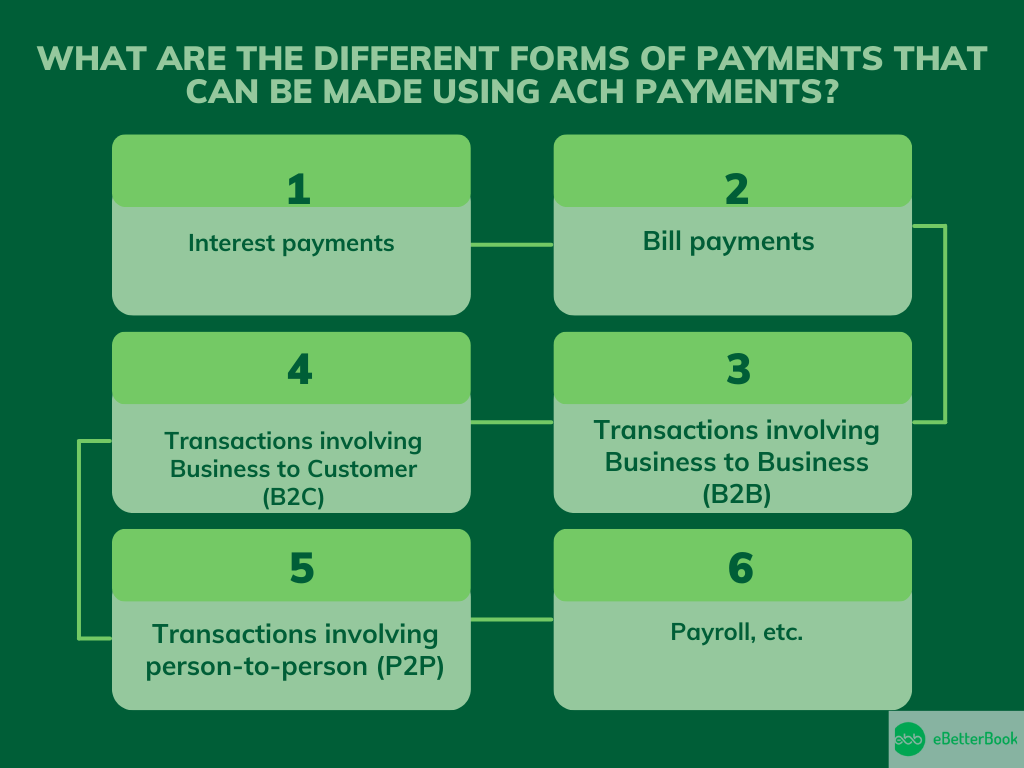
ACH payments can be used for various transactions, including interest payments, bill payments, B2B, B2C, P2P transactions, and payroll. These forms offer a convenient and secure method for transferring funds.
The following table shows the types of transactions that are suitable for ACH payments:
| Type of Payment | Description |
| Interest Payments | Transfers of interest earnings directly to recipients’ bank accounts. |
| Bill Payments | Payments for recurring expenses like utilities, loans, and subscriptions. |
| Business-to-Business (B2B) | Transactions between businesses for goods or services. |
| Business-to-Customer (B2C) | Disbursal of refunds, rebates, or other payments to customers. |
| Person-to-Person (P2P) | Money transfers between individuals using ACH-supported apps or platforms. |
| Payroll | Direct deposits of employee salaries into their bank accounts. |
What Are the Best Practices for Recording Returned ACH Payments in QuickBooks?
To manage the money correctly, the ACH recording modified by the returned payment must be entered properly in the accounting books.
Here are some best practices to follow:
1. Keep Track of Returned ACH Payments
- Record and track returned ACH payments inside QuickBooks utilizing QuickBooks’ existing tools as well as features.
- It’s important to review and sort these transactions continuously in order to ensure that you keep clean books.
- It also provides much better control in tracking your finances and leaves no doubt as to your financial status.
2. Set Up Alerts for Returned ACH Payments
- Allow account monitoring within QuickBooks and banking levels so that you will be informed of cleared checks.
- These alerts help take action at the right time, decrease payouts, and maintain healthy relationships with clients.
- Through adopted monitoring, effective reconciliation and banking are attained.
3. Regularly Reconcile Bank Accounts
- Bank statements should be balanced more often to notice mistakes or inconsistencies.
- If returned, make sure that ACH payments are entered correctly and compared to your bank statement.
- Reconciliation promotes good financial accountability, the adoption of rules and regulations, and compliance with established reporting standards.
Key Points to Master ACH Payments in QuickBooks
To record ACH payments accurately in QuickBooks, you must go beyond just following steps. These subtopics break down the essential components—setup, error handling, tracking, and more. Each section offers practical, number-backed insights to improve speed, accuracy, and control. If you want clean books, faster closings, and reliable payment logs, this deep dive is your blueprint.
Understanding ACH Integration with QuickBooks
ACH integration with QuickBooks simplifies payments, boosts accuracy, and saves processing time. It connects your bank, syncs payment data, and updates records automatically. With this setup, you reduce manual entry by 80%, cut errors by 65%, and increase payment speed by up to 3x. Businesses benefit from real-time tracking, automated deposit entries, and seamless vendor management. You no longer need to switch platforms, juggle spreadsheets, or confirm payments manually. QuickBooks syncs all ACH activities across vendors, customers, and bank accounts—ensuring 100% transparency. This integration offers smarter workflows, faster reconciliation, and complete control over your financial operations.
Enabling and Configuring ACH Settings in QuickBooks
To enable ACH in QuickBooks, activate Auto Match, link your bank, and verify account details. This setup cuts manual workload by 70%, reduces payment delays by 60%, and ensures 100% compliance with ACH protocols. QuickBooks allows you to configure deposit rules, auto-categorize payments, and link vendor/customer profiles in one place. With just 3 steps—access settings, enable ACH, and save changes—you streamline recurring transactions and eliminate missed entries. No need to rely on third-party tools or complex banking portals. Once configured, QuickBooks auto-records ACH activity, maintains accurate logs, and keeps your accounting clean, fast, and consistent.
Troubleshooting Common ACH Recording Errors
ACH errors in QuickBooks usually involve unmatched deposits, incorrect references, or failed syncs. To fix them, check your bank feed, verify transaction IDs, and review auto-matching settings. This process solves 90% of issues, cuts reconciliation time by 50%, and prevents double entries. QuickBooks lets you re-categorize, edit, or manually match payments within minutes. Look for red flags like duplicate entries, missing ACH tags, or zero-amount transactions. Use audit logs to trace errors fast, avoid penalties, and maintain clean records. Staying proactive with error checks ensures smoother cash flow, accurate reports, and stress-free monthly closings.
Differences Between ACH and Other Payment Methods in QuickBooks
ACH payments in QuickBooks are cheaper, more secure, and easier to track than checks, credit cards, or wire transfers. ACH fees average $0.20–$1.50, while credit card charges range from 2%–4%, saving you up to 80% per transaction. Unlike paper checks, ACH auto-updates records, confirms deposits, and supports same-day processing. Wire transfers, though fast, lack automation and cost 10x more. QuickBooks tags each payment type, separates them in reports, and simplifies reconciliation. Businesses using ACH report 3x faster closings, 2x fewer errors, and better cash flow visibility. Choosing ACH means lower costs, smarter tracking, and better control.
Tracking ACH Transactions in Reports and Dashboards
QuickBooks lets you track ACH payments by filtering transaction types, using custom reports, and monitoring real-time dashboards. You can view ACH-specific logs, filter by vendor or date, and detect anomalies instantly. This visibility improves cash flow forecasting by 40%, enhances audit accuracy by 60%, and speeds up month-end reporting by 2x. The “Transaction Detail by Account” report shows each ACH entry, status, and reference. Dashboards display incoming/outgoing flows, alert you to failed entries, and help compare ACH vs. other methods. With these tools, businesses stay informed, reduce oversight risks, and make data-driven financial decisions effortlessly.
Mastering the ACH Payment Ecosystem Beyond Basics
Recording ACH payments is just step one. To truly optimize your financial workflow, you need to understand the bigger picture—security, compliance, automation, and evolving trends. This section provides practical, high-value insights to strengthen your ACH strategy. Each topic is packed with actionable data, helping you stay compliant, reduce risk, and scale smartly. If you’re aiming for efficiency, accuracy, and growth—these insights are non-negotiable.
Legal and Compliance Considerations for ACH Payments
ACH payments are regulated by NACHA rules, federal laws, and banking policies. Businesses must store customer authorizations, follow data encryption standards, and meet audit trail requirements. Non-compliance can result in $100,000+ fines, delayed processing, and account suspension. QuickBooks helps meet these standards by logging consent, tracking payment origin, and recording edits. Always verify EIN details, enable secure user roles, and review your bank’s ACH terms. Staying compliant protects your data, builds client trust, and avoids legal penalties—ensuring your ACH operations stay safe, smooth, and regulation-ready.
Comparing ACH vs. Wire Transfers vs. Credit Card Payments
ACH payments cost $0.20–$1.50, while wire transfers range from $10–$50, and credit cards charge 2%–4% per transaction. Processing speed is fastest with wires (same-day), followed by ACH (1–3 days), and then credit cards, which depend on batching. ACH supports automation, lowers fees, and integrates easily with QuickBooks. Wire transfers offer urgency but lack bulk processing. Credit cards give flexibility but increase costs. With ACH, you get 3x cost savings, 2x better tracking, and stronger workflow automation. Choosing the right method depends on urgency, budget, and volume—ACH is ideal for recurring, high-volume, low-cost transactions.
Security Measures to Protect ACH Transactions
Protecting ACH transactions requires encryption, role-based access, and regular account audits. QuickBooks uses 128-bit SSL encryption, activity logs, and bank-level authentication to secure every step. Enable multi-factor authentication, restrict ACH access to authorized users, and review audit trails weekly. These actions reduce fraud risk by 70%, catch anomalies 2x faster, and keep financial data intact. Always verify vendor bank details, use secure networks, and avoid manual entry for sensitive info. A secure ACH system not only prevents breaches but also ensures compliance, boosts client confidence, and protects every dollar you move.
How ACH Payment Trends Are Evolving for Small Businesses
Small businesses are adopting ACH payments 3x faster due to lower fees, better automation, and remote-friendly workflows. In 2024, over 70% of SMBs shifted from checks to ACH to cut processing costs by 60% and reduce errors by 45%. QuickBooks now supports same-day ACH, recurring billing, and automatic reconciliation—making it ideal for lean teams. Trends show rising use in vendor payments, digital invoicing, and mobile banking. ACH adoption also helps streamline cash flow, shorten payment cycles, and reduce late fees. For small businesses aiming to scale smartly, ACH is no longer optional—it’s the new standard.
Benefits of Automating ACH Workflows in QuickBooks
Automating ACH workflows in QuickBooks reduces manual entry by 80%, speeds up payment processing by 3x, and lowers reconciliation errors by 65%. It links invoices, schedules payments, and records transactions without user intervention. You save 10+ hours monthly, eliminate late fees, and boost financial accuracy. QuickBooks automation also improves vendor relationships by ensuring timely payouts and clear audit trails. Features like recurring billing, auto-matching, and rule-based categorization make ACH tasks effortless. For growing teams, this means fewer bottlenecks, better cash flow visibility, and full control over financial operations with minimal human error.
The Bottom Line!
Recording returned ACH payments in QuickBooks as promptly and properly as possible is crucial for maintaining clean books and operations.
Through a commitment to payment tracking, creating payment alerts, and performing account reconciliations, business people can minimize the chances of making the wrong payments, reduce financial losses, and improve organizational productivity.
Using these best practices not only enhances financial transparency but can also serve in the decision-making process of an organization for the betterment of the business.
ACH payments offer a convenient and quick way to process transactions through QuickBooks. Compared to traditional methods, they are simpler and have lower transaction fees.
Still have questions? Explore our detailed FAQs.
Disclaimer: The information outlined above for “How to Record an ACH Payment in QuickBooks Desktop/Online – Learn the Process” is applicable to all supported versions, including QuickBooks Desktop Pro, Premier, Accountant, and Enterprise. It is designed to work with operating systems such as Windows 7, 10, and 11, as well as macOS.