Excerpt:
Recording journal entries in QuickBooks ensures accurate financial records by capturing complex transactions, transferring funds between accounts, and making necessary adjustments. Whether you're managing accruals, adjusting taxes, or handling depreciation, journal entries allow you to maintain a balanced general ledger, ensure precise reporting, and streamline audits. This process is vital for businesses to track financial activities and correct errors, ultimately ensuring reliable and up-to-date accounting records.
 Add As A Preferred

Journal entries are an essential accounting tool used to record financial transactions in QuickBooks Online. They provide a way to manually adjust account balances, record non-standard transactions, and maintain accurate financial records. Journal entries list vital data, such as how much was credited and debited, when, and from which accounts.
Each journal entry corresponds to one discrete business transaction and is eventually posted to the general ledger. They can also be used to transfer money between an income and an expense account or transfer money from an asset, liability, or equity account to an income or expense account.
In simple terms, Journal entries are entries often used to capture complex transactions that don’t fit neatly into the standard invoicing or expense categories. For instance, adjusting entries for accrued expenses, recording depreciation, or recording payroll.
Each journal entry includes the data significant to a single business transaction, including the Date, the amount to be credited and debited, a brief description of the transaction and the accounts affected. It may list affected subsidiaries, tax details and other information depending on the company.
Journal entries are the foundation of effective record-keeping. They are sorted into various charts of accounts and, once verified for accuracy, posted to the general ledger, which feeds information related to the financial reports.
Accurate and complete journals are essential for the auditing process, as journal entries provide detailed accounts of every transaction. Auditors, both internal and external, will look for entries or adjustments that lack the proper documentation, explanations, or approvals or that are outside the norm for the business.
Journal entries are usually made in chronological order and follow the double-entry accounting system, which means each will have both a credit and a debit column. Even when debits and credits are linked to multiple accounts, the amounts in both columns must be equal.
For instance, say a company spends $277.50 catering lunch for employees. The expenses account increases by that amount, while the cash account, which is an asset, decreases by $277.50 because that money has now been spent.
Record journal entries in QuickBooks to manage transfers between income and expense accounts, manually enter debits and credits, and adjust transactions across asset, liability, or equity accounts.
There are different kinds of reasons behind creating journal entries in QuickBooks, which are as follows:
Journal entries are often used when you need to capture complex transactions. They let you move money between accounts and force your books to balance in specific ways. You are recommended to use them only if you have enough knowledge of accounting or you’re following your accountant’s advice. For better clarification, you also need to understand the debit and credit standards.
Below we’ve discussed how to record or Make a Journal Entry in QuickBooks Desktop:
Let’s get started:
If you want to create a new journal entry, here’s what to do:
To edit a journal entry, adhere to the steps mentioned below:
The reversed journal entry has an “R” besides the entry number, and any debit and credit amounts reversed. The new entry is dated the first day of the next month, following the original transaction date.
Follow the below-listed steps to delete or void a journal entry:
To record a journal entry in QuickBooks Online, click + New, select Journal Entry, choose accounts, enter debits and credits, verify amounts, add a memo, and save.
To record the Journal entry in QuickBooks Online, go through the steps listed below:
Click + New to record a new journal entry.
Now, select Journal entry.
On the first line, choose an account from the Account field. Depending on if you need to debit or credit the account, enter the amount in the accurate column.
Select the other account you’re moving money to or from in the next line. Depending on if you entered a debit or credit in the first section, type the same amount in the opposite column.
Verify the amounts; you should have the same amount in the Credit column on one line and the Debit column on the other. This means the accounts are in balance.
Then, input details under the memo section so you know why you made the journal entry.
Press the Save and New or Save and Close tabs.
An adjusting journal entry is a type of journal entry that helps to adjust an account’s total balance. Accountants usually use adjusting journal entries to record categorized transactions or fix minor accounting errors.
Create adjusting journal entries in QuickBooks Online Accountant to reallocate or reverse accruals, adjust tax payable, account for depreciation, or enter bank fees and interest.
You can create adjusting journal entries for a variety of reasons, which include:
Note: You can mark journal entries by adjusting journal entries. This may allow you to easily identify and get reports for adjusting journal entries.
Below are the steps to create adjusting journal entries and review them on an Adjusted Trial Balance report in QuickBooks Online Accountant.
You’ll make adjusting journal entries from your client’s QuickBooks Online company file.
Run an Adjusted Trial Balance Report to review your adjusting journal entries. This report lists all your account balances in the general ledger before and after you create adjusting journal entries. It also lists the total adjusting entries.
Here’s how:
A recurring journal entry is a template of a journal entry that allows you to make journal entries for transactions recur on a fixed schedule. This type of transaction is useful for businesses who have subscriptions and memberships, utilities, mortgage payments, car loans or any other type of recurring payment.
In QuickBooks Online, you can create templates for recurring transactions like recurring expenses. You can do this for any transaction except bill payments and time activities. Below, we’ll show you how to set up and make the most of recurring templates.
View past journal entries in QuickBooks, go to Reports > Journal, customize the report with date and type filters, then click Run Report. Alternatively, select + New > Journal Entry, then click the counterclockwise arrow and choose View More.
To view your old journal entries in QuickBooks, follow these steps:
You can also view Journal entries by doing the following:
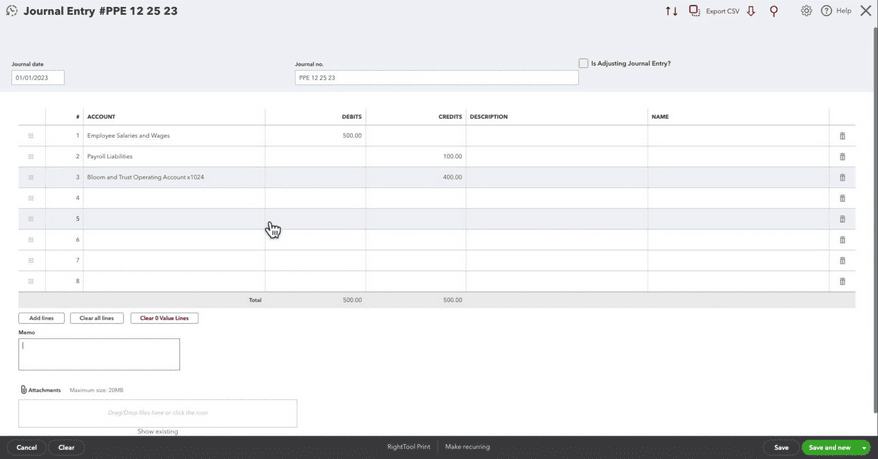
This journal entry shows that there was $500 worth of employee wages. From that, $500 and $100 were set aside for taxes in the Payroll Liabilities account. The remaining amount comes out of the checking account and goes to the employee for direct deposit. At the bottom of the journal entry, you can see both the debits and credits equal 500.00.
The technique of using the advanced search option is useful in searching for journal entries in a short time. Below is a step-by-step guide on how to access and use the advanced search tool:
In this, filters and keywords help to find information faster and will not allow an error.
Recording journal entries accurately is essential for maintaining clean and reliable financial records in QuickBooks Desktop and Online. Whether you’re adjusting accounts, transferring funds, or correcting errors, understanding the core principles and common pitfalls can save you time and prevent costly mistakes. This guide covers important topics such as avoiding frequent errors, mastering debit and credit rules, best verification practices, correct account categorization, and key differences between QuickBooks Desktop and Online journal entries. Follow these insights to streamline your accounting process and keep your books balanced.
Avoiding mistakes is crucial for accurate bookkeeping. Nearly 60% of users skip verifying debit and credit equality, causing errors. Always double-check amounts; mismatched totals lead to reporting issues. About 45% forget to add clear descriptions, making audits difficult. Missing memos can delay financial reviews by up to 30%. Avoid entering incorrect account types—this mistake affects 25% of entries and can distort financial statements. Ensuring you follow these steps reduces errors by over 50%, saving time and maintaining clean records. Stay precise to keep your QuickBooks data reliable and error-free.
Grasping debit and credit rules is essential for accurate entries. In double-entry accounting, every debit must have a matching credit, ensuring balance. QuickBooks requires this balance in 100% of journal entries to prevent errors. Debits increase asset and expense accounts by 70%, while credits increase liabilities, equity, and revenue accounts by 65%. Misunderstanding these rules causes 40% of transaction errors. Knowing which accounts to debit or credit speeds up data entry by 30% and improves financial accuracy. Master these basics to avoid mistakes and maintain a balanced ledger in QuickBooks.
Verifying journal entries is key to clean accounting. Always ensure debits equal credits—this is mandatory in 100% of entries. Use QuickBooks’ built-in tools to spot discrepancies instantly, reducing errors by 40%. Review transaction dates carefully; incorrect dates cause 25% of audit delays. Adding detailed memos helps clarify entries and speeds up reviews by 20%. Double-check account types to prevent misclassification, which affects 30% of reports. Following these steps saves hours during audits and maintains your financial records’ integrity.
Proper account categorization is vital for accurate reporting. In QuickBooks, 70% of errors arise from misclassified accounts. Always select the correct account type—asset, liability, equity, income, or expense—to maintain ledger accuracy. Misclassification can distort financial statements by up to 40%. Using the chart of accounts as a guide reduces mistakes by 50%. Clear categorization also simplifies tax preparation and audit processes, saving you 25% of your time. Accurate account selection ensures your reports truly reflect your business health.
QuickBooks Desktop offers advanced features, with about 30% more customization options than Online. Desktop users can batch-enter journal entries, saving up to 40% time on repetitive tasks. QuickBooks Online, however, provides real-time collaboration for multiple users, improving teamwork efficiency by 35%. Online lacks some Desktop-specific reports but excels in accessibility across devices. Data syncing is automatic in Online, reducing manual errors by 25%, while Desktop requires periodic updates. Choosing between them depends on your business size, need for customization, and remote access priorities.
Beyond basic entry methods, mastering journal entries in QuickBooks requires attention to recurring tasks, adjustments, collaboration, and accuracy. This section explores deeper areas that impact your financial precision—such as the strategic use of recurring entries, the role of adjustments in reports, and how to avoid common errors. Whether you’re streamlining processes or working with your accountant, these insights can boost efficiency by over 40% and cut down reporting issues by nearly 30%. Use these tips to elevate your accounting workflow and keep your books audit-ready year-round.
Recurring journal entries save time, reduce manual input, and ensure consistency. Automating frequent transactions—like rent, subscriptions, or loan payments—can cut monthly entry time by 40%. It also reduces human error by 35%, especially in repetitive data like fixed amounts or standard accounts. QuickBooks lets you set schedules, reminders, or unscheduled templates, offering full control. Businesses using recurring entries report up to 25% faster month-end closings. This feature is ideal for maintaining accuracy in routine transactions while keeping your workflow efficient and reliable.
Adjusting journal entries directly affect your financial accuracy, audit readiness, and compliance. They help reflect true expenses, income, and liabilities—impacting 100% of your final reports. Without them, revenue may be overstated by 20% or expenses underreported by 30%. These entries ensure accrual-based reporting, correcting timing mismatches and capturing unrecorded items like depreciation or prepaid expenses. Accurate adjustments improve audit outcomes by 40% and enhance investor confidence. Applying these entries at period-end keeps your balance sheet and profit & loss statement precise and complete.
QuickBooks reports help verify journal entry accuracy, detect errors early, and ensure balanced books. The Journal Report, Audit Log, and Adjusted Trial Balance identify 90% of common entry mistakes. Reviewing entries by date, amount, or account flags inconsistencies fast—cutting correction time by 35%. Regularly checking totals ensures your debits and credits match, preventing reconciliation delays. Reports also highlight missing memos or unusual patterns, helping you stay audit-ready. Use filters and customization to isolate entries and validate data efficiently every month.
Effective collaboration with your accountant ensures accuracy, compliance, and faster closings. Share journal entry details with clear memos, supporting documents, and account breakdowns—this reduces back-and-forth by 50%. Use the Accountant Toolbox in QuickBooks Online to give direct access, speeding up reviews by 30%. Mark entries as “Adjusting” to help your accountant identify them quickly during audits or tax prep. Regular check-ins, especially at month-end, cut correction time by 40%. Clear communication helps avoid errors and keeps your books clean and ready for reporting.
When saving journal entries in QuickBooks, users often face issues like unbalanced amounts, missing accounts, or invalid dates—causing 60% of failed entries. Always verify that debit and credit totals match; imbalance blocks saving instantly. Ensure selected accounts are active and correctly categorized—about 25% of issues stem from using inactive or wrong account types. Dates outside the current fiscal period trigger errors in 15% of cases. If entries still fail, clear your browser cache or update your QuickBooks version. Following these checks can resolve over 80% of entry issues quickly.
Journal is the primary book of accounts as it helps to maintain accurate financial records in QuickBooks. The purpose of a journal entry is to physically or digitally record every business transaction properly and accurately. It not only reduces the chances of excluding a transaction but also makes it easier to correct data if mistakes are made.
Since all journal entries are written with explanations, it becomes easier to understand financial activities later. With journal entries, you can set up your opening balance for the chart of accounts and have the flexibility to move values in your books manually. Also, business owners can ensure accurate financial reporting and make necessary adjustments to their accounts according to their business standards by creating journal entries in QuickBooks.
Still have questions? Explore our detailed FAQs.


