 Add As A Preferred
Upgrading QuickBooks Desktop is a crucial step for maintaining optimal performance, accessing the latest features, and ensuring data security. Connecting with the right QuickBooks Desktop upgrade support team is essential for a smooth and error-free upgrade. Without proper guidance, users risk encountering installation errors, data conversion issues, or compatibility issues that can disrupt business operations.
This guide provides a comprehensive roadmap for contacting QuickBooks Desktop upgrade support. It covers the official support channels, outlines the essential information to prepare before reaching out, and highlights troubleshooting resources to address common upgrade issues. Following these steps ensures a smooth and efficient upgrade process, reduces downtime, and prevents potential complications.
Reaching the right QuickBooks Desktop Upgrade Support channel is the most efficient way to complete your upgrade without delays or disruptions. Intuit provides several official options to connect with trained specialists and access reliable resources.
| Methods | How to Access | Best For | Availability | Response Time |
| In-Product Help Menu | QuickBooks Desktop Help / Contact Us → Enter query → Log in → Choose Chat or Request a Call | Direct troubleshooting within the software | During product support hours | Immediate via chat or scheduled callback |
| Phone Support | Call 1-800-446-8848 (1-800-4INTUIT) | Urgent upgrade issues requiring live assistance | Standard business hours | Usually within minutes; may involve wait times |
| QuickBooks Support Directory (Online) | Visit QuickBooks Desktop Support Directory | Download links, updates, guides, FAQs, and video tutorials | 24/7 online access | Immediate access to resources |
| Community Forum | Access the QuickBooks Community from the support directory | Peer-to-peer solutions and past solved cases | 24/7 online access | Varies; depends on community engagement |
| Email / Ticket Submission | Available through Intuit’s support portal or Customer File Exchange for non-urgent queries | Complex or non-urgent issues requiring detailed follow-up | 24/7 submission, response during support hours | Slower; typically 1–2 business days |
Step 1: Open QuickBooks Desktop (Pro, Premier, Enterprise, or Payroll).
Step 2: Click the Help (?) menu at the top of the interface.
Step 3: Select QuickBooks Desktop Help/ Contact Us.
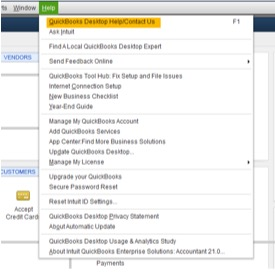
Step 4: Enter your question, topic or a relevant keyword you need help with.

Step 5: Log in to your Intuit account and select any one:
Tip: Check your display settings in QuickBooks Desktop or update to the latest version of the software when the help option doesn’t appear.
Phone support is one of the fastest and most direct ways to connect with QuickBooks Desktop Upgrade Support. Speaking with a representative ensures that upgrade-related issues are resolved in real time.
Important: These numbers are user-reported and not officially verified by Intuit. Always prioritize official numbers to avoid third-party or unauthorized providers.
For comprehensive support and self-service options, visit the QuickBooks Desktop Support Directory for resources where you’ll find:
The QuickBooks Community Forum offers peer-to-peer assistance where experienced users and product experts share solutions to common upgrade challenges. Since many issues have already been discussed in existing threads, you can often find practical fixes quickly without waiting for live support.
For large files or advanced migration requests, you can submit your query via Intuit’s official Customer File Exchange portal after receiving a Data Services case number and PIN via email. This method is especially useful for handling large files or complex conversions that may not be efficiently supported through live chat or phone. Email/support ticket submissions are available 24/7 and typically receive a response within 1–2 business days.
Before reaching out to QuickBooks Desktop Upgrade Support, users must have the following details ready to ensure a smooth and secure upgrade process.
Upgrading QuickBooks Desktop provides the latest features, security updates, and tax compliance tools. It also improves performance, ensures compatibility with current operating systems, and maintains access to Intuit support.
Before contacting QuickBooks Desktop Upgrade Support, keep all the necessary details handy to speed up resolution.
When contacting QuickBooks Desktop Upgrade Support, focus on clear communication and accuracy. Provide all requested details, listen carefully to instructions, and follow each step as directed. Keep essential records such as your case ID, license number, and the representative’s name for future reference. If the issue remains unresolved, request escalation to a supervisor.
During QuickBooks Desktop upgrades, promptly contacting support resolves issues efficiently and minimizes business disruptions.
After a QuickBooks Desktop upgrade, verify key functions, re-enable antivirus/firewall, uninstall old versions, and store backups securely.
QuickBooks Desktop 2025 introduces enhanced features and improved performance to streamline accounting tasks and protect company data. Although the official release is pending, support teams assist with installation, file migration, and setup of new features in current versions, ensuring users can upgrade smoothly and maintain uninterrupted business operations.
Upgrading QuickBooks Desktop requires proper preparation and the use of official support channels to ensure a secure and efficient process with minimal disruption to business operations. Refer to the official upgrade guide for step-by-step instructions, and use troubleshooting tools such as QuickBooks Tool Hub and the Install Diagnostic Tool to resolve common installation or upgrade errors. Verify that your computer meets the required system specifications before beginning the upgrade. Always contact QuickBooks Desktop Upgrade Support through authorized channels to avoid fraud, security risks, or software complications.
Disclaimer: eBetterBooks is an independent third-party service provider for accounting and bookkeeping software. We are not affiliated with Intuit® QuickBooks.
Open QuickBooks Desktop, go to Help > QuickBooks Desktop Help > Contact Us, enter your concern, and choose either Chat or Phone to connect with the support team.
The official support number is 1-800-4INTUIT (1-800-446-8848). For Enterprise editions, use 1-800-285-4854. Avoid unofficial numbers to prevent fraud or unauthorized services.
Yes, users can connect via the in-software chat option, submit queries through Intuit’s Customer File Exchange, or use the QuickBooks Community Forum for peer-to-peer assistance.
Keep your company name and file name, current QuickBooks version, target upgrade version, license/product number, operating system, backup confirmation, problem description, troubleshooting steps taken, and proof of purchase handy before contacting the support team.
Use QuickBooks Tool Hub and the Install Diagnostic Tool to fix installation issues, confirm system requirements, and ensure backups are ready before starting the upgrade.
Contact support during standard business hours, typically Monday to Friday, to experience shorter wait times and faster issue resolution.
If your issue remains unresolved, request escalation to a supervisor. Keep your case ID, representative name, and communication records ready to facilitate the process.
Yes, QuickBooks assists with company file migration, conversion, and setup of new features to ensure compatibility and seamless operations.
Verify your license and product number, ensure internet connectivity, and contact official QuickBooks support for guidance on reactivation or troubleshooting.
Official resources include the QuickBooks Upgrade Guide, QuickBooks Tool Hub, Install Diagnostic Tool, and the System Requirements page, all accessible through Intuit’s official website.


