


Learn the best ways to troubleshoot QuickBooks Error Code 15227.
The QuickBooks Error Code 15227 generally occurs when the user tries to install the QuickBooks software. With this blog, we will suggest the best ways to fix the error. Also, you will learn the main reasons behind the occurrence of this error.
QuickBooks has proven itself as the best accounting and bookkeeping software among millions of small business owners. It has helped automate tax planning, generating financial reports, keeping track of finances, and other such details. However, due to its complex structure, it also has lots of bugs, known as QuickBooks errors. Today, we are dealing with one such issue: QuickBooks error code 15227.
What is QuickBooks Error 15227?
The Repair Error 15227 is installation-related. Here, the essential QuickBooks files do not respond to commands. Also, these files might be corrupted, missing, or damaged.
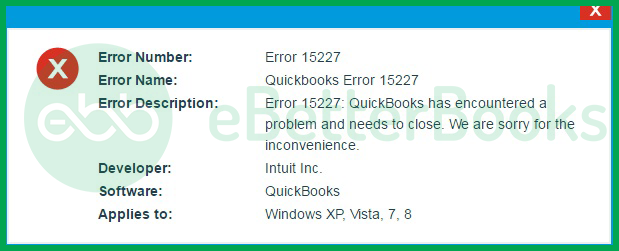
Below we have discussed the causes and symptoms of this error so that you can timely avoid such errors in the future.
What are the Symptoms of Error 15227?
Ways to find out QuickBooks Error 15227:
- All the security applications and the taskbar are missing. This might be a sign behind QuickBooks Error Code 15227.
- While the applications are running, the error 15227 suddenly crashes the active window of the program.
- Faulty connection leading to the Error Code 15227.
- The window stops responding to inputs and the system crashes frequently.
What Leads to QuickBooks Error Code 15227?
If the users are aware of the causes behind QuickBooks Error Code 15227, then they can avoid this error easily in the future.
The following reasons might cause the error message of QuickBooks Error Code 15227 in your system:
- Partial/ incomplete/ corrupt QuickBooks installation.
- The downloaded installation file of the accounting software is corrupted.
- Windows registry might be at fault due to software package modifications, leading to QuickBooks Error Code 15227.
- The system might be under virus or malware attack.
- Another program has mistakenly deleted or misplaced QB files, leading to QuickBooks Error Code 15227.
- If many users are simultaneously accessing the company file, it may impact the software.
How to Resolve QuickBooks Error Code 15227?
Fix QuickBooks Error 15227 by updating QuickBooks and Windows, repairing Windows registry, and performing a clean installation as a last resort.
For detailed steps, follow the solution guide below:
Step 1: Perform a Clean Installation of QuickBooks
- Initially, fix the repair error 15227 related to windows registry entries. However, perform this step only if you are either an expert on computers or have the assistance of a professional.
Step 2: Conduct a Full Malware Scan
- After that, perform a full malware scan of the system.
Step 3: Perform Disk Cleanup
- Also, disk cleanup helps remove system temp and junk files & folders. Perform this step also to rectify the error 15227.
Step 4: Update System and Device Drivers
- Verify if all the system and device drivers are up to date or not. If they have not been updated, kindly get them replaced with their latest version.
Step 5: Undo Recent System Changes
- After that, undo all recent changes in the system. You can do that by going into the windows system restore.
Step 6: Uninstall and Reinstall QuickBooks
- Finally, uninstall and reinstall the QuickBooks. Also, run the windows system, and file checker. It will help figure out if updates are available or not.
Step 7: Install New Windows Updates
- Lastly, install newly available windows updates and perform a clean installation of Windows.
How to Resolve QuickBooks Error Code 15227?
Fix QuickBooks Error 15227 by updating QuickBooks and Windows, repairing Windows registry, and performing a clean installation as a last resort.
For detailed steps, follow the solution guide below:
Solution 1: Check Windows Updates (Windows 10/ 8/ 7/ Vista/ XP):
Checking for Windows updates is an essential step to resolve QuickBooks Error Code 15227. This error often arises due to incomplete updates or system instability.
Follow the steps given below to check for and install Windows updates:
Step 1: Access Windows Update Settings
- Click on the Start button in the bottom-left corner of your screen.
- In the search bar, type “update” and press Enter. This will bring up the Windows Update settings.
Step 2: Check for Updates
- You should see an option labeled Windows Update or Check for updates in the results. Click on it to open the update settings.
Step 3: Initiate the Update Process
- In the Windows Update window, click on the “Check for updates” button. The system will then search for any available updates.
Step 4: Install Available Updates
- If any updates are found, you will see an option to download and install. Click on this to start the installation process.
- Depending on your system settings, you may need to follow additional prompts to complete the installation.
Step 5: Restart Your Computer
- It is important to restart your computer after the updates have been installed. This ensures that all changes take effect properly.

Solution 2: Reinstalling the QuickBooks Updates
Reinstalling the QuickBooks Update can be another solution to fix the QuickBooks Error Code 15227.
Follow the below given steps:

Step 1: Reboot Your System
- Restart your computer to clear all the temporary files and refresh system resources.
Step 2: Open QuickBooks as Administrator
- Right-click on the QuickBooks Desktop icon and select Run as Administrator. This grants the program the necessary permissions to perform updates.
Step 3: Install Updates
- If prompted, proceed to install any available updates. If no prompt appears, you may need to check for updates manually:
- Navigate to Help in the menu bar.
- Click on Update QuickBooks Desktop.
Step 4: Delete Previous Update Files
- If the update does not install successfully, you may need to delete the previous update files:
- Open File Explorer and go to the following directory:
C:\Documents and Settings\All Users\Application Data\Intuit\QuickBooks<versionXX>\Components
- Locate and delete the file named DownloadQBxx.
Step 5: Relaunch QuickBooks
- After deleting the old update files, reopen QuickBooks Desktop by right-clicking its icon and selecting Run as Administrator again.
Step 6: Download Updates Again
- With QuickBooks open, go back to the Help menu and select Update QuickBooks Desktop.
- Click on the Options tab, then check the box for Mark All, and hit Save.
- Next, click on the Update Now tab. Also, check the box for Reset Updates before clicking on Get Updates.
Step 7: Install Updates
- Click on Install Now when the QuickBooks Desktop Update Service shows up.
Solution 3: Perform Disk Cleanup
Performing a Disk Cleanup can be an effective solution to resolve QuickBooks Error Code 15227. This process helps you to delete the unnecessary files that may interfere with QuickBooks operations.
Follow these Steps to Perform Disk Cleanup:
Step 1: Open the Run Dialog Box
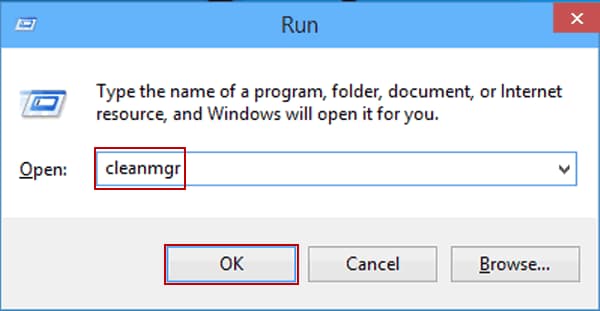
- Click the Windows + R to open the Run dialog box.
Step 2: Launch Disk Cleanup
- Type cleanmgr.exe into the Run dialog box and press Enter or click OK.
Step 3: Select the Drive
- Select the drive you want to clean up and click OK.
Step 4: Clean Up System Files
- In the Disk Cleanup window, click on the button labeled Clean up system files by clicking Yes when prompted.
Step 5: Review File Categories
- Review the list of files that you want to remove which may include Temporary files, Recycle Bin, and more. Check the boxes next to the categories you wish to delete.
Step 6: Delete Files
- Click on OK after selecting the desired file categories which you want to delete. Confirm any prompts that appear by clicking on Delete Files.
Step 7: Restart QuickBooks
- Once the cleanup process is complete, reopen QuickBooks and check if Error Code 15227 has been resolved.
Solution 4: Conduct a Full Malware Scan
To resolve QuickBooks Error Code 15227, conducting a full malware scan is important. This error can occur due to malware or virus infections that can corrupt QuickBooks files or interfere with its operations.
Steps to Conduct a Full Malware Scan:
Step 1. Prepare Your System
- Before starting the scan, Close all open applications before starting the scan, including QuickBooks to ensure that the scan runs smoothly without interruptions.
Step 2. Update Your Antivirus Software
- Launch the antivirus software installed on your computer.
- Ensure that your antivirus definitions are up-to-date. This is vital as new malware is constantly being developed, and updated definitions help identify the latest threats.
Step 3. Run a Full System Scan
- In your antivirus program, locate the option labeled “Full Scan” or “Complete Scan” for a full system scan.
- If any threats are detected during the scan follow the prompts to remove them.
Step 4. Review Scan Results
- Review the results carefully after the scans are complete and ensure that the detected malware is removed.
Step 5. Restart Your Computer
- Restart your computer after completing the scans.
Step 6. Open QuickBooks and Check for Errors
- Once your computer has restarted then open QuickBooks to check if Error Code 15227 still persists.
- If the error is resolved consider running regular scans in the future to prevent similar issues.
Solution 5: Windows Registry Repair
Repairing the Windows Registry is one of the effective methods to resolve QuickBooks Error Code 15227. This error often occurs due to the issues with QuickBooks installation files which can become corrupted or damaged.
Below are steps to perform a Windows Registry repair:
Step 1: Open the Run Dialog
- Click on the Start button.
- Type run in the search bar, then press Enter to open the run dialog.
Step 2: Access Command Prompt
- In the Run dialog, type cmd and press Enter. This will open a black command window.
Step 3: Open Registry Editor
- To open the Registry Editor type regedit in the Command Prompt window and press Enter.
Step 4: Create a Backup of the Registry
- Before making any changes, it’s crucial to back up the registry to prevent data loss.
- In the Registry Editor go to the File menu and select Export.
Step 5: Choose Backup Options
- After selecting Export, a dialog box will appear that will prompt you to choose where to save the backup.
- Select a folder where you want to save the backup file.
Step 6: Name Your Backup File
- Enter a name for your backup file in the filename text box.
Step 7: Set Export Range
- Ensure that you select the option for All under the Export range section to back up the entire registry.
Step 8: Save the Backup
- Click on Save to create your backup file with a .reg extension.
Step 9: Finalize Backup Creation
- Once the export process is complete, you will have a backup of your registry that can be restored if needed.
Step 10: Check for Resolution
- After backing up, close the Registry Editor and restart your computer.
- Open QuickBooks again to check if Error Code 15227 has been resolved.
Conclusion
The solutions mentioned above will help you solve QuickBooks Error Code 15227. In case you cannot fix QuickBooks Error 15227 or are unable to understand the issue, reach out to our support team on our toll-free number 1-802-778-9005 for immediate help. Are you looking for accounting and bookkeeping solutions in the USA? Avail the best and most affordable online bookkeeping services with eBetterBooks.
Disclaimer: The information outlined above for “How to Fix QuickBooks Error 15227 Due to Incomplete or Corrupted Installation?” is applicable to all supported versions, including QuickBooks Desktop Pro, Premier, Accountant, and Enterprise. It is designed to work with operating systems such as Windows 7, 10, and 11, as well as macOS.