


QuickBooks Desktop Pro/Premier Payroll is a payroll computation environment that stores employee withholding attributes, tax configuration variables, and wage reporting data. W-4 and payroll information errors result in incorrect filing status inputs, inaccurate dependent declarations, outdated withholding data formats, incorrect state tax assignments, and inconsistent year-to-date wage or tax records. These errors lead to inaccurate withholding calculations, inconsistent wage summaries, and incorrect outputs for W-2 and Form 941.
All the troubleshooting steps require system preparation, employee record access, withholding data verification, year-to-date data adjustment review, and payroll recalculation. The article outlines the error sources, specifies the preparatory requirements, and describes the corrective procedures in a structured format that supports the operational steps and compliance considerations in the following sections.
System Requirements and Preparation Checklist
Before starting the troubleshooting steps, ensure system compatibility and complete all necessary preparation steps.
Meeting the following requirements keeps QuickBooks Desktop updated, maintains data integrity, and allows smooth corrections of W-4 and payroll information, enhancing audit readiness and reducing compliance risks.
System Requirements
- Install and ensure the supported version of QuickBooks Desktop Pro or Premier is operational.
- Confirm the QuickBooks Payroll subscription is active.
- Ensure a stable internet connection is available to facilitate payroll update downloads.
- Install the latest payroll tax table:
- Go to Employees > Get Payroll Updates to verify update status.
- Log in with administrative-level permissions to allow payroll data modification.
Preparation Steps
- Create a complete company file backup:
- Access via File > Back Up Company > Create Local Backup.
- Collect and review the most recent IRS Form W-4 and applicable state withholding form.
- Confirm the current payroll subscription status:
- Navigate to Employees > My Payroll Service > Account/Billing Information.
- Generate and review relevant payroll reports, such as Payroll Summary and Employee Withholding Summary, for discrepancies.
- Close all non-essential windows within QuickBooks Desktop to ensure optimal system performance and prevent interruptions.
Common Mistakes that Cause W-4/Payroll Errors
W-4 and payroll configuration errors originate from incorrect employee data, outdated withholding parameters, and misaligned tax settings within QuickBooks Desktop Pro/Premier Payroll. Identifying these issues helps preserve accurate withholding calculations, consistent wage records, and reliable reporting across federal and state payroll requirements.
- Misclassifying Employees: Treating an employee as an independent contractor (or vice versa) in QuickBooks affects tax withholding, form generation (W-2 vs. 1099), and legal compliance.
- Incorrect Tax Withholding or Deposits: Failing to withhold the correct federal, state, or local taxes or missing scheduled deposit deadlines leads to tax liabilities, penalties, or compliance issues.
- Entering Incorrect Filing Status or Allowances: Selecting the wrong filing status, such as Single instead of Head of Household, or failing to input dependent and withholding information as specified on the employee’s W-4 form.
- Inaccurate Tax Calculations: Misconfiguring tax items, overriding system calculations, or using outdated payroll items causes QuickBooks to compute taxes incorrectly across pay periods.
- Skipping State Tax Setup: Setting the wrong state-specific tax withholding under the “State” tab leads to errors in payroll deductions and tax reporting.
- Ignoring W-4 Form Revisions from the IRS: Using outdated W-4 fields, such as allowances post-2020, instead of the current format results in non-compliance and incorrect tax withholding.
- Unrecorded or External Payroll Adjustments: Making payroll corrections outside QuickBooks, such as in spreadsheets without updating them in the system, causes inconsistencies in employee records and tax filings.
- Not Verifying Year-to-Date Adjustments: Failing to reconcile YTD wage or tax entries after manual changes leads to inaccurate W-2s, 941 forms, and payroll summary reports.
- Missing Deadlines and Incomplete Recordkeeping: Late payroll tax filings, non-compliance with deposit schedules, or incomplete audit trails in QuickBooks reduce compliance and increase audit risk.
- Using Outdated Payroll Tax Table Versions: Processing payroll with outdated tax table data leads to inaccurate withholding calculations and incorrect tax liability reporting.
Step-by-Step: How to Fix W-4/Payroll Errors in QuickBooks Desktop
This section provides a structured workflow for correcting W-4 and payroll information errors in QuickBooks Desktop Pro/Premier Payroll. The steps address withholding parameters, wage and tax record accuracy, and payroll configuration settings to ensure correct calculations and compliant reporting. Fixing these errors prevents calculation errors, guarantees accurate tax reporting on W-2 and 941 forms, and maintains compliance with IRS and state requirements.
Step 1: Open the Employee Record
Opening the employee record allows the user to directly access and modify payroll-specific details such as tax withholding setup, YTD adjustments, and payroll items associated with that employee.
- Open QuickBooks Desktop.
- Go to Employees > Employee Center.
- In the Employee Center, choose the specific employee from the list.
Step 2: Review and Update W-4 Information
Updating W-4 data ensures that an employee’s federal and state tax withholdings match their current filing status, dependents, and any extra withholdings specified on the W-4 form.
- In the employee profile window, select the “Payroll Info” tab.
- Click Taxes > Federal or Taxes > State
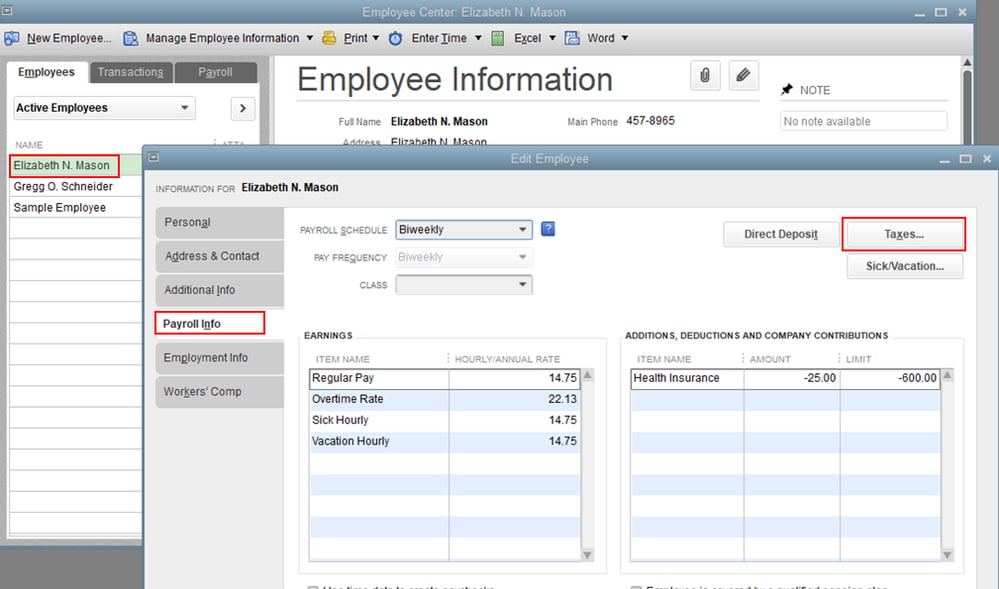
- In the “Federal Withholding” section, update the information from the employee’s W-4 form:
- Update Filing Status, such as Single, Married, or Filing Jointly.
- Enter the correct number of dependents or other adjustments (if applicable).
- Adjust additional withholding amounts (if needed).
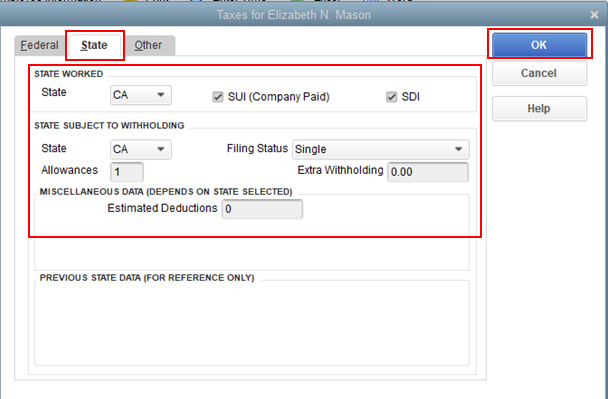
- In the State tab (if applicable):
- In the “State” tab, verify that the “State Worked” and “State Subject to Withholding” are correctly set up.
- Click OK.
Step 3: Adjust Year-to-Date (YTD) Payroll Information
Adjusting YTD payroll data ensures reported wages and withholdings match actual amounts paid to the employee. This is critical for accurate tax filings and payroll summaries.
- Go to Reports > Employees & Payroll > Employee Withholding.
- Click Customize Report to filter for:
- YTD wages
- Withheld federal and state taxes
- Review the information. In case YTD values are incorrect:
- Open the employee record
- Click Payroll Info > YTD Adjustment, and update wage or tax values as needed.
| Note: Ensure adjustments align with the actual amount paid to the employee. |
Step 4: Modify Payroll Item Details (if correction affects pay)
Modifying payroll items ensures that prior overpayments or underpayments are corrected in the system. This maintains payroll accuracy and ensures future paychecks reflect corrected values.
- An employee was overpaid or underpaid:
- Adjust the hours or amount in the pay item (e.g., hourly wage, bonus).
- Use the Preview Paycheck function before processing payroll.
- Accounting corrections are needed:
- Create a general journal entry to reconcile discrepancies in wages or taxes.
Step 5: Rerun Payroll Setup (if major updates were made)
Running the payroll setup again applies recent changes to tax and payroll configurations across the system. This ensures consistency in calculations and tax liabilities for future payrolls.
- From the Employees menu, select Payroll Setup.
- Walk through the setup to verify that:
- All tax data reflects your updates
- Payroll items are properly linked
- Click Finish to save the changes.
Step 6: Validate Corrections
Running final payroll reports confirms that all corrections were successfully applied and that the system reflects accurate tax and wage data for the employee.
- Run post-correction reports:
- Payroll Summary
- Employee Withholding Summary
- Check that the updates are correctly applied in payroll.
Best Practices for Managing W-4 and Payroll Info in QuickBooks Desktop
- Conduct scheduled reviews of employee tax and withholding settings to catch discrepancies early.
- Check for IRS or state-issued W-4 updates at the start of each year and apply necessary changes in QuickBooks.
- Request updated W-4 forms from employees after significant life events, such as marriage, the birth of dependents, job changes, and clarify how these changes affect their pay.
- Maintain clear records of manual adjustments, overrides, and correction entries for auditing and compliance purposes.
- Assign payroll permissions only to authorized personnel to prevent accidental or unauthorized modifications.
- Review summaries and withholding reports before finalizing payroll to verify that tax calculations and deductions are accurate.
- Ensure payroll activities are performed on systems with secure login credentials and data encryption enabled.
- Verify that payroll tax table updates are installed promptly to prevent calculation discrepancies caused by outdated tax parameters.
Conclusion!
W-4 and payroll information errors in QuickBooks Desktop Pro/Premier Payroll require accurate withholding configuration, consistent year-to-date data, and properly aligned payroll items. Updating employee records, validating tax parameters, and recalculating payroll outputs support compliance with federal and state requirements. These procedures establish accurate wage reporting, precise withholding calculations, and correct form generation for W-2 and Form 941. Regular audits and timely updates maintain payroll accuracy and prevent potential penalties.
Frequently Asked Questions
What causes W-4 information errors in QuickBooks Desktop Pro/Premier Payroll?
W-4 information errors occur when the employee record contains incorrect filing status entries, inaccurate dependent values, outdated withholding formats, or incorrect federal or state tax selections.
How to Fix A Payroll Error on QuickBooks?
Open the employee record > update tax or payroll details, adjust YTD figures (if needed), and validate corrections using payroll reports.
How to Update Payroll in QuickBooks Desktop?
Go to Employees > Get Payroll Updates, download the latest tax table, and install it to keep payroll calculations accurate.
How do incorrect W-4 entries affect payroll calculations in QuickBooks Desktop?
Incorrect W-4 entries result in inaccurate withholding calculations, inconsistent wage summaries, and incorrect reporting outputs for forms such as W-2 and Form 941.
What reports help verify W-4 and withholding information in QuickBooks Desktop?
The Payroll Summary report, Employee Withholding Summary report, and Employee Details report provide the information required to verify wages, withholding values, and configuration accuracy.
When should W-4 information be updated in QuickBooks Desktop?
W-4 information should be updated when an employee submits a revised W-4, experiences a change in filing status, changes dependent declarations, or requires new federal or state withholding adjustments.
How do year-to-date discrepancies affect payroll reporting?
Year-to-date inaccuracies create deviations in wage totals and tax liabilities, which lead to incorrect W-2 values, incorrect Form 941 entries, and inconsistencies in payroll summary reports.
Disclaimer: The information outlined above for “Fix W-4 or Payroll Info Errors for Employees in QuickBooks Desktop Pro/Premier Payroll” is applicable to all supported versions, including QuickBooks Desktop Pro, Premier, Accountant, and Enterprise. It is designed to work with operating systems such as Windows 7, 10, and 11, as well as macOS.