


QuickBooks Desktop Enterprise Payroll (QBD Enterprise Payroll) manages employee payroll deductions, including health insurance, pension plans, 401(k), and garnishments. Deduction errors often arise from incorrect payroll setup, outdated tax tables, unrecorded benefit changes, manual entry mistakes, data corruption, or missing employee details. Failure to review payroll settings after policy changes can also cause discrepancies, making periodic audits essential.
This article explains how to identify and correct missing or incorrect payroll deductions by reviewing employee Payroll Info tabs, auditing payroll settings, and updating payroll items. Always create a secure backup of your company file using File > Backup Company > Create Local Backup before making any changes to ensure data can be restored if necessary.
Fixing payroll deduction errors improves accuracy, ensures tax compliance, prevents penalties, enhances employee satisfaction, and streamlines payroll management. Proper deductions support error-free tax reporting and efficient payroll operations.
What Leads to Incorrect Payroll Deductions in QuickBooks?
Payroll deduction errors in QuickBooks Desktop Enterprise can arise due to setup mistakes, outdated configurations, or system-related issues. Identifying the root cause is essential to ensure accurate payroll processing and compliance.
The table below outlines common issues and their descriptions:
| Issue | Description |
|---|---|
| Deduction Not Assigned | The deduction payroll item was created but not linked to the employee’s payroll setup. |
| Incorrect Rate or Limit | The deduction has the wrong calculation method, percentage, or dollar amount. |
| Inactive Payroll Item | A deduction item was made inactive or deleted. |
| Incorrect Tax Tracking | Taxability settings or W-2 reporting type are incorrect, affecting calculations. |
| Manual Paycheck Override | Manual paycheck edits may omit automated deductions. |
| System Calculation Error | Occasionally, it is caused by a corrupted company file or payroll data. |
How to Check Missing or Incorrect Deductions?
QuickBooks Enterprise Payroll checks missing or incorrect deductions by verifying employee-level deduction assignments, payroll item attributes, and paycheck deduction calculations. It identifies issues when deduction items are inactive, unassigned, or contain incorrect rate, limit, or tax-tracking values.
Follow the steps below to ensure accuracy:
Step 1: Log in to the Admin Account
- Use valid credentials to log in to the admin account.
Step 2: Check Employee Setup
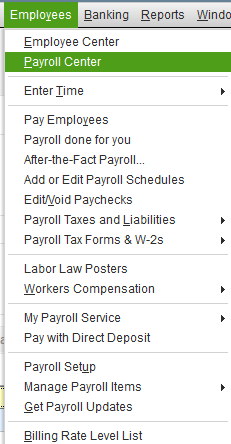
- Go to the Employees tab, then click on Employee Center
- Search for the particular employee
- Double-click on the “employee” to get the details
- In the Payroll Info tab:
- Check Additions, Deductions, and Company Contributions.
- Make sure the proper items are present and active.
- Check rate and limit values for accuracy.
Step 3: Check the Payroll Item Setup
- Go to Lists > Payroll Item List.
- Double-click on the item to get the “deduct item list” in question.
- Check:
- Calculation method
- Tax tracking type
- Contribution limit
- Vendor assignment
- Liability account
Step 4: Inspect the Paycheck Details
Open the employee’s paycheck:
- Navigate to Employees > Payroll Center > Transactions > Paychecks.
- Double-click the paycheck to see the breakdown.
- Click Paycheck Detail and review the deduction line items.
How to Correct a Missing or Incorrect Deduction?
QuickBooks Desktop Enterprise Payroll corrects missing or incorrect deductions by revising employee deduction assignments and updating payroll item configuration. It completes the correction when the updated deduction settings match the deduction amounts produced in upcoming or previously adjusted paychecks.
To correct any missing or incorrect deductions following methods can be used:
A. Correct Deduction on Future Paychecks
Add or fix the deduction in the employee’s record:
- Navigate to the Employee Center, open the employee.
- Add or fix the deduction under Payroll Info.
- Save the changes.
B. Correct Deduction on a Previously Issued Paycheck (If Already Released)
- Find the paycheck in Employees > Payroll Center > Transactions > Paychecks.
- Edit the paycheck and select Paycheck Detail.
- Manually add or correct the deduction in the Other Payroll Items area.
- Adjust net pay or gross pay, if needed.
- Save and close.
Note: Fix only paychecks that have not yet been released to Direct Deposit or printed.
C. Void and Resubmit a Paycheck (If Necessary)
If the paycheck is incorrect and has already been processed, consider voiding it:
- Go to the paycheck and select Void Paycheck.
- Recreate it after correcting the employee’s deduction setup.
Note: Voiding a paycheck is optional and depends on the severity of the deduction error. If the issue affects compliance or payroll accuracy, voiding and recreating the paycheck may be necessary. Minor errors can often be corrected through manual adjustments without voiding.
How to Adjust Payroll Liabilities and Reports
Adjusting payroll liabilities and reports ensures accurate financial records and compliance with tax regulations. This process allows corrections to miscalculated liabilities, updates to deductions, and proper auditing.
The following are effective methods to make necessary adjustments:
A. If a Deduction Was Missed in Previous Payrolls
Create a Liability Adjustment:
- Go to Employees > Payroll Taxes and Liabilities > Adjust Payroll Liabilities.
- Choose the correct date and employee.
- Select the deduction item and enter the adjustment amount.
- Mark whether it is for Company or Employee liability.
B. Run Payroll Reports to Check
Create a Liability Adjustment:
- Go to Employees > Payroll Taxes and Liabilities > Adjust Payroll Liabilities.
- Choose the correct date and employee.
- Select the deduction item and enter the adjustment amount.
- Mark whether it is for Company or Employee liability.
Preventing Payroll Deduction Errors in QuickBooks Desktop Enterprise Payroll
QuickBooks Enterprise Payroll prevents future deduction errors by maintaining consistent payroll configuration reviews and structured update procedures. Deduction discrepancies originate from incomplete setup, outdated payroll items, or manual overrides, so sustained verification ensures stable deduction calculations.
Below are the preventive methods:
- Regular payroll setup audits confirm accurate deductions.
- Memorized reports monitor monthly deduction accuracy.
- Payroll item verification ensures correct deductions for new and rehired employees.
- Limited manual paycheck edits preserve automated deduction calculations.
Conclusion!
QuickBooks Desktop Enterprise Payroll ensures accurate payroll deduction management when employee deduction assignments, payroll item configurations, and paycheck calculations are regularly verified. Routine audits, report monitoring, and controlled paycheck edits prevent discrepancies and maintain compliance.
Using QuickBooks tools such as Payroll Liability Adjustments and Payroll Summary reports supports precise corrections and ongoing oversight. Following standardized review procedures reduces manual errors, strengthens financial transparency, and ensures that year-end reports and tax filings remain accurate and reliable.
Frequently Asked Questions
How do I change payroll deductions in QuickBooks Desktop?
Go to the Employee Center, open the employee profile, and update deductions in the Payroll Info tab.
How do I correct a payroll check in QuickBooks Desktop?
Find the paycheck in Payroll Center > Transactions, open it, click Paycheck Detail, make corrections, then save.
How do I correct payroll liabilities in QuickBooks Desktop?
Use Employees > Payroll Taxes and Liabilities > Adjust Payroll Liabilities to enter the correct amounts.
Why is my employee not showing up in payroll in QuickBooks?
The employee may be marked as inactive or missing assigned payroll items in their profile.
How can I adjust payroll liabilities after correcting deduction errors?
QuickBooks Desktop Enterprise Payroll adjusts payroll liabilities using the Payroll Liability Adjustment tool. Select the correct employee, deduction item, and date, then enter the adjustment amount to ensure accurate liability reporting.
Can I correct a payroll deduction on a previously issued paycheck?
Yes, open the paycheck in Employees > Payroll Center > Transactions > Paychecks, select Paycheck Detail, and manually adjust or add the missing deduction. Save changes if the paycheck has not yet been processed for direct deposit or printed.
Why are my deductions calculated incorrectly after a payroll update in QuickBooks Desktop Enterprise Payroll?
Incorrect calculations often result from outdated payroll item settings, missing employee deduction assignments, or manual paycheck overrides. Verifying employee setup and payroll item configuration restores accurate deduction calculations.
Disclaimer: The information outlined above for “Fix Incorrect or Missing Employee Payroll Deductions in QuickBooks Desktop Enterprise Payroll” is applicable to all supported versions, including QuickBooks Desktop Pro, Premier, Accountant, and Enterprise. It is designed to work with operating systems such as Windows 7, 10, and 11, as well as macOS.