 Add As A Preferred
QuickBooks Desktop Enterprise Payroll (QBD Enterprise Payroll) manages employee payroll deductions, including health insurance, pension plans, 401(k), and garnishments. Deduction errors often arise from incorrect payroll setup, outdated tax tables, unrecorded benefit changes, manual entry mistakes, data corruption, or missing employee details. Failure to review payroll settings after policy changes can also cause discrepancies, making periodic audits essential.
This article explains how to identify and correct missing or incorrect payroll deductions by reviewing employee Payroll Info tabs, auditing payroll settings, and updating payroll items. Always create a secure backup of your company file using File > Backup Company > Create Local Backup before making any changes to ensure data can be restored if necessary.
Fixing payroll deduction errors improves accuracy, ensures tax compliance, prevents penalties, enhances employee satisfaction, and streamlines payroll management. Proper deductions support error-free tax reporting and efficient payroll operations.
Payroll deduction errors in QuickBooks Desktop Enterprise can arise due to setup mistakes, outdated configurations, or system-related issues. Identifying the root cause is essential to ensure accurate payroll processing and compliance.
The table below outlines common issues and their descriptions:
| Issue | Description |
|---|---|
| Deduction Not Assigned | The deduction payroll item was created but not linked to the employee’s payroll setup. |
| Incorrect Rate or Limit | The deduction has the wrong calculation method, percentage, or dollar amount. |
| Inactive Payroll Item | A deduction item was made inactive or deleted. |
| Incorrect Tax Tracking | Taxability settings or W-2 reporting type are incorrect, affecting calculations. |
| Manual Paycheck Override | Manual paycheck edits may omit automated deductions. |
| System Calculation Error | Occasionally, it is caused by a corrupted company file or payroll data. |
QuickBooks Enterprise Payroll checks missing or incorrect deductions by verifying employee-level deduction assignments, payroll item attributes, and paycheck deduction calculations. It identifies issues when deduction items are inactive, unassigned, or contain incorrect rate, limit, or tax-tracking values.
Follow the steps below to ensure accuracy:
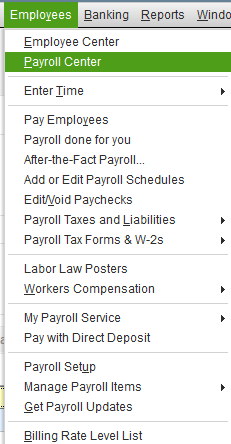
Open the employee’s paycheck:
QuickBooks Desktop Enterprise Payroll corrects missing or incorrect deductions by revising employee deduction assignments and updating payroll item configuration. It completes the correction when the updated deduction settings match the deduction amounts produced in upcoming or previously adjusted paychecks.
To correct any missing or incorrect deductions following methods can be used:
Add or fix the deduction in the employee’s record:
Note: Fix only paychecks that have not yet been released to Direct Deposit or printed.
If the paycheck is incorrect and has already been processed, consider voiding it:
Note: Voiding a paycheck is optional and depends on the severity of the deduction error. If the issue affects compliance or payroll accuracy, voiding and recreating the paycheck may be necessary. Minor errors can often be corrected through manual adjustments without voiding.
Adjusting payroll liabilities and reports ensures accurate financial records and compliance with tax regulations. This process allows corrections to miscalculated liabilities, updates to deductions, and proper auditing.
The following are effective methods to make necessary adjustments:
Create a Liability Adjustment:
Create a Liability Adjustment:
QuickBooks Enterprise Payroll prevents future deduction errors by maintaining consistent payroll configuration reviews and structured update procedures. Deduction discrepancies originate from incomplete setup, outdated payroll items, or manual overrides, so sustained verification ensures stable deduction calculations.
Below are the preventive methods:
QuickBooks Desktop Enterprise Payroll ensures accurate payroll deduction management when employee deduction assignments, payroll item configurations, and paycheck calculations are regularly verified. Routine audits, report monitoring, and controlled paycheck edits prevent discrepancies and maintain compliance.
Using QuickBooks tools such as Payroll Liability Adjustments and Payroll Summary reports supports precise corrections and ongoing oversight. Following standardized review procedures reduces manual errors, strengthens financial transparency, and ensures that year-end reports and tax filings remain accurate and reliable.
Go to the Employee Center, open the employee profile, and update deductions in the Payroll Info tab.
Find the paycheck in Payroll Center > Transactions, open it, click Paycheck Detail, make corrections, then save.
Use Employees > Payroll Taxes and Liabilities > Adjust Payroll Liabilities to enter the correct amounts.
The employee may be marked as inactive or missing assigned payroll items in their profile.
QuickBooks Desktop Enterprise Payroll adjusts payroll liabilities using the Payroll Liability Adjustment tool. Select the correct employee, deduction item, and date, then enter the adjustment amount to ensure accurate liability reporting.
Yes, open the paycheck in Employees > Payroll Center > Transactions > Paychecks, select Paycheck Detail, and manually adjust or add the missing deduction. Save changes if the paycheck has not yet been processed for direct deposit or printed.
Incorrect calculations often result from outdated payroll item settings, missing employee deduction assignments, or manual paycheck overrides. Verifying employee setup and payroll item configuration restores accurate deduction calculations.


