 Add As A Preferred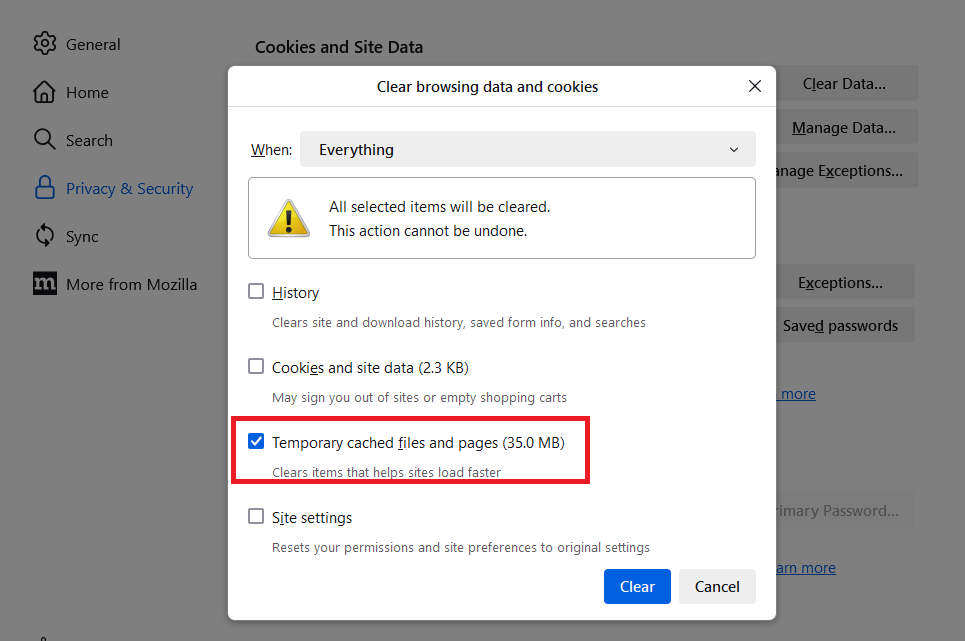
I’m Uillen, and I’m really struggling to get started with QuickBooks Online. I recently signed up for the service, but I’ve hit a wall trying to set everything up properly. The main problem is, when I try to create invoices, the system either won’t let me save it or throws errors that prevent me from completing the process.
I’ve followed the initial setup steps, entered my company information, and added a few products and customers, but every time I attempt to generate an invoice, QuickBooks gives me vague error messages or just fails to process it. I’ve also double-checked my internet connection and browser settings, but nothing changes.
Because invoicing is critical for my business cash flow, this issue is putting me behind on billing clients and tracking revenue. I’m frustrated because I expected QuickBooks to streamline these tasks, but right now, it’s stopping me from even getting basic billing done.
I need clear guidance or support on how to properly complete the setup and create invoices without errors. If this is a bug or a configuration issue, I need it fixed quickly so I can get my accounting processes up and running without further delays.
Hi Uillen,
It sounds like you’re currently facing a major roadblock in QuickBooks Online every time you try to create an invoice, the system either won’t let you save it or shows unclear error messages that prevent you from completing the process.
We completely understand how frustrating that can be. You’ve already taken all the right steps by signing up, entering your company details, and adding your products and customers. But now that you’re trying to move forward with invoicing, you’re getting stuck, and that can be incredibly discouraging.
When invoicing doesn’t work, it directly impacts your ability to bill clients and manage your cash flow smoothly. QuickBooks is supposed to make accounting easier, not more stressful and right now, it’s getting in the way.
The good news? These kinds of issues are often caused by a few common setup mistakes, browser glitches, or configuration errors and they’re usually easy to fix. In this guide, we’ll walk you through step-by-step solutions to help you get your invoicing up and running.
Uillen, many QuickBooks Online users run into issues with invoice creation even after completing the initial setup. This usually happens due to missing required fields, incomplete product or customer details, browser-related problems, or limited user permissions that can block access to key invoicing features.
Follow this step-by-step guide to identify what’s preventing you from creating invoices in QuickBooks Online. From checking missing fields to reviewing browser settings, and adjusting user permissions, these targeted solutions will help you to fix the issue and resume invoicing without further delays.
QuickBooks supports the current and two previous versions of browsers. We don’t always support older versions. The following browsers are supported on both web and mobile devices:
Note: Internet Explorer is no longer a supported browser.
Note: To preview and print forms on Mac OS, you’ll also need the Firefox PDF plugin.
QuickBooks Online uses browser cache and cookies to run faster. But sometimes these can also block web pages from loading.
Your browser’s cache saves files on your computer to load websites faster on your next visit. But over time, it can become outdated and cause issues. Outdated or corrupted cache files often prevent you from accessing QuickBooks features like invoice creation.
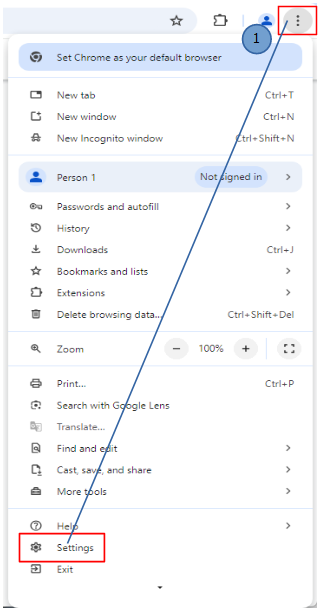
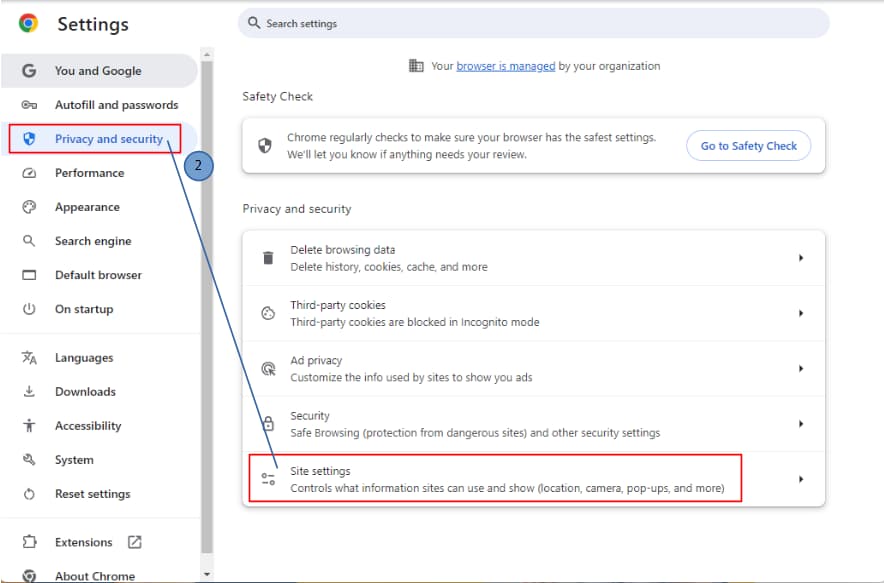
Google Chrome
Note: If you delete cookies while signed in to Chrome, you won’t be able to log out of your Google Account.
Mozilla Firefox
Safari for Mac
Most of the time, you only need to clear your browser’s cache. But if you keep having the same problem even after doing that, you can clear Intuit-specific cookies in your browser settings, then restart your browser. This helps refresh website preferences that might be causing problems when you use QuickBooks.
Google Chrome
Mozilla Firefox
Safari
Most browsers include pop-up blockers to prevent unwanted windows, but QuickBooks Online relies on pop-ups for key actions like saving, emailing, or previewing invoices. If blocked, these features may not work correctly. To fix this, add https://accounts.intuit.com/app/sign-in?app_group=QBO&asset_alias=Intuit.accounting.core.qbowebapp&app_environment=prod as an exception in your browser’s pop-up settings.
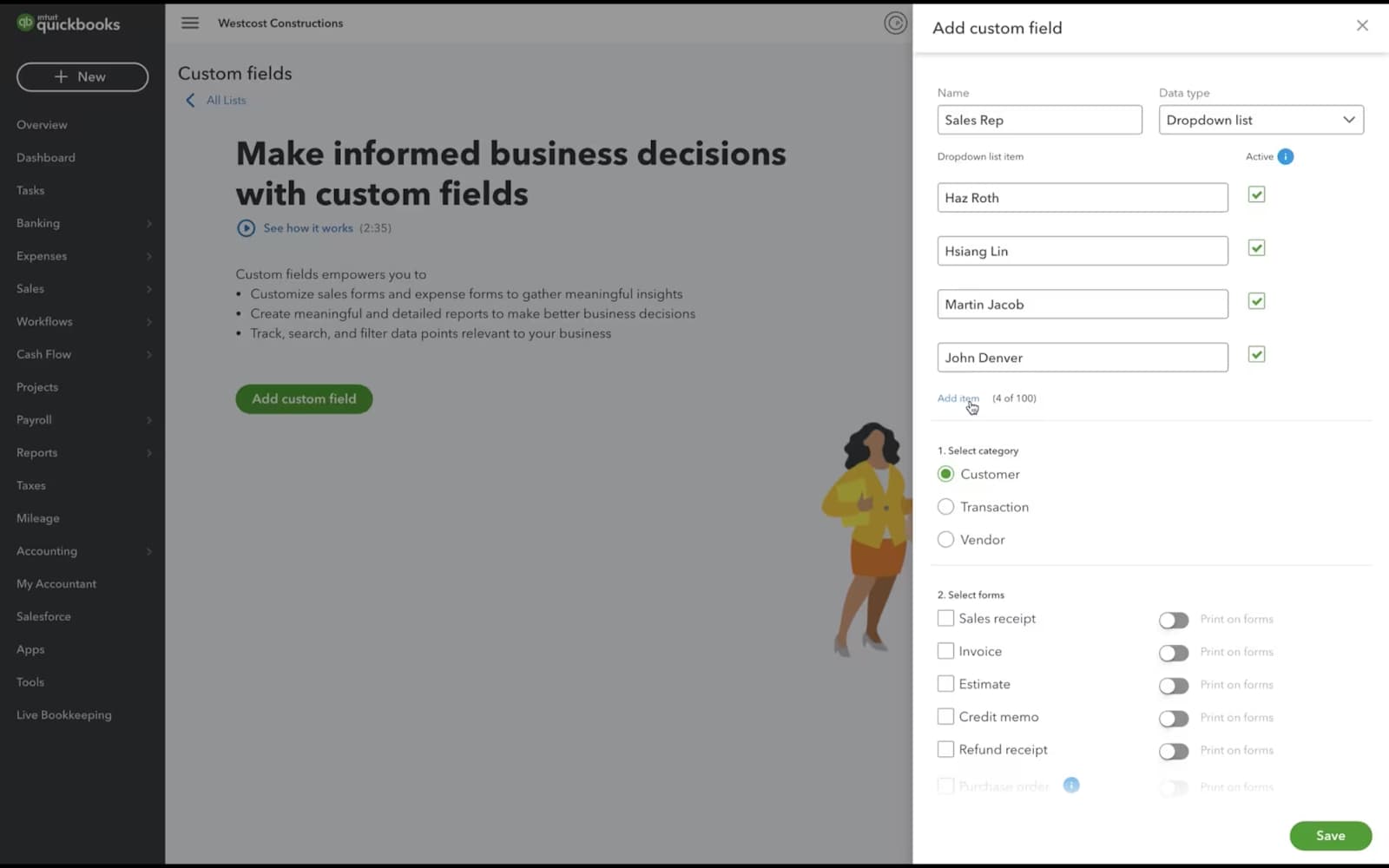
Certain features in QuickBooks Online, including access to custom fields, are restricted based on user roles. If you can’t see or use custom fields, your current role may not have the necessary permissions. An admin user can review and update your role from the Manage Users section under Settings. Make sure your role includes full access to sales forms and custom fields.
Note: Time tracking roles can’t be edited. To change these, delete the user and re-add them with the correct role.
You can have up to 12 active custom fields for each type of form (invoice, estimate, purchase order, expense, bill, and so on), and each type of profile (customer and vendor). Besides text, you can also create custom dropdown, date, and number fields.
Missing or outdated customer details can cause issues when creating invoices. Ensure each profile includes key information like name, email, billing address, and payment terms for smooth transactions.
Incorrect or misconfigured income account settings linked to your products or services can prevent invoices from being saved. The income account determines where QuickBooks reports the sales revenue for each item. To avoid errors, make sure each item is mapped to the correct income account, especially one categorized under “Sales of Product Income.”
Note: Can’t see the account? Make sure the account’s detail type is Sales of Product Income.
Note: You can only change the account for an item one at a time.
Even after resolving errors, it’s important to take proactive steps to prevent invoice creation issues in the future. From keeping customer data updated to regularly reviewing product/service mappings, these best practices help you to maintain smooth invoicing workflows in QuickBooks Online. Follow these best practices to minimize disruptions and ensure accurate, error-free billing every time.
Uillen, I completely understand how frustrating it is when you’re all set to create an invoice in QuickBooks Online, only to run into unexpected errors that seem to come out of nowhere. It can feel overwhelming, especially when timely billing is essential for your business.
The good news is, you’re already on the right track. Whether it’s reviewing your custom fields, checking browser pop-up settings, adjusting user permissions, or making sure each product is correctly linked to a valid income account, each step helps eliminate the common roadblocks that cause invoice creation to fail.
Make sure your browser allows QuickBooks pop-ups, all customer and item details are properly filled in, the user role includes invoicing permissions, and each product or service is assigned to the correct income account. Also, avoid using more than three “Print on form” custom fields per form type.These small checks can go a long way in preventing errors and keeping your invoicing workflow running smoothly.
If you ever find yourself stuck again or just need help with configuring templates, setting up custom fields, managing item categories, or even optimizing your sales workflow in QuickBooks Online, don’t hesitate to reach out to us.


