


To fix QuickBooks Online Error 9999, first log in to your bank’s website to check for any alerts or messages that might be blocking the connection. If that doesn’t help, disconnect and reconnect the bank account within QuickBooks by going to the Banking tab, editing the account, selecting “Disconnect this account on save,” and then reconnecting using your bank login credentials.
QuickBooks Online Error 9999 is a banking connection error that disrupts the synchronization between QuickBooks and your financial institution, preventing automatic transaction updates.
QuickBooks Online Error 9999 usually arises due to browser script errors, cached data, unstable internet connections, or temporary server interruptions on either the bank’s or Intuit’s end. As a result, QuickBooks fails to refresh or import new transactions, leading to discrepancies in financial records.
This article explains the root causes, technical background, and verified methods to fix Error 9999 in QuickBooks Online. It provides detailed troubleshooting steps such as clearing browser cache, verifying network stability, manually updating bank transactions, and reinstalling the QuickBooks program if required.
By following these structured solutions, you can restore secure connectivity between QuickBooks Online and it’s bank servers, ensuring uninterrupted access to updated financial data.
What is Error 9999 in QuickBooks Online Bank Feed?
QuickBooks Error 9999 is known as a reported script error that interrupts the internet connection between your bank and the QuickBooks Online program. This error message means the transactions in QuickBooks Online aren’t updating.
The script error in the browser starts with Error 9999 in QuickBooks Online. As you started facing Error 9999 in QuickBooks Online then it will not let you update any kind of bank feed or any kind of transaction from the online banking website.
It mostly appears when you are trying to update bank information or when the browser fails to execute a script from a website, which prevents transactions in QuickBooks Online from updating. It shows the following error message.
“Error 9999: “Sorry, we can’t update your account. Please try updating again later.
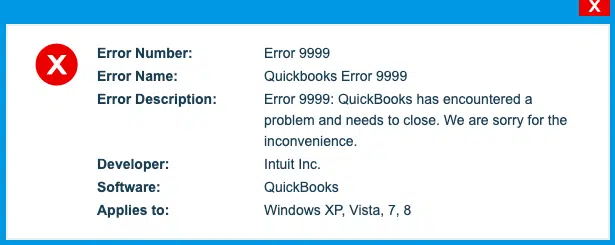
Or.
“Error Code 9999: Can’t update.”
Or
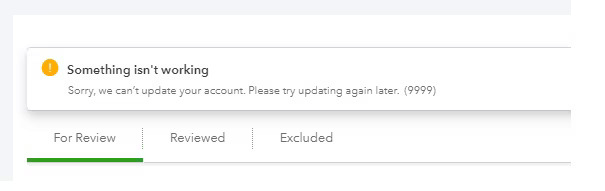
“Sorry, we can’t update your account. Please try updating again later. (9999)”
Or
Something isn’t working.
Sorry, we can’t update your account. Please wait a few hours and try updating again (9999).
After understanding all about bank error 9999, you need to move on to its root causes.
What May Cause QuickBooks Banking Error 9999?
QuickBooks Online Banking Error 9999 typically occurs when the connection between QBO and your bank fails due to browser interference, unstable internet, system-level issues, or server disruptions. Cached data or cookies in your browser can block secure communication with your bank. A slow or unstable internet connection interrupts the real-time sync required by QBO.
If either the bank’s server or Intuit’s online services are temporarily down, the connection cannot be established. Incomplete or corrupted QuickBooks Online configurations or browser incompatibility can break the bank feed process.
Outdated QBO sessions, misconfigured bank feeds, or skipped bank authentication steps (like OTPs or security questions) also trigger this error. Additionally, firewall settings, antivirus software, or malware threats can block the data flow between QBO, the bank, and Intuit’s servers.
To fix this issue, use a stable internet connection, clear browser cache, ensure compatibility, and verify server or bank login issues. To help you fix this issue, here are the key causes you should check first:
Here, we have listed the leading factors affecting banking Error 9999 in QuickBooks Online. You have to check out all of them respectively and apply the solutions accordingly.
- A poor internet connection is the main reason for the occurrence of this error.
- If there is an issue with setting up the connection between QuickBooks Online and the Bank server, anyone can be down.
- A corrupted or incomplete installation may cause Banking error 9999.
- If there is a blockage to the bank access and the Intuit server, this may lead to an error.
- Sometimes, error 9999 may pop up because of browser cache and cookies.
- The Windows registry sometimes gets damaged and corrupted.
- If there is a malware attack or any virus has attacked the server, then error 9999 can occur.
Signs You See Exhibited By QB Error 1999
Before you face this error, here are the symptoms you can actually go through:
- You may start feeling like your browser is freezing, loading, or taking more time than usual, and then you may face QB error 1999 challenges.
- Your input from your device, like the mouse or keyboard, will not receive a timely response.
- QuickBooks error message started stating “Sorry, we can’t update your account, please try updating later (1999).”
- Users may face challenges when setting up the connection between the Bank Server and QuickBooks Online.
- If any active windows or any other program fails or does not work.
- Windows OS will work sluggishly or interrupt along with the QB application.
Important Points To Consider Before Resolving QuickBooks Banking Error Code 9999
- Choose the Report Issue on the banking transaction screen.
- Type in the Registered name along with your Email address.
- Select Submit.
How To Fix QuickBooks Online Banking Error 9999?
Banking Error 9999 in QuickBooks Online can be resolved by applying one of the following solutions. In case you are new to handling such technical errors, get connected with our professionals. Now, have a look at the following solutions one by one to fix the bank feed error code 9999 in QuickBooks.
Solution 1: Disconnect And Reconnect Your Bank Account
QuickBooks Error 9999 often occurs due to a broken or outdated bank connection. Disconnecting and then reconnecting your bank account refreshes the connection between QuickBooks Online (QBO) and your bank’s server.
Steps for disconnecting a bank account from QBO
- Firstly, go to the left side panel to choose Banking.
- After that, click on the Edit icon that you need to disconnect.
- Mark the “Disconnect this account on the save” box in the Account window.
- Finally, click Save > Close.
Steps to reconnect the bank account
- You first need to choose Add Account from the Banking tab.
- Now, type in the bank login information and then choose Continue.
- After that, go through the security verification instructions.
- Choose Securely connect and select the bank that you want to reconnect.
- Go to the Account Type drop-down list to choose your account.
- Click Bank Account or Credit Card Account.
- Lastly, choose +Add new if you don’t have an account and tap Connect.
Solution 2: Update Your Bank Account
When Error 9999 is caused by a temporary communication failure between your bank and QuickBooks, manually updating your bank account can reinitiate the sync.
- Launch QuickBooks Online.
- Choose the Banking tab and then click Update.
- Follow the above-mentioned steps (4 times).
- At last, if you are experiencing the same error, move on to the next solution.
Solution 3: Log in to the Bank Account from the Web Browser
This step helps confirm whether the issue lies with your bank’s website or QuickBooks. Logging in directly to your banking portal allows you to check for alerts or restrictions.
- Firstly, launch a web browser and open your banking website.
- After that, log in to your account using Admin Credentials.
- Enter the OTP sent to your email for verification.
- Once you have logged into your account, update bank feeds in QBO.
Solution 4: Clear the Browser’s Cache Files
Stored cache or cookies can interfere with QuickBooks’ communication scripts, leading to Error 9999. Clearing your browser cache helps eliminate these corrupted files.
Below, we have mentioned the steps for each browsing website. Go through the steps respectively to fix QuickBooks error 9999.
For Internet Explorer
- Press and hold the Ctrl + Shift + Delete keys.
- Mark the ‘Temporary Website and Internet Files’ box on the Delete Browsing History page.
- Click Delete.
For Google Chrome
- Type chrome://settings/clearBrowserData and choose the Enter key.
- Mark the Cached images and files box.
- Tap on the Clear Data option.
For Firefox
- Type about: preferences & privacy and choose Enter.
- Select Clear your recent history.
- Mark Cache and select the Clear now option.
For Safari
- Choose the Develop tab.
- Select the Empty Caches.
Solution 5: Download Bank Transactions Manually to QBO
If automatic syncing fails, manually downloading transactions ensures your financial data remains current while bypassing the connection error.
- Log in to your bank’s website and download the CSV file of your transactions to the computer.
- Open QuickBooks Online and navigate to the Banking tab.
- Select Upload Transactions and choose the downloaded file.
- Map the file to the correct QuickBooks account.
- Review and categorize the imported transactions under the For Review tab.
Solution 6: Clean Install QuickBooks Program
If previous steps fail, a clean installation can remove corrupted files or configurations that may trigger Error 9999.
- Uninstall the current QuickBooks program from your system.
- Download the latest version of QuickBooks from the official Intuit website.
- Run the installer and follow the on-screen instructions to complete the installation.
- Reactivate your QuickBooks license and log in to your account.
- Check if the error is resolved by attempting to update your bank transactions.
By following these systematic solutions, users can eliminate QuickBooks Online Error 9999, reestablish a secure connection with their financial institutions, and ensure uninterrupted transaction updates.
Why is QuickBooks Online Not Downloading Transactions Due to Error 9999?
QuickBooks Online Error 9999 is a banking connection issue that prevents transactions from syncing between your bank and QuickBooks. This error usually occurs due to a weak internet connection, outdated bank credentials, browser cache issues, or temporary server outages.
When this happens, QuickBooks cannot retrieve or update your bank transactions, causing delays in financial management. To fix this, try refreshing your bank connection, clearing your browser cache, or manually downloading transactions. If the issue persists, contacting your bank or QuickBooks support may be necessary.
How to Manually Update Bank Transactions in QuickBooks Online When Encountering Error 9999?
If you’re facing Error 9999 in QuickBooks Online and your bank transactions aren’t updating, you can manually update them as a temporary solution. Here’s how:
- Log in to QuickBooks Online:
- Open QuickBooks Online and sign in with your credentials.
- Download Transactions from Your Bank:
- Go to your bank’s website or mobile app and download your recent transactions. Ensure you download them in a format that QuickBooks can read, like a CSV or QBO file.
- Upload Transactions to QuickBooks:
- In QuickBooks Online, go to the Banking tab.
- Select the bank account you want to update.
- Click Upload transactions and choose the downloaded file from your bank.
- Review and Categorize Transactions:
- After uploading, QuickBooks will show the transactions. Review them and assign the appropriate categories for each.
- Match or add new transactions as needed.
- Finalize the Import:
- Once everything looks good, click Add to finalize the transactions into your QuickBooks account.
Why Is QuickBooks Online Showing Error 9999 for My Bank Account Update?
QuickBooks Online Error 9999 typically occurs when there’s an issue with syncing your bank account to the software. This can be caused by various factors such as server issues, browser problems, or issues with your bank’s online portal. The error prevents QuickBooks from downloading and updating your bank transactions.
Some common causes include:
- Bank Connectivity Issues: QuickBooks may have trouble connecting to your bank’s server, especially if there are server outages or maintenance on either end.
- Browser Problems: Cached data, cookies, or incompatible browser settings may interfere with the syncing process.
- Bank Feed Errors: If there’s an issue on your bank’s side, such as incorrect login credentials or temporary disruptions, it can trigger this error.
- Account Settings or Subscription Issues: Sometimes, problems with your QuickBooks Online subscription or account settings can prevent the update from completing.
Preventive Steps to Avoid QuickBooks Online Error 9999
QuickBooks Online Error 9999 can be prevented by maintaining secure, consistent connectivity between your QuickBooks account, browser, and financial institution. Applying the following preventive measures helps minimize the chances of future banking synchronization issues:
- Use a Stable Internet Connection: Ensure that your internet connection remains stable and high-speed while updating or downloading bank transactions. Frequent disconnections can interrupt QuickBooks’ communication with your bank server.
- Clear Browser Cache Regularly: Delete stored cache and cookies every few weeks to prevent script errors and outdated session data from interfering with QuickBooks Online.
- Update QuickBooks and Browser Frequently: Keep both your QuickBooks Online and your preferred browser updated to the latest versions. Outdated software often causes compatibility and script errors during bank synchronization.
- Verify Bank Login Credentials: Always ensure your bank credentials are current and verified before initiating a sync. Update saved login details in QuickBooks whenever you change your bank password or enable new authentication settings.
- Avoid Multiple Sessions: Do not log into your QuickBooks Online account from multiple browsers or devices simultaneously. Multiple active sessions can conflict with ongoing data updates.
- Disable Unnecessary Browser Extensions: Some browser extensions, especially ad blockers or script managers, can interfere with QuickBooks’ bank feed functionality. Use QuickBooks Online in a clean or incognito browser mode when performing updates.
- Perform Regular Manual Backups: Back up your QuickBooks data routinely to protect your financial records in case of synchronization failure or transaction loss.
- Monitor Bank Notifications: Check your bank’s website regularly for maintenance schedules, alert messages, or security updates that might affect the QuickBooks connection.
- Use Authorized Networks Only: Avoid using public Wi-Fi or shared networks while accessing QuickBooks Online to prevent session timeouts or blocked data transfers caused by unstable security protocols.
- Schedule Periodic Connection Tests: Perform manual connection checks through QuickBooks Banking at least once a week to confirm that the link between your bank and QuickBooks remains active.
Winding up!
Undoubtedly, QuickBooks Banking Error 9999 has been resolved with the assistance of the aforementioned article. If you are still facing the same issues again and again while launching the QuickBooks software, get in touch with our team.
We are all set to assist you 24/7. Give us a call at our toll-free ebetterbooks Error Support Number +1-802-778-9005. One of our experts will pick up your call and suggest you some quick solutions to resolve error code 9999 in QuickBooks Online.
Still have questions? Explore our detailed FAQs.
Disclaimer: The information outlined above for “Fix Error 9999 When Updating Bank Transactions in QuickBooks Online” is applicable to all supported versions, including QuickBooks Desktop Pro, Premier, Accountant, and Enterprise. It is designed to work with operating systems such as Windows 7, 10, and 11, as well as macOS.