Excerpt:
QuickBooks Script Error can disrupt your workflow, preventing access to essential web pages and causing performance issues in QuickBooks. This error, often linked to Internet Explorer settings or browser issues, can slow down your system and hinder operations. Our article provides simple, actionable fixes like clearing cache, enabling script debugging, and setting trusted websites to restore QuickBooks functionality, improve data accuracy, and enhance system stability.
 Add As A Preferred
QuickBooks Script Error is a common technical issue that occurs when the accounting software attempts to access web-based features. The error, which manifests as an “An error has occurred in the script of this page” message and slows PC performance, does not damage company data but hinders online functionality. Expertise is demonstrated by connecting the script failure to specific Internet Explorer settings, which QuickBooks Desktop uses internally for web tasks. The recommended fixes prioritize addressing root causes, including excess browser cache, disabled script debugging features, corrupted ActiveX components, and issues with SSL certificates. Following these detailed, step-by-step procedures is essential for users seeking to restore seamless operation and stability to the software’s online features.
Highlights (Key Facts & Solutions)
Script error in QuickBooks may appear on the screen while launching a web page from QuickBooks. This error message indicates that ‘An error has occurred in the script of this page.’ Or, you may get the error status as ‘Internet Explorer Error’. Due to this, your PC starts running slowly or might become unresponsive. But you don’t need to worry as we are here to resolve this issue on your behalf.
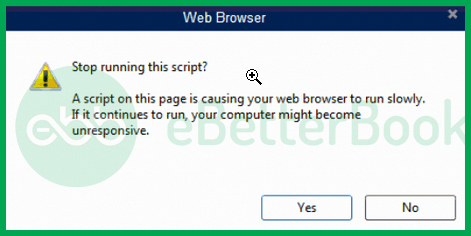
A message quoting, “Stop running this script? A script on this page is causing your web browser to run slowly.” will most likely appear on your screen.
You can also notice the following error messages on your screen:
Script Error: An error has occurred in the script on this page. Line 22 char 2 error…
Script Error: QuickBooks script error for line 7 char 5
Script Error: QuickBooks script error unable to get property length of undefined or null reference.
Script Error: Script error when using payments account applications or websites.
You should keep in mind that the QuickBooks script error will never break your company files or cause any damage or loss of your necessary data. In case, you are also going through a QuickBooks script error, check out the following post.
Corrupted Windows, damaged data files, disabled script debugging feature, Internet Explorer settings, and many more factors can be at play when a script error occurs in QuickBooks.
The following are possible reasons for this situation:
Underneath are some indications of QuickBooks Desktop enterprise error:
After looking at the causes, you need to move on to the solutions to fix the script error.
Issue: Excess IE cache or temp files, resulting in conflicting versions and cookies.
Quick Solution: Delete all the Internet Explorer cache and temp files, which can be cleared from the browser’s settings or the control panel.
Issue: The QuickBooks website isn’t added as a trusted site in the Internet Explorer browser.
Quick Fix: Add the QuickBooks website-related sites to the trusted sites list in the Internet Explorer browser from the Internet Options option found in the Tools section.
Issue: The browser script debugging feature is disabled.
Quick Fix: Internet Explorer’s script debugging feature is usually disabled by default and can cause script errors. Enable the Windows script debugging feature from the Internet Option to rectify this error.
Issue: The SSL Certificates of Internet Explorer are causing this issue.
Quick Fix: To Clear the SSL Certificates from Internet Explorer, click on the Gear icon and select the Internet options, and from under the Content tab, click the Clear SSL state option.
Issue: Internet Explorer isn’t set as the default browser.
Quick Fix: Make sure Internet Explorer is set as the default browser, and if it’s not, set it as the default browser for QuickBooks.
Issue: The Internet Explorer has been corrupted due to some reason, causing the script error.
Quick Fix: Uninstall and reinstall the Internet Explorer browser by navigating to the Control Panel and using the Add/Remove Program section.
Here are the four key benefits of QuickBooks script errors:
The QuickBooks script error can be resolved by clearing excess cache data, enabling the script debugging feature, clearing the SSL certificate from IE, reinstalling Internet Explorer, and many more depending on the cause of the error.
Follow the steps provided below for detailed instructions:
You may be accessing QuickBooks using a web browser other than Internet Explorer as your usual web browser. This could also result in such an error. As a result, you should be sure to designate Internet Explorer as the default browser.
Set Internet Explorer as your Default Browser
To enable the script debugging feature in Internet Explorer, follow the below instructions:
Restart Internet Explorer after closing it.
The QuickBooks’ default browser is Internet Explorer. The app uses Internet Explorer to display the issue when you encounter it when using QuickBooks to view a webpage.
There is a good likelihood that the error is connected to the browser or website if you get a message that says the following:
“Line 36 Char 2 Error “$” Code 0 URL https://[email address removed]/sgn-rs/api/v1/lpd/las_box?param1=25¶m2=las”
You can’t access the website you’re trying to reach right now, either because of a bug in the browser or a limitation on the website itself. You will need to set up Internet Explorer regardless of the situation here.
So, follow these instructions to make the necessary adjustments in Internet Explorer:
If you are facing script errors frequently on the screen, you need to try to open a web source as a trusted site.
Here are the steps to do so:
Restart your OS, then attempt to launch QuickBooks.
Deleting Internet Explorer’s SSL certificates from the settings menu follow the following instructions:
To disable Active X controls from Internet Explorer’s high-security mode, Follow the quick instructions below:
Steps for removing the ActiveX component from Internet Explorer
You must first navigate to the settings in IE before you can uninstall and delete the ActiveX file from your PC:
You must also remove the file from the system and make sure that no instances of Internet Explorer windows are operating on the OS.
Sometimes, you may face script errors under three conditions. We have described all of these conditions along with their solutions.
One of the above-discussed solutions will surely help you in fixing Script errors in QuickBooks. If you are new to handling such technical errors, it is suggested to take the assistance of QB experts.
Implement the solutions given above to resolve the error; if you still need help, contact +1-802-778-9005, or you can mail us at: support@ebetterbooks.com
The QuickBooks Desktop application relies on Internet Explorer components and settings to render internal web-based content, such as certain bank feeds, online services, or login screens, even if your default operating system browser is Chrome, Edge, or Firefox. The Script Error is often a result of an issue with the way Internet Explorer’s security settings, cache, or ActiveX controls handle the JavaScript/scripting used by QuickBooks’s internal web pages.
The QuickBooks Script Error is generally a client-side display issue related to the web browser components within the QuickBooks application. The article correctly states that a script error will never break your company files or cause any damage or loss of your necessary data. Your company data is safe and stored locally or on a server, separate from the script handling the visual display of online features.
Choosing “Yes” (Stop running the script) or “No” (Continue running the script) is only a temporary choice for the current session and will not fix the underlying cause of the error.
1. Selecting “Yes” usually allows the rest of the page or application to load, but the specific functionality tied to the failing script will be disabled or incomplete.
2. Selecting “No” attempts to run the script until it times out, potentially making your system sluggish or causing the application to hang.
To truly resolve the issue, you must apply the detailed solutions, such as clearing the Internet Explorer cache or enabling script debugging (as outlined in the guide).
Yes, both are distinct and often necessary troubleshooting steps:
1. Clearing IE Cache/History (Solution 4): This removes temporary internet files, including cookies and browser history. An overly full or corrupted cache often causes conflicting versions of web data to load, resulting in script failures.
2. Clearing SSL Certificates (Solution 7): This specifically removes the Secure Sockets Layer (SSL) certificates stored by the browser. These certificates ensure a secure connection (HTTPS). If an outdated or corrupted certificate is stored for an Intuit site, the browser may fail to establish a secure connection, leading to a script error when attempting to access financial services.
The option to Display a notification about every script error (Script Debugging feature) is usually disabled by default in browsers like Internet Explorer because:
1. It prevents non-technical users from being constantly interrupted by minor script warnings that do not affect core functionality.
2. It improves general browsing performance.
It is generally recommended to revert this setting to its default (disabled) once the QuickBooks Script Error has been resolved, to ensure a smoother, less interrupted user experience.
The ActiveX component referenced, likely a file like qboax11.dll (or similar QuickBooks-related name), is an essential Microsoft technology used by QuickBooks Desktop to enable interactive web content within the program.
1. What it is: This file is a specific add-on or control used only by QuickBooks to manage its online connections and features.
2. Impact: Removing a QuickBooks-specific ActiveX control will not affect other computer programs, but it is a necessary troubleshooting step if the file has become damaged or corrupted, as it will force QuickBooks to re-download and register a fresh, clean version upon the next launch.
This cause often occurs when you are attempting to import bank feeds or data from an account that was previously linked to QuickBooks but has since been deleted or deactivated on the bank’s website or within QuickBooks itself, creating an invalid request loop.
To fix this specific issue:
1. Check QuickBooks Account List: Navigate to your Chart of Accounts in QuickBooks and ensure the account you are trying to import/connect is active.
2. Review Bank Feed Setup: If the account is deactivated, you may need to re-connect the account to the correct bank feed using the current credentials.
3. Clear Bank Feed Errors: Sometimes, resetting the Bank Feeds settings (often found in the Banking menu) is required to clear the faulty connection request.
.


