Excerpt:
QuickBooks Desktop may fail to launch or experience errors following a major operating system update, like the transition to Windows 11, due to file corruption, outdated software, or system incompatibility. Resolving these startup failures involves ensuring the system meets minimum requirements (8 GB RAM and 64-bit Windows 11) and using Intuit's official repair tools, such as the QuickBooks Tool Hub . The most technical solutions include renaming the corrupted user configuration file (QBWUSER.ini) to force a fresh file generation, and checking for and exempting QuickBooks executables (QBW32.exe, QBDBMgrN.exe) from the Windows Firewall or third-party antivirus software. Users of older, non-certified QuickBooks versions may need to temporarily use Compatibility Mode to bypass new OS conflicts, but the most crucial first step before any repair is always to create a full backup of the company file to safeguard financial data.
 Add As A Preferred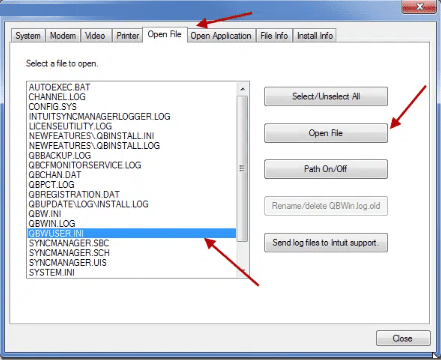
Highlights (Key Facts & Solutions)
The following highlights the key facts and solutions for resolving QuickBooks startup issues after a Windows 11 update:
QBWUSER.ini.old) to force QuickBooks to automatically generate a clean user file, which often resolves unexpected launch failures.Overview
Microsoft Windows 11 has been launched with numerous enhancements, including an improved system appearance, better motion handling for settings, updated buttons, widgets, support for Android apps, advanced virtual desktop capabilities, and more.
Some QuickBooks Desktop users are facing issues in accessing the software after the Windows 11 update. Users may need help with issues, such as user account failures, outdated version installations, or incorrect settings when trying to open QuickBooks Desktop.
Users have encountered error messages when trying to launch the software. These error prompts restrict you from accessing your QB software, company files, and other exclusive features, ultimately affecting your business productivity. The major reasons that may contribute to QuickBooks not opening or not responding to errors are corrupted installation files, operating system incompatibilities, and inability to address the Windows 11 minimum requirements.
Hence, you need to ensure that your system has an updated version covering all the specifications so it is easy to tackle the issue.
Various factors can cause QuickBooks won’t open, but failure to meet the minimal requirements for Windows 11 is the most apparent one.
Others are enumerated below:
If your QuickBooks Desktop won’t open, or fail to determine the issue? Below are some common indicators for the same.
Let’s have a look:
Suppose your QuickBooks Desktop is not responding or not opening even after Windows 11 update. At this point, you must try renaming your company file in the first place and keep it under 65 characters (no special characters included).
When all set, implement the following instructions:
If the problem continues, consider reaching out to QuickBooks support or an IT professional for additional help.

Experiencing QuickBooks not opening after Windows 11 Update? Well, a variety of solutions available will help you fix the issue in one go. All you need to do is just follow each one according to the situation you are getting into.
A “QBWUSER.ini” file is a configuration file ( that contains details such as the list of recently opened company files) used by QuickBooks software to store user-specific settings and information. This allows QuickBooks to save your preferences and load them upon starting the program. It serves as a personalized initialization file for each user. At this point, you can change the name of the QBWUSER.ini file.
Here are the instructions you need to perform:
Step 1: The initial step is to locate the folder where you stored the QBWUSER.ini file. Adhere to the following file path:
Users[Your user name]AppDataLocalIntuitQuickBooks 2026
Step 2: You must enable hidden files and folders if you cannot find the folder.
Step 3: Now, hit right-click on the QBWUSER.ini file and choose the Rename option.
Step 4: Add .old at the end of the file name. For example, QBWUSER.ini.old.
Step 5: After that, rename the EntitlementDataStore.ecml file.
Step 6: Finally, try to reopen your QuickBooks Desktop and check if it is working.
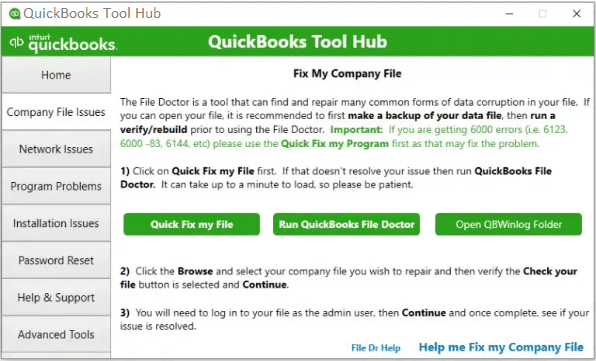
A Program File is a folder in Microsoft Windows that has the data and instructions needed for programs to run. It could be possible that the program file in your system is corrupted or missing. In that case, download the QB Tool Hub and run Quick Fix My Program.
Below are the steps for the same:
If there are any compatibility issues between QuickBooks and the Windows version you are using, then try to run QuickBooks in Compatibility Mode.
Steps to fix any compatibility issue between QuickBooks Desktop and Windows version
Step 1: To begin with, hit right-click on your QuickBooks Desktop icon and then select Properties.
Step 2: Now, choose the option “Run this program in compatibility mode for” under the Compatibility tab.
Step 3: After this, select Windows 11 from the drop-down menu.
Step 4: Tickmark Run this program as an Administrator checkbox.
Step 5: And lastly, click Apply, then press OK.
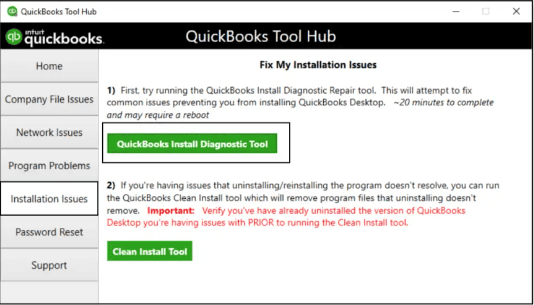
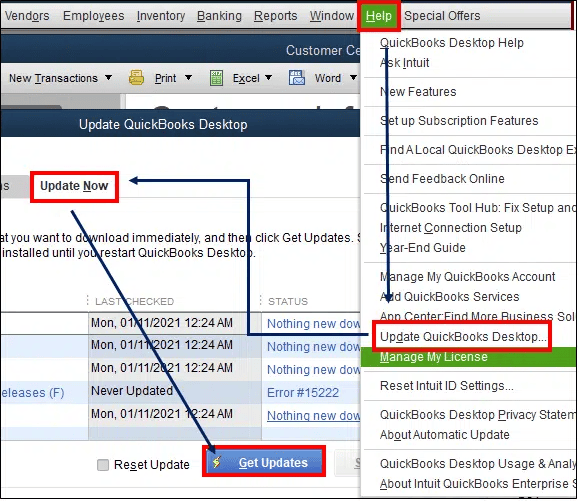
To fix QuickBooks Installation-related problems, you can use the QuickBooks Install Diagnostic Tool, repair the QuickBooks desktop, and update the same to the most recent release.
Below, we have described how it is possible:
Note: If you fail to locate the Programs and Features option, click Programs instead.
Sometimes, your antivirus software doesn’t allow QuickBooks to run in your system, especially if you have recently updated to Windows 11 or installed the latest QuickBooks updates. The instructions are here to temporarily disable different antivirus programs.
Avast:
Step 1: Go to the Avast icon in your system tray and right-click on it.
Step 2: From the menu, choose Avast shields control.
Step 3: Afterward, select the duration you want to disable the antivirus program, like 15 minutes, 1 hour, or 5 hours, Until the system restarts or Permanently.
Step 4: Finally, press Yes to confirm.
McAfee:
Step 1: Hit right-click on the McAfee icon in the bottom-right corner of your desktop.
Step 2: Navigate to Change settings and select Real-time Scanning from the menu.
Step 3: Press the Turn off button under the Real-Time Scanning status window.
Norton:
Step 1: Under the taskbar notification area, hit right-click the Norton Security icon.
Step 2: Now, choose Disable Auto-Protect/ Disable Firewall when the pop-up starts appearing on your screen.
Step 3: From the Security Request window, click on the drop-down list and select the duration you want to disable Norton Protection. For example, 15 minutes, 1 hour, 5 hours, Until the system restarts or Permanently.
Note: If you want to completely disable Norton’s antivirus protection for an indefinite time period, choose the Permanently option.
Step 4: Press the OK button to turn off Norton protection for the selected timeframe.
Out-of-date Windows operating system hinders many processes, so it is important to upgrade your Windows at the earliest.
Let’s see how:
Step 1: First, hold and press the Windows + I keys together to open Windows Settings.
Step 2: Next, select System & Security or Update & Security, then choose Windows Update.
Step 3: Click on the Check for Updates option, and if any updates are available, you will get the option to install them.
Step 4: After this, restart your Windows once the updates have been installed.
Step 5: When you’re done, try to run QuickBooks now and check if the issue is rectified or not.
Hopefully, you can now easily answer what to do if QuickBooks not opening after Windows 11 update after implementing the actions presented here. But if the issue persists and you can’t deal with it, don’t hesitate to connect with our customer service centre. We will provide proper assistance to you until your problem gets completely resolved.
Hopefully, the above-given information is useful for you. But if you still facing any kind of issues with your software and need professional assistance, regarding accounting, bookkeeping & accounting software-related issues then feel free to get in touch with us at +1-802-778-9005, or you can mail to us at: support@ebetterbooks.com
Running the latest versions of QuickBooks Desktop (2024, 2025, and later) on Windows 11 requires more than just the updated operating system. Failure to meet these core specifications is a primary cause of startup errors and lagging performance.
The essential minimum system requirements include:
Both tools are found within the QuickBooks Tool Hub but target different types of issues, making the order in which you use them crucial for efficient troubleshooting.
The QBWUSER.ini file stores user-specific configuration details, including the list of company files recently opened. It can become corrupted after a major OS update or unexpected shutdown, preventing QuickBooks from launching its interface correctly.
QBWUSER.ini.old), you force QuickBooks to recognize that the file is missing upon the next launch. The program then automatically generates a fresh, clean version of the file, resolving the corruption..QBW file and open it the first time after performing this fix.C:\Users\[Your user name]\AppData\Local\Intuit\QuickBooks [Year].The EntitlementDataStore.ecml file stores encrypted licensing and registration data for your QuickBooks installation. This file is critical for verifying your software’s legitimacy and licensing details.
EntitlementDataStore.ecml.old) forces QuickBooks to re-run the registration process, creating a new, uncorrupted license file and resolving the licensing blockage.C:\ProgramData\Intuit\Entitlement Client\v8 (the version number may change, such as v6 or v8).Compatibility Mode is a specific troubleshooting tool that instructs the operating system to run a program using settings similar to an older version of Windows, which can bypass potential conflicts introduced by the new OS update.
Antivirus and firewall software can block QuickBooks’ main application or its database services, especially after a major OS update. To fix this, you must explicitly allow the program’s executable files through the firewall.
The essential executable files and services requiring exceptions are:
QBW32.exe (This is the file that launches QuickBooks).QBDBMgrN.exe (Required for multi-user mode and company file hosting).QBCFMonitorService.exe and QuickBooksDBXX (where XX is the version year, e.g., QuickBooksDB34).These exceptions must be configured for both Inbound and Outbound rules in the Windows Firewall or within the settings of any third-party antivirus software.
The single most critical step is to create a complete, recent backup of your company file (which saves as a .QBB file extension) before attempting any fixes involving the QuickBooks Tool Hub, installation repair, or file renaming.


