Excerpt:
If you're experiencing QuickBooks Desktop display issues, such as fuzzy fonts, black screens, or strange sizing, it could be due to high-resolution DPI settings, incompatible view preferences, or outdated graphic drivers. These issues are commonly linked to incorrect display settings in QuickBooks or Windows. Adjusting DPI settings, modifying view preferences, or updating drivers can resolve these problems, ensuring smooth operation of your QuickBooks software.
 Add As A Preferred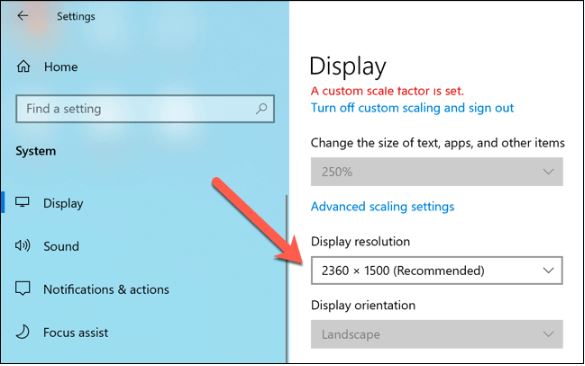
If you need an immediate solution, try these steps first:
If the issue persists after these steps, follow the detailed methods below.
QuickBooks Desktop Display Issues represent rendering inconsistencies that affect the clarity, scaling, and proportional alignment of interface elements inside the QuickBooks Desktop environment. These issues occur when the system uses high-resolution DPI scaling, non-standard screen resolutions, misconfigured interface preferences, incompatible system display configuration, and outdated graphics driver architectures.
Common indicators include blurred text, oversized interface elements, truncated windows, missing icons, and blank interface areas. These display problems are typically fixed through DPI normalization, resolution adjustments, preference resets, display compatibility changes, and graphics driver updates across Windows 7, 8, 10, and 11.
QuickBooks Desktop may display compatibility issues when running on Windows 7, 8, 10, or 11. These issues arise when the system’s display configuration fails to align with the rendering parameters required by the QuickBooks Desktop interface. This misalignment affects clarity, scaling precision, and the proportional behavior of interface elements, resulting in inconsistent proportions or incomplete visual elements.
Common problems include:
These issues primarily result from high-resolution display configurations, incorrect DPI values, incompatible Windows themes, and other non-standard display settings.
If you need any assistance to resolve the QuickBooks Error Issues, then give us a call at +1-802-778-9005
Display problems or distorted screen issues in QuickBooks occur due to incorrect resolution or font settings in Microsoft Windows or when you are using high-resolution displays. QuickBooks accounting software is compatible to work well with a DPI (Dot per Inch) value of less than 100%.
Many systems show high-resolution DPI Settings of 125 to 150%, which may lead to different display-related issues and make users unable to see the entire page in QuickBooks Desktop.
Well, there are various QuickBooks display problems available, and below we have listed some of the most common ones:
Display issues can appear differently depending on which QuickBooks Desktop version you’re running, since newer releases use updated rendering engines that interact differently with Windows scaling.
QuickBooks Desktop display glitches become evident when the software fails to render interface elements with accurate clarity, alignment, or proportional scaling. These indicators reflect underlying disruptions in Windows display configurations, DPI values, graphics rendering behavior, or QuickBooks view parameters.
Resolving QuickBooks Desktop display problems involves correcting the Windows and QuickBooks settings that interfere with proper interface rendering. The following methods target the DPI values, resolution parameters, compatibility configurations, and view preferences that most often cause visual distortion, misalignment, or incomplete display output within QuickBooks Desktop.
Let’s get started:
In this case, you need to change your display, view preferences and DPI Settings in QuickBooks, make changes in the Screen Resolution Settings and reset the default Display Settings of your Windows by following the instructions stated below:
Step 1: Edit QuickBooks DPI Settings Which Matches with the QB Default Display Settings Requirements
Step 2: Make Changes in the Screen Resolution Settings
If screen resolution settings are not set to 1024×768 then you are recommended to modify screen resolution settings. Due to having issues with your desktop screen, the screen elements are either too small or too large to be clicked on.
On Windows 10
Note: If you have a newer high-resolution monitor, you may need to change your default settings in QuickBooks.
On Windows 8, 8.1 and 7
Step 3: Reset the Default Display Settings of Your Windows
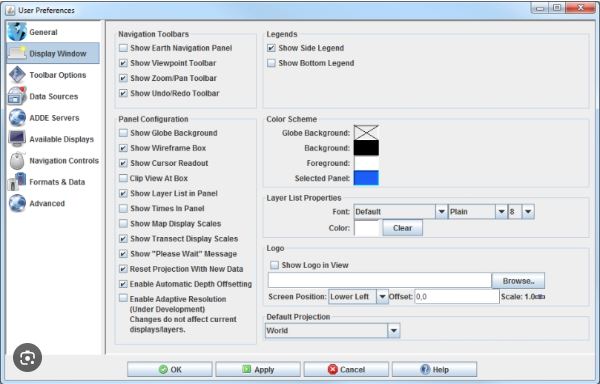
At this point, you need to adjust the View Preferences in QuickBooks.
Here’s how:
QuickBooks Desktop offers two display modes under Desktop View preferences, and choosing the right one can prevent many common display issues:
| View Mode | How It Works | Best For |
|---|---|---|
| Multiple Windows | Opens each form, report, or transaction in its own separate, resizable window on your screen. | Users with multi-monitor setups who need to view several windows side by side. |
| One Window | Confines all open forms and reports inside a single main QuickBooks window, preventing them from extending outside its borders. | Users experiencing display issues like windows opening off-screen, black screens, or oddly sized/positioned windows. |
If you’re facing display problems, switching to One Window mode (Edit > Preferences > Desktop View > My Preferences) is usually the faster fix, since it keeps everything contained within one predictable window frame.
If the Windows Display Settings are not compatible, perform the following steps to modify your Display Settings on Windows.
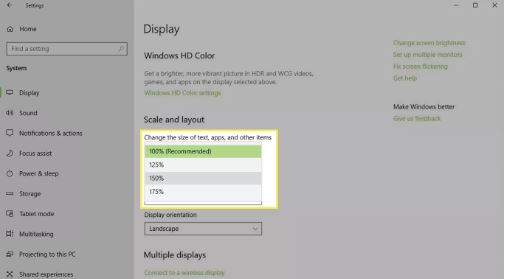
On Windows 10
On Windows 8/8.1
On Windows 7
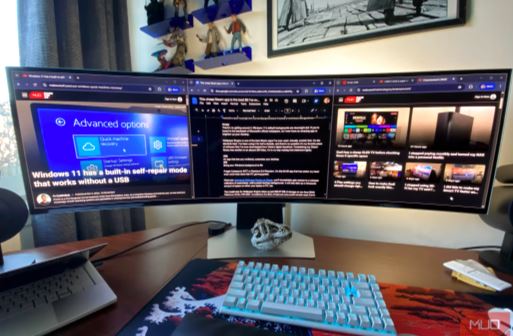
Multi-monitor users often see QuickBooks windows open on the wrong screen, resize incorrectly, or disappear entirely after disconnecting a monitor.
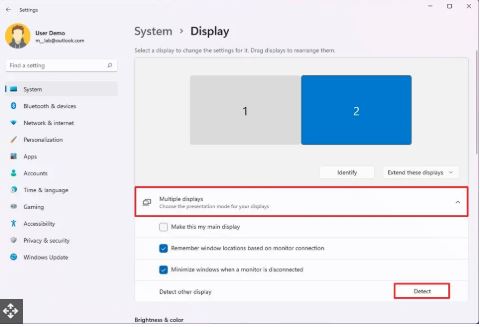
Follow these steps:
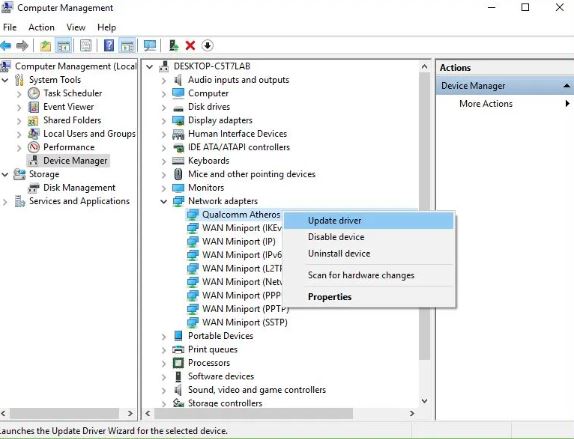
Windows updates can reset display scaling, compatibility settings, or graphics drivers, causing QuickBooks display issues to reappear even if you fixed them before.
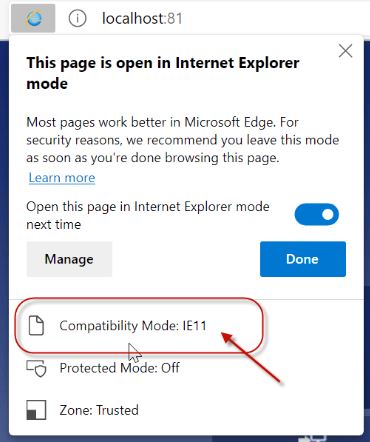
Carefully implement the below-listed steps to configure Compatibility View Settings:
Certain display issues in QuickBooks Desktop may persist even after basic adjustments to DPI, resolution, or view settings. The following procedures address deeper compatibility, scaling, and system-level factors that continue to affect display behavior.
Adjusting Windows Compatibility Mode for QuickBooks can help resolve issues when running the software on newer versions of Windows.
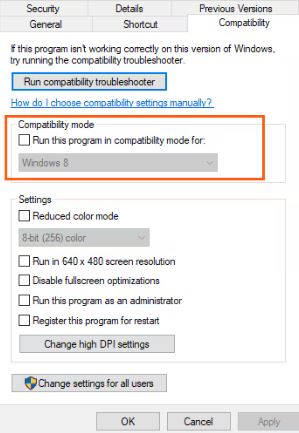
Here’s a detailed, step-by-step guide to modifying the compatibility settings:
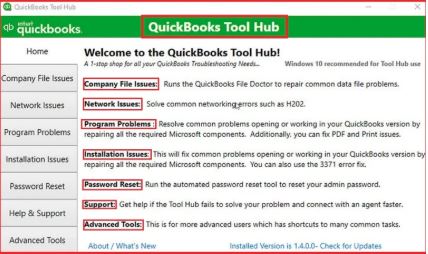
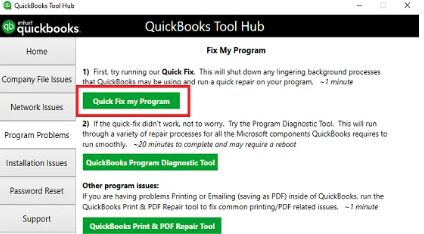
To resolve common issues with your QuickBooks Desktop software, you can utilize the “Quick Fix my Program” tool available within the QuickBooks Tools Hub.
Here’s a detailed, step-by-step guide to assist you:
Step 1: Download and Install the QuickBooks Tools Hub
Step 2: Run the “Quick Fix my Program” Tool
Additional Tips:
Adjusting color depth and font scaling in Windows can enhance display quality and readability. Here’s a detailed, step-by-step guide to help you through the process:
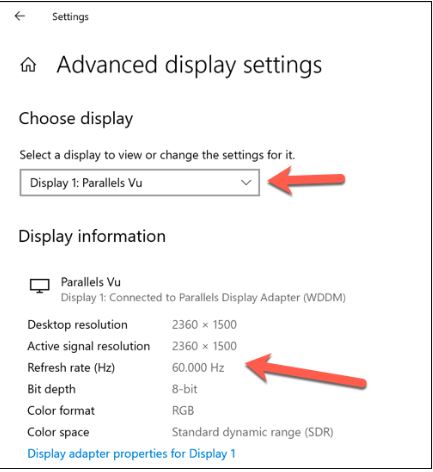
Adjusting Color Depth in Windows:
Adjusting Font Scaling (Text Size) in Windows:
Configuring display settings in QuickBooks optimizes your user experience and ensures the software functions correctly.
Follow these detailed steps to adjust your display settings:
By following these steps, you can configure your display settings to enhance your QuickBooks experience and minimize potential display-related problems.
To ensure optimal performance of QuickBooks, it’s essential to have the appropriate hardware and configure your display settings correctly.
Below is a detailed, step-by-step guide to help you set up your system for the best experience with QuickBooks:
1. Verify System Requirements
Before installing QuickBooks, ensure your computer meets the following minimum hardware specifications:
2. Optimize Display Settings
Proper display settings are crucial for clear visibility and functionality within QuickBooks.
Follow these steps to adjust your display:
3. Adjust Compatibility Settings for QuickBooks
If you experience display issues, adjusting the compatibility settings can help:
Once your QuickBooks Desktop display issue is resolved, a few simple habits can help keep it from coming back:
QuickBooks Desktop Display Issues arise when Windows display parameters, DPI settings, resolution values, compatibility modes, or graphics driver conditions interfere with the rendering behavior required by the QuickBooks Desktop interface. The methods outlined in this article provide the adjustments that reestablish clear scaling, accurate alignment, and consistent visual output across supported Windows environments.
These procedures establish a stable display configuration for continued use of QuickBooks Desktop and support further improvements in system-level rendering performance. Feel-free to call at our toll-free number +1-802-778-9005 and get the best assistance through our QuickBooks customer service executives if the problem continues to bother you.
The display for QuickBooks Desktop is optimized for a resolution of 1280 x 1024 or higher, supporting up to two extended monitors. For the best performance, Intuit often recommends setting your Windows display scaling (DPI) to the Default or 100% setting for your computer.
It can. While the Multiple Windows view allows you to work in several different windows simultaneously, display issues (like windows not fitting or disappearing) are often easier to resolve by switching to the One Window view. Intuit recommends selecting the One Window option in the Edit > Preferences > Desktop View menu as a troubleshooting step for persistent screen issues.
Yes, outdated or corrupted graphics drivers can directly cause display problems, including blurry text, flickering, or incomplete window drawing. Ensuring your graphics drivers are updated through your computer’s Device Manager is a necessary step in the overall health of your Windows display environment, which supports the QuickBooks application.
If the general DPI/scaling changes in Windows make your QuickBooks display too small, you can adjust the QuickBooks View Preferences. Go to the Edit menu, select Preferences, choose Desktop View, and then under the My Preferences tab, look for options to switch your view (e.g., from “Multiple Windows” to “One Window”) or to reset certain Desktop settings. This won’t directly change the font size but can often help the program’s elements scale better after a DPI adjustment.
This is a key display preference within QuickBooks (under Edit > Preferences > Desktop View):
➜Multiple Windows: Allows you to open multiple QuickBooks forms and reports simultaneously as separate, resizable windows on your screen, which is necessary to use the Multi-Monitor Mode. This can sometimes contribute to display issues if not paired with correct Windows scaling.
➜One Window: Confines all open forms and reports inside the single main QuickBooks Desktop window, preventing them from extending outside its borders. Intuit sometimes recommends switching to this setting as a troubleshooting step to resolve screen issues like black screens or windows that are oddly sized or positioned.
Yes. If your video card or graphics driver is outdated or incompatible, QuickBooks may render incorrectly — for example, showing black fields instead of the usual interface or misaligned windows. Updating to the latest driver version from your graphics card vendor (Intel, NVIDIA, AMD etc.) is recommended.
If you are getting stuck with QB desktop display issues, Changing the Desktop View Preferences is the best option to rectify it as soon as possible. To do this, open your company file and choose Preferences from the edit menu. After this, select Desktop View and then My Preferences. Once done, you must switch View from Multiple Windows to One Window.
The Settings icon in QuickBooks Desktop looks like a gear and is located on the homepage.
How to Access and Edit Settings:
1. Click the Gear icon on the homepage.
2. Select Accounts and Settings.
3. Choose a tab and click Edit in the section you want to update.
4. Make your changes, then click Save.
5. Click Done to close the settings.
6. Customizing Your QuickBooks Display:
7. Open the QuickBooks menu.
8. Select Settings > Toolbar/Tabs.
9. Choose Use Tabbed Windows and customize how windows appear.
Windows updates can sometimes cause display issues in QuickBooks due to changes in system configurations, compatibility conflicts, or driver updates.
QuickBooks can encounter display issues when used with multi-monitor setups or high-resolution (4K, UHD) screens due to compatibility problems with Windows scaling, DPI settings, and graphics drivers.


