 Add As A Preferred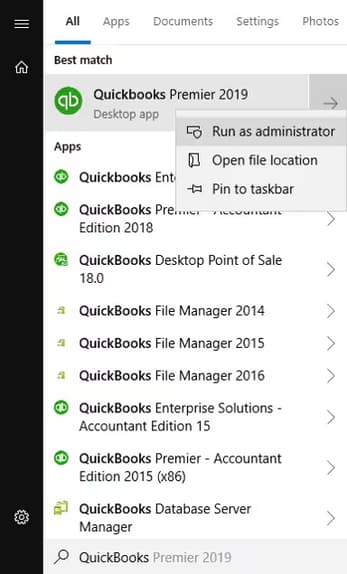
I’m Shawn Willson, and I’m currently unable to reconnect my UPS account to QuickBooks Shipping Manager within QuickBooks Desktop Pro Plus 2024. I recently updated some system settings, and since then, the integration between UPS and the Shipping Manager has completely broken.
When I open the Shipping Manager and try to reconnect or reauthorize the UPS account, the process stalls or returns a connection failure error. The system either freezes at the login screen or throws a message like “Unable to connect to UPS. Please check your internet connection or try again later.” But my internet is stable, and all other services are working normally.
I’ve already confirmed that QuickBooks is updated to the latest release, restarted my system, and even reinstalled the Shipping Manager add-on. Despite that, the connection with UPS won’t re-establish.
This issue is disrupting our ability to generate shipping labels and fulfill customer orders efficiently. I’m looking for a direct resolution because delays in re-establishing this integration are affecting our daily operations. If there’s a known fix or configuration update required to restore UPS connectivity, I need assistance right away.
Hi Shawn Willson,
Thanks for explaining your situation in such detail, it really helps in pinpointing what’s going wrong. It’s clear you’ve already taken several important steps on your own: updating QuickBooks Desktop Pro Plus 2024, reinstalling the Shipping Manager add-on, restarting your system, and confirming that your internet connection is stable. That’s a solid start.
However, despite these efforts, you’re still running into a frustrating problem. When trying to reconnect or reauthorize your UPS account through the Shipping Manager, the system either freezes at the login screen or throws an error like “Unable to connect to UPS. Please check your internet connection or try again later.” All other internet-based services on your system are working normally, which makes the issue even more confusing.
We completely understand how disruptive this can be, especially when it impacts your ability to generate shipping labels and fulfill customer orders. The good news? You’re not alone, and these issues are usually tied to configuration settings, outdated security protocols, or permission conflicts that can be corrected.
You’re already halfway there, and with a few targeted steps, we would be able to restore the UPS connection successfully. Let’s get you reconnected to UPS and back to fulfilling orders without further delays.
Several technical factors can break down the integration between UPS and Shipping Manager in QuickBooks Desktop Pro Plus 2024. These include firewall or antivirus software blocking the connection, outdated TLS security settings in Internet Options, missing admin permissions, or corrupted configuration files. In some cases, recent Windows or system updates can change network settings or block background services required for UPS integration.
UPS and Shipping Manager disconnection in QuickBooks Desktop Pro Plus 2024 is typically caused by system-level restrictions, outdated security settings, or corrupted configuration files. Run QuickBooks as an administrator, verify that firewall or antivirus programs aren’t blocking the Shipping Manager, and ensure TLS 1.2 is enabled under Internet Options and deleting any corrupted UPS configuration files. If the issue continues, reinstall the Shipping Manager add-on or contact UPS to verify your account credentials and API access.
Make sure to run QuickBooks as an Administrator if your QuickBooks Desktop Subscription has expired unexpectedly.
To ensure secure connections between Shipping Manager and UPS servers, TLS 1.2 must be enabled in your system’s Internet Options. QuickBooks relies on these settings for embedded browser components.
Note: On Windows 10 and above, TLS 1.2 is typically enabled by default—but it’s still good to verify manually when facing UPS disconnection issues.
Recreating a Shipping Manager Account is required if it’s damaged. To help you get back on track, you’ll have to delete the older account and create a new one.
Next, set up a new account.
When done, you can now process a shipment.
Make your shipping tasks easier and help your business run smoother with the new Shipping Manager in QuickBooks Desktop.
Note: The new Shipping Manager allows you to generate one shipping label for each sales transaction.
You can reset Internet Explorer settings to what they were when Internet Explorer was first installed on your PC. This is useful for troubleshooting problems that may be caused by settings that were changed after installation.
Important: Be aware that this process isn’t reversible, and all previous Internet Explorer settings are lost after reset.
UAC improves security for all users. The main purpose of it is to protect the computer and reduce the exposure and attack surface of the operating system. An administrator can run most applications, components, and processes with limited privilege. But also has the ability to elevate or increase the privilege for specific administrative computer tasks and application functions.
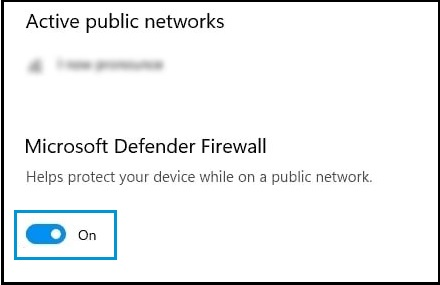
Firewall or antivirus software may block QuickBooks or the Shipping Manager’s connection to UPS servers. Temporarily disabling them helps determine if they’re causing the disconnection. Be sure to re-enable your protection after testing to maintain system security.
For Windows 10/11
The verify tool finds the most common issues in a company file, and the rebuild tool fixes them.
Note: Contact the QuickBooks Support Team before you rebuild your data in case you use Assisted Payroll.
Note: Avoid replacing your existing company file and re-entering the info into your company file after the backup was created.
A weak or unstable internet connection can interrupt communication between QuickBooks and UPS servers. Ensure you’re connected to a stable, high-speed network. You can also try restarting your router or switching to a wired connection to improve reliability during Shipping Manager operations. Before checking your internet connection settings, do the following:
QuickBooks File Doctor can automatically detect and repair common issues related to your company file and network setup. If UPS Shipping Manager disconnects due to file corruption or connectivity problems, running this tool may help restore proper functionality. Download and run the QuickBooks Tool Hub, and select Company File Issues to open File Doctor tool.
Note: If the QuickBooks File Doctor doesn’t open, look for QuickBooks Desktop File Doc and open it manually.
The scan can take up to 10–15 minutes depending on your file size. The scan may say it was unsuccessful even if it fixes your issue. When the scan finishes, open QuickBooks, and your company file.
To ensure seamless and uninterrupted communication between QuickBooks and UPS Shipping Manager, it’s essential to consider a few simple preventive measures. These tips will help you avoid common connectivity errors and maintain reliable shipping functionality.
Shawn, dealing with UPS and Shipping Manager disconnections in QuickBooks Desktop Pro Plus 2024 can be frustrating. But you’re not alone, and most issues have straightforward fixes. By updating your software, enabling the right security settings, and verifying your UPS account details, you’re already on the right track.
Most UPS integration issues can be resolved by taking a few key proactive actions. Make sure TLS 1.2 is enabled under Internet Options, reinstall the Shipping Manager add-on if needed, run QuickBooks as administrator, temporarily disable firewall or antivirus that may block connectivity, and avoid using outdated embedded browser settings. Also, ensure you have a stable internet connection and try not to change your UPS login credentials too often.
If things go off track again, don’t worry! I’m right here to help you through it. Whether it’s a connection timeout or just a small configuration update, feel free to reach out anytime. I’ll walk you through every step that actually works, so you can get back to generating shipping labels and fulfilling customer orders with ease.


