Excerpt:
If QuickBooks Desktop 2024 is prompting you to reactivate payroll despite an active subscription, the issue likely stems from sync failures, outdated files, or license validation errors—not a real subscription lapse. This guide helps users fix that message through precise troubleshooting steps to restore payroll access quickly, ensuring accurate tax updates and timely employee payments without disrupting business operations.
 Add As A Preferred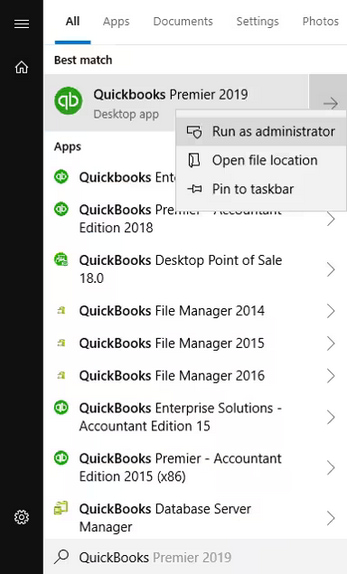
Hi I’m Morgan Cohen, and I’ve run into a critical issue with QuickBooks Desktop 2024 that I honestly wasn’t expecting at the worst possible time. I logged in to process payroll like I normally do, only to see a message that says I need to ‘Reactivate Payroll’ — and now I can’t move forward with paying my team.
It’s confusing because I didn’t get any prior warning that my payroll subscription was inactive or expired. As far as I know, our billing info is up to date and I’ve been using payroll consistently for the past few months without a hitch. The worst part is, this message just appeared out of the blue, and QuickBooks has basically locked me out of payroll functionality completely.
I tried revalidating my service key and went through the steps to reactivate online, but either the system gets stuck or redirects me to an Intuit support loop with no clear fix. I also tried updating the software, thinking maybe something failed to sync, but nothing has changed. Meanwhile, my payday deadline is approaching fast, and I’m worried about delays in direct deposits and potential penalties.
If anyone else has dealt with QuickBooks showing a payroll reactivation prompt even when your subscription seems active, what actually worked for you? Is this a licensing issue, a glitch in the background, or something on Intuit’s end? I’m really trying to avoid missing payroll or spending hours on hold — so any insight would mean a lot right now.
Hi Morgan Cohen,
Thank you so much for reaching out. I completely understand how overwhelming this situation can be — especially when you’re doing everything right and payday is just around the corner. You’ve already taken all the right first steps: revalidating your service key, attempting to reactivate online, updating your QuickBooks Desktop, and checking for sync issues. That shows you’re on top of things, even in a tough situation.
Now, seeing a “Reactivate Payroll” message out of nowhere—despite having an active subscription and updated billing—is understandably confusing and frustrating. The good news? This kind of issue is more common than you might think and usually caused by background sync errors, minor licensing glitches, or corrupted internal files—not a problem with your actual subscription.
You’re not alone in this, and you don’t have to figure it out on your own. I’m here to guide you through exactly what’s causing the “Reactivate Payroll” message in QuickBooks Desktop 2024, why it might be showing up despite an active subscription, and most importantly, how to fix it step-by-step while maintaining complete control over your payroll deadlines. I’ll walk you through each step with care, so you can move forward with confidence and ensure your team gets paid right on time.
“Reactivate Payroll” message often appears due to technical or sync-related issues—not because your subscription is actually inactive. It can be triggered by outdated files, failed license validation, missing updates, or interrupted communication with Intuit’s servers.
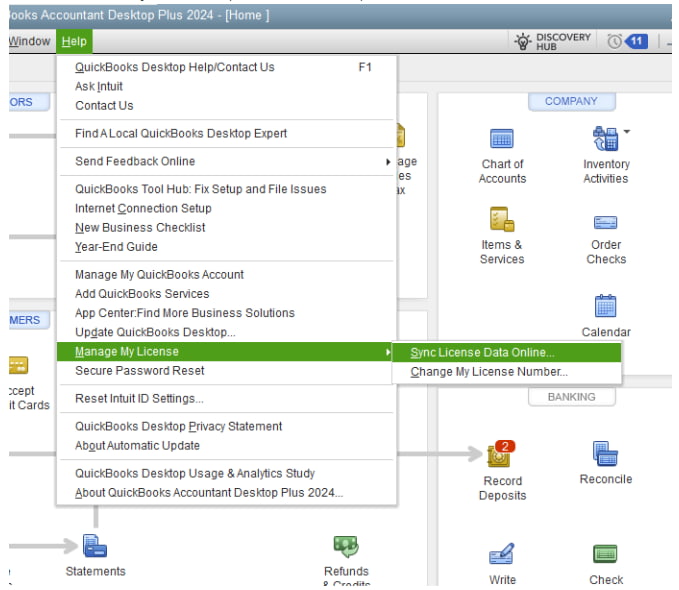
Whether it’s a sync issue, a service key glitch, or a license validation error, these fixes are designed to resolve the “Reactivate Payroll” message in QuickBooks Desktop 2024. Many users—just like you—have encountered the same issue unexpectedly despite having an active subscription and were able to resolve it with a few simple steps.
Make sure to run QuickBooks as an Administrator if you are experiencing unexpected billing or plan lapses that trigger expiration alerts or prevent payroll access.
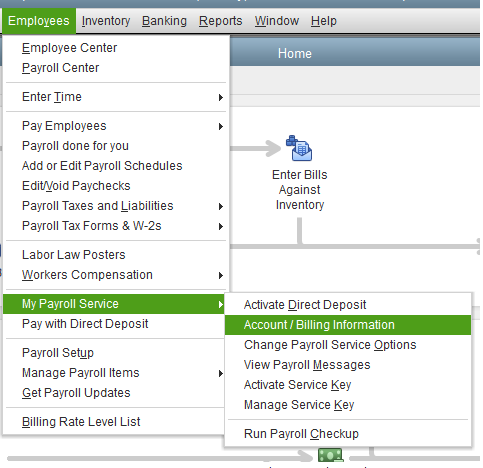
To turn on your payroll service in your QuickBooks Desktop company file, do the following:
Updating your billing information or payment method helps to avoid payroll service disruptions due to failed transactions, ensure timely subscriptions renewal, maintain accurate account records, and prevent late fees or access issues.
To manually run payroll in QuickBooks Desktop, first enable the payroll feature inside your QuickBooks settings.
Note: Make sure to update the latest QuickBooks version so you get all the fixes and improvements before setting up manual payroll.
Staying up to date with the latest QuickBooks Desktop and payroll tax table is essential for smooth payroll processing. These updates often include important fixes, compliance changes, and new tax rates. If your software or tax table is outdated, it may trigger reactivation prompts or even block access to payroll features. Downloading the most recent updates ensures your system runs properly and remains compliant with the latest payroll regulations.
An outdated QuickBooks version doesn’t allow you to download the QuickBooks Payroll Updates. Here’s how you can update your software.
QuickBooks Desktop Payroll provides payroll updates to QuickBooks Desktop Payroll subscribers. These updates include the most current and accurate rates and calculations for supported state and federal tax tables, payroll tax forms, and e-file and pay options.
Note: The latest payroll update number is 22513 released on July 3, 2025.
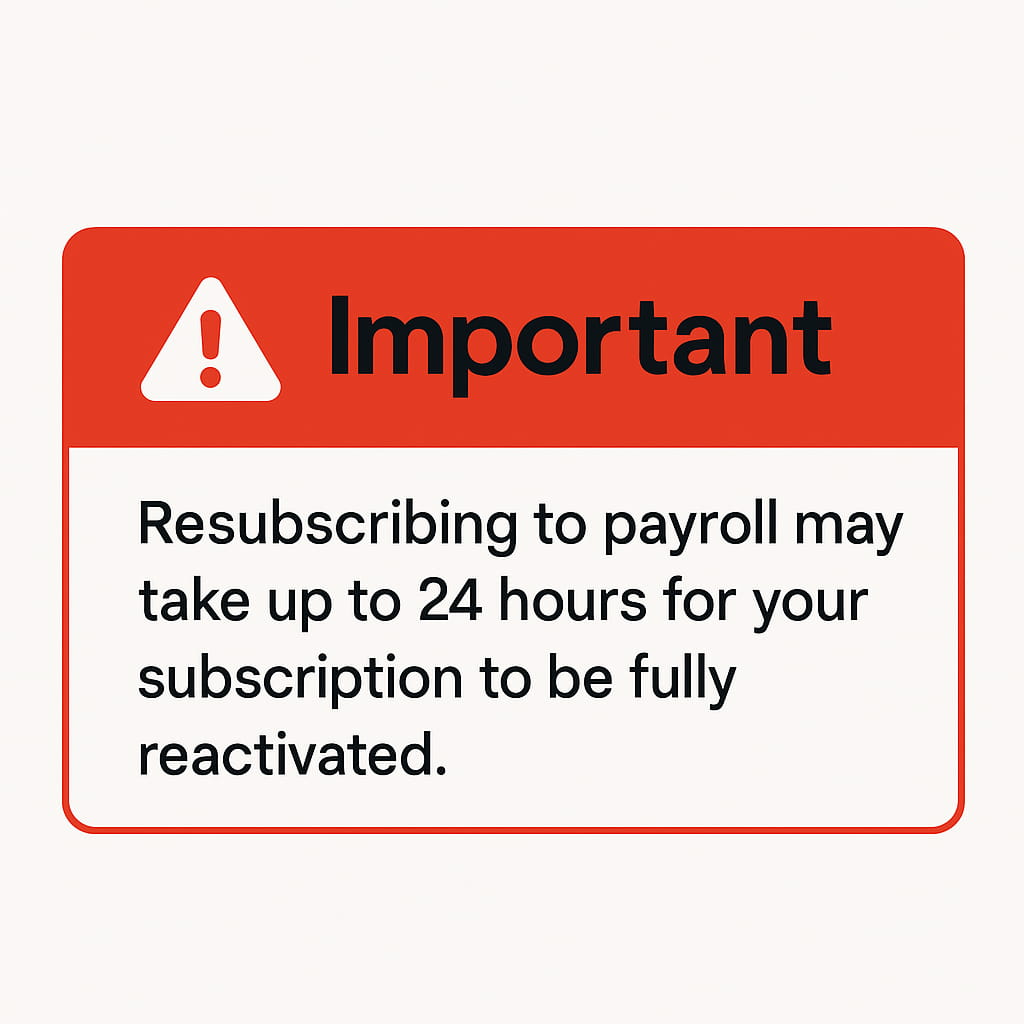
Seeing a repeated “Reactivate Payroll” message in QuickBooks Desktop can be frustrating—especially when your subscription is already active.
We’ve some key tips to help you avoid this prompt in future and ensure smooth payroll functionality:
Morgan, I completely understand how stressful and disruptive this situation must feel—especially when you’re doing everything right and still hitting a wall just before payday. Well, you’ve already covered the most critical troubleshooting steps, which means you’re not far from a resolution. In many cases, this type of prompt is triggered by a background sync or license validation issue, not a real lapse in your subscription.
You’re not alone in this, and you don’t have to solve it all by yourself. If the steps you’ve tried haven’t worked yet, I’m here to help you take the next steps—whether that’s reaching out to Intuit on your behalf or guiding you through deeper fixes using the QuickBooks Tool Hub.
Right now, your focus should be on your team, not chasing down software errors—and I’ll do everything I can to help lift that burden. We’ll get this resolved together and make sure your payroll goes out on time.


