Excerpt:
QuickBooks Error 7149 disrupts the software’s performance, often due to registry issues, corrupted files, malware, or conflicting programs. To resolve this, you can repair or reinstall QuickBooks, fix registry keys, remove viruses, or temporarily disable antivirus software. These steps help restore QuickBooks functionality, ensuring smooth operation without constant system crashes. For persistent issues, expert support is available.
 Add As A Preferred
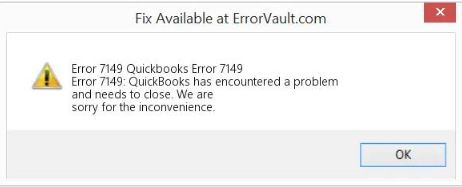
QuickBooks Error 7149 is a run-time error. It may arise due to registry errors and corrupt program files. Whenever the user opens QuickBooks, their computer crashes, and an error message reflects on their screen:
“Error 7149: QuickBooks has encountered a problem and needs to shut. We are sorry for the inconvenience”.
When you reopen QuickBooks, your system crashes repeatedly. Also, the system may freeze for a period.
When QuickBooks Error 7149 occurs (typically during general use rather than install), users typically see one of these messages:
No official Intuit article was located for this exact code, most commonly reported on systems with an incomplete QuickBooks install or recent malware cleanup. It’s documented only through third-party QuickBooks help content, so this wording should be treated as unverified until cross-checked against Intuit’s own resources.
Third-party sourcing only — not confirmed on an official Intuit page.
There could also be several problems that trigger QuickBooks Error 7149, a few of them are as follows:
The causes of QuickBooks Error 7149 include corrupted installation files, problems in the registry, or interference caused by an Antivirus program. Follow the instructions in this article to solve the problem and ensure QuickBooks returns to its optimal performance.
Incorporating errors that are brought about by installation file damage can be solved by repairing or reinstalling QuickBooks. To proceed:
Steps to Repair QuickBooks:
Step 1: Open the Control Panel and navigate to Add or Remove Programs (accessible from the Start Menu).
Step 2: Locate the QuickBooks application and right-click on it.
Step 3: Select the Repair option and follow the on-screen prompts.
Step 4: Restart your system and try opening QuickBooks again.
If Repair Doesn’t Work:
Step 1: Uninstall QuickBooks:
Step 2: Reinstall QuickBooks:
This process should help fix problems that hinder QuickBooks operations from running seamlessly.
Editing registry keys can be risky if you’re not a professional, as it may disrupt your system’s functionality. To safely address this issue:
Viruses or malware can interfere with QuickBooks and cause errors. To remove them:
Step 1: Perform a full system scan using your antivirus program or Windows Security Essentials.
Step 2: If any malware or virus threats are detected, remove them.
Step 3: Restart your system after the scan and try reopening QuickBooks.
Antivirus software can sometimes block QuickBooks from functioning correctly. To resolve this:
Step 1: Locate the antivirus icon on your taskbar and right-click on it.
Step 2: Choose to disable the application as the option temporarily.
Step 3: Try reopening QuickBooks. If the software opens without issues, the antivirus may be causing interference.
Step 4: Optionally, boot your system in Safe Mode and ensure QuickBooks is updated to its latest version.
The steps mentioned above will help you solve QuickBooks Error 7149. In case you cannot fix QuickBooks Error 7149 or are unable to understand the issue, reach out to eBetteBooks Error Support contact number 1-802-778-9005 for immediate support.
In most cases, no. Error 7149 is a Windows runtime crash caused by damaged program components, missing DLL files, antivirus blocks, or corrupted registry entries. Your .QBW and backup files usually remain safe and unaffected. You only need to restore or repair QuickBooks or the system components that load the program.
Runtime errors like 7149 often appear after something changes in the system—Windows updates, failed QuickBooks updates, new antivirus definitions, or a registry modification. Even if you didn’t manually change anything, a background update or security scan may have interrupted QuickBooks’ program files.
No. Uninstalling or repairing QuickBooks only affects installation files and registry entries. Your company data, settings, and backups remain intact as long as they are saved in the standard location (typically the QuickBooks company file folder). However, it is always wise to keep a manual backup before making changes.
If QuickBooks works in Windows Safe Mode, opens only after disabling the antivirus, or if the antivirus quarantine logs show a blocked DLL or EXE file, then a security program is likely interfering. In such cases, adding QuickBooks to the antivirus “allowlist” or restoring blocked files normally resolves the error.
Yes, and most users do. Repairing QuickBooks installation files, running SFC/DISM scans, reinstalling required runtime dependencies, or disabling conflicting antivirus programs typically resolve the issue. Registry edits should only be attempted by experienced users with full system backups, as incorrect edits can destabilize Windows.
Check Windows Event Viewer. If you see “qbw32.exe” crashing along with “faulting module” names (like DLLs or runtime libraries), the problem is usually Windows-related. If no Windows runtime errors appear, then QuickBooks installation files may be incomplete or corrupted. System scans such as sfc /scannow and DISM /RestoreHealth also help identify OS-level issues.
If repairs, reinstall, antivirus checks, and system scans do not resolve Error 7149, the issue may involve deeper Windows corruption, failed dependency bindings (like .NET or Visual C++), or unresolved malware damage. At that stage, collecting diagnostic logs and contacting a QuickBooks expert team can save time and prevent additional system damage.
Error 7149 is a runtime failure, meaning QuickBooks crashed because it could not execute a necessary program function. This is almost always due to damage to its core Microsoft dependencies, which include:
If any of these packages are damaged or missing, the QuickBooks executable file cannot access the required resources, resulting in the Error Code 7149.
QuickBooks Desktop relies on specific versions, depending on the year of your software. For many users, particularly with older Pro, Premier, or Enterprise versions, the issue is often tied to the Microsoft Visual C++ 2008 Redistributable.
Expert Guidance: Do not uninstall other Visual C++ versions without a specific need, as they may be required by other unrelated software. The safest way is to let the QuickBooks Install Diagnostic Tool handle the repair, as it targets the correct dependent files without manual user selection. If manual intervention is required, focus your efforts on the version associated with your QuickBooks year after creating a system restore point.


