Excerpt:
QuickBooks Error Code 404 is a runtime and network synchronization error that occurs when QuickBooks Desktop fails to establish a stable connection with Intuit servers during data exchange or update operations. This disconnection leads to incomplete downloads, unsuccessful data transmission, and occasional application crashes, often resulting from unstable internet connectivity, damaged installation files, or incorrect system configurations.
 Add As A Preferred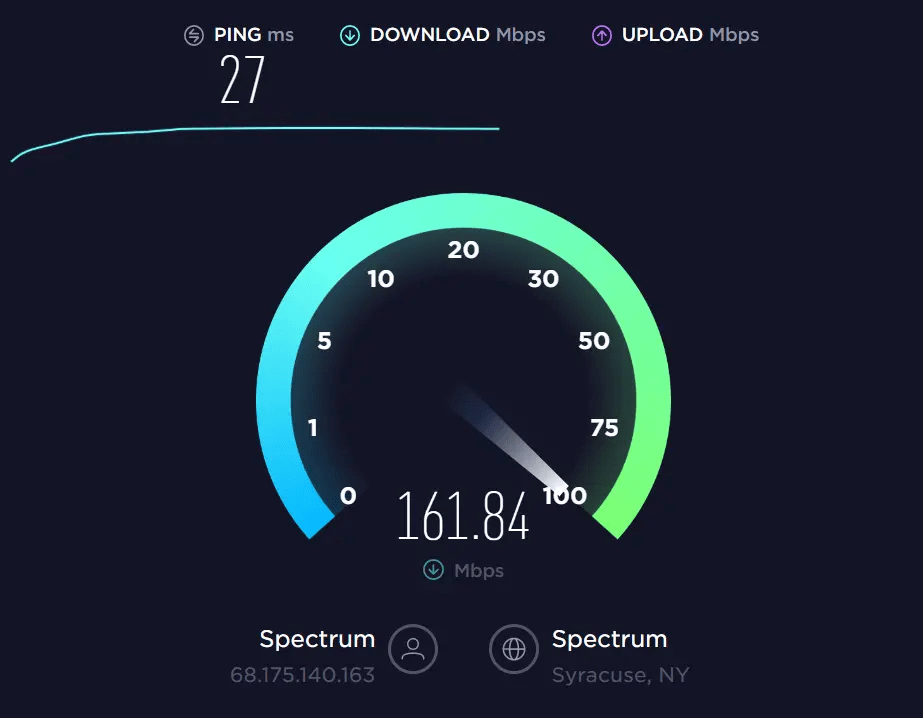
QuickBooks Error Code 404 is a runtime connectivity issue that occurs when the software fails to reach Intuit’s servers or retrieve requested data. It signals a communication breakdown between QuickBooks and the internet service.
The error is typically caused by unstable internet connections, misconfigured system settings, or firewall restrictions blocking QuickBooks. Incomplete or corrupted installation files can also contribute to the problem.
Users often encounter Error 404 during tasks that require live server interaction such as downloading updates, accessing online services, or syncing company data with Intuit servers.
The typical error message
Common formats include:
Preventing Error 404 is critical because repeated disruptions can delay payroll processing, block updates, and compromise data synchronization. Proactive measures such as maintaining stable internet, updating QuickBooks regularly, and configuring firewall permissions help ensure smooth operations and reduce downtime.
QuickBooks Error 404 may seem like a simple connectivity glitch, but its ripple effects can be significant for day‑to‑day business activities:
Payroll Delays
Update Failures
Data Synchronization Issues
Workflow Disruption
Compliance Risks
| Level | Step / Action | Verification Point | Estimated Time |
| Beginner | Verify Internet Speed & Connectivity | Websites load without error; QuickBooks connects | 5–10 minutes |
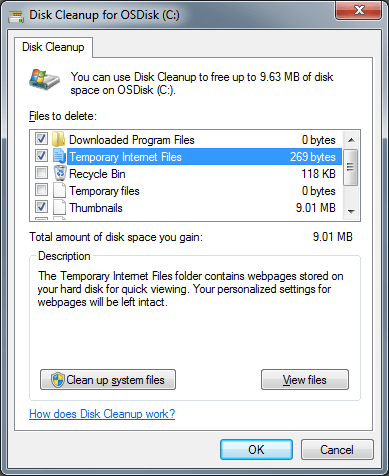
| Remove System Junk & Temporary Files | Cache cleared; temp files deleted; QuickBooks restarts clean | 10–15 minutes | |
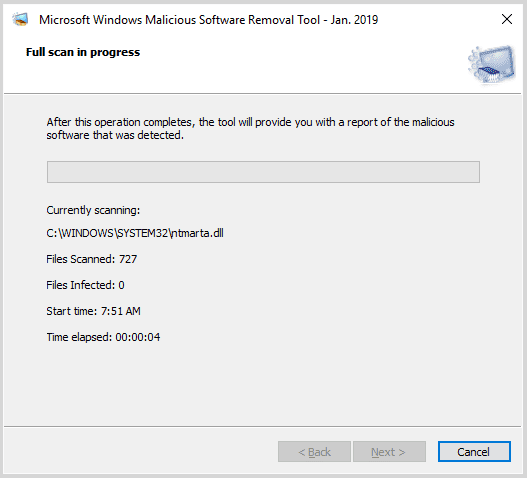
| Scan System for Viruses/Malware | Antivirus scan completes; infected files removed | 15–30 minutes | |
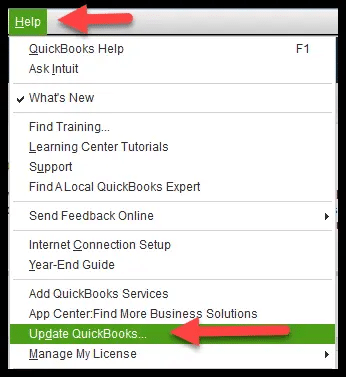
| Intermediate | Update QuickBooks Desktop | QuickBooks opens without update prompts | 10–20 minutes |
| Repair QuickBooks Installation | Repair completes; QuickBooks launches successfully | 20–30 minutes | |
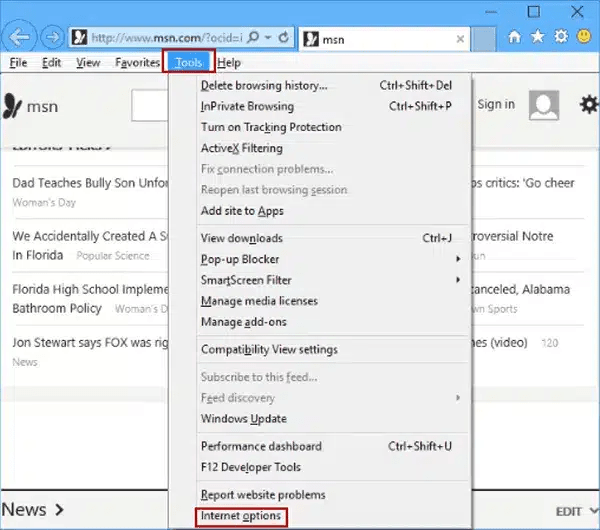
| Change Internet Settings (add trusted sites) | *.intuit.com and *.quickbooks.com added; QuickBooks reconnects | 10–15 minutes | |
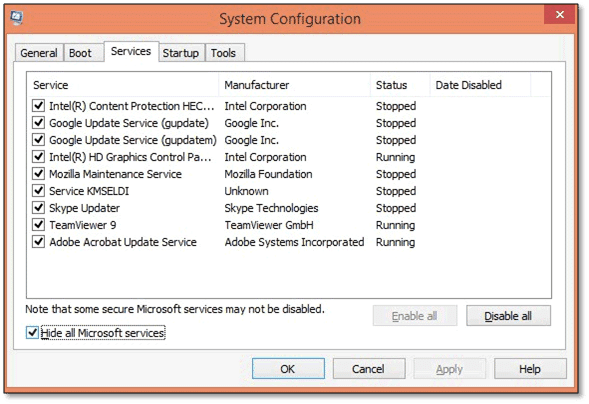
| Advanced | Reconfigure System Settings (Selective Startup) | QuickBooks reinstalls; system boots in stable mode | 30–45 minutes |
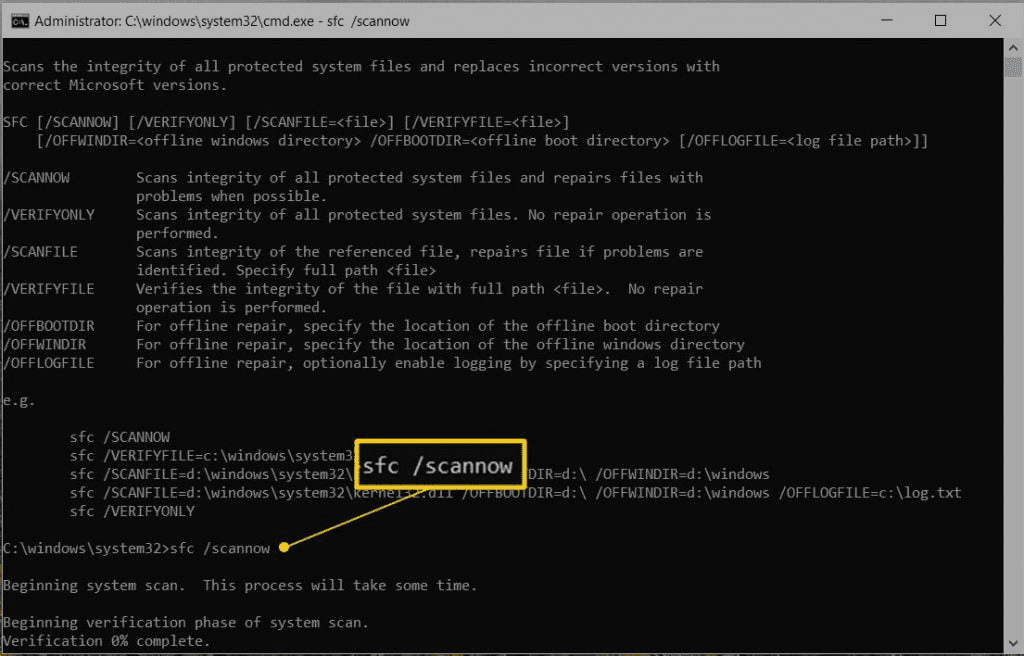
| Run System File Checker (sfc /scannow) | Scan completes; corrupted files repaired | 20–40 minutes | |
| Perform Clean Installation of QuickBooks | Fresh install completes; QuickBooks runs error‑free | 45–60 minutes |
QuickBooks Error 404 is a connectivity failure that interrupts communication between the software and Intuit’s servers. It can delay payroll, block updates, and disrupt workflows if not addressed promptly. Most causes trace back to unstable internet, firewall restrictions, or corrupted installation files.
By following a stepwise troubleshooting approach starting with simple checks and progressing to advanced fixes users can restore smooth operations. Preventive measures like stable internet, regular updates, and proper firewall settings help avoid recurrence.
QuickBooks Error 404 does not directly delete or modify accounting data, but it can interrupt ongoing operations such as online synchronization or update downloads. If a transaction or file transfer is active at the time of failure, incomplete uploads or downloads may cause temporary data inconsistency.
In rare cases, repeated disconnections without proper closure can lead to corrupt cache entries or damaged company file references. Regular backups and scheduled maintenance significantly reduce this risk. Hence, while the error itself does not erase data, the conditions leading to it (such as corrupted files or interrupted writes) can indirectly affect data integrity.
Persistent network-related instances of QuickBooks Error 404 are best resolved through a combination of network diagnostics and security reconfiguration. The most effective solutions include:
Verifying internet connection stability (Method 1).
Reconfiguring Internet and TLS settings to ensure secure communication (Method 3).
Resetting router configurations and refreshing DNS cache (Method 6).
For severe cases where security applications continuously block connectivity, temporarily whitelisting QuickBooks executables within firewall and antivirus settings restores stable server communication.
Consistent bandwidth and correct TLS synchronization provide long-term protection against recurring network-level failures.
Since Error 404 means QuickBooks failed to reach the server, testing the general internet connection is the critical first step in the environment.
➜Simple Web Test: Open a web browser (like Chrome or Edge) and visit a non-Intuit, reliable website (e.g., Google or CNN). If these sites load normally, your basic internet connection is working.
➜Ping Test (Advanced): Open the Command Prompt (search ‘CMD’) and type ping google.com. If you receive four successful replies with low response times (latency), your connection is stable. If the requests time out, the connection is the issue.
QuickBooks Desktop still relies heavily on the Internet Explorer (IE) settings within Windows for its internal communication, even if you use a different default browser. Incorrect IE settings are a frequent environmental cause of Error 404.
➜SSL/TLS Protocols: QuickBooks requires TLS 1.2 (Transport Layer Security) to be enabled under the Advanced settings in the Internet Options menu. If this is disabled, the secure connection to Intuit’s servers will fail, triggering the 404 error.
➜Security Zones: Ensuring Intuit’s necessary domains are not blocked by high-security zone settings or pop-up blockers is also crucial.
Firewalls and security suites are designed to monitor outgoing connections and are a common cause of Error 404 by blocking the communication attempt.
➜Check Exceptions List: You must ensure that QuickBooks Desktop and associated executables (like QBW32.exe and the QuickBooks Database Server Manager) are added to the Exceptions or Allowed Programs list in your firewall software.
➜Specific Ports: Intuit recommends allowing access through specific ports used for QuickBooks data transfer (e.g., ports 80 and 443 for HTTPS secure communication are essential for online services).
Yes, using a VPN or a Proxy Server is a frequent cause of connection issues like Error 404 because they alter the network path and may introduce latency or security blocks.
➜IP Geo-blocking: Intuit’s servers may perform geo-location checks. If the VPN places your apparent location in a country or region not supported by your QuickBooks version, the connection may be refused.
➜Proxy Configuration: If QuickBooks is configured to use a Proxy Server but the server details are incorrect, or the proxy itself is blocking the necessary ports, the communication will fail. Temporarily disconnecting the VPN or disabling the proxy is often a key isolation step.
The system’s date and time are vital for the successful authentication of secure (HTTPS/SSL/TLS) connections, which are mandatory for accessing Intuit’s servers.
Digital Certificates: Secure connections rely on digital certificates issued by the server. These certificates have an expiration date. If your computer’s date/time is significantly inaccurate (e.g., set years in the past or future), the system cannot properly validate the server’s certificate, leading the secure connection to fail, which can manifest as a connection error like Error 404.


