Excerpt:
This article helps users fix payroll tax discrepancies in QuickBooks Desktop Pro or Premier caused by company file corruption or file size limits. It guides you through identifying misreported tax amounts, running verification tools, and correcting file-related issues to ensure accurate payroll processing, tax filings, and compliance. By addressing data integrity problems directly, it prevents costly payroll errors and keeps financial records accurate and audit-ready.
 Add As A Preferred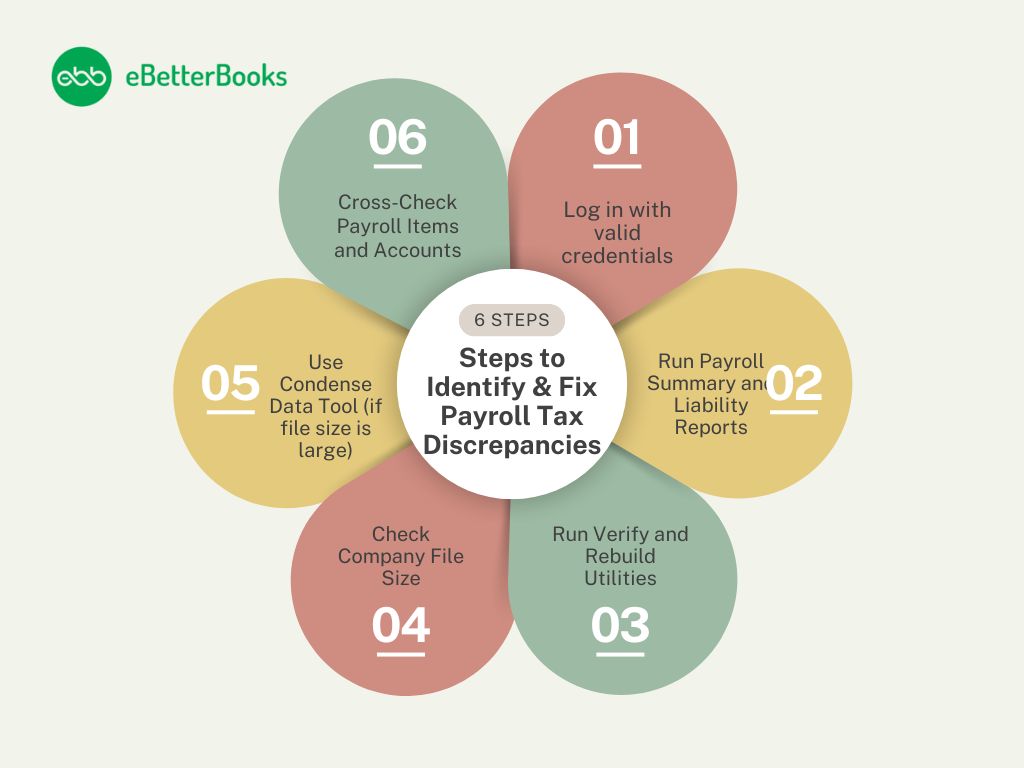
To resolve payroll tax discrepancies in QuickBooks Desktop Pro or Premier Payroll due to file size limitations or data corruption, update QuickBooks, review payroll reports such as Payroll Summary and Payroll Liability Balances, and use built-in tools such as Verify Data Utility and Audit Trail Reports.
These inaccuracies are usually caused by corrupted company files, incorrect liability accounts mapping, or file size issues impacting data integrity. Common problems resulting from these inaccuracies include misreported tax figures, wrong payroll deductions, and tax form generation failures.
Unresolved payroll tax differences in QuickBooks Desktop Pro or Premier Payroll can result in financial misstatements, penalties, and regulatory risks. Payroll processing disruptions can also cause inconsistencies in paycheck computation and tax filings, affecting employee information and business finances.
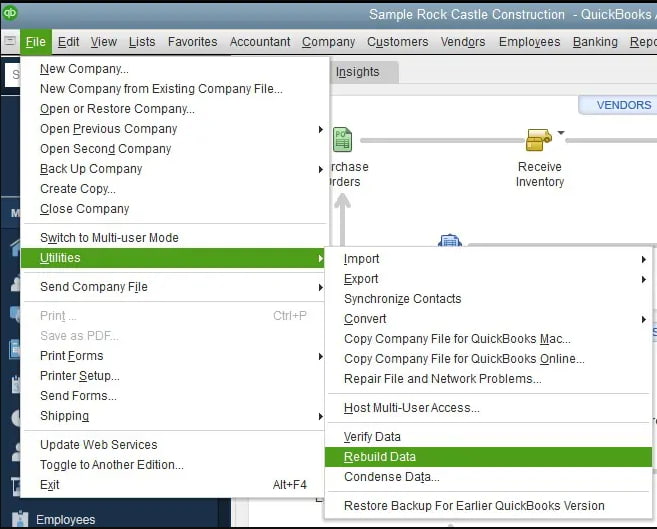
Alternative solutions involve correcting tax settings manually, executing the Rebuild Data Utility to rebuild company files, and applying Journal Entries to resynchronize tax liabilities. Periodic data maintenance, file enhancement, and operating system updating can avoid frequent tax discrepancies.
The article outlines methods for detecting and correcting payroll tax mismatches in QuickBooks Desktop Pro/Premier Payroll, such as steps to verify data, report payroll, correct errors, along with ensuring compliance through proper tax adjustments.
Large file size or corrupted QuickBooks company files slow down processing, disrupt tax calculations, and cause payroll discrepancies. Big or corrupted QuickBooks company files can lead to performance and accuracy problems.
Here’s how it particularly affects payroll:
By systematically reviewing payroll records, detecting inconsistencies, and applying corrective measures, businesses can prevent financial misstatements and payroll processing errors.
The following are the steps to identify and fix payroll tax discrepancies, ensuring accurate tax reporting, correct liability calculations, and compliance with federal and state regulations:
Note: If errors persist after Rebuild, you may need to restore a previous backup or consult with Intuit Data Services.
Avoiding discrepancies is much more effective and less stressful than correcting them. Some best practices to keep your QuickBooks file and payroll information healthy:
Back up your company file before running payroll or updates. This gives you a clean restore point in case something goes wrong. Use cloud or external backups to avoid data loss due to system crashes.
QuickBooks provides features such as verify and rebuild data to check or repair corrupted files. Performing these checks on a regular basis can avoid small problems from escalating into large payroll issues.
Saving your QuickBooks file to a local hard drive (not a network or cloud-synced folder) lowers the risk of file corruption. Network drives or shared folders (such as Dropbox, Google Drive) tend to create multi-user conflicts or sync errors that destroy the data structure.
Manual edits to paychecks or delayed payments can destroy internal links and result in misreporting. Correct them if necessary by using Payroll Adjustment tools or reissue them correctly through the payroll module.
Fixing payroll tax inconsistencies in QuickBooks Desktop Pro/Premier involves immediate error detection and correction resulting from file size restrictions or corruption.
By periodically executing the Verify and Rebuild tools, file size tracking, and best practices, you can help guarantee proper payroll processing and steer clear of compliance problems at significant expense.
Acting proactively to ensure data integrity will not only safeguard your company against mistakes but also facilitate on-time and accurate tax reporting.
Run Verify and Rebuild Data tools, check payroll item settings, and ensure tax tables are updated.
Use Payroll Liability Adjustment to correct any discrepancies in tax liabilities.
Edit the payroll item in the Payroll Item List and adjust the limit or settings as needed.
Issues may arise due to data corruption, incorrect setup, or outdated tax tables—run diagnostics to resolve.


