


Calculating Payroll is one of the most critical functions for Quickbooks. Providing accurate tax calculations is essential for compliance and employee trust. Yet, many users encounter situations where QuickBooks does not calculate payroll taxes correctly.
This issue can arise for several reasons from outdated tax tables and incorrect employee setup to misconfigured payroll items or state unemployment insurance (SUI) rates. It often shows up when processing paychecks, where deductions appear missing, too low, or inconsistent with expected amounts. By downloading a complete payroll summary from Quickbook can provide an overview of each and every item.
It taxes are not calculated correctly then the consequences can be as follows:
- State tax notices
- IRS Penalties
- Incorrect W-2 or 941 penalties
- Employee dissatisfaction
Preventing these errors matters because even small miscalculations can lead to penalties, inaccurate filings, and frustrated employees. Understanding why this happens and how to fix it ensures payroll runs smoothly and your business stays compliant.
Quick Compliance Reminders
Risk, consequences along with their preventive actions are as follows:
| Risk | Consequence | Preventive Action |
| Outdated tax tables | IRS penalties | Always update before payroll |
| Wrong employee setup | Incorrect W‑2 | Audit employee profiles quarterly |
| Incorrect SUI | State notices | Update rates annually |
| Wrong YTD | Ongoing miscalculations | Verify YTD entries during migration |
What Causes Payroll Tax Errors in QuickBooks?
Following are the causes that generally leads to Payroll Tax errors:
1. Outdated Payroll Tax Table or Software
QuickBooks Desktop Payroll relies on regular tax table updates. If your software or tax table is outdated, payroll won’t reflect the latest IRS or state tax rates.
2. Incorrect Employee Setup
- Wrong employee classification (e.g., exempt vs. non‑exempt).
- Missing Social Security/Medicare eligibility settings.
- Incorrect federal/state withholding selections.
3. Payroll Item Issues
- Payroll items (like deductions, additions, and taxes) must be in the correct order.
- If deductions are placed before taxes, calculations may be distorted.
4. Wage Limit Reached
Some taxes, like Social Security, stop after the annual wage limit is reached. If QuickBooks misapplies this, deductions may appear missing.
5. Incorrect Tax or SUI Rates
State Unemployment Insurance (SUI) rates often change yearly. If you don’t update them, payroll taxes will be wrong.
6. Wrong Year‑to‑Date (YTD) Amounts
In QuickBooks Online Payroll, incorrect YTD entries can cause ongoing paycheck miscalculations.
How to Fix Payroll Tax Calculation Issues
Step 1: Update Payroll Tax Table
- In QuickBooks Desktop:
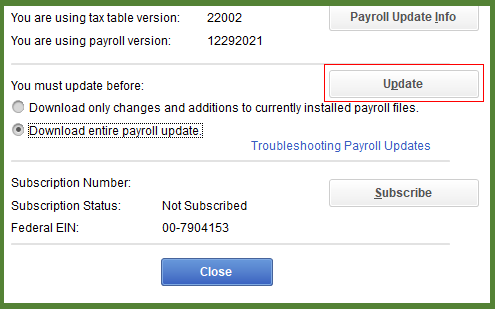
- Go to Employees → Get Payroll Updates → Download Entire Update.
- Make sure your payroll subscription is active.
Step 2: Verify Employee Setup
- Open Employee Center → Edit Employee → Payroll Info.
- Confirm tax boxes (federal/state withholding, Social Security, Medicare) are correctly checked.
Step 3: Review Payroll Items
- Go to Lists → Payroll Item List.
- Right‑click item → Edit Payroll Item.
- Ensure taxes are listed before deductions.

Step 4: Check Wage Limits
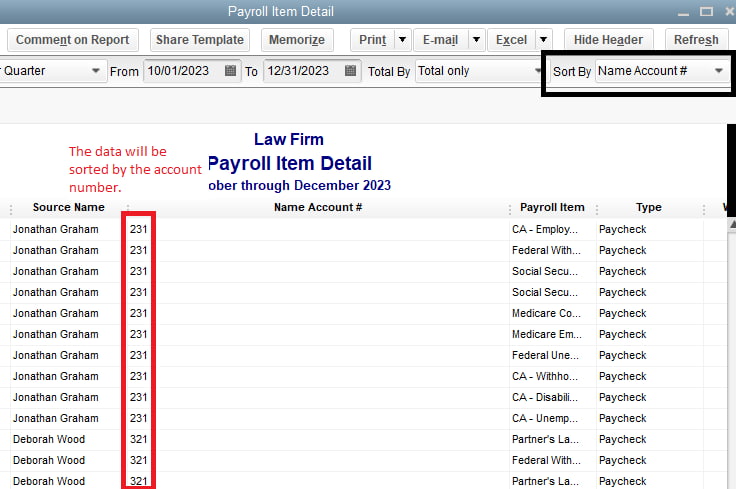
- Run a Payroll Summary Report.
- Verify if Social Security/Medicare limits have been reached.
Step 5: Verify Tax Rates
- Compare QuickBooks tax rates with IRS/state notices.
- Update SUI rates in Company → Payroll Setup.
Step 6: Enable Automatic Calculation (QBDT)
- QuickBooks Desktop has an automatic calculation feature that adjusts overpayments in the next payroll run.
- Make sure it’s enabled to avoid manual corrections.
Prevention Tips
- Always update QuickBooks and payroll tax tables.
- Audit employee setup regularly.
- Run payroll summary reports monthly to catch discrepancies early.
- Cross‑check tax rates annually with IRS/state notices.
- Train payroll staff to recognize wage limits and tax rules.
Conclusion:
QuickBooks payroll tax errors usually stem from outdated updates, incorrect employee setup, or misconfigured payroll items. By keeping your software updated, verifying employee and tax settings, and running regular reports, you can prevent miscalculations and ensure payroll compliance.If payroll taxes still calculate incorrectly after updates and setup verification, it’s best to contact Intuit Payroll Support or a certified QuickBooks ProAdvisor. Persistent errors can lead to compliance penalties, so professional assistance ensures accuracy and peace of mind.
FAQs:
Q1. What is the difference between updating the QuickBooks software and updating the Payroll Tax Tables, and why are both necessary?
QuickBooks software and the Payroll Tax Tables (PTT) are updated through two separate processes, and both are necessary to ensure the entire system functions for compliance and tax accuracy.
- QuickBooks Software Update: This update patches programming bugs, improves security, and updates the software’s overall features and compatibility with the operating system. It is done via Help > Update QuickBooks.
- Payroll Tax Table Update: This update downloads the latest tax rates, wage bases, and state or federal tax formulas required for accurate withholding. It is performed via Employees > Get Payroll Updates and requires choosing Download entire payroll update .
- Necessity: The software update ensures the payroll functions, while the PTT update ensures the payroll calculates taxes at the legally correct current rates.
Q2. How can I use the Employee Withholding Report to identify incorrect tax setup across multiple employees quickly?
The Employee Withholding Report is the primary tool for auditors and bookkeepers to view and verify the tax setup for all active employees simultaneously, making it an essential diagnostic step.
- Report Location: Reports > Employees and Payroll > Employee Withholding.
- Diagnostic Use:
- The report displays key fields like Marital Status, Number of Allowances, and Filing Status for every employee in a single view.
- You can Customize Report to add columns for federal, state, and local tax status, allowing for a quick side by side comparison against your paper Forms W 4 .
- Any inconsistencies in basic setup (e.g., an employee marked as Single but claiming five allowances) will be immediately visible, indicating a data entry error that needs correction in the Employee Payroll Info > Taxes tab.
Q3. When troubleshooting, why is using the “Revert paycheck” feature safer than deleting and recreating a paycheck?
The Revert paycheck feature is designed specifically to undo a calculation error within the payroll system without permanently removing the transaction record, providing an auditable trail.
- Safety and Audit Trail: Reverting the paycheck effectively sets the payroll transaction back to its initial, uncalculated state, allowing you to fix the underlying setup (e.g., allowances, tax item sequence) and recalculate the tax amounts without losing the original check number or transaction ID .
- Deletion Risk: Deleting the paycheck removes the transaction entirely from the system. This can lead to gaps in the check numbering sequence, complicate bank reconciliation, and create confusion in the audit trail.
- Location: Right click on the paycheck in the employee’s payroll information screen and select Revert paycheck.
Q4. How do I verify if a deduction or contribution limit has been exceeded, causing a calculation to stop prematurely?
A premature calculation stop is a primary indicator that the legally defined or manually set annual limit for a specific payroll item has been reached, which must be verified in the payroll item list.
- Verification Steps:
- Go to Lists > Payroll Item List.
- Right click and select Edit Payroll Items for the item in question (e.g., 401k contribution, wage garnishment).
- Navigate to the Limit Type screen .
- Check the total amount entered under the default limit or annual limit field.
- Limit Types: The system must be configured correctly for how the limit renews:
- Annual (Renews every year).
- Monthly (Renews every month).
- One time limit (Stops permanently once reached).
- Fix: If the limit is correct and reached, the calculation is accurate. If the limit is incorrect, adjust the amount in this screen and recalculate the paycheck.
Q5. What is the impact of an incorrect SUI rate on payroll tax calculation, and how do I update it?
An incorrect State Unemployment Insurance (SUI) rate directly impacts the employer’s tax liability and is a common cause of calculation error, requiring manual verification and correction.
- Impact: The SUI rate determines the amount of unemployment tax the employer (not the employee) must contribute to the state. An incorrect rate leads to overpayment or underpayment of employer tax liability, risking state penalties.
- Update Process:
- Go to Lists > Payroll Item List.
- Locate the State Unemployment item and select Edit Payroll Items.
- Follow the wizard to reach the screen where you enter the Company’s SUI Rate .
- Manually enter the new rate provided by your state’s tax agency and finish the wizard.
- Note: SUI rates often change annually, and even with updated PTTs, this field may sometimes require manual correction based on state correspondence.
Q6. Beyond updating the tax tables, what is the sequence I should follow to troubleshoot a payroll calculation error efficiently?
To efficiently troubleshoot a payroll calculation error, follow a logical sequence that progresses from the specific employee data checks to the overall system settings.
- Troubleshooting Sequence:
- Check Employee Data: Verify the employee’s W 4 setup (allowances, filing status) using the Employee Withholding Report.
- Verify Gross Wages: Ensure the employee has sufficient gross wages to trigger the tax calculation minimums.
- Check Limits: Verify if any payroll item limits (deductions, contributions) have been reached, stopping the calculation prematurely.
- Update PTT: Download the latest Payroll Tax Tables via the Employees menu.
- Revert and Recalculate: Use the Revert paycheck function on the affected check line to force a clean recalculation with the updated tax tables.
Q7. If the problem is due to an incorrect Employer Identification Number (EIN), where do I verify and fix the number in QuickBooks Desktop?
The Employer Identification Number (EIN) is critical for tax filing and is verified and corrected within the Company Information section, not the individual employee files.
- Verification Location:
- Go to Company > My Company.
- Click the Edit (pencil) icon next to the company name.
- Navigate to the Company Information section.
- Verify and correct the Federal Employer ID (EIN) in this field .
- Service Key: You should also verify the Payroll Service Key is correct, as this key links your QuickBooks file to the correct tax tables and forms authorized by Intuit. The service key is managed separately under Employees > My Payroll Service.
- Impact: An incorrect EIN will cause problems with tax form creation and e-filing, even if the calculation itself appears right.
Disclaimer: The information outlined above for “How to Fix QuickBooks Payroll Taxes Are Calculating Incorrectly Issue?” is applicable to all supported versions, including QuickBooks Desktop Pro, Premier, Accountant, and Enterprise. It is designed to work with operating systems such as Windows 7, 10, and 11, as well as macOS.