Excerpt:
If you're facing the QuickBooks Payroll Setup Error (e.g., 00000 XXXXX), it's typically due to issues like incorrect employee or vendor data, corrupted files, or outdated software. Resolving it requires correcting these errors, such as updating payroll settings, fixing duplicates, or ensuring proper file formats. The article provides step-by-step solutions to help you get your payroll service activated and running smoothly again, ensuring timely and accurate payroll processing.
 Add As A Preferred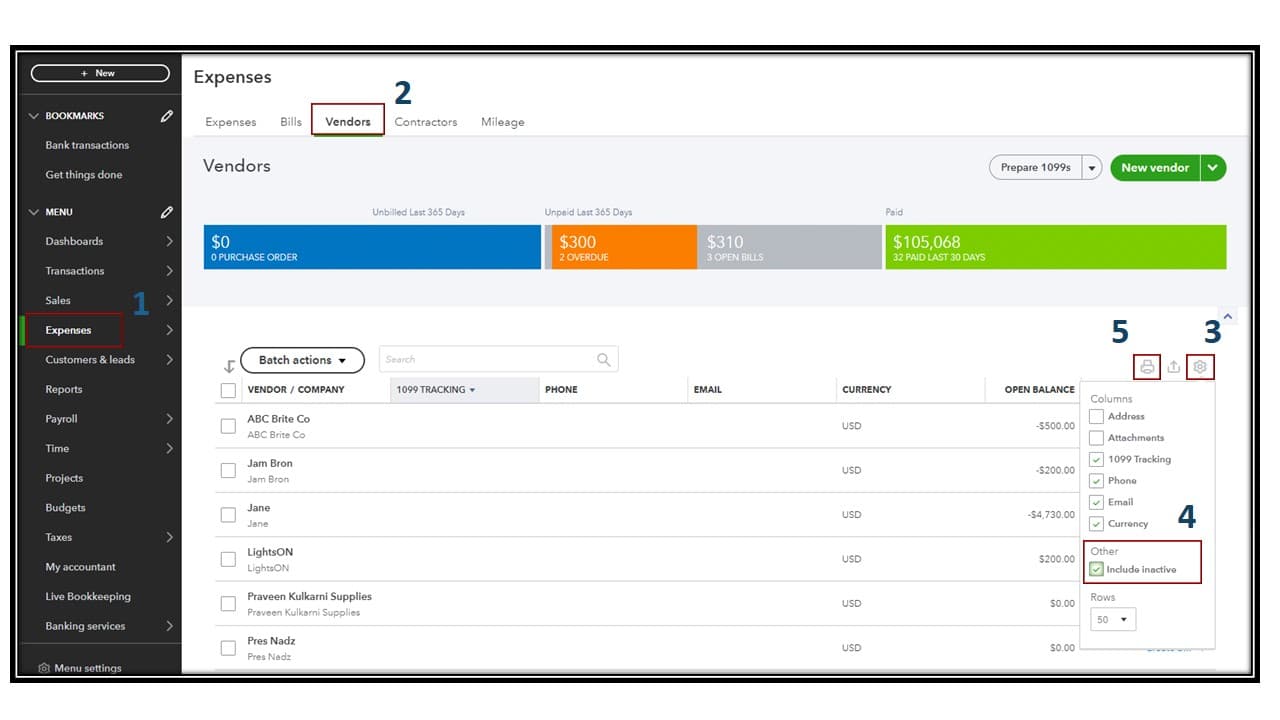
QuickBooks Payroll Setup Error (commonly shown as error codes in the format 00000 XXXXX) occurs when the Payroll Setup Wizard fails to launch or crashes during the configuration process. This prevents users from completing their payroll setup and blocks access to essential payroll services.
If you’re dealing with recurring payroll issues in QuickBooks Desktop, our detailed guide on QuickBooks Desktop Payroll Errors can help you explore broader solutions and prevention tips.
This error is usually triggered by duplicate employee/vendor entries, incorrect file names in the Employee Center, special characters in timesheets, or invalid payroll item mappings. In some cases, corrupted fonts or tax item issues also cause the setup wizard to fail.
The error typically appears when launching the payroll setup wizard inside QuickBooks Desktop. It may also surface when editing employee details, configuring payroll items, or attempting to run payroll for the first time.
Users often see long error codes such as 00000 71328, 00000 20123, or 00000 38049, accompanied by messages like “Payroll Setup Error – The storage category map is invalid for the local tax payroll item” or “This item has already been added.”
Preventing payroll setup errors is crucial because they block payroll configuration entirely. Without resolving them, businesses cannot process paychecks, calculate taxes, or file compliance forms. For small and medium businesses, this can lead to payroll delays, compliance risks, and frustrated employees.
If you’re facing other QuickBooks issues and want to explore more error-specific solutions, check out our complete QuickBooks error codes list for a comprehensive overview and additional troubleshooting resources.
This table will help you spot the error early and confirm it’s the payroll setup issue (00000 XXXXX).
| Indicator | What You’ll See | Next Step |
| Error code display | “00000 XXXXX” or “Unrecoverable Error” | Note the exact code for targeted fix |
| Setup crash/freeze | Payroll setup halts unexpectedly | Restart QuickBooks and retry setup |
| Incomplete/frozen setup | Employee/tax details not saving | Check for blocked or invalid entries |
| Duplicate/special characters | Names or timesheets contain invalid formatting | Remove duplicates or special characters |
| File damage | Data corruption detected | Run Verify Data tool to locate issues |
| Blocked entries in setup report | Certain fields prevent completion | Review setup report for flagged items |
Start with the simplest steps first. These often resolve the issue without deeper troubleshooting.
Error: “Item has already been added. Key in dictionary: ‘[Vendor or payroll item name]’”
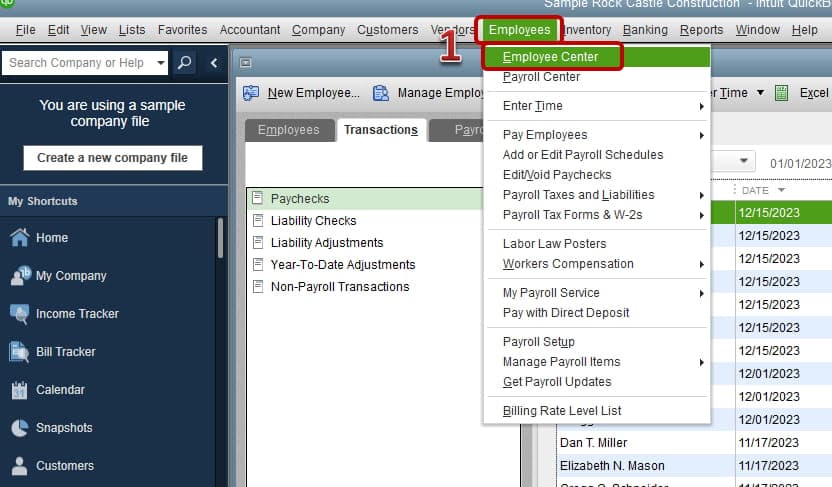
Error: “Item has already been added. Key in dictionary: ‘(unnamed employee)’”
If deletion fails:
| Error Message / Code | Cause | Fix Steps |
| Items have already been added. Key in dictionary: ‘[Vendor or payroll item name]’ | Duplicate vendor or payroll item | Go to Vendor Center / Payroll Item List → Show Inactive → Delete or rename duplicate |
| Items have already been added. Key in dictionary: ‘(unnamed employee)’ | Duplicate employee entry | Go to Employee Center → View All Employees → Delete duplicate employee |
When duplicates aren’t obvious, formatting issues may be the cause.
Error: “Item has already been added…” or “The specified special account already exists”
Error Code: 00000 99867
Error Code: 00000 88703
Error: “Value Does Not Fall Within the Expected Range” (No code)
| Error Message / Code | Cause | Fix Steps |
| Items have already been added… / The specified special account already exists | Employee profile formatting issues | Open each employee profile → Remove extra spaces → Ensure First/Last names filled |
| Error Code: 00000 99867 | Missing state info in employee profile | Add State Lived / State Work columns → Identify missing values → Update Payroll Info > Taxes > State tab |
| Error Code: 00000 88703 | Missing first/last name in employee profile | Open employee profiles → Fill missing names (not just “Print on check as”) |
| Value Does Not Fall Within the Expected Range (No code) | Payroll item amount invalid | Run Payroll Checkup tool → Correct invalid amounts |
| Error PSXXX | Damaged QuickBooks installation files or broken components | Run File Doctor via QuickBooks Tool, Hub to fixe damaged company files that can hinder payroll processing. |
For persistent or system-level errors.
Error: “Font ‘Arial’ does not support style ‘Regular’”
Error: “The storage category map is invalid for the Local tax payroll item”
Step 1: Identify Incorrect Tax Item
Step 2: Compare Reports
Error: System.IO.FileNotFoundException – “Could not load file or assembly…”
Error Code: 00000 11234
Employee names contain spaces or special characters.
| Error Message / Code | Cause | Fix Steps |
| Font ‘Arial’ does not support style ‘Regular’ | Missing/corrupted Arial font in Windows | Repair/reinstall Arial font via IT team |
| The storage category map is invalid for the Local tax payroll item | Local tax incorrectly assigned | Run Employee Withholding Report + Payroll Item Listing Report → Compare → Remove non-“Other” tax items |
| System.IO.FileNotFoundException – Could not load file or assembly… | Missing/corrupted QuickBooks file | Repair QuickBooks via Control Panel → If repair fails, perform Clean Install in Selective Startup mode |
| Error Code: 00000 11234 | Employee names contain spaces/special characters | Open employee profiles → Remove spaces/special characters → Save changes |
Related QuickBooks Errors
If you are experiencing payroll issues beyond the setup wizard, these related errors may also be affecting your QuickBooks Desktop:
| Error | Description |
|---|---|
| QuickBooks Desktop Payroll Won’t Update Problem | Payroll updates fail to download or install correctly |
| QuickBooks Desktop Error 15101 | Update errors caused by security or connectivity issues |
| QuickBooks Desktop Error 9000 | Payroll submission failures due to server or network errors |
Following are the Preventive Measures:
Following is the checklist need to be followed before fixing any issue:
| Prerequisite | Why It Matters | Action |
| Update QuickBooks Desktop/POS | Ensures compatibility with latest payroll features | Install latest release updates |
| Install latest payroll tax table | Provides correct tax calculations | Download and apply current tax table |
| Active payroll subscription | Validates payroll setup | Confirm subscription status in QuickBooks |
| Full company file backup | Protects against data loss | Create a verified backup before changes |
| Single-user mode | Prevents conflicts during setup | Switch QuickBooks to single-user mode |
| Run QuickBooks as administrator | Grants required permissions | Right-click QuickBooks → Run as Admin |
| Stable internet connection | Needed for payroll validation and updates | Test connection before |
QuickBooks Payroll Setup Error (00000 XXXXX) is a critical issue that blocks payroll configuration, preventing businesses from processing paychecks or meeting compliance requirements. It usually arises from duplicate entries, formatting errors, invalid tax mappings, or system-level corruption. A tiered troubleshooting approach starting with basic duplicate checks, moving through employee profile fixes, and escalating to advanced system repairs ensures efficient resolution.
If you’ve followed the troubleshooting steps but the QuickBooks Payroll Setup Error (00000 XXXXX) is still blocking your payroll process, you’re not alone, many users face the same frustration when duplicates, formatting issues, or system glitches refuse to go away. Payroll delays can quickly turn into compliance headaches and unhappy employees, so getting it resolved fast matters. For expert guidance on this and other payroll-related problems, visit our QuickBooks support and troubleshooting page where you’ll find additional fixes, detailed checklists, and step-by-step help tailored for real business scenarios.
ReportHeader.xml file, and how does accessing it via Internet Explorer help?The ReportHeader.xml file is crucial because it controls the display and structure of various QuickBooks reports, including the error details for the payroll setup. An error (like 00000 XXXXX) often indicates this file is corrupted. The troubleshooting step of opening the file in Internet Explorer allows the user to view the raw XML code, which is necessary to locate the specific unrecoverable error detail or exception string (like Exception String 0) that pinpoints the corruption cause, guiding the user to the exact fix.
Deleting an employee record is only safe if it has zero associated payroll transactions or historical data; otherwise, it can severely compromise financial records. The better, safer fix is to modify the name of the duplicate vendor, customer, or employee to make it unique. You can use a middle initial, a numerical identifier (e.g., “John Smith 2”), or an alias in the Print on Check As field. This satisfies QuickBooks’ requirement for unique identifiers without losing essential historical data.
This error, often resolved by creating the Employee Withholding report and Payroll Item Listing report, requires the user to look for Local Tax Items that are not set to the type “Other” in the payroll item setup. The discrepancy indicates that the item’s underlying configuration (the storage category map) is incompatible with the calculation format, leading to the setup failure. The fix involves identifying the employee with the mismatched tax item and removing it from their profile.
A simple space between a first and last name is generally acceptable. However, the error refers to non-visible leading or trailing blank characters (spaces placed before the name) or unsupported special characters (like extra punctuation or symbols). These invisible characters are treated as invalid data by the software’s verification process and can cause the payroll setup wizard to crash. Manually re-entering the first and last name ensures only valid characters are used.
QuickBooks uses font files for report generation, display elements, and forms (like paychecks). This error means the Arial font file is either missing, corrupted, or not properly registered in the Windows operating system. When the payroll setup attempts to compile a required report or display a specific component, the missing or damaged font file causes a system error, leading to the setup crash. The fix involves correctly reinstalling a known-good copy of the Arial font.
Comparing the Employee Withholding report and the Payroll Item Listing report is a critical data audit step. Its purpose is to efficiently identify and isolate the exact issue. By comparing the list of assigned local taxes (Withholding Report) against the status and type of all tax items (Listing Report), you ensure you only delete or edit the specific, faulty local tax item that is assigned to an employee, preventing accidental modification of correct tax data.
If all component-level fixes (duplicates, tax items, XML files) fail, the most likely underlying issue is structural data damage within the QuickBooks company file (.QBW) itself. This deep corruption can prevent new configuration data (like payroll setup) from being saved correctly. The solution requires running the QuickBooks File Doctor utility or performing a Data Verify/Rebuild within the Utilities menu to repair internal links and corrupted records.


