Excerpt:
QuickBooks Error 15107 typically occurs during payroll updates, causing disruptions due to issues like poor internet connection, corrupted files, or conflicts with third-party software. To resolve it, check your internet connection, adjust security settings, run QuickBooks tools like Quick Fix My Program, and ensure your system has enough disk space. Following these steps will help restore successful payroll updates and prevent further issues.
 Add As A Preferred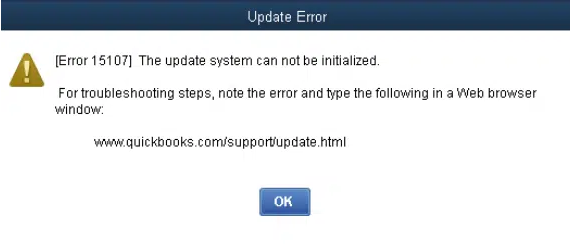

QuickBooks Error 15107 is an update-related error that occurs when users try to download QuickBooks Desktop updates or the latest payroll tax table. It belongs to the 15XXX series of update errors and typically appears with a message stating that the update system cannot be initialized.
This error indicates that QuickBooks is unable to properly launch or connect to its update service, preventing the software from completing essential program or payroll updates. It is generally caused by issues such as damaged installation files, incorrect system or internet settings, inactive payroll subscription status, or problems with digital signature verification.
Error 15107 appears when QuickBooks Desktop cannot initialize an update, including payroll tax table downloads. Intuit groups it with the 15XXX update errors and attributes the group to six shared causes. Interruption and connectivity causes come from third-party guides.
QuickBooks Payroll Update Error 15107 generally occurs when the system fails to download or install payroll updates due to configuration issues, disabled services, or damaged program components. The following troubleshooting solutions address the most common causes and help restore the update process so you can successfully download payroll and product updates in QuickBooks Desktop.
Running QuickBooks with administrative privileges grants the program full system access required to install updates. Without these permissions, Windows security settings may block the update process and trigger payroll update errors like 15107.
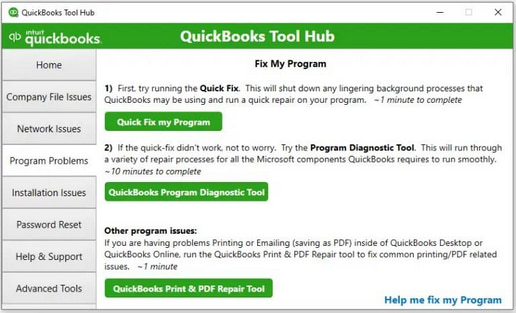
Background QuickBooks processes or minor program glitches may interrupt the update process. Running Quick Fix My Program closes active background tasks and performs a quick repair of the application, which restores normal functionality and allows updates to download correctly.
The QuickBooks Tool Hub helps to fix common errors. You’ll need to close QuickBooks to use the tool hub. For the best experience, we recommend you use Tool Hub on Windows 10, 64-bit.
Note: To find out which tool hub version you have, select the Home tab and the version will be on the bottom.

Note: If you are unable to find the icon, do a search in Windows for QuickBooks Tool Hub and select the program.
The Quick Fix will shut down any open background processes QuickBooks uses. It’ll run a quick repair on your program.
The QuickBooks File Copy Service (FCS) manages internal file transfers used during program updates. If the service is disabled or not functioning properly, QuickBooks cannot process update files correctly. Enabling the service restores the update process and helps eliminate Error 15107.
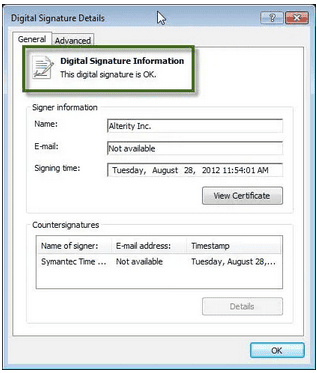
QuickBooks verifies update files using a digital signature certificate issued by Intuit. If the certificate is missing or not installed properly, the system cannot validate update files, which prevents updates from installing. Installing the certificate restores secure verification and allows the update to proceed.
Damaged Microsoft components such as .NET Framework, MSXML, or Visual C++ libraries may prevent QuickBooks from verifying update files. The Install Diagnostic Tool automatically detects and repairs these components, which restores the program’s ability to install updates.
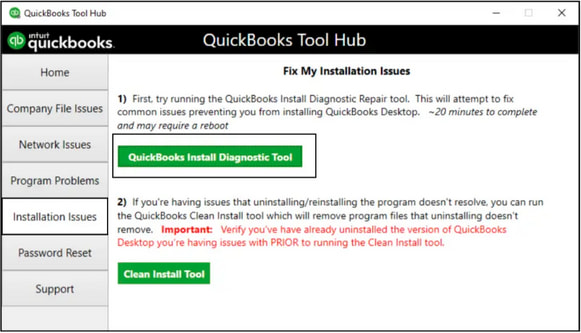
Corrupted or missing QuickBooks installation files can interfere with the update process and lead to Error 15107. Uninstalling and reinstalling QuickBooks Desktop replaces damaged program components, restores essential files, and helps the application install payroll and product updates successfully.
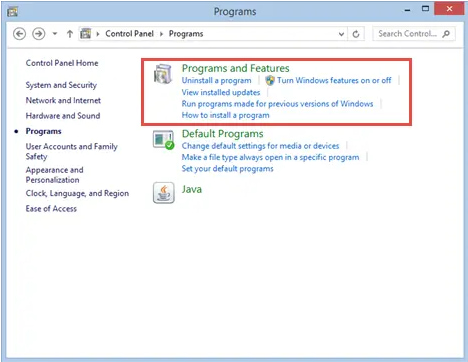
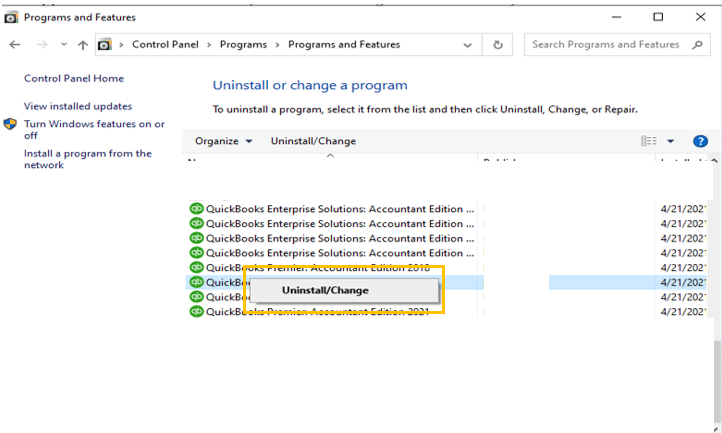
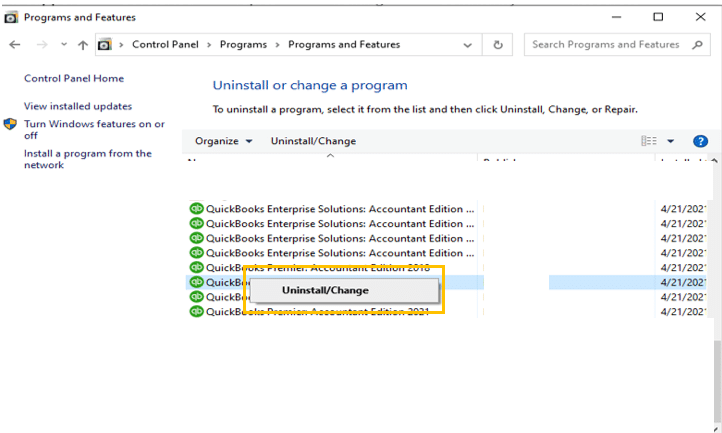
Note: If you don’t get this option on your display, sign out and sign back into Windows as an administrator.
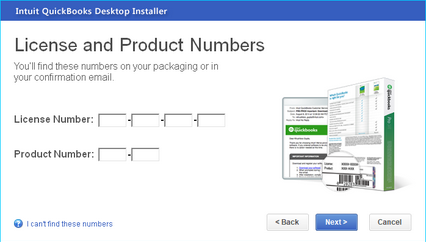
Note: Type the credentials just as they were mentioned in the system earlier.
Running an outdated version of QuickBooks may prevent payroll updates from installing properly. Updating QuickBooks ensures the program has the latest fixes and compatibility improvements.
Estimated Resolution Time: 5–10 minutes
Success Rate: 50–55%
Note: The latest payroll update number is 22604 released on January 22, 2026.
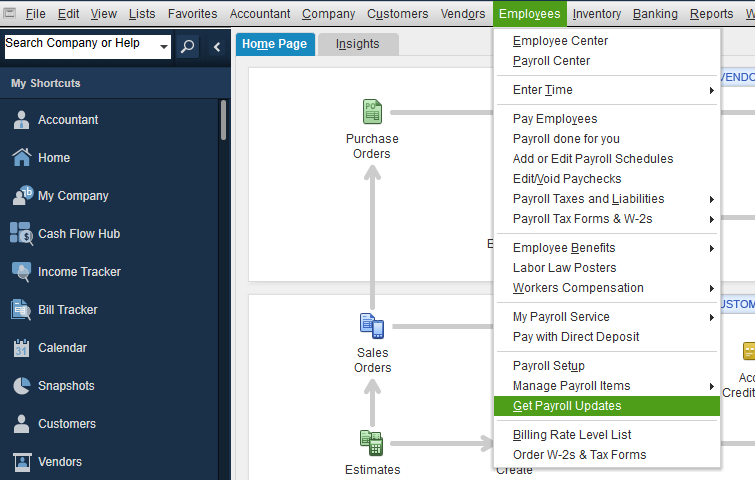
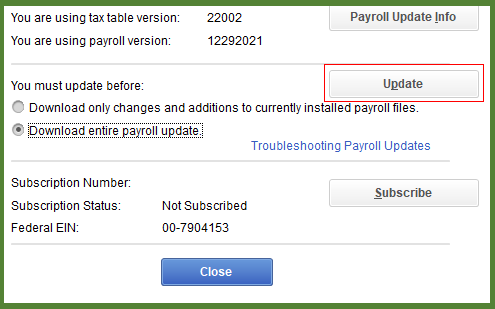
QuickBooks Error 15107 is an update-related issue that prevents users from downloading essential program and payroll updates. Since it belongs to the 15XXX error series, it is typically linked to configuration conflicts, damaged system components, or security restrictions that interfere with the update process.
The error can arise from causes such as damaged payroll update files or problems with the Shared Download drive. Resolving it involves applying targeted solutions like repairing or replacing corrupted payroll files, remapping the Shared Download folder, running Quick Fix My Program from the QuickBooks Tool Hub, or verifying digital signatures.
These solutions help to restore QuickBooks update functionality, ensure accurate payroll processing, and keep the software current with the latest tax tables, which maintains smooth and reliable accounting operations.
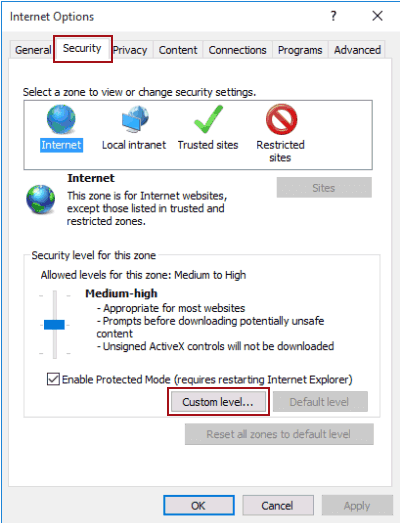
Yes. QuickBooks payroll updates require direct and unimpeded access to Intuit’s servers to download the latest tax table information. If you use a VPN (Virtual Private Network) or a proxy server, these services can sometimes interfere with the secure connection process, causing the update to fail and triggering Error 15107. The connection is often timed out or the data integrity check fails due to the routing interference. Intuit generally recommends temporarily disconnecting from a VPN or configuring the proxy to allow QuickBooks and its associated ports (specifically port 443 for secure SSL/HTTPS traffic) to pass through without restrictions during the update process.
Ignoring Error 15107 means you are running payroll using an outdated tax table. The primary risk is financial non-compliance. This results in:
➜Incorrect Tax Calculations: Withholding the wrong amount of federal, state, or local taxes from employee paychecks.
➜IRS/State Penalties: Filing incorrect quarterly or annual payroll tax forms (like Form 941 or state equivalents) due to outdated rates, leading to potential fines or interest charges.
➜W-2 Inaccuracies: Generating incorrect W-2 forms at year-end, which creates complications for employees filing their personal tax returns.
Yes, while the primary causes are network/file-related, one of the fundamental checks for this and related update errors is verifying sufficient disk space. The payroll update file, though small, requires working space to download, extract, and replace the old tax table files. If the hard drive is critically low on space (often defined as less than 10% of total capacity remaining), the update process can fail the file extraction or replacement step, leading to corruption or an unexpected error code like 15107.
Absolutely. Intuit confirms that QuickBooks uses .NET Framework, MSXML, and Visual C++ runtime components during the update process. Outdated or corrupted components can prevent updates from installing or verifying.
Yes, you can still process paychecks, but you must manually handle the tax calculations, which is highly discouraged due to the risk of error. If the update fails, your QuickBooks software will use the last successfully downloaded tax table. You can manually override the tax amounts on each paycheck, but you would need to get the official, current tax rate schedules directly from the relevant tax authorities (IRS, state DOR, etc.). Intuit strongly recommends resolving the error and successfully downloading the update to ensure accuracy and compliance.


