 Add As A Preferred

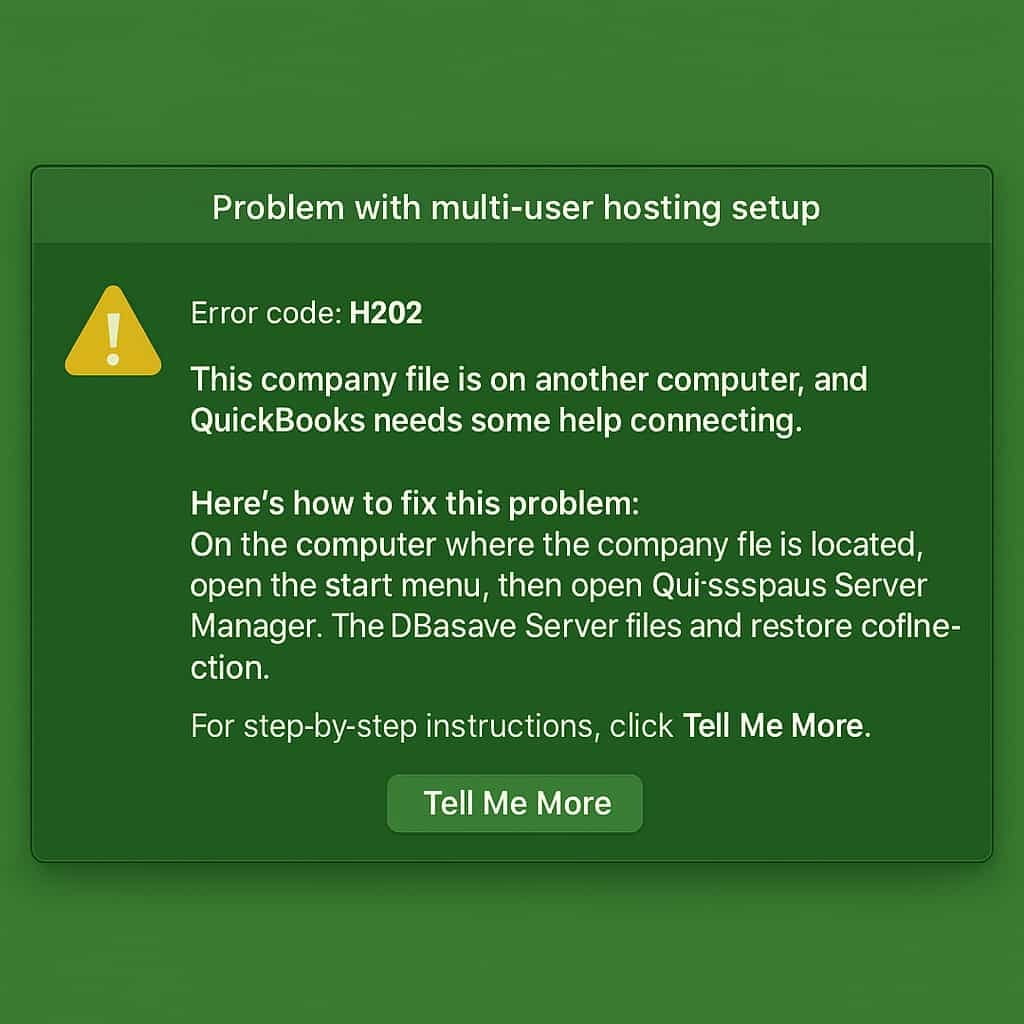
To fix the QuickBooks H202 error, first ensure only the server hosts the company file by checking hosting settings, then use the QuickBooks Tool Hub to run the QuickBooks Database Server Manager.
Configure your firewall to allow QuickBooks through, edit the Windows hosts file on the workstation to include the server’s IP and name, and restart your computer, if the issue continues.
QuickBooks Error H202 occurs when a workstation fails to connect with the host server in a multi-user environment. This interruption usually results from incorrect hosting configurations, blocked network ports, or inactive QuickBooks Database Server Manager services.
The problem prevents communication between the workstation and the server that holds the company file, disrupting multi-user access.
This article explains the primary causes behind QuickBooks Error H202, focusing on issues with hosting setup, network configuration, and connectivity restrictions. You will learn how to verify server visibility, activate the Database Server Manager, adjust firewall and port settings, and confirm that hosting is properly configured.
By following the outlined solutions, you can restore seamless communication between workstations and the server, ensuring stable multi-user performance in QuickBooks.
QuickBooks Error H202 occurs when the workstation cannot communicate with the server hosting the company file, disrupting multi-user mode. The following quick fixes address common causes such as network connectivity failures, hosting misconfigurations, and blocked communication ports to restore seamless access to the shared file.
If QuickBooks Error H202 is not caused by file corruption or software bugs, but is due to misconfigured hosting and blocked connectivity. Resolving the network path and correcting the host setup eliminates the root issue. Focus on verifying service status, network permissions, and proper host identification to restore seamless access in multi-user mode. To fix this issue, follow these steps:
Verifying network connectivity helps confirm whether the workstation can successfully communicate with the host server. If the connection test fails, it indicates that the problem lies within the network setup, firewall restrictions, or server accessibility, which must be resolved before proceeding to further troubleshooting steps.
Before you can ping the server, you need to know its IP address. Here’s how to find it:
Now that you have the server’s IP address, you can ping the server from your local machine to check connectivity:
In the Command Prompt, type the following command, replacing <Server IP Address> with the server’s actual IP address: (ping <Server IP Address>)
Example: ping 192.168.1.100
After you run the ping command, you’ll see the results in the Command Prompt. Here’s what the results mean:
If the ping test fails, here’s what you can do:

Please ensure that QuickBooks Database Server Manager is installed and running on the host machine where the company file is stored. To do so, follow the steps below;
How it Works: This step ensures that the necessary server-side services are active, allowing the workstation to access the company file.
If your host machine does not have QuickBooks Database Server Manager installed, then follow the steps below;
If the H202 error is due to incorrect hosting configuration, it’s usually because hosting is enabled on one or more workstations instead of only on the server. Follow these steps to correct this:
To prevent hosting conflicts and resolve QuickBooks Error H202, make sure only your server is set to host the company file. Each workstation (the computers used to access QuickBooks) should not be hosting. Follow these steps on every workstation:
How this fixes the error: Disabling hosting on workstations ensures that QuickBooks understands the server as the sole host, allowing the other workstations to access the file in multi-user mode.

To allow workstations to access the company file, make sure hosting is turned ON only on the server ( the system where your company file is stored).
Perform these actions on the computer where your QuickBooks company file is physically stored:
How this fixes the error: Enabling hosting only on the server sets up the correct environment for multi-user access, which resolves the H202 error caused by conflicting host settings.

A blocked network connection can trigger the error H202, especially if your firewall or antivirus software is preventing QuickBooks services from communicating between the server and workstations. To fix this, you need to add exceptions for QuickBooks.
Perform these actions on the computer where your QuickBooks company file is physically stored:
To open Windows Defender Firewall:
If you’re using a third-party firewall, open the software and look for firewall settings or exceptions.
In order to ensure that QuickBooks services can communicate between the server and the workstations, you need to allow QuickBooks to pass through the firewall by adding inbound and outbound rules for the necessary ports.
If you are using an antivirus program or security suite, it may also be blocking the communication needed for QuickBooks. Follow these steps to add exceptions for QuickBooks in your antivirus software:
Once you’ve adjusted the firewall and antivirus settings, test the connection:
How this fixes the error: Proper firewall and permissions settings ensure that QuickBooks can freely communicate between the host and workstation without being blocked, resolving any connection issues that may trigger the H202 error.
By carefully following these solutions tailored to the multi-user hosting setup and incorrect hosting configuration, you can effectively fix the H202 error. Ensuring the host is correctly set up, running necessary services, and verifying the network path eliminates the root cause of the problem, restoring seamless access to your QuickBooks company file.
In conclusion, resolving QuickBooks Error H202 requires verifying network connectivity, correcting hosting configurations, and ensuring that essential QuickBooks services are active on the server. By implementing these quick fixes, users can re-establish stable multi-user communication and prevent future interruptions in accessing the company file.
The Database Server Manager is crucial for allowing workstations to connect to the host server. If this service is not running, the workstation cannot access the company file. Ensure it’s installed and running on the server where the file is stored to fix the H202 error.
In QuickBooks multi-user mode, only the server should host the company file. If hosting is enabled on workstations, it can cause conflicts and confusion for QuickBooks, leading to Error H202. Ensuring that hosting is disabled on workstations and enabled only on the server prevents these conflicts, allowing smooth access to the company file across multiple users.
To check network connectivity, use the ping command from the workstation to the host server. This will verify if the workstation can reach the server over the network. If the ping fails, it indicates a network issue that must be resolved to fix the H202 error.
Firewalls or antivirus software blocking the necessary QuickBooks ports (such as 8019, 56728, and 55378-55382) can cause H202 error by preventing communication between the workstation and the server. To fix this, you must configure your firewall and antivirus software to allow QuickBooks ports for both inbound and outbound traffic.


