Excerpt:
Having trouble setting up a multi-user environment in QuickBooks Desktop Enterprise 2024? This guide helps you resolve connection and access issues by walking you through proper hosting setup, folder sharing, user permissions, and network configuration—ensuring multiple users can access the same company file securely and without interruption. It’s designed to help you fix the root cause and get QuickBooks working smoothly across multiple systems.
 Add As A Preferred
Hey,I’m Elizabeth Zeller, and I’ve been trying to set up QuickBooks Desktop Enterprise 2024 on three computers in our office, but I keep running into problems and honestly starting to feel stuck.
We’re trying to get a multi-user environment going so that more than one person can work in the system at the same time, but the installation process hasn’t been smooth at all. I first installed QuickBooks on our main office PC, and that part seemed okay at first — it launched, asked for the license info, and even opened up the sample file. But things started to get messy when I tried installing it on the second and third computers. On one of them, the installer froze halfway through, and on the other, QuickBooks installed but won’t open properly. In one case, I got a weird error message right after install, and in another, it can’t even find or connect to the company file stored on our shared drive.
I made sure all three PCs are on the same network and I’m using the same license info on all of them, but for some reason, QuickBooks just won’t behave the same way across the devices. I’m also not sure if I’m supposed to install the Database Server Manager separately on the additional workstations or just on the main one. I haven’t gotten any clear answers yet, and the resources I found online are either outdated or super technical.
I don’t know if it’s a permissions issue, a network setting, or just something specific to this new version, but I’d really appreciate some guidance before I spend another day trying to troubleshoot this.
Hi Elizabeth Zeller,
Thank you for sharing such a detailed explanation — it really helps to understand where things stand. You’ve already taken some great steps by installing QuickBooks Desktop Enterprise 2024 on your main office computer, entering your license information correctly, and confirming that all three PCs are connected to the same network. That’s a strong start, and you’re actually well on your way to enabling multi-user access.
Since you’ve run into installation issues on the other two computers and trouble connecting to the shared company file, there are just a few more key things to check and adjust. These include properly setting up hosting roles, sharing the company file folder with the right permissions, and making sure QuickBooks Database Server Manager is installed and running on the main PC only. With a little fine-tuning on these parts, you’ll be able to get all three systems working seamlessly together in a multi-user environment.
Important:
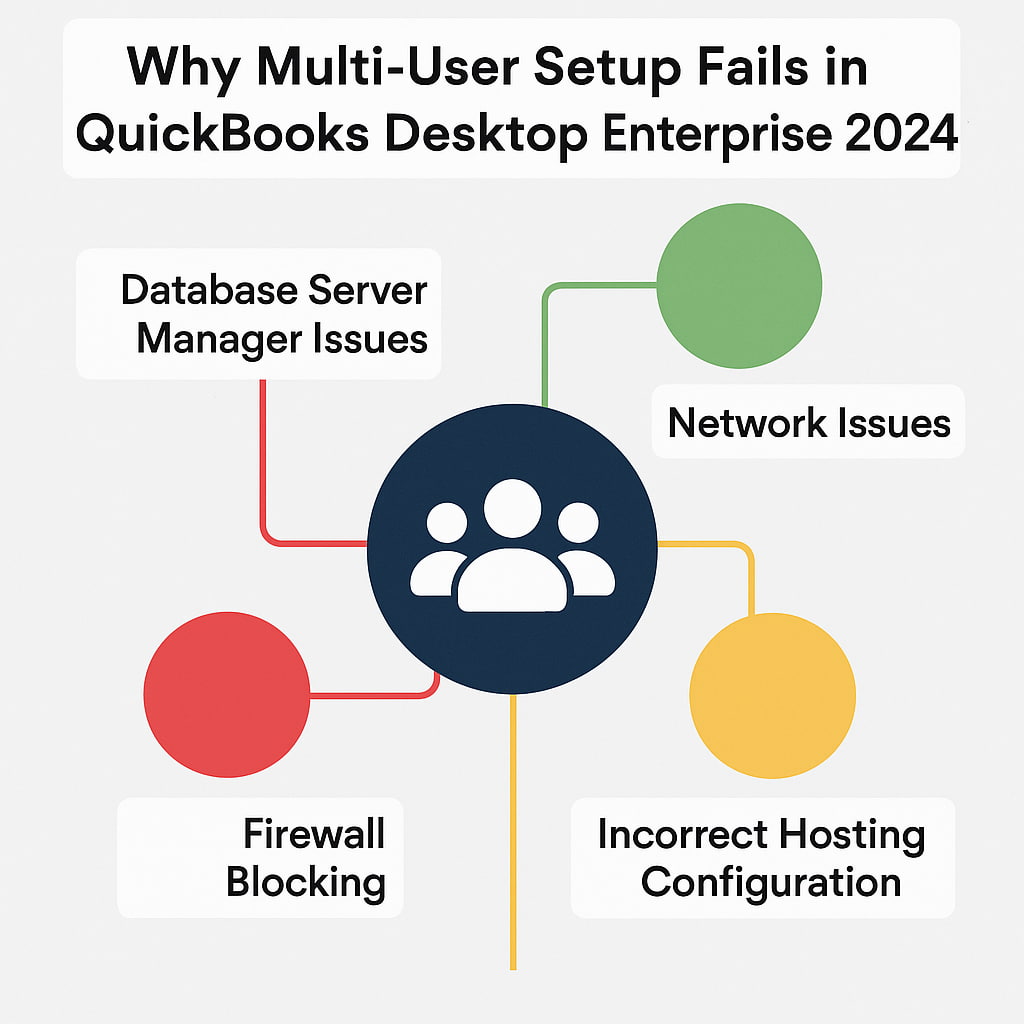
Multi-user access can be restricted due to network misconfigurations, wrong firewall settings, or improperly assigned hosting roles between computers. There are a few common reasons why you’re getting trouble when setting up multi-user mode in QB Desktop Enterprise 2024.
Setting up multi-user mode in QuickBooks Desktop Enterprise 2024 allows multiple users to work on the same company file at the same time. If you’re working on two or more computers, make sure that the QuickBooks is installed on all the systems but the QB Database server manager should be installed only on the Host PC where the company file is stored.
These steps are used to install QuickBooks on either a dedicated server or computers that access the data on a server. This can also be a Terminal server or a server that hosts both QuickBooks and your company file. When you access your company file from a server, make sure to use the direct path to your company file.
After the installation, QuickBooks will ask you to activate and update it.
Install QuickBooks Database Server Manager on the server computer — the one where your company files are stored and shared.
Recommendation: If you’re an accountant or someone who hosts multiple versions of QuickBooks Desktop on your network, install them in order. Install the oldest version first and end with the most recent.
Note: QuickBooks creates a new Windows user for each version of Database Server Manager. For instance, Database Server Manager 2023 shows up as QBDataServiceUser33.
Give QBDataServiceUserXX (where XX represents the QuickBooks version number) permission to access the folders that hold your company files. You may see these users whenever you set system-level permissions and it is essential for multi-user functionality.
When setting up multi-user in Quickbooks Desktop, save your company files on your server computer’s local hard drive. This makes it easier to share them over your network. Check the folder permissions on your server computer, so we can make sure that the folder holding your company files has permission to be on your network.
When you’re ready, follow these instructions below:
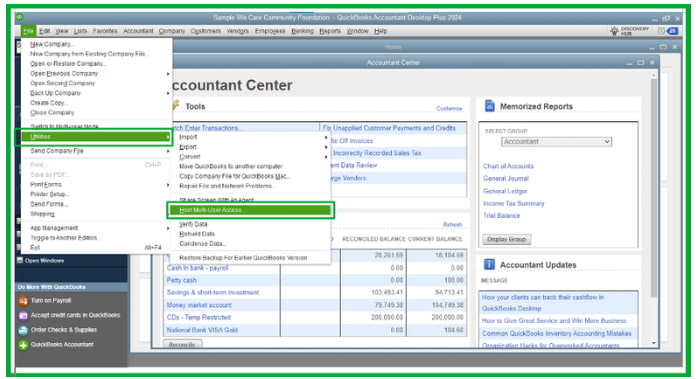
Enable the Hosting only on the host computer to give other systems access to your QuickBooks company file and it should always be connected when others need access.
You can access a folder stored on another drive, server, or computer over a network when you map a network drive. Mapping makes it easy for you to access QuickBooks company files from the shared storage.
There are two ways to open company files in Multi-user mode automatically. The first one is to check the Open file in the multi-user mode option.
Each time you open the company file from the computer, the multi-user mode will be enabled. You can do this on every workstation.
The second one is to edit the QBWUSER.INI file and then change the MULTIUSERMODE value.
When the system reverts the file to the original value, do this:
From choosing the right installation options to adjusting firewall settings and folder permissions, each step plays a crucial role in how smoothly your multi-user environment will function. Follow these pointers carefully to avoid the most common issues users encounter during multi-user setup in QB Desktop Enterprise 2024.
Elizabeth, this is not your fault — the multi-user setup in QuickBooks Desktop Enterprise 2024 can be tricky, even for experienced users. The newer version has some tighter rules around permissions and network access, which can make the process feel frustrating.
But you’re handling it with calm and determination, and that already shows you’re on the right path. With just a few clear steps, you’ll have all three systems connected and working together smoothly — and you won’t have to do it alone. We’re here to guide you through every part of the process until everything runs just the way it should.


