Excerpt:
QuickBooks Error Code 15227 typically arises during installation due to corrupted or incomplete QuickBooks files, damaged Windows registry, or malware. This error can cause system crashes and hinder the software’s functionality. To resolve it, you can perform a clean installation, update QuickBooks and Windows, or repair the Windows registry. These solutions will help restore proper functionality and prevent the error from recurring.
 Add As A Preferred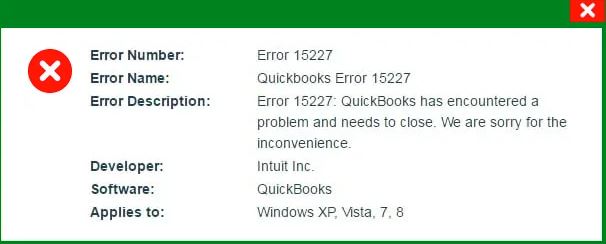
Fix QuickBooks Error 15227 by:
QuickBooks Error 15227 appears with a message indicating the update cannot be downloaded or installed. The Intuit QuickBooks Community confirms this error fires during the QuickBooks Desktop or payroll update process – specifically when something on the computer blocks QuickBooks from completing the download or registering the update files correctly.
Error 15227 stops new payroll tax tables from installing. A payroll tax table is the file QuickBooks uses to calculate the correct federal, state, and local tax amounts on employee paychecks – without the latest one, payroll calculations can be wrong. The error also blocks QuickBooks Desktop software updates, which means new features, bug fixes, and security patches cannot reach the computer until the error is resolved.
The Intuit QuickBooks Community documents that Error 15227 on older, no-longer-supported versions of QuickBooks Desktop – such as QuickBooks Premier 2014 – carries a different meaning. For those versions, Intuit confirmed the error indicates no new updates exist in that software’s update channel, because Intuit no longer issues updates for discontinued versions. Users on discontinued versions need to either upgrade to a supported version or export their data manually to continue working.
QuickBooks Desktop updates happen in three stages.
Error 15227 fires in the second or third stage – after QuickBooks reaches Intuit’s servers but before the update files are accepted and registered correctly on the computer. The Intuit QuickBooks Community confirms this is why simply retrying the update without changing anything on the computer does not resolve it – the same block is still in place on every retry.
Error 15227 is specifically an update registration or download completion error, not a login error. Other QuickBooks update errors – such as Error 15106, which fires when the update file cannot be extracted, or Error 15215, which fires when QuickBooks cannot verify the update server – are related but different. Error 15227 points to the computer’s security settings, a corrupted existing installation, or a missing digital verification file as the source of the failure.
The Windows Firewall is a security program built into every Windows computer. Its job is to control which programs on the computer are allowed to send and receive data over the internet. The Intuit QuickBooks Community confirms that if the Windows Firewall is blocking QuickBooks from reaching Intuit’s update servers, or from completing the download, Error 15227 appears – because the update connection is cut before the files can arrive completely.
When QuickBooks Error 15227 appears (typically in the results list after running Product or Payroll updates), users typically see one of these:
Unlike most other codes on this list, 15227 functions more as an informational status code within the update log than a true error, most commonly appearing for tools/components that simply haven’t required maintenance yet. Intuit staff on the Community forum have described it as generally not requiring action.
Sourced from an Intuit Community exchange.
Error 15227 stops all payroll tax table updates from installing on the computer. Every payroll run that uses outdated tax tables produces paychecks with potentially incorrect withholding amounts – which creates tax filing errors that must be corrected retroactively with the tax authority.
QuickBooks Desktop software updates also cannot install while Error 15227 is active. This means the computer stays on an older version of QuickBooks until the error is resolved – missing security fixes, calculation improvements, and feature updates that Intuit has released since the last successful update.
| Unresolved Cause | What Keeps Happening as a Result |
| Reboot.bat not run after the error first appeared | The .DLL and .OCX files QuickBooks needs to register updates remain in their previous broken state – each new update attempt fails in exactly the same way because the registration process never had a chance to reset |
| QuickBooks Tool Hub repair skipped | Minor corruption in the QuickBooks program files continues to block update installation – running Quick Fix My Program costs five minutes and resolves these cases without any reinstallation risk |
| Windows Firewall blocking QuickBooks update ports – not addressed | Every update attempt is cut off at the firewall before the download completes – the error reappears on every retry until the correct firewall exceptions are created for QuickBooks |
| Digital signature certificate not verified | Windows refuses to register the update file because it cannot confirm the file came from Intuit – the update is treated as untrusted and rejected on every attempt until the certificate is installed correctly |
| Clean reinstall avoided out of concern for data loss | The error continues indefinitely – a clean reinstall does not delete QuickBooks company data files, so avoiding it only extends the period during which payroll and software updates cannot reach the computer |
| Payroll runs continued without resolving Error 15227 | Each payroll run processed on outdated tax tables creates a filing discrepancy – the further the error goes unresolved, the more payroll periods need to be reviewed and corrected |
The Intuit QuickBooks Community also confirms that some users running QuickBooks Premier 2014 encountered Error 15227 specifically because Intuit stopped issuing updates for that version. For those users, no repair step resolves the error – because there is genuinely nothing new to download. The only path forward confirmed by Intuit is upgrading to a supported version or exporting company data manually for import into QuickBooks Online.
Check the QuickBooks Desktop version before applying any fix. A currently supported version showing Error 15227 needs the repair steps in this guide. An unsupported version – such as QuickBooks Desktop 2014 or earlier – showing Error 15227 needs an upgrade path, not a repair, because Intuit no longer sends updates for those versions.
| When Error 15227 Appears | Why This Is Happening | Recommended First Action |
| Error 15227 on a currently supported QuickBooks Desktop version during a software or payroll update | A registration file for QuickBooks updates is broken or unrecognised – the update process starts but cannot complete the file registration step | Run the Reboot.bat file from the QuickBooks installation folder – this re-registers all QuickBooks-related files with Windows and resets the update registration process |
| Error 15227 after Reboot.bat was already run and the update still fails | Minor corruption exists in the QuickBooks program itself that Reboot.bat cannot fix alone | Open QuickBooks Tool Hub, go to Program Problems, and run Quick Fix My Program – this repairs the QuickBooks program files without touching company data |
| Error 15227 alongside a Windows security or firewall notification | The Windows Firewall or antivirus software is blocking the QuickBooks update connection before it can complete | Run QuickBooks File Doctor from Tool Hub first to configure the firewall automatically – then set up manual firewall exceptions if File Doctor does not resolve the block |
| Error 15227 on QuickBooks Desktop 2014 or an older unsupported version | Intuit no longer issues updates for that version – the update channel is empty and the error confirms no new files exist for it | Contact Intuit about upgrading to a supported version, or export company data via Excel for manual import into QuickBooks Online |
| Error 15227 returning after every repair attempt on a supported version | The QuickBooks installation itself is corrupted beyond what individual repairs can fix | Perform a clean reinstall – download a fresh installer, rename the old QuickBooks folders, uninstall, and reinstall – this replaces every installation file without deleting company data |
| Error 15227 immediately after a new Windows update or antivirus software update | A recent change to Windows or the antivirus reconfigured the security settings and closed off QuickBooks update access | Verify the antivirus software is not set to block QuickBooks, then check the Windows Firewall advanced settings to confirm QuickBooks has active inbound and outbound rules |
The Reboot.bat file is a built-in QuickBooks tool that re-registers all the supporting files QuickBooks uses to communicate with Windows and complete updates. These supporting files are called .DLL files (Dynamic Link Library files – small programs Windows shares between multiple applications) and .OCX files (ActiveX control files – small programs that handle specific tasks inside the application). When these files become unregistered or damaged, QuickBooks cannot complete the update installation process and returns Error 15227.
Running Reboot.bat forces Windows to re-recognise all of these files as valid and trusted – resetting the update process from a clean starting point. The Intuit QuickBooks Community confirms this step resolves Error 15227 in a significant number of cases where the error is caused by registration file problems rather than firewall or installation issues.
QuickBooks Tool Hub is a free program published by Intuit that packages several repair utilities in one place. It is downloaded separately from QuickBooks and installed on the same computer. Quick Fix My Program is one tool inside the Tool Hub – it closes any QuickBooks background processes that are running and interfering with the update, then repairs the QuickBooks program files to remove minor corruption.
The Intuit QuickBooks Community confirms that background QuickBooks processes – programs that run quietly in the background even when QuickBooks is not open on screen – can conflict with an update that is trying to replace or register files those same background processes are currently using. Quick Fix My Program ends those conflicts before they block the update again.
A digital signature certificate is a small file that proves a program or update file genuinely came from the company that claims to have made it – in this case, Intuit. Windows checks this certificate before allowing the update file to be installed. The Intuit QuickBooks Community confirms that if this certificate is missing, expired, or not installed in the correct location on the computer, Windows refuses to register the QuickBooks update file and returns Error 15227.
Installing the certificate correctly tells Windows that the QuickBooks update file is genuine and trusted, which allows the update registration to complete without being rejected by Windows security.
Solutions are arranged from the fastest and safest first action to the most involved repair. Start with Level 1, which resolves Error 15227 in the majority of cases in under ten minutes. Move to Level 2 only after Level 1 does not clear the error.
| Level 1 – Reboot.bat and QuickBooks Tool Hub Repair |
These steps carry no risk to QuickBooks company data. They address the most common confirmed cause of Error 15227 – broken update registration files and minor program corruption – without disconnecting any accounts, changing any settings, or removing any company information.
| Skill Level | Risk Level | Success Probability | Approximate Time |
|---|---|---|---|
| Beginner | None | High for errors caused by broken registration files – the most common confirmed cause of Error 15227 on supported versions | 5 minutes |
| Risk ExplanationRunning Reboot.bat does not change any QuickBooks settings, delete any company data, or alter any account connections. It only re-registers the supporting files QuickBooks uses with Windows. Any data already in QuickBooks remains completely untouched. | Solution ExplanationThe Intuit QuickBooks Community confirms running Reboot.bat re-registers all .DLL and .OCX files that QuickBooks relies on for updates. After re-registration, the update download and installation process can complete without being blocked by unrecognised files. | ||
Steps to Implement Solution 1.1:
1. Close QuickBooks Desktop completely before starting. Do not just minimise the window – right-click the QuickBooks icon in the taskbar at the bottom of the screen and choose Close Window, or go to File in the top menu and select Exit. QuickBooks must be fully closed so it is not using any of the files Reboot.bat will re-register.
2. Find the QuickBooks Desktop icon on the desktop – the green icon with the QB letters. Right-click it (click the right mouse button, not the left). A small menu appears. Choose Properties from that menu. A window opens showing information about QuickBooks.
3. In the Properties window, click Open File Location. This opens a folder on the computer that contains all the QuickBooks program files. Look through this folder for a file named Reboot.bat. The file appears as a small gear icon with the name Reboot.bat next to it.
4. Right-click Reboot.bat. From the small menu that appears, choose Run as Administrator. A black command window opens and lines of text scroll through it – this is the file re-registering the QuickBooks support files with Windows. Wait until the black window closes on its own. Do not close it manually.
5. Restart the computer after the black window closes. A restart is required so Windows can recognise all the newly re-registered files. After the computer restarts, open QuickBooks Desktop, go to Help in the top menu, choose Update QuickBooks Desktop, click the Update Now tab, and then click Get Updates. If the update completes and no error appears, the fix worked. If Error 15227 still appears, proceed to Solution 1.2.
6. If the update still fails after Reboot.bat, delete the previously downloaded update files that may be partially corrupted. Navigate to this path on the computer using File Explorer (the folder icon in the taskbar): C:\Documents and Settings\All Users\Application Data\Intuit\QuickBooks[your version]\Components. Delete the contents of the Components folder. Then reopen QuickBooks, go to Help > Update QuickBooks Desktop > Update Now tab, tick Reset Updates, and click Get Updates to download fresh update files.
| Skill Level | Risk Level | Success Probability | Approximate Time |
|---|---|---|---|
| Beginner | None | High when background QuickBooks processes are confirmed to be conflicting with the update installation | 10 minutes |
| Risk ExplanationQuick Fix My Program closes QuickBooks background processes and repairs program files. No company data, account connections, or QuickBooks settings are changed. The repair only affects the QuickBooks program itself. | Solution ExplanationThe Intuit QuickBooks Community confirms that QuickBooks background processes running at the time of an update attempt can block the update from replacing or registering files those processes are actively using. Quick Fix My Program ends those conflicts before they can block the update again. | ||
Steps to Implement Solution 1.2:
1. Download QuickBooks Tool Hub from Intuit’s official website if it is not already on the computer. Search for QuickBooks Tool Hub on Intuit’s support pages to find the correct download link. Save the file named QuickBooksToolHub.exe to the computer. Open File Explorer, go to the Downloads folder, and double-click QuickBooksToolHub.exe to start the installation. Follow the steps the installer shows on screen and agree to the terms when asked.
2. After installation finishes, find the QuickBooks Tool Hub icon on the desktop and double-click it to open the program. The Tool Hub opens to a menu on the left side of the screen with several category options.
3. Click Program Problems in the left-side menu. This section contains tools that fix issues with how QuickBooks runs on the computer. Click Quick Fix My Program. The tool runs automatically – it closes all QuickBooks-related background processes and repairs the program files. Wait for it to finish.
4. After Quick Fix My Program finishes, open QuickBooks Desktop. Go to Help > Update QuickBooks Desktop > Update Now tab > Get Updates. If the update downloads and installs without Error 15227, the fix worked. If the error still appears, proceed to Solution 1.2, Step 2: Run the Install Diagnostic Tool.
5. Return to QuickBooks Tool Hub. Click Installation Issues in the left-side menu. Click QuickBooks Install Diagnostic Tool. This tool performs a more thorough repair of the QuickBooks installation – it can take up to 20 minutes to complete. Do not use the computer for other tasks while it runs. After it finishes, restart the computer and try the update again in QuickBooks.
| Level 2 – Firewall Reset, Digital Signature, and Clean Reinstall |
Use these solutions only after Level 1 steps did not resolve Error 15227. These addresses confirmed firewall blocks, missing certificate files, and corrupted installations. Each step is safe to perform and does not delete company data.
| Skill Level | Risk Level | Success Probability | Approximate Time |
|---|---|---|---|
| Beginner | Low – only Windows Firewall rules for QuickBooks are changed, no QuickBooks data is affected | High when Windows Firewall or antivirus is confirmed to be blocking QuickBooks update connections | 20–30 minutes |
| Risk ExplanationChanging Windows Firewall rules only affects which programs can send and receive data over the internet. QuickBooks company files, settings, and account data are not touched. Creating wrong firewall rules would only prevent QuickBooks from connecting – it would not corrupt or delete any data. | Solution ExplanationThe Intuit QuickBooks Community confirms Windows Firewall blocking QuickBooks from reaching Intuit’s update servers is a confirmed cause of Error 15227. Running QuickBooks File Doctor from Tool Hub first attempts to set the correct firewall rules automatically. Manual firewall configuration is needed only if File Doctor does not clear the block. | ||
Steps to Implement Solution 2.1:
1. Open QuickBooks Tool Hub. Click Company File Issues in the left-side menu. Click Run QuickBooks File Doctor. Wait for the File Doctor program to open – it may take up to a minute. In the File Doctor window, click the drop-down menu and choose the company file. Click Check your file and network, then click Continue. Enter the QuickBooks administrator password when asked. Click Next and allow the scan to run – this takes up to five minutes depending on file size.
2. After File Doctor finishes, restart the computer and try the QuickBooks update again. Go to Help > Update QuickBooks Desktop > Update Now > Get Updates. If the update succeeds, no further firewall work is needed. If Error 15227 still appears, the Windows Firewall needs to be configured manually.
3. To configure the firewall manually, click the Windows Start button at the bottom left of the screen. Type Windows Firewall in the search bar and press Enter. Click Windows Defender Firewall from the results. On the left side of the Firewall window, click Advanced Settings. This opens the firewall rule management screen.
4. Right-click Inbound Rules on the left side. Choose a New Rule. Select Port and click Next. Make sure TCP is selected. In the Specific Local Ports field, enter the port numbers for the QuickBooks version installed on the computer. For QuickBooks Desktop 2018: enter 8019, 56728, 55378-55382. For QuickBooks Desktop 2017: enter 8019, 56727, 55373-55377. For QuickBooks Desktop 2019 and later: enter 8019 – the additional port is assigned dynamically by Windows during installation and can be found in the QuickBooks Database Server Manager. Click Next, choose Allow the Connection, click Next, ensure all profiles are checked, click Next, name the rule QBPorts followed by the year, and click Finish. Repeat this entire process to also create an Outbound Rule with the same settings.
5. After adding port rules, verify the antivirus software on the computer is not separately blocking QuickBooks. Open the antivirus program and look for a section called Application Control, Permissions, or Exclusions. Add QuickBooks to the allowed programs list if it is not already there. Restart the computer and retry the update.
| Skill Level | Risk Level | Success Probability | Approximate Time |
|---|---|---|---|
| Intermediate | None – only a certificate file is installed, no QuickBooks data or settings are changed | Targeted – resolves Error 15227 specifically when Windows cannot verify the Intuit update file | 10 minutes |
| Risk ExplanationInstalling a digital signature certificate only adds a trusted identity file to Windows. It does not change QuickBooks settings, alter company data, or affect any account connections. | Solution ExplanationThe Intuit QuickBooks Community confirms that Windows refuses to register QuickBooks update files when the digital signature certificate – the file that proves the update came from Intuit – is missing or not correctly installed. Installing the certificate resolves this specific cause. | ||
Steps to Implement Solution 2.2:
1. Open File Explorer (the folder icon in the taskbar). Navigate to this location: C:\Program Files\Intuit\QuickBooks. Find the file named QBW32.exe – this is the main QuickBooks program file. Right-click QBW32.exe and choose Properties from the small menu that appears.
2. In the Properties window, click the Digital Signatures tab at the top. A list appears showing the digital signature for this file. Click on the Intuit entry in the list to select it. Then click the Details button below the list.
3. In the Digital Signature Details window that opens, click View Certificate. A Certificate window opens showing information about the Intuit certificate. Click Install Certificate at the bottom of this window.
4. Follow the steps shown by the certificate installation wizard. Click Next when prompted. Click Finish when the wizard completes. Restart the computer after the certificate is installed. Open QuickBooks and attempt the update again through Help > Update QuickBooks Desktop > Update Now > Get Updates.
| Skill Level | Risk Level | Success Probability | Approximate Time |
|---|---|---|---|
| Intermediate | Low – note the QuickBooks license number before starting; company data files are not deleted by this process | Very high – replaces all installation files and removes any corruption that individual repair steps could not address | 45–60 minutes |
| Risk ExplanationA clean reinstall removes only the QuickBooks program files – the actual company data files stored on the computer are not deleted. Keep the product license number from the original purchase email or packaging before starting, as it is required during reinstallation. | Solution ExplanationThe Intuit QuickBooks Community confirms that when all repair steps fail to resolve Error 15227, the QuickBooks installation itself contains corruption that cannot be fixed without replacing all files. A clean reinstall downloads a fresh copy of QuickBooks, removes the old installation, renames the leftover folders so the new installation creates clean ones, and reinstalls from the fresh download. | ||
Steps to Implement Solution 2.3:
1. Find and write down the QuickBooks product and license numbers before starting. These are printed on the original QuickBooks packaging, or in the purchase confirmation email from Intuit. The reinstallation will not proceed without them.
2. Download a fresh QuickBooks installer from Intuit’s Downloads and Updates page. Select the correct country, product, and year version from the drop-down menus on that page. Click Download and save the installer file to the computer.
3. Click the Windows Start button. Type Control Panel in the search bar and press Enter. Choose Programs and Features or Uninstall a Program. Find QuickBooks in the list of installed programs. Click it once to select it, then click Uninstall/Change at the top. Follow the steps to remove it. Restart the computer after uninstalling.
4. After the computer restarts, open File Explorer. Click the View menu at the top of File Explorer and make sure Hidden Items is checked – this makes hidden folders visible.
Navigate to each of these folder locations and add the word OLD to the end of the QuickBooks folder name found there: C:\Program Files\Intuit\QuickBooks 2026, C:\ProgramData\Intuit\QuickBooks 2026, C:\Users[your username]\AppData\Local\Intuit\QuickBooks 2026. Renaming these folders prevents the new installation from finding and reusing any corrupted files from the old one.
5. Open the fresh installer file downloaded in Step 2. Follow the installation wizard instructions on screen. Enter the product and license numbers when asked. After installation completes, restart the computer, open QuickBooks, and run the update through Help > Update QuickBooks Desktop > Update Now > Get Updates to confirm Error 15227 is resolved.
Contact Intuit QuickBooks Support in the following situations. These require Intuit to investigate on their side and cannot be resolved by steps taken on the computer alone.
No repair step resolves this. Contact Intuit Support to discuss upgrade options to a supported version, or export company data manually via Excel for transfer to QuickBooks Online.
Contact Intuit Support and provide the Windows version, antivirus software name, and the QuickBooks version to help the support agent identify whether a known conflict exists between those programs.
Contact Intuit Support, describe all the steps already completed, and ask for a senior technician to review the update server logs for the account to identify where the failure is occurring.
Preventing QuickBooks Error 15227 requires four consistent habits:
Windows operating system updates occasionally reset or overwrite custom firewall rules – including the ones that allow QuickBooks to reach Intuit’s update servers. Checking the Windows Defender Firewall Advanced Settings after every major Windows update, and confirming that the QuickBooks inbound and outbound rules are still present, takes under two minutes and prevents Error 15227 from appearing silently the next time a QuickBooks update is attempted.
Antivirus software updates sometimes tighten default security settings or reset user-configured exceptions. After every antivirus definition update, open the antivirus program and confirm QuickBooks is still listed as a trusted application with permission to access the internet. Catching a removed permission immediately after an antivirus update prevents it from blocking the next payroll table download and producing Error 15227 during a payroll run.
Running updates monthly through Help > Update QuickBooks Desktop keeps the gap between installed and available versions small. A small gap means each update download is small, which means the download and registration process is less likely to fail partway through. Allowing updates to accumulate over several months means each catch-up update is larger – larger downloads create more opportunities for the file registration process to be interrupted and return Error 15227.
A clean reinstall cannot proceed without the QuickBooks product and license numbers. Storing these details in a secure document or password manager – not only on the original packaging, which can be misplaced – ensures that if a clean reinstall is ever needed to resolve Error 15227, the process begins immediately without delays spent searching for purchase records.
Fix QuickBooks Error 15227 by first running the Reboot.bat file from the QuickBooks installation folder to re-register all update support files with Windows. Run Quick Fix My Program and the Install Diagnostic Tool through QuickBooks Tool Hub if Reboot.bat does not clear the error. Reset the Windows Firewall settings using QuickBooks File Doctor first, then manually, when security software is blocking QuickBooks from reaching Intuit’s update servers. Install a fresh digital signature certificate when Windows cannot verify the Intuit update file. Perform a clean reinstall – renaming old folders and reinstalling from a fresh download – when all repair steps are complete and Error 15227 still returns.
The Intuit QuickBooks Community documents the specific confirmed causes: broken .DLL and .OCX registration files resolved by Reboot.bat, background process conflicts resolved by Quick Fix My Program, firewall blocks resolved by creating port and executable exceptions, and missing digital certificates resolved by installing the certificate from the QBW32.exe properties. For users on unsupported versions such as QuickBooks Desktop 2014, Intuit confirmed directly that Error 15227 means no update exists for that version – not a repair problem, but an upgrade decision.
Preventing Error 15227 requires checking firewall and antivirus settings after every security software update, running QuickBooks updates monthly, and keeping the license number accessible for reinstallation. These habits address every confirmed recurring cause before a failed update can interrupt payroll processing or block software maintenance.


