Excerpt:
QuickBooks Error 105 occurs when the software fails to connect with your bank’s server, disrupting transaction retrieval and financial workflows. This issue stems from server outages, connectivity problems, or outdated configurations. To resolve it, verify bank details, update QuickBooks, link accounts properly, or wait for the bank to address server issues. For persistent errors, professional support ensures seamless banking integration and uninterrupted financial management.
 Add As A Preferred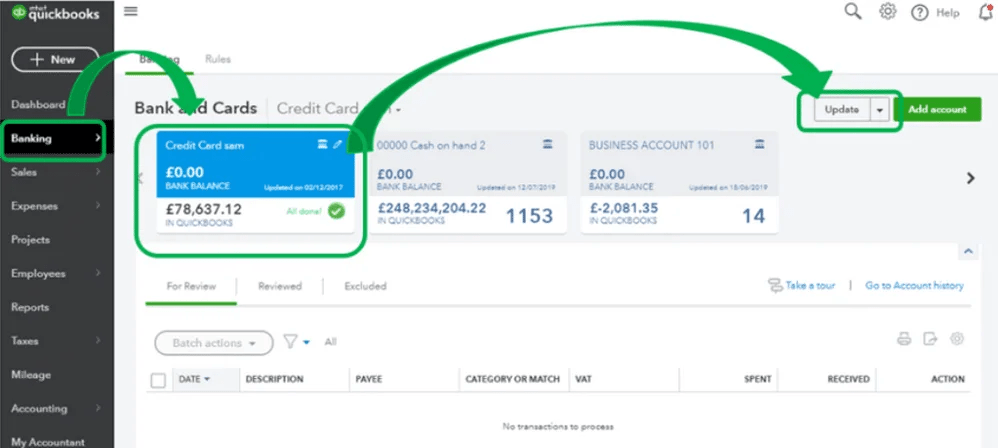
QuickBooks Banking Error 105 is a connectivity problem that occurs when QuickBooks cannot retrieve data from your bank’s website. It usually indicates that the bank’s server is experiencing technical difficulties or that the secure link between QuickBooks and the financial institution has been interrupted.
This error often arises due to poor internet connectivity, temporary server outages at the bank’s end, or changes in account information that QuickBooks hasn’t yet recognized. It can also happen if the user is working on an outdated system or if downloaded/imported transaction files are missing or corrupted.
Error 105 typically shows up while refreshing bank feeds, downloading transactions, or linking a new account. It may also occur during scheduled QuickBooks auto‑updates if the bank’s server is unavailable at that time.
Users usually see a message like: “QuickBooks Error 105: We’re unable to connect to your bank at the moment. Please try again later.” This indicates QuickBooks attempted to connect but failed due to one of the causes above.
Banking errors like Error 105 can delay transaction imports, cause reconciliation mismatches, and lead to inaccurate financial reports. Preventing the error ensures smooth bookkeeping, reliable cash flow tracking, and compliance with payroll and tax deadlines. By taking proactive steps such as keeping QuickBooks updated, verifying credentials, and monitoring bank maintenance schedules you can minimize disruptions and maintain accurate financial records.
QuickBooks Error 105 generally points to a bank‑side or connectivity issue where QuickBooks cannot retrieve data from your financial institution. Here are the main causes explained clearly:
Before you begin troubleshooting Error 105, it’s important to ensure a few foundational checks are in place. These prerequisites help eliminate false errors and make the actual fixes more effective.
| Level | Step | Action | Details | Time Estimate | Verification Outcome |
| Beginner | 1 | Verify Bank & Institution Details | – Confirm correct institution name in QuickBooks- Check bank’s official URL- Ensure User ID & Password are accurate | 5–10 minutes | Correct login credentials and institution confirmed |
| 2 | Manual Bank Update in QuickBooks | – Go to Banking > Update– Clear unwanted accounts- Enter MFA credentials- Verify under Banking > Review | 5–10 minutes | Transactions appear correctly after update | |
| Intermediate | 3 | Update QuickBooks Desktop | – Use Update button- Run at least 3 manual updates- Confirm third‑party tools/system setup- Log in to bank site for alerts | 10–15 minutes | Successful login and transaction visibility on bank’s site |
| 4 | Connect Bank Accounts Properly | – Go to Banking > Add Account– Search/select institution- Enter credentials & security verification- Choose account type- Use +Add new if needed | 10–15 minutes | Transactions from last 90 days download successfully | |
| Advanced | 5 | Check with Bank or Credit Card Provider | – Log in directly to bank portal- Review account history & notifications- Contact bank support if login fails- Confirm integration timeline for new accounts | 15–30 minutes | Bank confirms compatibility and transactions sync in QuickBooks |
| 6 | Escalation if Issue Persists | – Escalate to QuickBooks Online support- Provide error code, bank name, URL, account type- Document troubleshooting steps attempted | Varies | Support team acknowledges and begins resolution |
These are simple checks most users can perform without technical expertise.
1. Verify Bank & Institution Details
2. Manual Bank Update in QuickBooks
Time: 5–10 minutes
Verification: Transactions appear correctly after update.
These involve deeper checks and settings adjustments.
3. Update QuickBooks Desktop
Time: 10–15 minutes
Verification: Successful login and transaction visibility on the bank’s site.
4. Connect Bank Accounts Properly
Note: QuickBooks downloads the last 90 days of transactions when connected.
These are for users comfortable with escalation and system‑level troubleshooting.
5. Check with Bank or Credit Card Provider
Time: 15–30 minutes depending on bank response
Verification: Bank confirms account compatibility and transactions sync in QuickBooks.
6. Escalation if Issue Persists
QuickBooks Error 105 is a connectivity issue that arises when QuickBooks cannot exchange information with your bank’s server due to technical problems, poor internet, or mismatched account details. It typically appears during bank feed refreshes, transaction downloads, or when linking accounts, and shows up with a message indicating QuickBooks is unable to connect to your bank.
While the error is often temporary, it can disrupt transaction imports, reconciliation, and reporting accuracy if not addressed promptly. By following structured troubleshooting starting with verifying bank details and manual updates, progressing to updating QuickBooks and reconnecting accounts, and finally checking directly with your bank you can restore smooth syncing.


