Excerpt:
QuickBooks Error 100 typically occurs due to system resource limitations or issues with the POS database manager. It disrupts the syncing process between QuickBooks POS and Desktop. To resolve this, restart the QBPOS Database Manager, update POS, reinstall the .NET framework, or create a new Windows user account with administrator rights. If these solutions don't work, consider reinstalling QuickBooks POS to restore functionality and prevent recurring errors.
 Add As A Preferred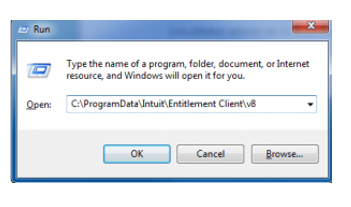
QuickBooks Error code 100 is a critical runtime error that typically occurs when QuickBooks fails to connect with its database or when essential services (like QuickBooks Database Server Manager) are not running properly. This error can interrupt company file access, prevent login, and halt day‑to‑day accounting operations.
Error 100 affects multiple versions of QuickBooks Desktop and is often triggered by database service failures, corrupted installation files, or incorrect Windows configurations.
When QuickBooks displays Error 100, it indicates that the program cannot establish a stable connection with the company file or required system resources. This can happen when:
You may be experiencing QuickBooks Error 100 if you notice:
To safely fix QuickBooks Error 100, ensure the following:
| Level | Solution | Steps (Summary) | Estimated Time | Risk Level | Verification Point |
| Beginner | Install Latest Updates (Rename Entitlement File) | Rename EntitlementDataStore.ecml → EntitlementDataStore.ecml.OLD; update QB POS via Help → Software Update. | 15–20 min | Low | POS launches without Error 100 |
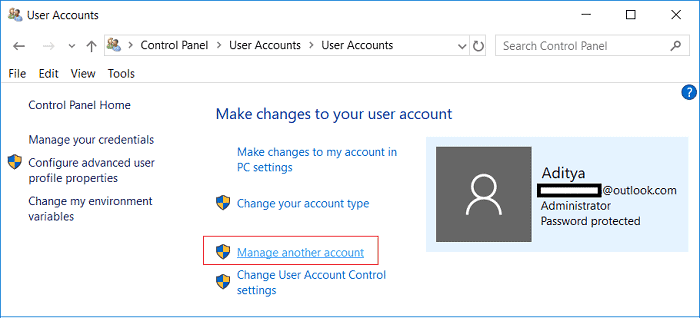
| Beginner | Access QB POS with New Windows User Account | Create a new Admin account → log in → relaunch POS. | 10–15 min | Low | POS runs successfully under new account |
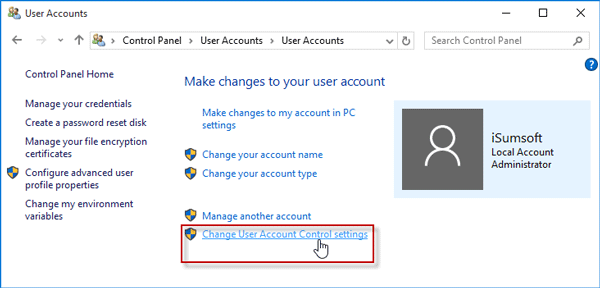
| Beginner | Disable User Account Control (UAC) | Control Panel → User Accounts → Change UAC settings → set to Never Notify → restart. | 10 min | Low–Medium | Error 100 no longer appears |
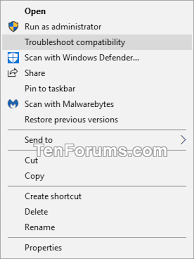
| Intermediate | Restart QB POS Shell Process | End all QBPOSShell.exe processes → troubleshoot compatibility → restart system. | 15–20 min | Medium | POS opens without freezing or error |
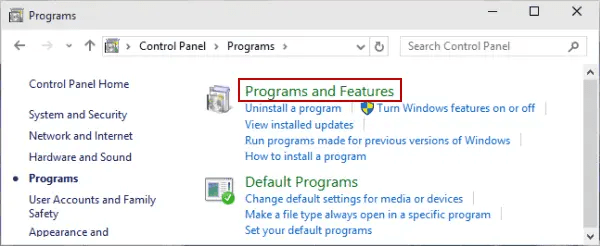
| Intermediate | Uninstall & Reinstall QB POS + .NET Framework | Uninstall QB POS → rename folders → delete QBPOSDBSrvUser → uninstall/reinstall .NET Framework → reinstall QB POS. | 45–60 min | Medium–High | POS installs cleanly and launches |
| Advanced | Use Clear Entitlement File Tool | Download tool → run → relaunch POS → complete registration. | 10–15 min | Medium | POS registers successfully |
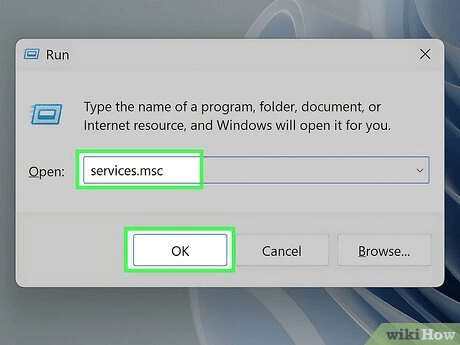
| Advanced | Restart QBPOS Database Manager | Run services.msc → locate QBPOS Database Manager → set Startup Type to Automatic → restart service. | 15–20 min | Medium–High | Transactions process |
Purpose: Fix bugs and entitlement file corruption.
Steps:
Estimated Time: 15–20 minutes
Risk Level: Low
Verification: POS launches without Error 100.
Purpose: Resolve corrupted user profile issues.
Steps:
Estimated Time: 10–15 minutes
Risk Level: Low
Verification: POS runs successfully under new account.
Purpose: Remove restrictions blocking POS.
Steps:
Estimated Time: 10 minutes
Risk Level: Low–Medium
Verification: Error 100 no longer appears.
Purpose: Fix compatibility and multiple instance conflicts.
Steps:
Estimated Time: 15–20 minutes
Risk Level: Medium
Verification: POS opens without freezing or error.
Purpose: Repair corrupted installation and Windows components.
Steps:
Estimated Time: 45–60 minutes
Risk Level: Medium–High
Verification: POS installs cleanly and launches without error.
Purpose: Remove corrupted entitlement files automatically.
Steps:
Estimated Time: 10–15 minutes
Risk Level: Medium
Verification: POS registers successfully and runs error‑free.
Purpose: Restore database connectivity.
Steps:
Estimated Time: 15–20 minutes
Risk Level: Medium–High
Verification: Transactions process without error.
QuickBooks Error 100 is a database connection failure that can disrupt access to company files and halt accounting operations. It is typically caused by service failures, corrupted installation files, or Windows component issues. By following a structured troubleshooting approach starting with restarting Database Server Manager, repairing QuickBooks installation, reinstalling Windows components, and configuring firewall you can restore QuickBooks functionality.
Preventive measures such as regular updates, backups, and diagnostics will help avoid future occurrences. If the error persists, professional support ensures safe resolution without risking data integrity.
QuickBooks POS uses specific dynamic ports for its QuickBooks database server manager (QBPOS Database Manager). To prevent common connection issues like Error 100 caused by a blocked connection, you must ensure that both inbound and outbound rules are created in your Windows Firewall or third-party security software for:
➜The executable file itself: QBPOS.exe and QBPOSDBSrv.exe.
➜The dynamic port range used by the program. QuickBooks usually handles this during installation, but if troubleshooting is needed, the installation folder lists the necessary port settings.
While requirements vary by version, insufficient resources are a common cause of database service failures (Error 100). The POS Server (the computer holding the data file) generally requires higher specifications than a workstation.
➜RAM: Minimum 8 GB for 1-5 users; 12 GB or more is recommended for 10 or more users.
➜Processor: Minimum 2.4 GHz (multi-core recommended).
➜Operating System: Should be a supported 64-bit Windows OS (Windows 10, Windows 11, or Windows Server editions) with the latest updates installed.
No, Error 100 indicates a connectivity problem between the POS application and the database server; it does not inherently corrupt or delete data that’s already saved. Until the connection is restored, you simply cannot read or write new transactions. Many support sources and community experiences note that once the database server is restarted or connectivity is re-established, existing data remains intact.
Yes. Because POS communicates over the network and possibly certain ports, a firewall (software/hardware) or security software might block the required ports or block POS executables. Many support-guides for QuickBooks POS explicitly mention verifying firewall and network settings to allow POS traffic.
Before uninstalling/reinstalling POS, it’s important to:
➜Back up your company and POS data files (sales, inventory, etc.).
➜Keep your license and product number ready (since re-registration will be required).
➜Ensure you log in as a Windows Administrator during reinstall.
➜After reinstall, restore the backup data file before opening POS.
These precautions are consistent with the official clean-install instructions provided by the POS support team.
No, QuickBooks Error 100 does not directly affect your company data.


