Highlights (Key Facts & Solutions)
- Primary Issue: The “incorrect password” error prevents access to QuickBooks Desktop company files, often due to incorrect credential input, administrator password changes, data corruption, or firewall/antivirus blocks.
- Critical Verification Source: The Customer Account Management Portal (CAMPS) is the definitive source for user and license verification; all reset procedures require data to match CAMPS records precisely.
- Password Detail: QuickBooks passwords are case-sensitive and treat blank spaces as characters; a mismatch in either will cause authentication failure.
- Version-Specific Resets:
- QuickBooks Desktop 2020 and Newer use an integrated, email token-based reset method on the login screen.
- QuickBooks Desktop 2019 and Earlier may require the separate Automated Password Reset Tool or a form submission requiring CAMPS data.
- Firewall Exception Files: Authentication failure can be resolved by adding exceptions to the Windows Firewall for key executables, including
QBW32.exe,QBDBMgrN.exe, andQBDBMgr.exe. - Admin/User Hierarchy: If a standard user cannot log in after an admin change, the Administrator must first sign in with the new Company File password and then manually edit the user’s password settings.
- Tool for Underlying Errors: The QuickBooks Tool Hub’s Quick Fix my Program utility should be used as the first step if the issue is suspected to be file corruption or a program glitch rather than a simple credential error.
Overview
QuickBooks company file incorrect password issue is an authentication error that prevents authorized users from accessing the financial dataset stored in the company file. The issue arises from incorrect credential input, administrator-level password modifications, CAMPS (Customer Account Management Portal) data inconsistencies, version-specific security rules, failed password-reset procedures or firewall restrictions that block authentication requests.
This article explains the primary causes of the QuickBooks company file incorrect password issue and provides detailed, step-by-step solutions to restore secure access. It covers how to reset user and administrator passwords, use automated recovery tools, verify system configurations, and ensure proper network and software settings. By following these procedures, you can resolve authentication errors and restores full access to the QuickBooks company file.
Reasons for the QuickBooks Company File Incorrect Password Issue
QuickBooks company file incorrect password issue results from conditions that interfere with the credential-validation process. These conditions relate to user credentials, administrator controls, password-update accuracy, software version requirements, and system-level communication.
- A mismatch between the entered password and the stored credential prevents successful authentication.
- An administrator-initiated password change results in failed login attempts when users enter the previous credential.
- Restricted administrator access after a credential update limits the permissions required to approve the login request.
- Errors during manual password-update procedures alter the stored authentication data.
- Firewall restrictions in Windows or third-party antivirus software prevent QuickBooks Desktop from transmitting authentication data.
- Outdated QuickBooks Desktop versions produce verification errors due to missing security updates.
Quick Fixes for QuickBooks company file incorrect password issues
Follow these quick fixes to resolve the QuickBooks company file incorrect password issue if the cause aligns with the conditions affecting your authentication attempt. These solutions provide direct corrective actions for the most common password-related errors in QuickBooks company files.
| Error Causes | Solutions |
|---|---|
| The user entered the wrong password. | Re-enter the password and check for case-sensitive passwords and blank spaces, as the password also counts blank spaces as characters. |
| The password has been changed, or the user forgot the password. | Reset your password as, due to security reasons, retrieving the old password is not possible. |
| The administrator restricts access, or the administrator settings are misconfigured. | Change the administrator password and update access. Or take access from the system/network administrator. You can also run QuickBooks QuickFix my Program from QuickBooks Tool Hub. |
| Error in manually updating the QuickBooks company file password. | Use the QuickBooks Desktop Automated Password Reset Tool, which is programmed to the version of QuickBooks you are using and has built-in tools that can automate the password resetting process. |
| Internet access is blocked by a Windows firewall or antivirus firewall. | Add QuickBooks as an exception to the block settings so the firewall can easily permit QuickBooks to access the internet. |
| Company file error due to outdated QuickBooks Desktop version. | Update your QuickBooks Desktop software to the latest version. An updated version needs security updates, so many authentication issues arise. |
How to Fix QuickBooks Company File Incorrect Password Issues?
QuickBooks company file incorrect password issue restricts access to the financial data stored in the file. This condition requires targeted corrective steps that restore accurate credentials, administrator permissions, and proper authentication. The following solutions describe the procedures that resolve the issue and re-establish secure access to the company file.
Solution 1: Use the Password Reset Tool
The company file password issue often arises due to a wrong or misspelled password entered by the user. Passwords are case-sensitive and also consider blank spaces as characters.
When the company file password in QuickBooks does not match, then the following points should be noted:
- There can be issues where the password is case-sensitive. Check for the uppercase and lowercase letters.
- Also, the โblank spacesโ are counted as password characters; remove unnecessary spaces before or after the password.
- Apart from these, the user must ensure that the information provided aligns with what has been entered in the CAMPS (Customer Account Management Portal), which includes and helps reset the password in case you are unable to resolve the issue:
- License Number
- Name
- Phone Number
- Zip Code
Method #2: Reset a User Password

In QuickBooks, there are two tiers of user security. First is administrator access and controls, and second is the user password and permissions. The administrator may have changed the password of the company file, or the user may have forgotten the password.
When you change the password as a User:
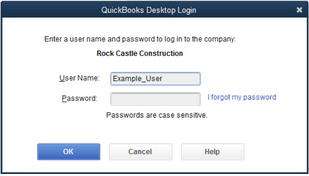
When signing in, if you know the admin password and input the username, follow the instructions below:
- Go to the company option to set up passwords now.
- You may now input the admin password again after selecting the setup users.
- There will be a list of users; choose the one for whom you wish to change the password.
- You may change the userโs information here by clicking the โedit userโ tab.
- Please enter the new password, check it, then press the finish button.
- For now, open the file menu and select logoff to log off the computer.
- After completing these instructions, You can log in using the username and new password.
Method #3: Reset the admin password


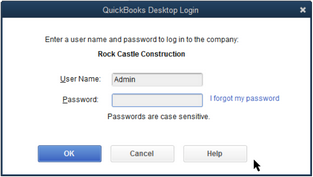
As a security precaution, you must provide certain information while attempting to log in as an admin. Enter the administrator username and password.
- Open the Quickbooks Desktop program first.
- The โI forgot my passwordโ option is on the login screen.
- The user has to enter the authorized email, i.e., the email you have provided at the time of registration.
- You will find the code in your email after providing the right information.
- Please enter the code on the password reset screen from the email and return it to the website.
- Now, you can provide the new password in this manner and do so as the admin.
For QuickBooks 2020 version or later, follow these directions:
- Start by opening Quickbooks and selecting the company file option.
- Here, you find the sign-in page; select โI Forgot My Passwordโ from the menu.
- You will receive the token to reset your password when you mention or choose an email.
- You can access the company file with these instructions by entering the token on the sign-in page.
For QuickBooks 2019 and earlier, use the following procedures:
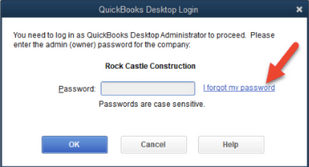
- Launch QuickBooks Desktop and enter your username and password. Next, choose โI forgot my passwordโ from the menu.

- You will find a form in the second step. Fill it out correctly using the information listed below:
- License Number.
- Your name, last name, email address, phone number, and zip code you entered when you purchased the software.
- Logging into the Customer Account Management Portal (CAMPS) will provide you with all the correct information.
- Once you have completed the form and clicked the OK/Submit button, the code for the main email will appear in your CAMPS account.
- In the end, Quickbooks will assist you in setting up a new admin password.
Method #4 Use the Automated Password Reset Tool
When the manual password reset process fails
You must verify the information you submitted if the user cannot reset the password. Additionally, confirm that the details you gave correspond to the data you have in the Customer Account Management Portal (CAMPS).
It is crucial to know that Quickbooks Desktop 2020 and newer do not support the Automated Password Tool. Therefore, it can only be used with Quickbooks 2019 or earlier.
Also, you must download a version compatible with your software version. You can consider US, UK, and Canadian versions.
QuickBooks company file incorrect password can be reset by using the QB desktop password reset tool
This tool might be helpful when you cannot input the correct password for the company file. The QB admin password can be reset using an automated process.
Users must follow the following guidelines to apply or utilize this tool:
- Give the license number, which will be 15 digits, to reset the company file password.
- After that, type your name and last name.
- Additionally, a registered phone number and postal code must be provided.
Please note that if you submit information different from the softwareโs database. You wonโt be able to access the program if the procedure fails.
Method #5: Check your antivirus settings or Windows firewall
Antivirus programs can cause software issues since they can prevent QuickBooks from connecting to the internet.
You can add the QuickBooks software as an exception to connect to the internet in the systemโs firewall.
Also in addition to it, if you are using a third-party antivirus, then you have to visit the third-party antivirus website for the steps to add the software as an exception to the antivirus program.
- It would be best to right-click the windows and choose the Control Panel.
- Select Windows Firewall from the menu.
- Press the advanced settings button at this time.
- Find new rules by clicking inbound rules after that.
- You can click the next option after selecting the port for the rule type.
- Next, select the TCP for Does TCP or UDP under this rule.
- Here, you must select the Specific local ports, permit the TCP port, and click the next button.
If you are a McAfee user, then do the following:
- Open the antivirus program and search for the excluded processes list.
- Add the below names to the list so that they can run freely.
- QBW32.exe โ C:\Program Files\Intuit\QuickBooks 2025\QBW32.exe
- QBDBMGRN.exe โ C:\Program Files\Intuit\QuickBooks 2025\QBDBMgrN.exe
- QBDBMGR.exe โ C:\Program Files\Intuit\QuickBooks 2025\QBDBMgr.exe
- Now, go back to QuickBooks and email a test transaction.
Method #6: Update to the most recent version of QuickBooks Desktop
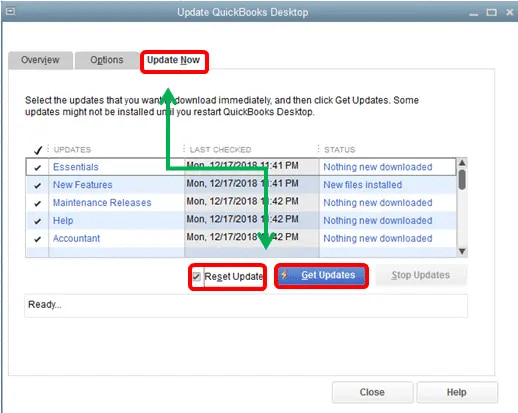
Update your QuickBooks desktop software to the most recent version before attempting to reset the password. Test the transaction now by sending an email to see if the problem has been resolved or not. These actions should be taken:
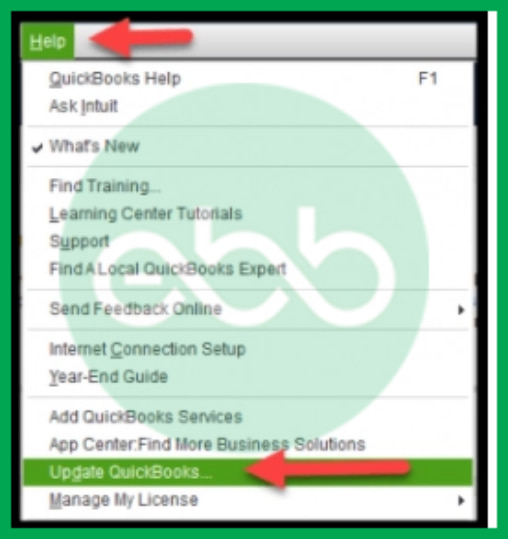
- Choose the Help menu first from the Update Quickbooks desktop option.
- You can also use the reset update checkbox to erase previous update downloads by going to the โUpdate nowโ tab.

- Now, choose the Get Updates option to begin the downloading process.

- Start the Quickbooks software after the download is finished.
- Accept the on-screen update at last to install the most recent update.
How Do I Use an Automated QuickBooks Desktop Password Reset Tool?
Automated Desktop Password Reset Tool is essential, and you can use the version compatible with your software version. You can consider US, UK, and Canadian versions.
The process to use the automated QB desktop password reset is quite elaborative and has been explained below:
Following the procedures will enable you to quickly replace the wrong password for the QuickBooks company file and get access to it.
Step 1: Find out the QuickBooks Desktopโs Version
The user must know the product version and release date before choosing a product from the list. You must also specify the version and release notes and adhere to the guidelines below.
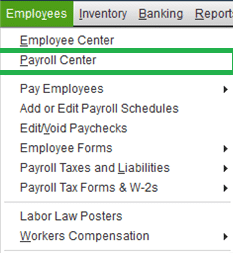
- For the statement writer โ When the program starts, the user must choose the reports before choosing the writer. Pick โoption>help>about QuickBooks statement writersโ as well.
- For the merchant service -Remember that since QuickBooks uses merchant services, there is no version or release number for the merchant service.
- For primary/Basic or advanced QB payroll services- Select โEmployeesโ> โpayroll centersโ and then click the Payroll option to get basic or advanced QB payroll services.

- For QuickBooks Mac and POS โ The user must select โHelp > Product Informationโ for Mac and POS.
You will see all version release information.
Step 2: Choose the latest QuickBooks version for your QuickBooks Company File
- When registering accounting software, the license number and the company information must be entered in the version area, followed by a click of the OK/submit button.
- Download the file now and consent to the license terms.
- The token number, which you may find in the email, must be mentioned after this step.
- Then, choose the desktop version from the drop-down option of QuickBooks products.
- You will have the option of entering a new password; confirm it by typing it once again. Reset the password to get access to the company file right away.
Conclusion!
QuickBooks company file incorrect password issue occurs when credential validation, administrator permissions, software configuration, or system-level communication fails during the authentication process. Resolution requires accurate password resets, verified CAMPS information, correct administrator controls, current QuickBooks Desktop versions, and firewall settings that allow credential-verification requests.
Secure access to the QuickBooks company file is achieved when the authentication process functions correctly after applying the required solutions. Accurate password resets, verified CAMPS information, updated administrator permissions, and stable system configurations reduce authentication failures and support long-term data accessibility.
Hopefully, the above-given information is useful for you. But if you still facing any kind of issues with your software and need professional assistance, regarding accounting, bookkeeping & accounting software-related issues then feel free to get in touch with us at +1-802-778-9005, or you can mail to us at: support@ebetterbooks.com
Frequently Asked Questions
What is CAMPS, and why is the information stored there crucial for resetting my QuickBooks Admin password?
The acronym CAMPS stands for Customer Account Management Portal. This is Intuit’s official, centralized system for managing your licensed QuickBooks products and user data. It acts as the definitive security layer for your account.
The registered information in CAMPS is crucial because it provides the data points necessary for Intuit to verify your identity before allowing a password reset:
- Security Verification: When you use the password reset function, QuickBooks compares the license number, registered name, email, phone number, and ZIP code you provide against the data securely held in CAMPS. This is the primary verification step.
- Token Delivery (QuickBooks 2020 and newer): The system emails a single-use token or code directly to the authorized email address linked to your license in CAMPS, ensuring that only the registered license holder can gain access.
- Form Verification (QuickBooks 2019 and earlier): For older versions, the system uses the full set of CAMPS details to validate the password reset request form.
My Automated Password Reset Tool failed. What are the two most common reasons for this failure?
When the QuickBooks Automated Password Reset Tool fails, it is usually due to one of two critical errors:
- Software Version Incompatibility: The Automated Password Reset Tool is not compatible with QuickBooks Desktop 2020 and all newer versions. If you are using QuickBooks 2020, 2021, or any later release, the tool will fail because it is intended only for versions 2019 and earlier. Users of modern versions must use the built-in “I forgot my password” link on the sign-in screen.
- Data Mismatch (CAMPS): The second most common cause is entering data that does not precisely match the information stored in the Customer Account Management Portal (CAMPS). This includes any small discrepancy in the 15-digit license number or the registered name, email, or zip code.
Why do I need to add specific QuickBooks executable files as exceptions to my antivirus or Windows firewall?
QuickBooks Desktop requires open, uninterrupted communication with its database service and Intuit’s servers to function correctly. This is particularly true for authentication and multi-user access.
Firewalls and security software may block this necessary network traffic, resulting in an “incorrect password” error, even if the password is correct, because the program cannot verify credentials. To ensure proper connectivity, you must add these specific executable files as exceptions:
QBW32.exe: The main QuickBooks application file.QBDBMgrN.exe: The QuickBooks Database Manager Service executable, which is critical for multi-user mode and database hosting.QBDBMgr.exe: A related QuickBooks Database Manager executable (often used for Point of Sale).
How does the QuickBooks Desktop version affect the Admin password reset procedure?
The year version of your QuickBooks Desktop software dictates the method you must use to successfully reset the Admin password:
- QuickBooks Desktop 2020 and Newer: The method is streamlined and fully integrated.
- Select I forgot my password on the login screen.
- Choose an email from the dropdown menu.
- An emailed token (code) is sent to reset the password.
- QuickBooks Desktop 2019 and Earlier: The reset requires manual data entry and may use the older tool.
- Select I forgot my password on the login window.
- Fill out the form with your QuickBooks License Number, registered name, email, phone, and ZIP code (all of which must match CAMPS).
- QuickBooks then guides you through creating a new password after successful verification.
I know my User password but the Admin changed the Company File password. How do I update my credentials?
If the Admin has changed the master Company File password, a standard user cannot simply log in with their old password. The Admin must first log in using the new Company File password and then reset the user’s password internally.
The Admin must follow these steps:
- Sign in to the company file as the Admin user.
- Go to the Company menu, then select Set Up Users and Passwords > Set Up Users.
- Re-enter the Admin password if prompted.
- In the User List, select the user (your profile) that needs a password change, and then select Edit User.
- Enter a new password for that user, select Next twice, and then select Finish.
- The user can then log off and log back in using their username and the new password set by the Admin.
Why are blank spaces and case sensitivity so critical when entering my QuickBooks company file password?
QuickBooks Desktop security is based on a literal interpretation of the password characters you input. Any variation will lead to an authentication failure because the input will not match the encrypted hash stored in the company file.
Key considerations are:
- Case Sensitivity: Passwords are fully case-sensitive. If the original password was set as
FinancialData1, enteringfinancialdata1will result in an “incorrect password” error. - Blank Spaces: QuickBooks counts all blank spaces as characters. If a space was accidentally (or intentionally) included at the beginning, end, or middle of the original password, you must include that space every time you log in. Intuit security guidelines generally recommend passwords with no spaces to prevent this common error.
My error is a company file corruption issue, not a password issue. Can the QuickBooks Tool Hub help?
Yes, the QuickBooks Tool Hub is the official utility provided by Intuit and is the recommended first step to resolve underlying program or file issues that mimic password errors.
If you suspect file corruption or a program glitch, use the Quick Fix my Program utility within the Tool Hub:
- Function: This tool shuts down all open QuickBooks background processes and runs a quick repair on the program’s core components and Windows registry entries.
- Benefit: By fixing damaged program files and network components (which often interfere with the login process), it can resolve authentication errors without touching your company data file.
- Procedure: You access this utility under the Program Problems tab in the Tool Hub.
Disclaimer: The information outlined above for โHow to Fix QuickBooks Company File Incorrect Password Issues?โ is applicable to all supported versions, including QuickBooks Desktop Pro, Premier, Accountant, and Enterprise. It is designed to work with operating systems such as Windows 7, 10, and 11, as well as macOS.