


Highlights (Key Facts & Solutions)
- Symptoms: Look for sudden freezing, Blue Screen of Death (BSOD), unusual hard disk activity, or unknown pop-ups.
- Primary Tool: Windows Security (formerly Windows Defender) is the main application, accessed by typing the name into the Start menu search bar.
- Scan Types:
- Quick Scan: Checks key areas where malware loads (registry, startup folders).
- Full Scan: Scans all files, programs, and mounted drives.
- Offline Scan: Runs before Windows loads, necessary for removing deep, advanced threats like rootkits.
- Secondary Tool (Second Opinion): Microsoft Safety Scanner can detect threats missed by the primary antivirus.
- Safety Scanner Limitation: The tool expires after 10 days and must be re-downloaded for current definitions.
- Follow-Up: If a Manual Scan detects a threat, immediately run a Quick Scan or Full Scan to ensure complete eradication.
- Log File Location: Detailed results for the Safety Scanner are stored in the system log file at
%SYSTEMROOT%\debug\msert.log.
Overview
A full malware scan is an important mechanism for identifying and eliminating threats to your computer and making it work as effectively as possible.
Windows PC Malware may sometimes show symptoms such as BSODs, DLL file crashes, sudden freezing, unusual hard disk usage, unknown pop-ups, and other severe system errors.
Having a professional antivirus that performs frequent, deep scanning contributes to protection against viruses, spies, ransom viruses, and other malicious programs.
How to Conduct a Full Malware Scan on Your System
Malware can affect your system in many ways, including crashing, freezing, slowing down, causing the dreaded blue screen of death, suddenly increasing the activity on your hard drive, and even popping up advertisements. Here is a brief that covers how to perform various scans with Windows tools and the Microsoft Safety Scanner.
When you search for “Windows Defender” in the Start menu, it will lead you to Windows Security. Interestingly, Microsoft still commonly refers to its antivirus scanning as Windows Defender. It provides real-time and always-on antivirus protection against malware.
Ways to access Windows Security:
- Start Menu Search: Type Windows Security directly into the Start menu search.
- Via Settings Option: Go to Settings > Privacy & Security > Windows Security. Here, you will find an overview of your system’s security status. Click the Open Windows Security button for full access to the app.
Note: Windows Security was also known as Windows Defender Security Center.
You can scan for malware using 3 types of scans depending on the severity of the threat. The three scans are:
- Manual Scan: A manual scan allows you to target specific files and folders of your choice.
- Quick Scan: A quick scan checks key areas where malware often lurks during system startup, such as registry keys and known Windows startup folders.
- Advanced Scan: Advanced scan begins with a quick scan and then proceeds to sequentially scan all mounted fixed disks and removable/network drives (if configured).
Step 1: Running a Manual Malware Scan with Windows Defender
If you suspect a specific file or folder is infected, follow these steps to scan it manually:
- Locate the file or folder in File Explorer.
- Right-click on it and select Scan with Microsoft Defender.
- If any malware is detected, it is recommended to run a quick scan to ensure no other threats remain.
Step 2: Running a Quick or Full Scan with Windows Defender
To perform a thorough virus and malware scan on Windows 10 or 11:
Open Windows Security:
- Click the Start button on the taskbar.
- Type Windows Security in the search bar and open the app.
Initiate the Virus Scan:
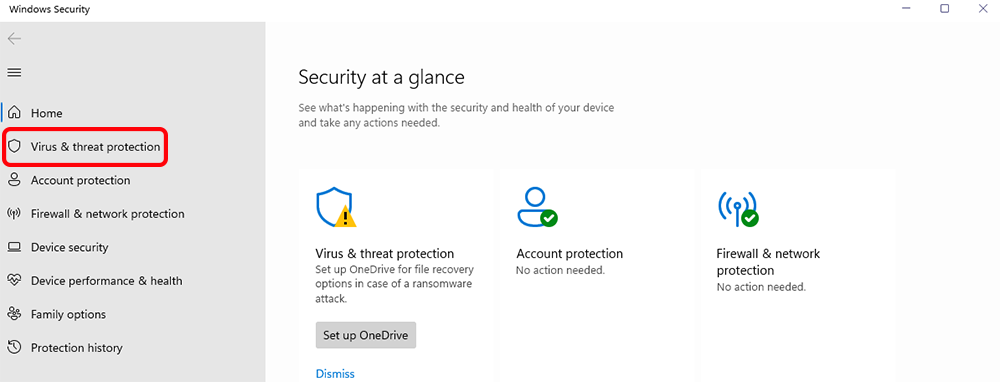
- Select Virus & Threat Protection in the app.
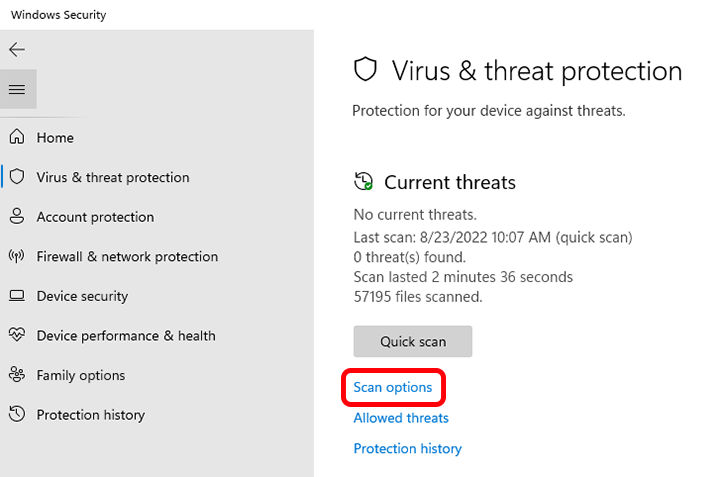
- Under the Current Threats section, click Scan options (or simply Scan in older versions).
Choose a Scan Type:
- Quick Scan: Scans areas of your system where threats are most commonly found.
- Full Scan: Scans your entire system, including all files and running programs.
Start the Scan:
- Select your preferred scan type and click Scan Now.
- Windows Defender will detect and remove threats automatically.
Step 3: Running an Advanced Scan with Windows Defender
For more specialized scans, follow these steps:
- Access Advanced Scan Options:
- In Windows Security, click on Virus & Threat Protection.
- In Current Threats, right-click and choose scan options.
- Choose a Scan Type:
- Full Scan: It scans all the files and programs on your device.
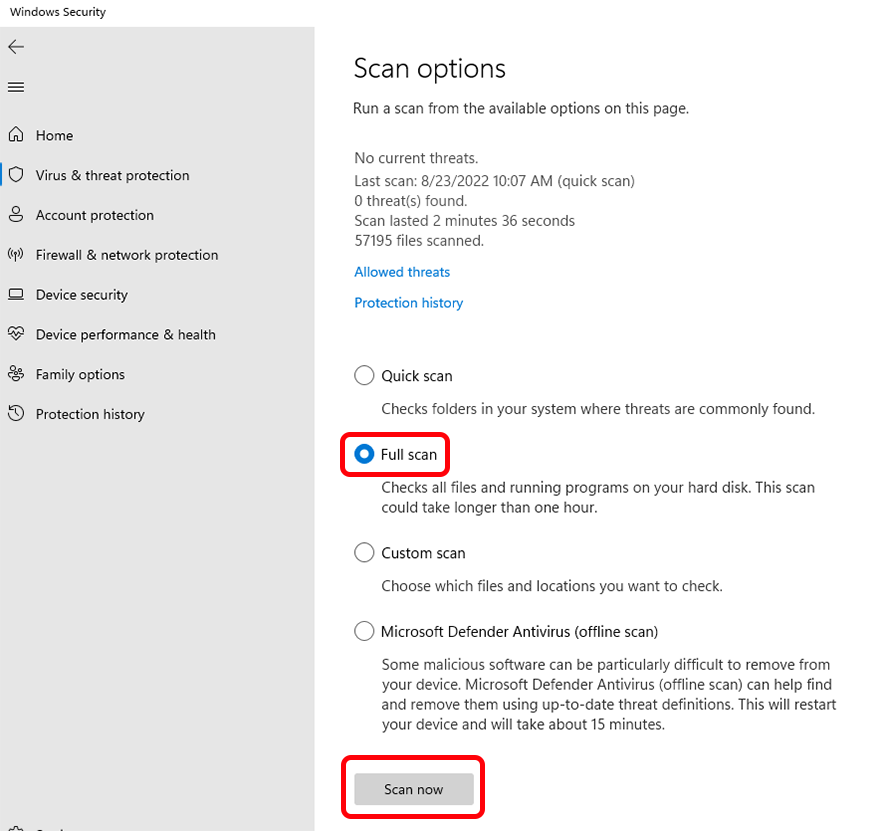
- Custom Scan: Scans for individual documents or directories.
- Microsoft Defender Offline Scan: This program runs a deep scan before the Windows operating system starts, which is useful for finding advanced malware.
- Start the Scan:
- Select the desired scan type and click Scan Now.
- Wait for the scan to complete. Any threats found will be automatically addressed.
Step 4: Running Malware Scans with Microsoft Safety Scanner
Microsoft Safety Scanner is a stand-alone application that can detect and remove malware that is not detected by normal scans.
Key Points to Consider:
- Though a common find in modern vehicles, it operates only when activated by the driver.
- It is good for 10 days after download; for current definitions, download a new copy.
- Furthermore, that is not on the Start menu or desktop—they provide us with a portable executable.
- Sophos is integrated and works with standard antivirus applications.
Steps to Use Microsoft Safety Scanner:
Step 1: Visit the official Microsoft Safety Scanner website and download the tool.
Step 2: Open the downloaded file and select the type of scan:
- Quick Scan: Scans common areas for malware.
- Full Scan: Thoroughly inspects the entire system.
- Customized Scan: Scans specific files or folders.
Step 3: Once the scan is complete, review the results on your screen.
Step 4: For detailed results, check the log file located at %SYSTEMROOT%\debug\msert.log.
FAQs:
1. What are the key visual symptoms that indicate my Windows system may require a full malware scan?
Malware often announces its presence through several easily observable symptoms that disrupt normal system use. Recognizing these signs quickly is crucial for timely threat mitigation.
Common symptoms indicating a malware infection include:
- Performance Issues: Sudden, severe system slowdown, frequent freezing, or an unusual increase in hard disk usage without running any major applications.
- System Crashes: The frequent appearance of the dreaded Blue Screen of Death (BSOD) or consistent crashes of critical DLL files.
- Unauthorized Activity: Unknown pop-ups, excessive advertisements, or unexpected programs running during startup or background operation.
- Browser Hijacking: Unwanted changes to your browser’s homepage or search engine without your permission.
2. What is the fundamental difference between a Quick Scan and a Full Scan in Windows Defender?
The distinction between a Quick Scan and a Full Scan lies in the scope and target areas of the system being examined.
- Quick Scan: This scan focuses on areas where malware is most likely to hide and load during system startup. It checks common locations like registry keys, known Windows startup folders, and critical system areas. This is the fastest and most common scan.
- Full Scan: This scan provides the most thorough examination by checking all files, running programs, mounted fixed disks, and removable drives (if configured). While highly comprehensive, it can take several hours depending on the size of the hard drive.
3. How do I access the Windows Security application to begin a full system scan?
Accessing the Windows Security application is the first step in managing your system’s antivirus protection and running any type of malware scan.
You can access the application via two main methods:
- Start Menu Search: Click the Start button on the taskbar and type Windows Security directly into the search bar.
- Settings Menu: Navigate to Settings > Privacy & Security > Windows Security, and then select the Open Windows Security button.
Once open, select Virus & Threat Protection to view current threats and scan options.
4. When should I choose the Microsoft Defender Offline Scan over a regular Full Scan?
The Microsoft Defender Offline Scan should be used when you suspect a deep, advanced, or persistent threat that standard online scanning cannot completely remove.
Reasons to use the Offline Scan:
- Rootkits and Advanced Malware: This scan runs before the Windows operating system fully loads. This prevents certain types of rootkits and advanced malware from loading and actively hiding themselves from the antivirus software.
- Thorough Cleaning: Since the operating system is not fully running, the scan can more thoroughly inspect and clean system files and boot sectors.
You can initiate the Offline Scan from the Scan options menu within Windows Security.
5. What are the key limitations of the Microsoft Safety Scanner, and when is it most effective?
The Microsoft Safety Scanner is a valuable, stand-alone tool, but it has important usage limitations that users must understand before downloading.
Key limitations and facts:
- Temporary Use: The tool is functional for only 10 days after it is downloaded. To ensure you have the latest malware definitions, you must download a new copy after this period.
- Stand-Alone: It is a portable executable file and does not integrate into the Start menu or desktop, nor does it provide real-time, continuous protection like Windows Defender.
- Effectiveness: It is most effective as a second opinion tool to detect and remove threats that the primary, real-time antivirus application (Windows Defender or a third-party application) may have missed.
6. If I find an infected file using a Manual Scan, should I stop there, or should I run a broader scan?
If a Manual Scan identifies a specific infected file or folder, you should immediately run a broader scan, preferably a Quick Scan or a Full Scan, not stop at the manual result.
- Risk Mitigation: Malware rarely operates in isolation. The detection of one infected file suggests that the malicious program may have spread to other critical system areas, startup files, or the registry.
- Complete Elimination: Running a Quick Scan is recommended next to check all common hiding places quickly. If persistent issues remain, a Full Scan is necessary to confirm all traces of the threat have been eliminated.
7. Where are the detailed results of a scan performed by the Microsoft Safety Scanner stored?
Unlike Windows Defender, which integrates results directly into the Windows Security interface, the Microsoft Safety Scanner stores its detailed results in a specific system log file.
- Log File Path: The detailed results are recorded in a log file located at:
%SYSTEMROOT%\debug\msert.log. - Accessing Results: Users can navigate to this file location (typically
C:\Windows\debug\msert.log) to review the full technical breakdown of the scan, including all threats detected and the actions taken (removed, quarantined, or ignored).
Disclaimer: The information outlined above for “How to Conducting Full Malware Scan in Your System?” is applicable to all supported versions, including QuickBooks Desktop Pro, Premier, Accountant, and Enterprise. It is designed to work with operating systems such as Windows 7, 10, and 11, as well as macOS.