Excerpt:
To effectively identify and eliminate malware, which often manifests through symptoms like system freezing, blue screens, or unknown pop-ups, users should utilize native Windows tools. The primary defense mechanism is the Windows Security application, accessed via the Start menu, where users can select Virus & Threat Protection to initiate various scans. While a Quick Scan checks common hiding places, a Full Scan inspects all files and programs; however, for deep or persistent threats like rootkits, the Microsoft Defender Offline Scan is recommended as it runs before the operating system loads. Alternatively, the Microsoft Safety Scanner can be downloaded as a stand-alone, secondary tool, though users must note that it expires after 10 days and provides detailed results in a specific log file located at %SYSTEMROOT%\debug\msert.log.
 Add As A Preferred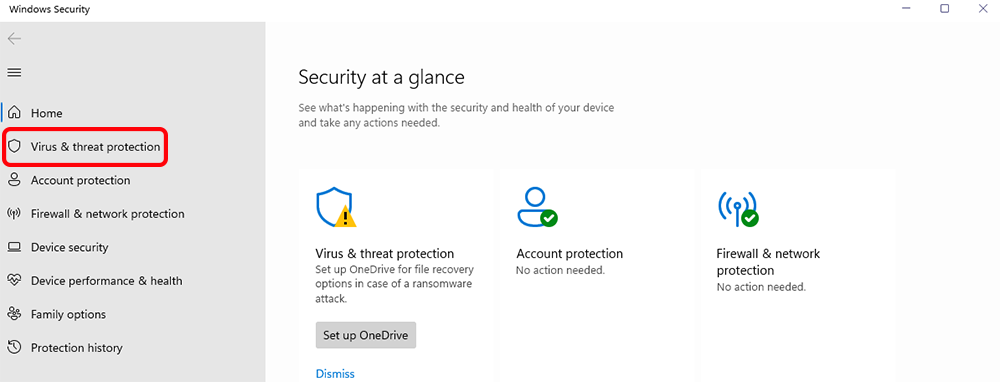
Highlights (Key Facts & Solutions)
%SYSTEMROOT%\debug\msert.log.Overview
A full malware scan is an important mechanism for identifying and eliminating threats to your computer and making it work as effectively as possible.
Windows PC Malware may sometimes show symptoms such as BSODs, DLL file crashes, sudden freezing, unusual hard disk usage, unknown pop-ups, and other severe system errors.
Having a professional antivirus that performs frequent, deep scanning contributes to protection against viruses, spies, ransom viruses, and other malicious programs.
Malware can affect your system in many ways, including crashing, freezing, slowing down, causing the dreaded blue screen of death, suddenly increasing the activity on your hard drive, and even popping up advertisements. Here is a brief that covers how to perform various scans with Windows tools and the Microsoft Safety Scanner.
When you search for “Windows Defender” in the Start menu, it will lead you to Windows Security. Interestingly, Microsoft still commonly refers to its antivirus scanning as Windows Defender. It provides real-time and always-on antivirus protection against malware.
Ways to access Windows Security:
Note: Windows Security was also known as Windows Defender Security Center.
You can scan for malware using 3 types of scans depending on the severity of the threat. The three scans are:
If you suspect a specific file or folder is infected, follow these steps to scan it manually:
To perform a thorough virus and malware scan on Windows 10 or 11:
Open Windows Security:
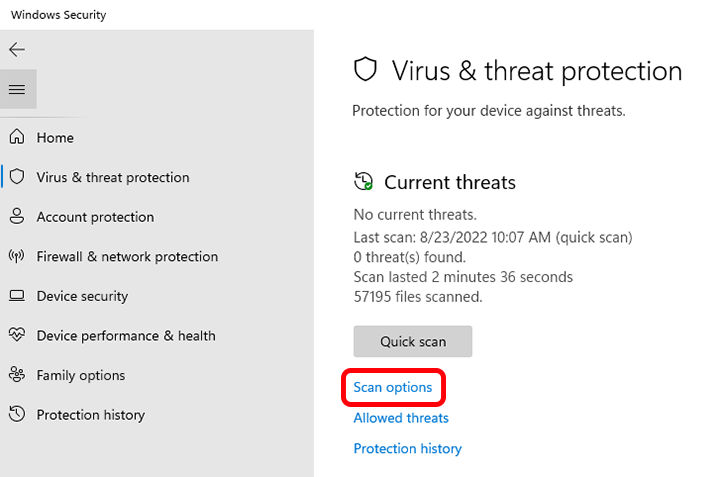
Initiate the Virus Scan:
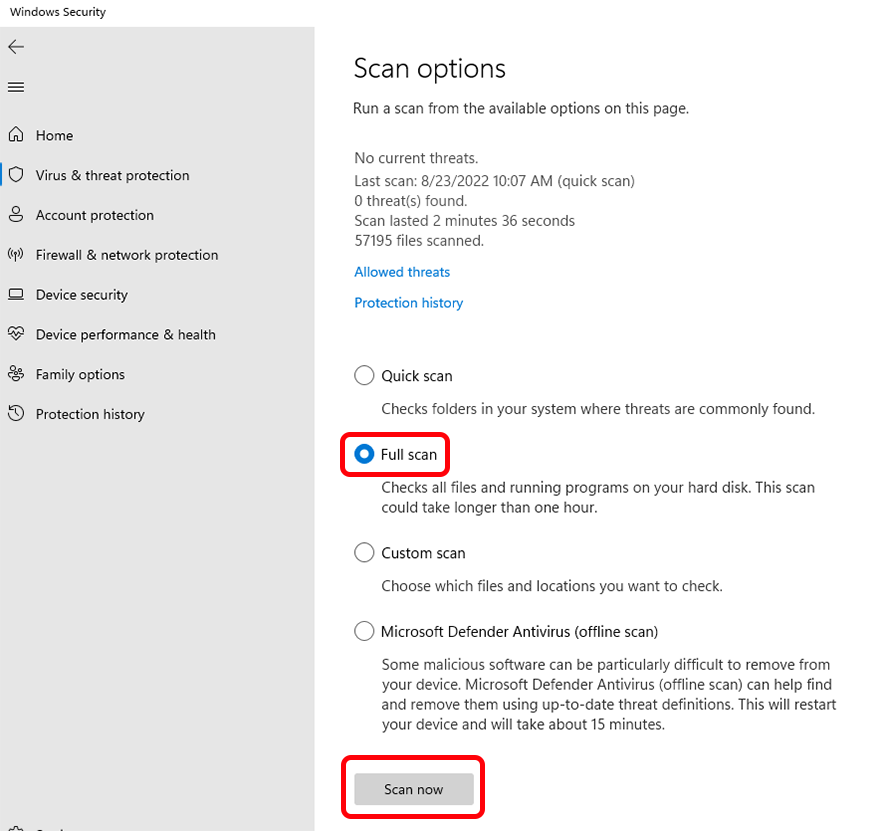
Choose a Scan Type:
Start the Scan:
For more specialized scans, follow these steps:
Microsoft Safety Scanner is a stand-alone application that can detect and remove malware that is not detected by normal scans.
Key Points to Consider:
Steps to Use Microsoft Safety Scanner:
Step 1: Visit the official Microsoft Safety Scanner website and download the tool.
Step 2: Open the downloaded file and select the type of scan:
Step 3: Once the scan is complete, review the results on your screen.
Step 4: For detailed results, check the log file located at %SYSTEMROOT%\debug\msert.log.
Malware often announces its presence through several easily observable symptoms that disrupt normal system use. Recognizing these signs quickly is crucial for timely threat mitigation.
Common symptoms indicating a malware infection include:
The distinction between a Quick Scan and a Full Scan lies in the scope and target areas of the system being examined.
Accessing the Windows Security application is the first step in managing your system’s antivirus protection and running any type of malware scan.
You can access the application via two main methods:
Once open, select Virus & Threat Protection to view current threats and scan options.
The Microsoft Defender Offline Scan should be used when you suspect a deep, advanced, or persistent threat that standard online scanning cannot completely remove.
Reasons to use the Offline Scan:
You can initiate the Offline Scan from the Scan options menu within Windows Security.
The Microsoft Safety Scanner is a valuable, stand-alone tool, but it has important usage limitations that users must understand before downloading.
Key limitations and facts:
If a Manual Scan identifies a specific infected file or folder, you should immediately run a broader scan, preferably a Quick Scan or a Full Scan, not stop at the manual result.
Unlike Windows Defender, which integrates results directly into the Windows Security interface, the Microsoft Safety Scanner stores its detailed results in a specific system log file.
%SYSTEMROOT%\debug\msert.log.C:\Windows\debug\msert.log) to review the full technical breakdown of the scan, including all threats detected and the actions taken (removed, quarantined, or ignored).

