Highlights (Key Facts & Solutions)
- Mandatory First Step: Check the subscription status (Employees > My Payroll Service > Account/Billing Info) to determine if renewal (for billing issues) or technical reactivation is needed.
- Technical Fix (Service Key): If the status is “subscribed” but the service fails, the solution is to remove the existing service key and immediately re-enter it to force a new registration and clear corruption.
- Prerequisite Action: Always perform a Payroll Update (Method 1) to ensure the latest tax tables and settings are in place before attempting service key reactivation.
- Billing Inactivation: If inactive due to payment failure, the subscription must be renewed via the Intuit Account portal before any technical reactivation attempts will succeed.
- Key Location: The Disk Delivery Key may be required during reactivation, which is found on the original software packaging or in purchase confirmation emails.
- Escalation Method: If standard methods fail, support should be contacted directly from within the software by pressing the F1 key and selecting Contact Us.
- Causes of Inactivation (Despite “Subscribed” Status): Issues are often technical, including an inactive service key, credential mismatch, or failure to properly update the software.
Overview
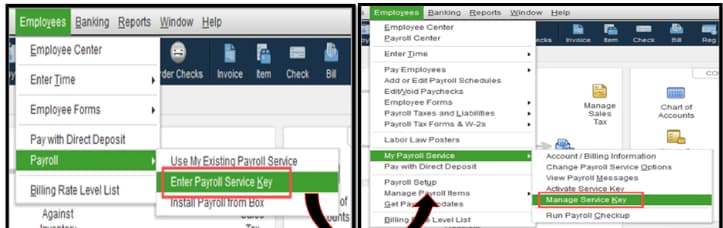
To re-activate QuickBooks Desktop Pro or Premier Payroll Subscription, first log in as an administrator and then under the menu item “Employee”, go to “My Payroll Services/ Payroll Services” and then to “Manage Service Key”.
Before reactivating payroll subscription services, you must check the status (active or inactive) and version (Assisted or enhanced) of payroll services. Depending on the status of subscription the method of reactivation will be different.
If your payroll subscription is already active, then you need to just reactivate your payroll subscription by entering a new service key but if your subscription is inactive or cancelled then you need to first renew your subscription and then reactivate it.
Why is Reactivation of QuickBooks Payroll Services needed in QuickBooks Desktop Pro and Premiere?
When the payroll status shows, “subscribed”, then payroll inactivation can be due to the reasons given below:
- Account verification issues where there could be a credential mismatch.
- A software update.
- Issue of continued subscription in case of migrating from one version to another.
- There might be issues with Intuit obtaining authorization for your payroll charges, or the payroll tax table may not be updated.
- Inactive service key.
In the above cases, you do not need to purchase or renew the subscription because it is already active.
Below given are the cases, where payroll subscription is inactive and you need to first renew the payroll subscription and then reactivate:
- Billing issues, as the payment method needs to be updated.
- Cancellation of QuickBooks Payroll services.
- Expiry of Payroll subscription.
If your subscription is inactive or cancelled, you must renew it by following the necessary steps before reactivating it.
How to Check Payroll Subscription Status & Version of in QuickBooks Desktop Pro and Premiere
Step to Check the Payroll Subscription Status
- Step: Open Your Company File
- Step: Sign In as the Primary or Payroll Admin
- Step: Go to the top menu and select Employees.
- Step: From the drop-down, choose My Payroll Service.
- Step: Select Account/Billing Info (sometimes labeled as Account/Billing Information)
- Step: Log In to Your Intuit Account
- Step: View Subscription Status
- Here, you can view your payroll subscription status, whether it is Active or Inactive.
Step to Check the Payroll Subscription Version
- Step: Open your QuickBooks Desktop company file.
- Step: Sign in as the Primary Admin or Payroll Admin.
- Step: Go to Employees, then select Payroll Center.
- Step: Within the Payroll Center, look for the Subscription Statuses tab.
- Step: The information on this tab will show you which payroll service (assisted or enhanced) you’re using.
Re-Activation of QuickBooks Desktop Pro or Premier Payroll Subscription

There are 3 methods, including a pay payroll update to refresh your payroll settings, reactivate your payroll subscription, and contact desktop support team for re-activating your QuickBooks Desktop pro or premier payroll subscription.
Method 1: Payroll Update to Refresh Your Payroll Settings
To update your payroll settings, you need to follow the steps given below, as it is important to ensure accurate employee compensation, compliance with changing tax laws, prevent errors in paychecks, and maintain up-to-date records.
Step 1: Open your QuickBooks Desktop company file
- Step: Click on the Employees menu
- Step: Choose Get Payroll Updates
- Step: Now click on the Download Entire Update Checkbox
- Step: A window will appear when the download is completed
Method 2: Reactivate Your Payroll Subscription
After updating your payroll setting, you need to reactivate your payroll subscription by following these steps:
- Step: Open your QuickBooks Desktop company file
- Step: Click on the Employees menu and access “My Payroll Service”
- Step: Now, select the “Manage Service Key”
- Step: Select the previous service key
“If prompted, sign in using your Intuit Account login.”
- Step: Click Remove
- Step: Click Yes on the message prompted on screen
- Step: Now click on Add
- Step: Re-type your payroll service key and select Next
- Step: Re-enter your Disk Delivery Key, select Next
- Step: Click on Finish
- Step: Click OK
“If necessary, provide updated payment information to complete the reactivation process.”
Method 3: Contact Desktop Support Team
- Step: Press the F1 key on your keyboard.
- Step: Select Contact Us.
- Step: Enter Support in the field and click Continue.
- Step: From here, you can message an agent.
Bottom Line
Reactivating your QuickBooks Desktop Pro or Premier Payroll subscription ensures uninterrupted payroll processing and compliance with tax updates. Always check your subscription status first—renew if inactive, then update your service key to reactivate.
Frequently Asked Questions
1. Why must I check my payroll subscription status and version before starting the reactivation process?
Checking your payroll status (Active/Inactive) and version (Enhanced/Assisted) is the necessary first step because it determines the correct path for resolution, preventing wasted effort.
- Active Status: If the status is “subscribed” but the service is inactive, you only need to perform a service key update (Method 2).
- Inactive/Canceled Status: If the subscription is truly canceled or expired due to billing issues, you must renew the subscription first before any service key update will take effect.
Failure to check the status may lead to attempting technical fixes when a simple billing update is required. The status can be verified by navigating to Employees > My Payroll Service > Account/Billing Info.
2. If my payroll status shows “subscribed” but the service is not working, what are the most common underlying causes?
When your billing status is active (“subscribed”) but the payroll service is non-functional, the issue is typically a technical mismatch rather than a billing problem.
Common causes for this disruption include:
- Inactive Service Key: The existing service key is outdated or expired due to a recent software update or migration.
- Credential Mismatch: A mismatch between the login credentials used in the company file and the credentials registered with the Intuit payroll service.
- Software Update Issue: A payroll update or software patch did not properly install or register the service key, causing an inactivation flag.
- Authorization Failure: Intuit cannot obtain authorization for payroll charges due to a temporary payment issue, even if the subscription remains technically active.
3. Why is it necessary to perform a Payroll Update (Method 1) to refresh payroll settings before attempting to reactivate the service key?
Performing a Payroll Update before attempting to reactivate the service key ensures that your software is running the latest tax tables and payroll parameters, which is essential for successful authentication.
- Tax Compliance: It ensures accurate employee compensation and compliance with the most recent federal and state tax laws.
- Error Prevention: It prevents errors in paychecks that can occur when outdated tax data is used.
- Compatibility: Updating often resolves minor communication failures between your QuickBooks software and the Intuit payroll servers, preparing the system for the successful re-entry of the service key. The update can be started via Employees > Get Payroll Updates.
4. What is the precise reason I need to Remove the old service key before re-typing the same service key in Method 2?
The step of removing the existing service key and then immediately re-adding it is an expert troubleshooting technique used to clear any cached or corrupted key data.
- Clearing Corruption: The “Manage Service Key” function removes the key’s internal association with the company file. If the existing association is corrupted or misregistered (which often happens after a major software update), removing it clears the error.
- Forced Re-registration: Re-typing the key forces QuickBooks to establish a fresh, clean registration with the Intuit payroll server, eliminating the underlying technical flag causing the “inactive” message. This sequence is performed in the Manage Service Key window.
5. If my subscription is inactive due to a payment issue, what must I do before attempting any technical reactivation steps?
If the subscription is inactive due to billing issues, such as an expired card or failed payment, the primary cause is outside the QuickBooks software. You must renew the subscription first.
- Renew Subscription: Access your Intuit Account login page (usually via Employees > My Payroll Service > Account/Billing Info) and update the payment method to successfully renew the service.
- Confirmation: The service status must show “Active” on the Intuit portal before you attempt to perform the “Manage Service Key” steps (Method 2) within the QuickBooks company file.
Attempting to reactivate the service key without a successful renewal will not work, as the service remains canceled or suspended.
6. What information is the “Disk Delivery Key” in Method 2, and where do I find it?
The Disk Delivery Key is a licensing component primarily associated with older or retail-box versions of QuickBooks payroll, used to validate the installation source. It is sometimes requested during reactivation.
- Key Purpose: It acts as a secondary validation code to confirm that the payroll license being reactivated matches the software installation.
- Location: This key is typically found on the original packaging, a sticker inside the CD case, or within the purchase confirmation emails if the software was bought directly from Intuit.
If prompted during the reactivation process, you must re-enter this key to complete the re-registration of the service.
7. How should I contact QuickBooks Desktop Support if the standard reactivation methods fail?
If both the Payroll Update (Method 1) and the Service Key reactivation (Method 2) fail, contacting support directly from within the software is the most efficient escalation method.
The steps for in-product escalation are:
- Access Help: Press the F1 key on your keyboard.
- Contact Options: Select Contact Us from the Help screen.
- Describe Issue: Enter a brief description of the problem, such as “Payroll Reactivation Failure,” and click Continue.
- Connect: Choose to message an agent or select a call-back option to connect with the desktop support team, ensuring you have your service key and payment information ready.