Recording a business Line of Credit (LOC) accurately within QuickBooks Desktop and Online is critical for maintaining precise financial statements and optimizing cash flow management. The correct method involves setting up the LOC as an Other Current Liability to distinguish it from standard term loans, reflecting its revolving, short-term nature. When drawing funds, the transaction must be categorized as a liability increase, not income. Crucially, every payment must be split into two components: the principal reduces the liability account, while the interest is posted as an Interest Expense on the Profit and Loss statement. Regular reconciliation is essential to ensure the QuickBooks balance matches the lender’s statement, capturing all draws, payments, and fees. For complex scenarios, such as net-deposit draws or lender-intercepted payments, using the Split feature or a Journal Entry is necessary to maintain proper double-entry bookkeeping, validating expertise and trustworthiness in financial reporting.
Highlights (Key Facts & Solutions)
- The Line of Credit (LOC) must be established in the Chart of Accounts as an Other Current Liability to properly classify it as a short-term, revolving debt.
- All funds drawn (withdrawals) from the LOC should be recorded as a Deposit or Transfer with the offsetting account being the Line of Credit Liability account, not an income account.
- Every payment made to the LOC must be split into two parts: the principal amount reduces the Line of Credit Liability account, and the interest/fees are recorded against an Interest Expense account.
- Monthly reconciliation is mandatory to ensure the QuickBooks liability balance precisely matches the outstanding balance reported on the lender’s statement.
- For complex scenarios, such as when a draw includes a netted fee, the Split function must be used to record the full liability and the separate bank expense.
- Intercepted payments (where the lender takes a customer’s payment directly) require a Journal Entry to Debit the LOC Liability account and Credit the Accounts Receivable (A/R) account, bypassing the bank register.
- Using the Other Current Liability account type, particularly with the Line of Credit Detail Type in QuickBooks Online, is the best practice for accurate balance sheet presentation.
What is a Line of Credit?
A line of credit is a type of loan that allows a company to borrow money as needed up to a predetermined amount and pay it back gradually.
Examples of Lines of Credit:
- Business Line of Credit
- Demand Line of Credit
- Home Equity Line of Credit
- Personal Line of Credit
- Securities-Backed Line of Credit
What is the Need to Set Up a Line of Credit in QuickBooks?
Line of Credit is valuable for the company since it may be used for various needs: to pay for short-term costs, to solve the fluctuations in cash flow, and to take opportunities for development. Below are a few pointers to understand it better:
- Manage Cash Flow: Avails working capital when there is a pinch in the cash flow of the business.
- Cover Unexpected Costs: Used in reserve planning and as an emergency fund.
- Support Business Growth: As a source of funds to finance prospects such as an increase in inventory or marketing communications.
- Flexible Borrowing: This allows you to withdraw only the amount required; it does not make you incur unnecessary interest charges.
- Improve Credit Score: If you make payments on the line of credit, the company will post information on your credit reports, which will improve your business credit scores.
- Seasonal Stability: This can assist in filling the gaps in revenue occurrence in low seasons.
How to record a Line of Credit in QuickBooks Desktop?
Record a Line of Credit in QuickBooks Desktop, create a Line of Credit account under the Chart of Accounts, record borrowed amounts as deposits, track payments using checks, document interest and fees, and reconcile the account to ensure accuracy.
Process 1: Create a Line of Credit account
Create a Line of Credit account in QuickBooks Desktop, navigate to the Chart of Accounts, select “+ New,” choose “Loan” and “Other Current Liability,” enter the account details, and save the transaction.
Following the step-by-step information below:
Step 1: Navigate to the Chart of Accounts
- Click on the Lists menu on the screen.
- Select the Chart of Accounts option.
Step 2: Create a new account
- Right-click on the screen and hit the + New option.
- Select the Loan option and press Continue.
- Select the Other Account Type and then choose Other Current Liability.
- Hit Continue on the screen to proceed.
- Mention the details of your Line of Credit.
Step 3: Save the transaction
- Once you have entered all the required details, Click on Save and close.
Process 2: Recorded Borrowed Amounts
How to record borrowed amounts in QuickBooks Desktop, go to Banking, select “Make Deposits,” choose the account, enter deposit details like vendor and amount, and then save the deposit.
Following the step-by-step information below:
Step 1: Locate for Banking
- Click on the main menu.
- Click on the Banking option.
- Choose the Make Deposits.
Step 2: Create a Deposit
- In the Payments to Deposit window, Hit OK.
- In the Make Deposits window, choose the account to which you want to deposit the borrowed amount.
Enter the details of the deposit:
- Received From: Select the vendor or financial institution from whom you received the line of credit.
- From Account: Select the line of credit account you created.
- Amount: Enter the borrowed amount.
- Memo: Enter a memo for reference (optional).
Step 3: Save the Deposit
- Hit on Save & Close.
Process 3: Record Payments on the Line of Credit
Record a payment on your Line of Credit in QuickBooks Desktop, go to Banking, choose “Write Checks,” enter payment details, select the Line of Credit account, and save the transaction.
Following the step-by-step information below:
Step 1: Go to Banking
- Press Banking from the main menu.
- Choose Write Checks.
Step 2: Write a Check
- Choose the account from which you are making the payment in the Write Checks window.
- Mention the check details.
- Pay to the Order of: Choose the financial institution to which you are making the payment.
- Amount: Mention the payment amount.
- Expenses tab:
- Account: Choose the line of credit account you created.
- Amount: Put the payment amount.
- Memo: Put a memo for reference (optional).
Step 3: Save the transaction
- Hit on Save & Close.
Process 4: Record the Interest and Fees
To record interest and fees on a Line of Credit in QuickBooks Desktop, go to Banking, select “Write Checks,” enter payment details, choose the expense account, and save the transaction.
Following the step-by-step information below:
Step 1: Locate to Banking
- From the main menu, click on Banking.
- Choose the Write Checks option.
Step 2: Write a Check for Interest/Fees
- In the Write Checks window, choose the account from which you are making the payment.
- Document the details of the check:
- Pay to the Order of Choose the financial institution to which you are paying the interest or fees.
- Amount: Put the interest or fee amount.
- Expenses tab:
- Account: Choose an appropriate expense account.
- Amount: Put the interest or fee amount.
- Memo: Put a memo for reference (optional).
Step 3: Save the transaction
- Hit on Save & Close.
Process 5: Reconcile the Line of Credit Account in QuickBooks
To reconcile your Line of Credit account in QuickBooks Desktop, go to Banking, select “Reconcile,” choose the account, enter the statement date and balance, match transactions, and press “Reconcile Now.”
Following the step-by-step information below:
Step 1: Navigate to Banking
- From the main menu, press on Banking.
- Choose Reconcile.
Step 2: Reconcile the Account:
- In the Reconcile window, choose the line of credit account from the Account dropdown.
- Mention the statement date and ending balance from your line of credit statement.
- Press Continue.
- Match the transactions in QuickBooks with your statement.
- Press the Reconcile Now button once everything matches.
How to record a Line of Credit in QuickBooks Online?
To record a Line of Credit in QuickBooks Online, create a liability account under Chart of Accounts, then record deposits and payments accurately to manage the balance.
Process 1: Create a liability account
Create a liability account in QuickBooks, navigate to the Chart of Accounts, select “New,” choose “Other Current Liabilities,” enter the details and account name, and click “Save and Close.”
Following the step-by-step information below:
Step 1: Navigate to the Chart of Accounts
- Click on the Setting option on the screen.
- Choose the Chart of Accounts.
Step 2: Create a new account
- Click on the New from the Account type dropdown.
- Now, select the Other Current Liabilities option.
Step 3: Mention the details type and account name
- Click on the Detail type dropdown menu.
- Choose the detail type that best fits the transaction you want to track.
- Put the account name.
- Enter the description.
Note: Individuals/companies who use Line of Credit choose Loan Payable as the detailed type.
Step 4: Save the transaction
- Once you have entered all the required details, Click on Save and close
Process 2: Record the deposit
To record a deposit in QuickBooks, navigate to Banking, select “Make Deposits,” choose the account, enter the deposit details, and save the transaction.
Case 1: When your bank account is connected with QuickBooks Online
How to record a bank deposit in QuickBooks Online, navigate to Banking, find your bank account, enter the invoice amount and fees, ensure the net amount matches, then review and confirm.
Following the step-by-step information below:
Step 1: Navigate to the Bank account
- Click on the Banking option to locate the deposit.
- Find the bank account you use for a Line of Credit transaction.
- If you don’t find the bank account is not connected, enter the bank deposit information manually.
Step 2: Mention the invoice amount
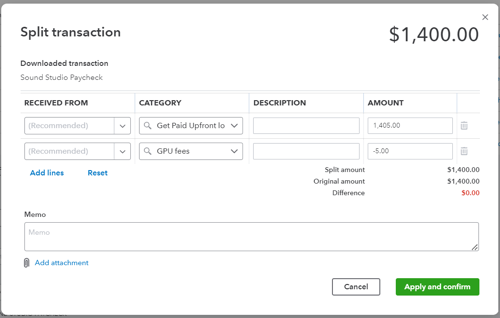
- Choose the Split transaction option on the screen.
- Choose the liability account you have created for the Line of Credit transaction from the Category option.
- Put the original invoice amount.
Step 3: Mention the expense amount
- Choose the expense account used for Line of Credit fees.
- Put the fee amount as a negative number.
- Make sure that the deposit should be the same as the net amount deposited in the bank.
Step 4: Review the transaction
- Once you have entered all the required details, Click on Apply and confirm.

Case 2: When there is an intercepted payment
When a customer pays the invoice within the first 30 days, QuickBooks capital appies the payment to pay off your Line of Credit loan, which is known as intercepted payment.
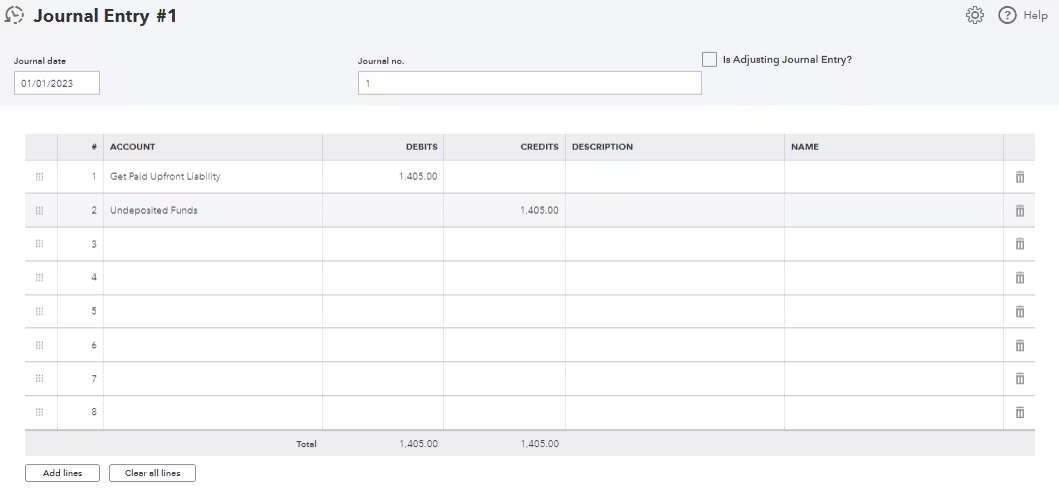
Step 1: Create a journal entry
- Click on the + New option on the screen.
- Choose the Journal entry.
Step 2: Select the liability account
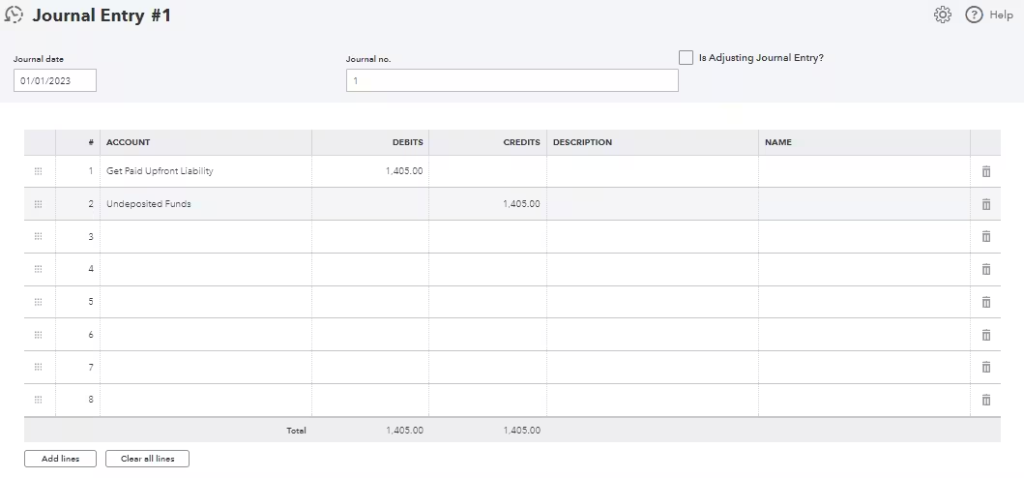
- Choose the liability account ( which you have created to track the Line of Credit loans) under the Account drop down menu.
- Mention the full invoice amount received from the customer in the Debit column.
- Choose the Undeposited Funds option under the Account drop down menu.
- Mention the full invoice amount in the Credit column.
- Click on Save and Close button.
Note: Make sure that the journal entry should balance on both the debt and credit side.
Step 3: Locate the Bank deposit
- Click on the + New option on the screen.
- Choose the Bank deposit.
Step 4: Pick the bank account
- Click the Account dropdown menu on the screen.
- Choose the bank account.
Step 5: Enter the transaction details
- Put the date when the payment is received under the Date option.
- Locate the payment and check the box.
- Locate the journal entry for the same amount and check the box. The deposit should show $0.00.
Step 6: Save the transaction
- Once you have entered all the required details, Click on Save and Close.
Case 3: When a customer pays the invoice outside QuickBooks Online
To record an invoice payment made outside QuickBooks Online, log the payment as an expense, select your liability account, enter the amount, review details, and save the transaction.
Following the step-by-step information below:
Step 1: Record the invoice payment
In order to record the invoice payment, follow the steps mentioned under the heading “How to Record an Invoice in QuickBooks Online,” then proceed further.
Step 2: Locate to Expense
- Click on the + New option on the screen.
- Select the Expense option.
Step 3: Pick the liability account
- Click on the Category drop-down menu on the screen.
- Choose the liability account you have created for the Line of Credit transaction.
Step 4: Enter the transaction details
- Put the total payment under the Amount section.
- Make sure the payment matches the invoice amount to pay off the loan.
Step 5: Review the transaction
- Check the date and the bank account.
- Click on Save and Close.
Tips for Better Recording of Line of Credit in QuickBooks
Follow the tips below to better record your line of credit in QuickBooks:
- Categorize Properly: Make sure the line of credit is established as a liability account so that it is not confused with other accounts.
- Track Interest and Fees: Any interest paid on such securities or any fees paid on the securities should be recorded in specific expense accounts for better record-taking purposes.
- Reconcile Regularly: Compare the QuickBooks record with the bank statements in order to delete the difference.
- Use Clear Descriptions: To enhance tracking and auditing procedures, it is recommended that memos related to withdrawals, repayments, and other connected transactions be entered in a greater degree of detail.
- Consult a Professional: In case of doubt, consult an accountant to keep books of account business-like and avoid legal repercussions.
How to set up a line of credit in QuickBooks?
To set up a line of credit in QuickBooks:
- Go to Chart of Accounts
- Click Lists > Chart of Accounts
- Create a New Liability Account
- Click Account > New
- Select Other Current Liability (short-term) or Long Term Liability (long-term)
- Click Continue
- Enter Account Details
- Name the account (e.g., “Line of Credit – [Bank Name]”)
- Set the Opening Balance if needed
- Click Save & Close
how to categorize line of credit in QuickBooks?
In QuickBooks, categorize a line of credit as follows:
- Set Up the Line of Credit Account:
- Go to Lists > Chart of Accounts > New.
- Select Other Account Types > Credit Card (or Loan if you prefer).
- Name the account (e.g., “Bank Line of Credit”).
- Record Draws from the Line of Credit:
- Go to Banking > Write Checks (or Transfer Funds if moving money).
- Select the Line of Credit account as the source.
- Deposit the funds into the appropriate bank account.
- Record Payments to the Line of Credit:
- Go to Banking > Write Checks.
- Select your Bank Account as the source.
- Choose the Line of Credit account in the “Expenses” tab.
This ensures accurate tracking of your credit balance and payments.
How to Split a Transaction in QuickBooks Desktop for Line of Credit Usage
Splitting a transaction in QuickBooks Desktop allows you to allocate portions of a single transaction to different accounts, ensuring accurate financial tracking. If you’re using a line of credit, you can split a transaction to record both the borrowed amount and any related expenses.
Steps to Split a Transaction for Line of Credit Usage
- Locate the Transaction
- Go to Banking and open your bank register.
- Find the transaction you need to split.
- Select “Split Transaction”
- Click on the transaction to open it.
- Choose the “Split” option.
- Assign the Line of Credit Account
- In the Category field, select the liability account created for your line of credit.
- Enter the Split Amounts
- Input the portion of the transaction that represents the borrowed funds.
- If applicable, add another split line for fees or interest and categorize it as an expense.
- Review and Save
- Ensure the total split matches the original transaction amount.
- Click Apply to save the changes.
Key Tips for Accuracy
โ Set Up a Dedicated Line of Credit Account โ Ensure a liability account is created in the Chart of Accounts.
โ Track Fees Separately โ Record any interest or fees in a separate expense account.
โ Verify Bank Feed Transactions โ Check imported transactions to prevent duplicates or mismatches.
How to Reconcile a Line of Credit in QuickBooks Online & Desktop?
Reconciling your line of credit in QuickBooks ensures your financial records match your bank statements, helping you track payments, withdrawals, and interest accurately. Hereโs how to do it for QuickBooks Online and QuickBooks Desktop:
Step 1: Gather Your Statements
Before reconciling, obtain your latest line of credit statement from your bank. Make sure it includes all transactions, balances, and interest charges for the period you are reconciling.
Step 2: Start the Reconciliation Process
For QuickBooks Online:
- Go to the Reconciliation Page
- Click Settings > Reconcile.
- Select your line of credit account from the dropdown.
- Enter Statement Details
- Input the ending balance and statement date from your bank statement.
- Match Transactions
- Compare each transaction in QuickBooks with your bank statement.
- Ensure payments, withdrawals, and interest charges are recorded correctly.
- Fix Discrepancies (If Any)
- If transactions are missing, manually enter them.
- Adjust any incorrect amounts if needed.
- Complete the Reconciliation
- If the difference is $0, click Finish Now to complete.
For QuickBooks Desktop:
- Go to Banking > Reconcile
- Choose your line of credit account.
- Enter the statementโs ending balance and date.
- Check off each transaction that matches your bank statement.
- If everything is correct, click Reconcile Now.
Step 3: Review and Save Reports
After reconciling, save or print a Reconciliation Report for your records. This helps track any errors and keeps your financials organized.
Best Practices for Reconciling a Line of Credit in QuickBooks
Reconciling your line of credit in QuickBooks is crucial to maintaining accurate financial records and ensuring your books are in balance. Here are some best practices to help make the process smoother:
- Create a Line of Credit Account: Before reconciling, make sure you’ve set up a liability account for your line of credit. This will help you accurately track your balance.
- Match Bank Transactions: Ensure that all transactions (deposits, withdrawals, and interest) from your line of credit are imported from your bank feed or entered manually. Make sure they match your bank statements.
- Record Interest and Fees Separately: Interest charges and fees on your line of credit should be recorded as expenses. This helps maintain clear financial statements and avoids confusion during reconciliation.
- Check for Errors: Double-check for missing or duplicate transactions that may disrupt the balance. Correct these before finalizing the reconciliation.
- Reconcile Regularly: Itโs important to reconcile your line of credit on a regular basis to ensure that all payments and charges are properly recorded.
Generate Reports: Use QuickBooks reports to keep track of your line of credit balance, interest, and fees, helping you make informed decisions and stay on top of your finances.
Conclusion
Keep track of the line of credit using QuickBooks, make timely payments and stay updated on the fund utilization from the borrowed accounts. It is important to record the borrowed amount and any payments made toward a line of credit in QuickBooks to ensure that your financial statements are accurate. Businesses can easily clarify the Line of Credit as a liability and monitor interest costs accordingly.
FAQ
What is the fundamental accounting difference between a Line of Credit (LOC) and a standard Loan in QuickBooks?
The core difference is in fund access and liability classification on the Balance Sheet. A standard term loan is a single lump sum disbursed upfront, with fixed amortization payments. A Line of Credit (LOC) offers revolving access to funds up to a set limit; you can borrow, pay back, and borrow again.
For financial reporting:
- Standard Loan: Typically classified as a Long Term Liability for its duration, with the portion due within 12 months reclassified as a Current Liability. It carries interest on the full amount immediately upon disbursement.
- Line of Credit (LOC): As it is used for managing short-term cash flow, it is most accurately classified as an Other Current Liability. Interest only accrues on the specific amount of funds drawn, not the full credit limit.
When recording a Line of Credit payment, how do I accurately split the transaction between principal and interest?
Accurate tracking requires splitting the single payment into two distinct accounts to correctly reflect the business’s financial health and taxable income. This applies whether you use the Write Check form in Desktop or the Split feature in Online.
- Principal Repayment: This amount reduces the total debt. It must be categorized against the Line of Credit Liability account.
- Interest and Fees: This is an operating expense. It must be categorized against a separate Interest Paid (or Interest Expense) account.
The total of the principal and interest amounts must equal the total payment amount withdrawn from your checking account.
What is the correct way to categorize a draw (withdrawal) from the Line of Credit to my operating bank account?
A draw from an LOC is a transfer of liability, not a form of income. It must be recorded as a corresponding increase in the assets (cash) and liabilities (debt).
The transaction should be recorded in your operating bank account as a Deposit or a Transfer In. The source account (the From Account or Category) must be the Line of Credit Liability account, not an income category.
This categorization ensures:
- Your bank account balance increases correctly.
- Your Balance Sheet liability for the LOC increases correctly.
- Your Profit and Loss (P&L) statement remains unaffected, as borrowing is not revenue.
Why is reconciliation essential for a Line of Credit account, and what are the main items to check?
Reconciliation is the process of ensuring that the ending balance of the LOC Liability account in QuickBooks exactly matches the outstanding balance on the bank or lender’s statement. Reconciliation must be performed monthly to maintain accurate books, as simply matching the bank feed is insufficient.
Key items to verify during the reconciliation process:
- Draws: All withdrawals are recorded as increases in the liability.
- Principal Payments: All principal portions of payments are recorded as decreases in the liability.
- Interest/Fees: Ensure interest and fees recorded as expenses in the P&L are also properly reflected in the liability balance per the bank statement.
- Outstanding Transactions: Identify any transactions, such as checks issued but not yet cashed, that appear in QuickBooks but not on the statement.
If my bank statement shows a single net amount for a draw, including a transaction fee, how do I record that split in QuickBooks Online?
When a bank transaction, such as a draw, is downloaded into QuickBooks Online’s Banking feed with a fee netted out, you must use the Split feature to accurately capture the gross debt and the expense.
Steps for recording a net draw in QBO:
- Locate the transaction in the For Review tab of the Bank Feed.
- Select the transaction and click Split (or Categorize, then Split).
- Line 1: Category is the Line of Credit Liability account; Amount is the Gross Draw Amount (the full amount borrowed before the fee).
- Line 2: Category is an Expense account (e.g., Bank Service Charges/Fees); Amount is the Fee Amount (entered as the difference to make the total equal the net deposit).
- Ensure the Difference column shows $0.00 before saving.
What is an ‘intercepted payment’ in QuickBooks Capital, and how is the journal entry structured?
An intercepted payment (common with QuickBooks Capital and similar lenders) occurs when the lender directly takes a customer payment (an Accounts Receivable collection) to pay down your outstanding LOC balance before the funds reach your business bank account.
A Journal Entry (J/E) is necessary to record the event without using the bank account:
- Debit (DR): Line of Credit Liability account (by the payment amount). This records the reduction of the debt.
- Credit (CR): Accounts Receivable (A/R) account (by the payment amount). This clears the customer’s outstanding invoice.
This J/E adheres to the double-entry system by balancing the decrease in an asset (A/R) with the decrease in a liability (LOC).
Should I set up my Line of Credit account type as ‘Credit Card’ or ‘Other Current Liability’ in QuickBooks?
While the Credit Card account type offers dedicated reconciliation tools, the Other Current Liability account type is the most precise and preferred choice for accurate financial reporting.
- Other Current Liability:
- Advantage: Correctly reflects the LOC’s nature as a non-credit card debt on the Balance Sheet. QuickBooks Online now offers a Detail Type specifically labeled Line of Credit under this Account Type for clear classification.
- Credit Card:
- Disadvantage: While functionally similar, using this type can present a misleading picture on the Balance Sheet, especially if you have a separate business credit card.
The latest guidance confirms that setting the Account Type as Other Current Liabilities and the Detail Type as Line of Credit (where available) is the best practice.
Disclaimer: The information outlined above for โHow to Record a Line of Credit in QuickBooks Desktop and Online?โ is applicable to all supported versions, including QuickBooks Desktop Pro, Premier, Accountant, and Enterprise. It is designed to work with operating systems such as Windows 7, 10, and 11, as well as macOS.