Excerpt:
Learn how to effectively manage your business's line of credit using QuickBooks. This article guides you through setting up and recording a line of credit, tracking payments, and ensuring accurate financial records. By properly documenting borrowed amounts, interest, and fees, you can improve cash flow, avoid unnecessary interest charges, and maintain reliable financial statements. Perfect for businesses seeking better financial management and growth support.
 Add As A Preferred
Recording a business Line of Credit (LOC) accurately within QuickBooks Desktop and Online is critical for maintaining precise financial statements and optimizing cash flow management. The correct method involves setting up the LOC as an Other Current Liability to distinguish it from standard term loans, reflecting its revolving, short-term nature. When drawing funds, the transaction must be categorized as a liability increase, not income. Crucially, every payment must be split into two components: the principal reduces the liability account, while the interest is posted as an Interest Expense on the Profit and Loss statement. Regular reconciliation is essential to ensure the QuickBooks balance matches the lender’s statement, capturing all draws, payments, and fees. For complex scenarios, such as net-deposit draws or lender-intercepted payments, using the Split feature or a Journal Entry is necessary to maintain proper double-entry bookkeeping, validating expertise and trustworthiness in financial reporting.
Highlights (Key Facts & Solutions)
A line of credit is a type of loan that allows a company to borrow money as needed up to a predetermined amount and pay it back gradually.
Examples of Lines of Credit:
Line of Credit is valuable for the company since it may be used for various needs: to pay for short-term costs, to solve the fluctuations in cash flow, and to take opportunities for development. Below are a few pointers to understand it better:
Record a Line of Credit in QuickBooks Desktop, create a Line of Credit account under the Chart of Accounts, record borrowed amounts as deposits, track payments using checks, document interest and fees, and reconcile the account to ensure accuracy.
Create a Line of Credit account in QuickBooks Desktop, navigate to the Chart of Accounts, select “+ New,” choose “Loan” and “Other Current Liability,” enter the account details, and save the transaction.
Following the step-by-step information below:
How to record borrowed amounts in QuickBooks Desktop, go to Banking, select “Make Deposits,” choose the account, enter deposit details like vendor and amount, and then save the deposit.
Following the step-by-step information below:
Enter the details of the deposit:
Record a payment on your Line of Credit in QuickBooks Desktop, go to Banking, choose “Write Checks,” enter payment details, select the Line of Credit account, and save the transaction.
Following the step-by-step information below:
To record interest and fees on a Line of Credit in QuickBooks Desktop, go to Banking, select “Write Checks,” enter payment details, choose the expense account, and save the transaction.
Following the step-by-step information below:
To reconcile your Line of Credit account in QuickBooks Desktop, go to Banking, select “Reconcile,” choose the account, enter the statement date and balance, match transactions, and press “Reconcile Now.”
Following the step-by-step information below:
To record a Line of Credit in QuickBooks Online, create a liability account under Chart of Accounts, then record deposits and payments accurately to manage the balance.
Create a liability account in QuickBooks, navigate to the Chart of Accounts, select “New,” choose “Other Current Liabilities,” enter the details and account name, and click “Save and Close.”
Following the step-by-step information below:
Note: Individuals/companies who use Line of Credit choose Loan Payable as the detailed type.
To record a deposit in QuickBooks, navigate to Banking, select “Make Deposits,” choose the account, enter the deposit details, and save the transaction.
How to record a bank deposit in QuickBooks Online, navigate to Banking, find your bank account, enter the invoice amount and fees, ensure the net amount matches, then review and confirm.
Following the step-by-step information below:
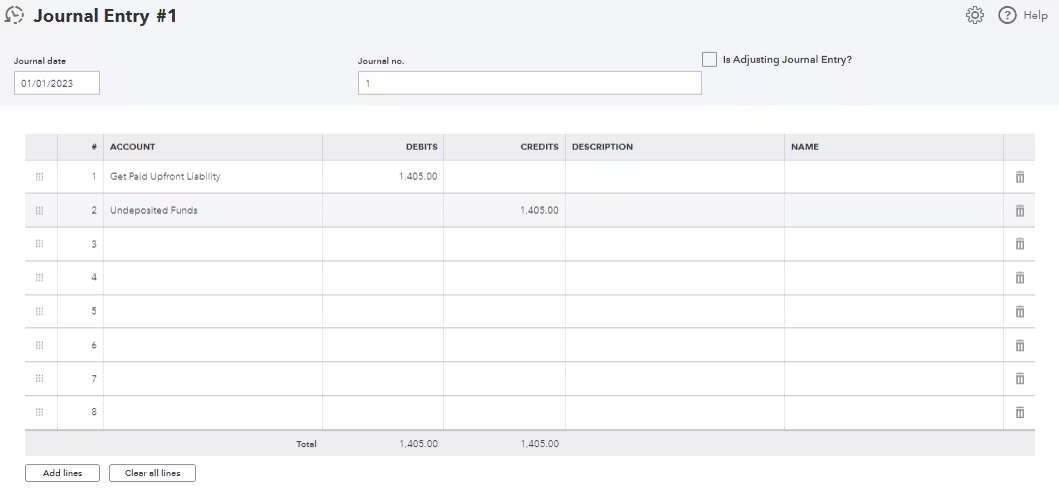
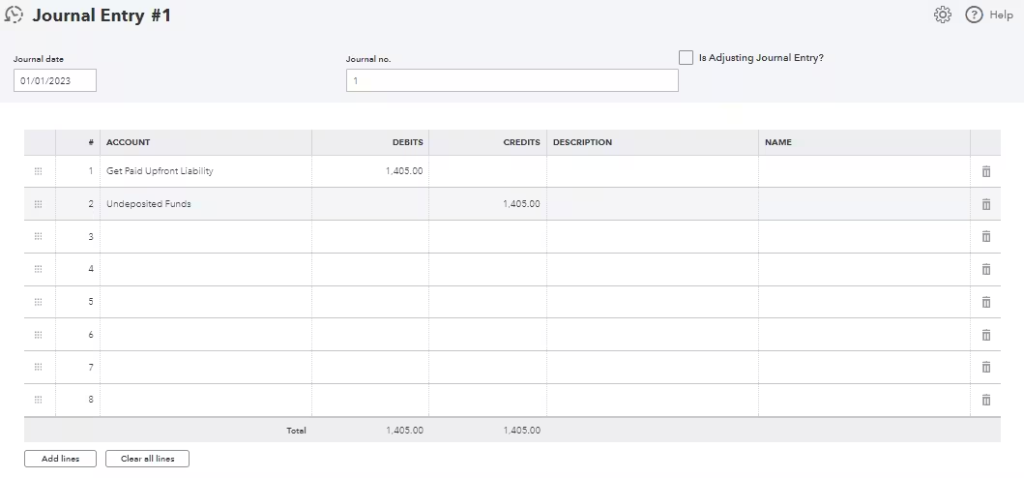
When a customer pays the invoice within the first 30 days, QuickBooks capital appies the payment to pay off your Line of Credit loan, which is known as intercepted payment.
Note: Make sure that the journal entry should balance on both the debt and credit side.
To record an invoice payment made outside QuickBooks Online, log the payment as an expense, select your liability account, enter the amount, review details, and save the transaction.
Following the step-by-step information below:
In order to record the invoice payment, follow the steps mentioned under the heading “How to Record an Invoice in QuickBooks Online,” then proceed further.
Follow the tips below to better record your line of credit in QuickBooks:
To set up a line of credit in QuickBooks:
In QuickBooks, categorize a line of credit as follows:
This ensures accurate tracking of your credit balance and payments.
Splitting a transaction in QuickBooks Desktop allows you to allocate portions of a single transaction to different accounts, ensuring accurate financial tracking. If you’re using a line of credit, you can split a transaction to record both the borrowed amount and any related expenses.
✔ Set Up a Dedicated Line of Credit Account – Ensure a liability account is created in the Chart of Accounts.
✔ Track Fees Separately – Record any interest or fees in a separate expense account.
✔ Verify Bank Feed Transactions – Check imported transactions to prevent duplicates or mismatches.
Reconciling your line of credit in QuickBooks ensures your financial records match your bank statements, helping you track payments, withdrawals, and interest accurately. Here’s how to do it for QuickBooks Online and QuickBooks Desktop:
Before reconciling, obtain your latest line of credit statement from your bank. Make sure it includes all transactions, balances, and interest charges for the period you are reconciling.
After reconciling, save or print a Reconciliation Report for your records. This helps track any errors and keeps your financials organized.
Reconciling your line of credit in QuickBooks is crucial to maintaining accurate financial records and ensuring your books are in balance. Here are some best practices to help make the process smoother:
Generate Reports: Use QuickBooks reports to keep track of your line of credit balance, interest, and fees, helping you make informed decisions and stay on top of your finances.
Keep track of the line of credit using QuickBooks, make timely payments and stay updated on the fund utilization from the borrowed accounts. It is important to record the borrowed amount and any payments made toward a line of credit in QuickBooks to ensure that your financial statements are accurate. Businesses can easily clarify the Line of Credit as a liability and monitor interest costs accordingly.
The core difference is in fund access and liability classification on the Balance Sheet. A standard term loan is a single lump sum disbursed upfront, with fixed amortization payments. A Line of Credit (LOC) offers revolving access to funds up to a set limit; you can borrow, pay back, and borrow again.
For financial reporting:
Accurate tracking requires splitting the single payment into two distinct accounts to correctly reflect the business’s financial health and taxable income. This applies whether you use the Write Check form in Desktop or the Split feature in Online.
The total of the principal and interest amounts must equal the total payment amount withdrawn from your checking account.
A draw from an LOC is a transfer of liability, not a form of income. It must be recorded as a corresponding increase in the assets (cash) and liabilities (debt).
The transaction should be recorded in your operating bank account as a Deposit or a Transfer In. The source account (the From Account or Category) must be the Line of Credit Liability account, not an income category.
This categorization ensures:
Reconciliation is the process of ensuring that the ending balance of the LOC Liability account in QuickBooks exactly matches the outstanding balance on the bank or lender’s statement. Reconciliation must be performed monthly to maintain accurate books, as simply matching the bank feed is insufficient.
Key items to verify during the reconciliation process:
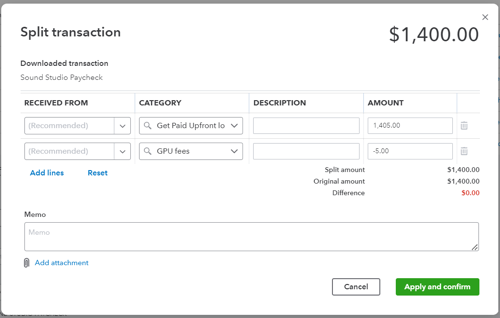
When a bank transaction, such as a draw, is downloaded into QuickBooks Online’s Banking feed with a fee netted out, you must use the Split feature to accurately capture the gross debt and the expense.
Steps for recording a net draw in QBO:
An intercepted payment (common with QuickBooks Capital and similar lenders) occurs when the lender directly takes a customer payment (an Accounts Receivable collection) to pay down your outstanding LOC balance before the funds reach your business bank account.
A Journal Entry (J/E) is necessary to record the event without using the bank account:
This J/E adheres to the double-entry system by balancing the decrease in an asset (A/R) with the decrease in a liability (LOC).
While the Credit Card account type offers dedicated reconciliation tools, the Other Current Liability account type is the most precise and preferred choice for accurate financial reporting.
The latest guidance confirms that setting the Account Type as Other Current Liabilities and the Detail Type as Line of Credit (where available) is the best practice.


