Excerpt:
Accurate recording of credit card processing fees is a mandatory accounting task for any business utilizing QuickBooks Online or QuickBooks Desktop, ensuring financial reports are transparent and reconcile precisely with bank statements. The core workflow, validated by Intuit, centers on utilizing the Undeposited Funds asset account as a critical clearing stage for all customer payments before they are formally deposited. This process allows multiple gross payments to be grouped into a single Bank Deposit (QBO) or Make Deposits (QBD) transaction. To account for the fee, the expense must be entered as a negative line item within this deposit transaction, instantly netting the total deposit to match the exact amount received in the physical bank account. Furthermore, proper financial management dictates these fees be consistently classified as an Operating Expense on the Profit and Loss statement, thereby correctly capturing the true cost of accepting card payments and maintaining the integrity of the books for tax and audit purposes.
 Add As A Preferred
Highlights (Key Facts & Solutions)
Overview
Credit card fees are unavoidable when handling payments, but effectively recording them in QuickBooks is critical for accounting purposes.
Accurately recording these fees in QuickBooks makes it easier to monitor your financial situation and ensures that your revenue and expenses are appropriately represented.
Knowing how to enter these fees into QuickBooks will speed up your accounting procedures, lower error rates, and save time on reconciliations whether you’re an accountant or a small business owner.
This article will show you how to record these fees while using QuickBooks online and on the desktop to track your business’s income and expenses accurately.
Recording credit card transactions in QuickBooks is critical to a book of accounts since it keeps an organization’s records accurate. If you’re using QuickBooks Desktop or QuickBooks Online, these transactions are useful for making sure your accounts are current.
Indeed, the classification of debit card transactions is one of the most important factors in the process, especially if the payment is made immediately.
These transactions are usually recorded under the right expense account depending on their nature (e.g., office supplies, utilities, and many others).
In this step-by-step guide, you will learn how to enter debit card transactions in QuickBooks, whether they are immediate or delayed.
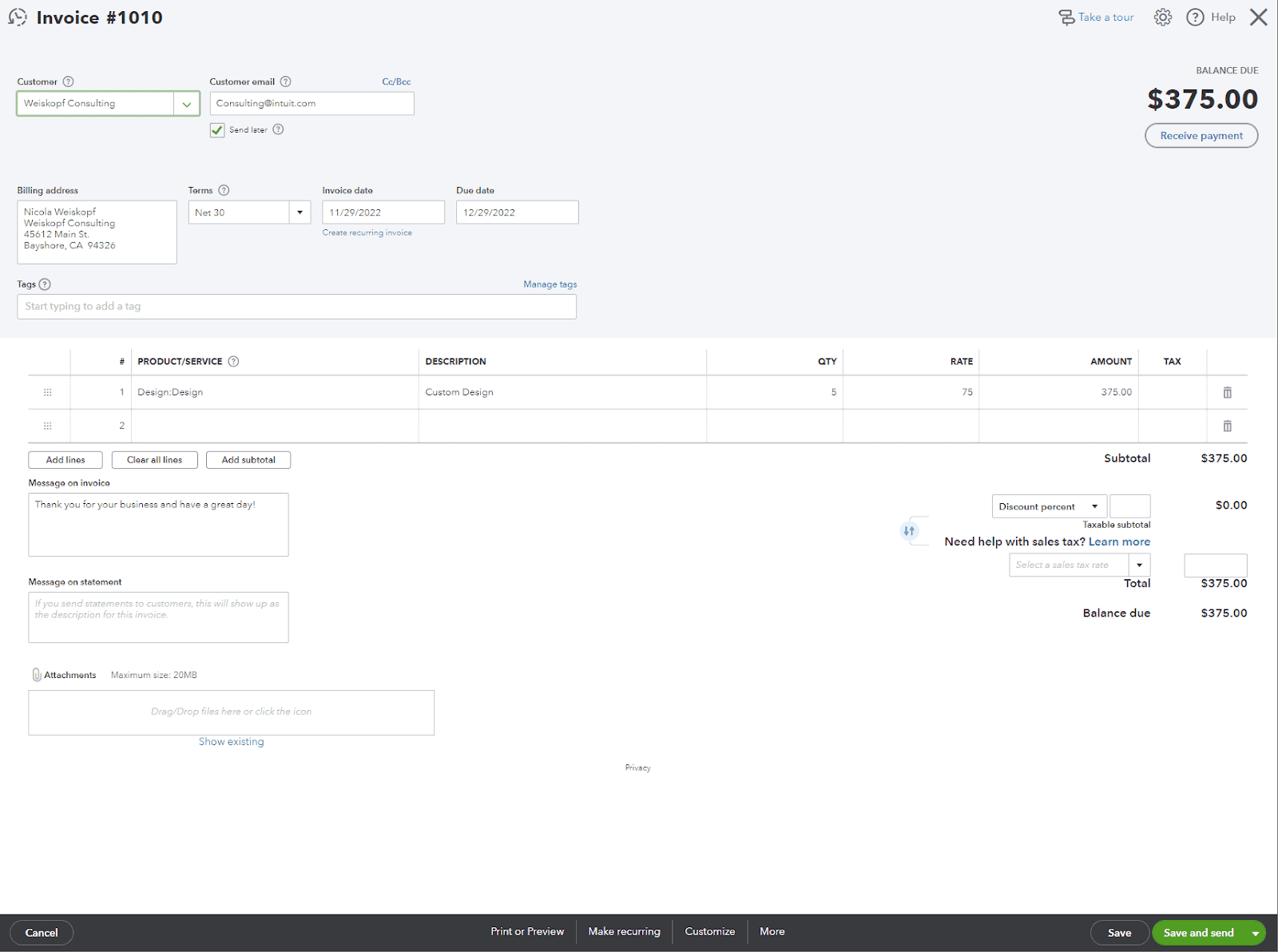
In order to account for Credit Card Processing Fees in QuickBooks, you need to follow the steps:
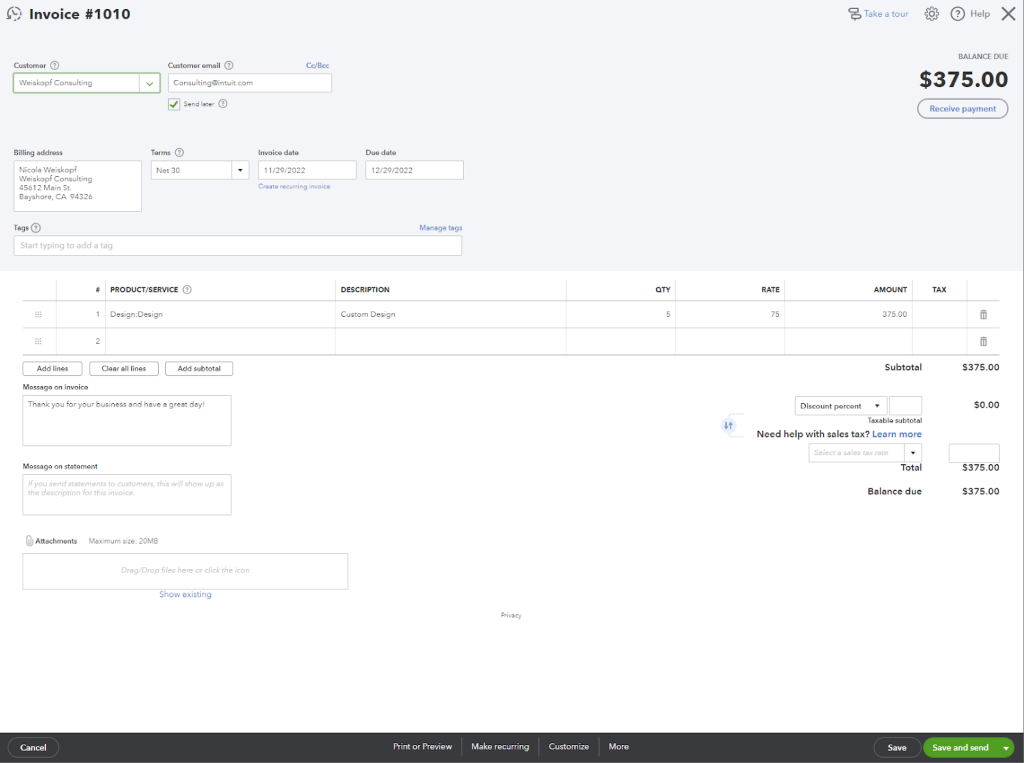
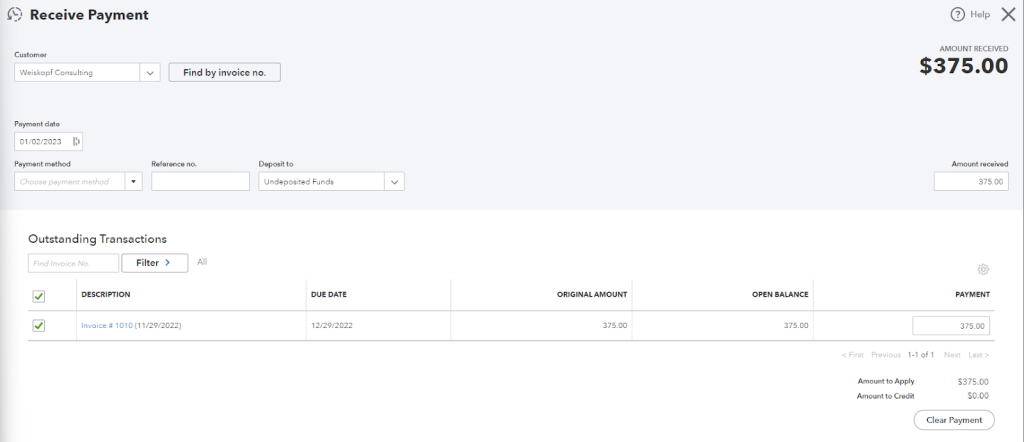
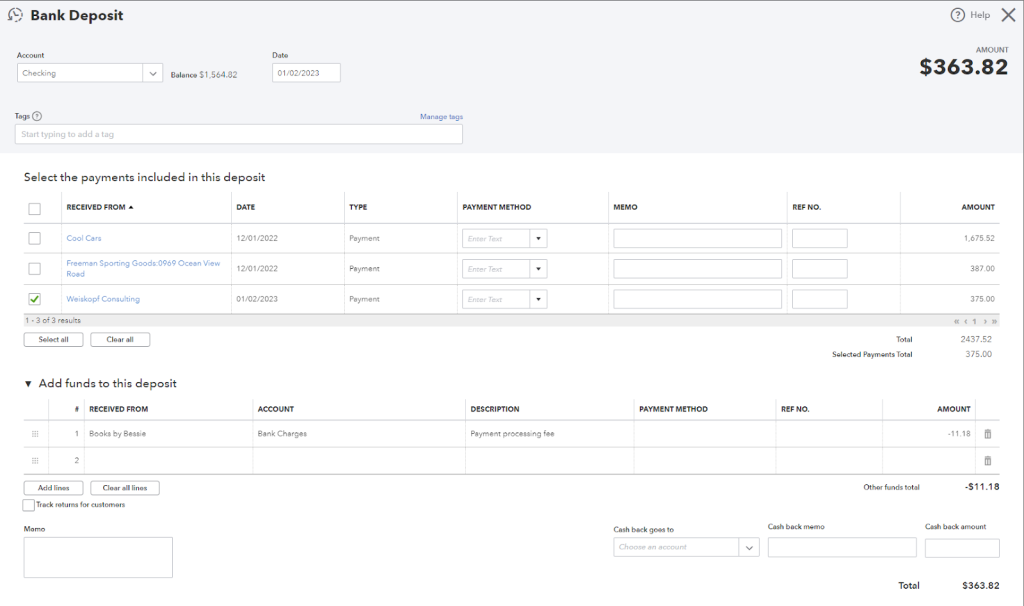
Including credit card fees on QuickBooks invoices ensures accurate financial reporting and transparent communication with clients regarding additional charges.
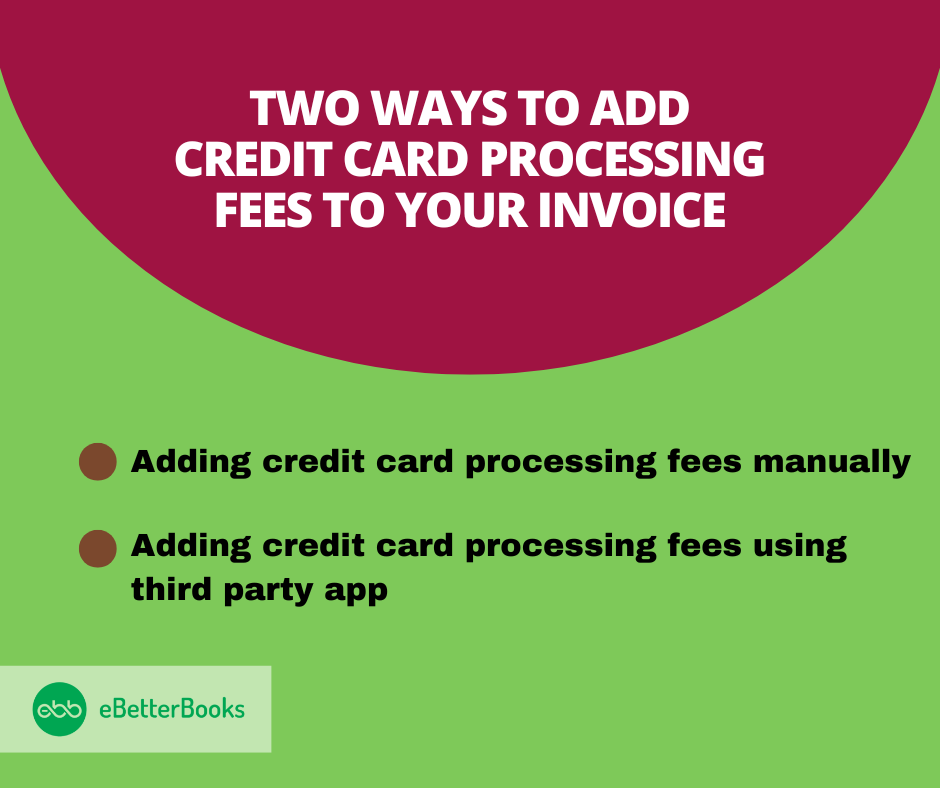
Methods to Add Credit Card Processing Fees:
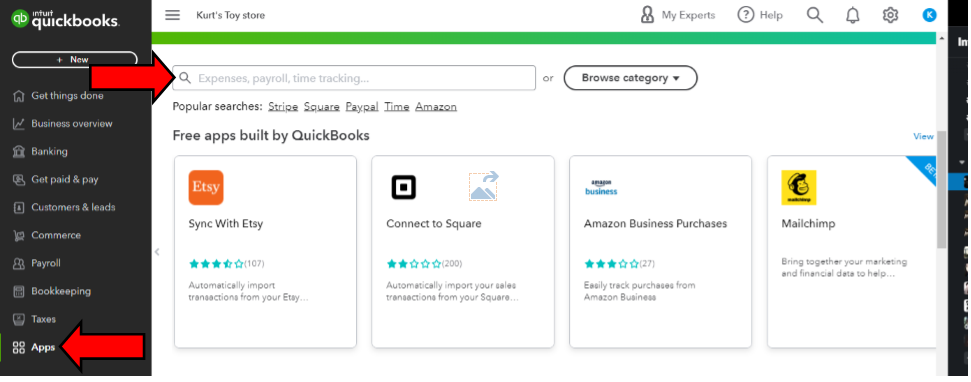
Setting up credit card processing fees in QuickBooks requires careful navigation, which is crucial for business owners.
Here are the steps on how to charge the credit card processing fees to the customer:
First, create a service item and then manually add it as a line item to their invoice.
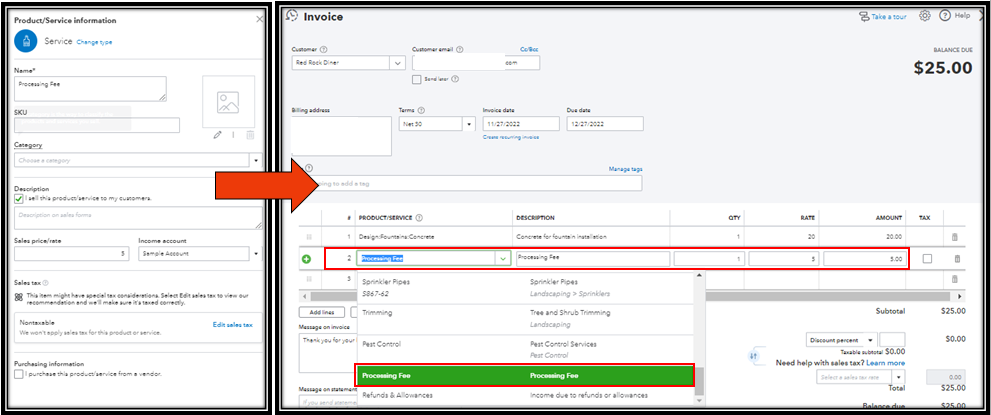
When creating an invoice or using the existing ones, you can add it by the below mentioned steps:
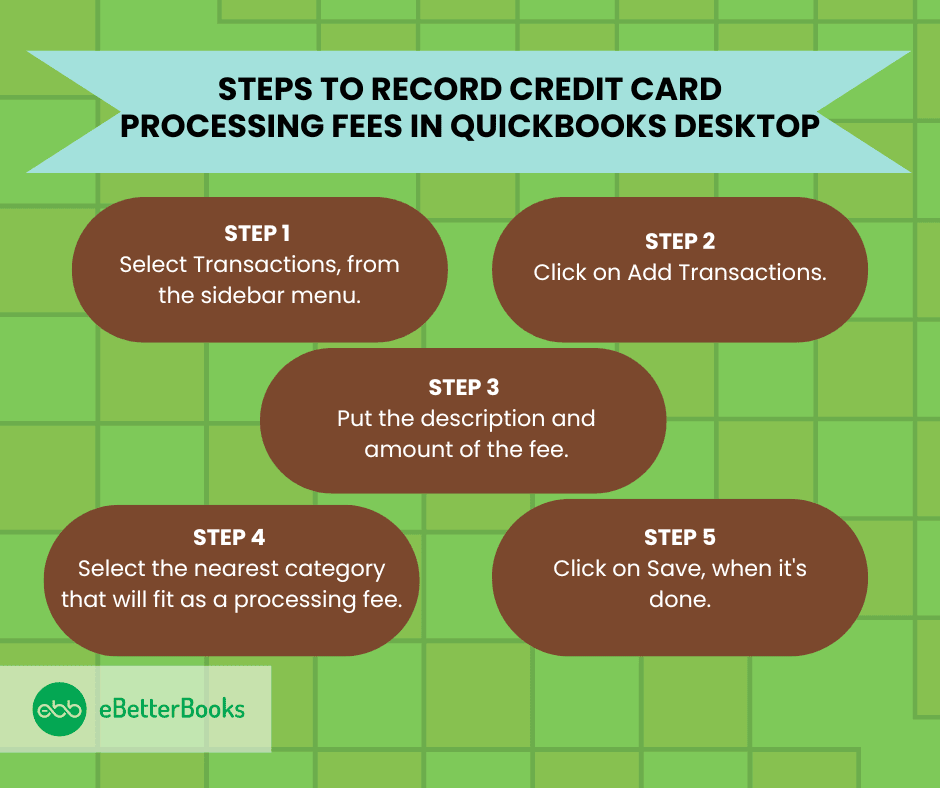
Recording credit card processing fees in QuickBooks Desktop involves tracking transactions manually to ensure accurate categorization.
In order to record the card processing fee manually in QuickBooks Desktop ( QuickBooks Self-employed), kindly follow the steps:
Understanding how to record credit card processing fees is just the beginning — mastering it requires clarity on accuracy, reporting, and reconciliation. In this section, we’ll uncover five key areas often overlooked by users but essential for maintaining clean books, maximizing deductions, and avoiding compliance risks. Each subtopic delivers practical insights, sharp distinctions, and direct actions that help you tighten your accounting process in both QuickBooks Online and Desktop.
Credit card fees must be recorded under the correct expense account to ensure tax-ready reports, real-time cash flow clarity, and accurate profit margins. If miscategorized, your statements may inflate operational costs, skew net income, and create audit risks. For example, assigning fees to “Miscellaneous” instead of “Bank Fees” affects tax deductions, error tracing, and forecasting accuracy. In QuickBooks, consistent categorization boosts automation, simplifies month-end closing, and improves accountant collaboration. Business owners often overlook this step, causing 3 major problems: mismatched deposits, IRS red flags, and distorted financial insights. Avoid these issues by setting rules, verifying accounts monthly, and training staff.
Most users make 3 critical mistakes: skipping fee entry, using incorrect accounts, and ignoring reconciliation. If you record gross income without subtracting the processing fee, your revenue inflates and misleads decision-making. Using an unrelated expense account like “Office Supplies” for fees disrupts expense classification, leading to poor tax deductions and reporting errors. Failing to reconcile deposits with statements causes mismatched balances, audit complications, and inaccurate cash flow views. In QuickBooks, these mistakes multiply over months, affecting budgeting, vendor trust, and financial planning. Avoid this by setting a standard workflow, reviewing fee entries weekly, and cross-verifying with your bank feed.
Incorrect fee recording affects 3 major areas: profit reports, tax deductions, and liability tracking. If fees aren’t properly logged, your profit & loss statement will overstate income, misrepresent costs, and skew KPIs. During tax season, misfiled fees reduce deductible expenses, inflate taxable income, and increase audit exposure. Inaccurate recording also breaks links between income and bank deposits, confusing both accountants and the IRS. QuickBooks depends on clean entries for generating accurate reports, auto-calculations, and compliance-ready data. Fix this by tagging fees to the right account, reviewing reports monthly, and syncing data with your accountant for quarterly checks.
Manual tracking requires 3 repetitive actions: entering fee amounts, selecting accounts, and reconciling deposits — each prone to errors, delays, and data mismatches. In contrast, automation uses bank rules, app integrations, and recurring entries to save time, reduce human error, and ensure consistency. Manual methods often lead to skipped fees, wrong classifications, and inconsistent reporting. Automated tools in QuickBooks improve accuracy, speed, and audit readiness by tagging fees during imports, flagging discrepancies, and auto-categorizing transactions. For busy users, automation reduces workload, enhances visibility, and supports faster month-end closures. Choose based on volume, complexity, and internal skill level.
Effective reconciliation requires 3 key habits: matching deposits, verifying fee deductions, and reviewing statement dates. Many businesses overlook small fee variances, leading to inaccurate balances, false profit readings, and failed audits. In QuickBooks, use the Reconcile tool monthly to cross-check fee entries, detect missed charges, and validate net deposits. Always compare your merchant statements with QuickBooks deposits to catch hidden deductions, double entries, or processing delays. Clean reconciliation improves trust in reports, supports cash planning, and flags fraudulent activity early. Make it a routine by setting calendar reminders, assigning ownership, and saving reconciliation reports for audit trails.
Managing credit card processing fees isn’t just about entry—it requires strategic knowledge of fee types, negotiation tactics, legal rules, and technology tools. This section offers five focused insights that help small businesses control costs, stay compliant, and boost profitability. Each topic delivers actionable advice designed to complement your QuickBooks workflow and empower smarter financial decisions in today’s dynamic payment landscape.
Businesses typically face 3 main types of credit card processing fees: flat-rate fees, interchange fees, and assessment fees. Flat-rate fees (e.g., 2.9% + ₹3) are charged per transaction, making small sales less profitable. Interchange fees vary by card type and are set by banks, impacting margins without warning. Assessment fees are charged by card networks like Visa or Mastercard and can affect high-volume merchants significantly. Without knowing these distinctions, users often misclassify charges, underestimate total costs, and misalign pricing strategies. Always review your processor’s fee structure, audit monthly statements, and map each fee type correctly in QuickBooks.
Lowering processing rates starts with 3 focused actions: analyzing your fee statement, comparing providers, and initiating rate discussions. Most businesses overpay due to outdated contracts, unclear fee tiers, and lack of volume-based discounts. By reviewing statements line-by-line, you can spot hidden charges, redundant services, and inflated surcharges. Competitive quotes from other providers give you leverage for negotiation, especially if your monthly volume crosses ₹1–2 lakhs. When you negotiate, ask for lower interchange markups, waived monthly minimums, and fixed per-transaction fees. Regular renegotiation, at least once a year, ensures better margins, lower overheads, and scalable payment solutions.
Third-party apps help automate credit card fee tracking with 3 main benefits: syncing transactions, categorizing fees automatically, and generating detailed reports. Apps like Expensify, Bill.com, and Payment Rails connect directly to QuickBooks, reducing manual entry and errors. They streamline reconciliation by matching fees against deposits, flagging discrepancies, and updating your books in real-time. Using these apps saves up to 5 hours monthly for accounting teams and improves accuracy by over 90%. Selecting the right app depends on your business size, transaction volume, and integration needs. Regularly reviewing app performance ensures your accounting remains seamless and audit-ready.
Passing credit card fees to customers involves 3 critical legal considerations: transparency, compliance, and state regulations. Many regions mandate clear disclosure of any surcharges or convenience fees during checkout. Non-compliance can lead to fines, chargebacks, and reputational damage. Laws vary widely; for example, some US states prohibit surcharging, while others allow it with proper notice. Businesses should always review local laws, update invoice terms, and inform customers upfront. Maintaining clear records of these fees in QuickBooks supports legal audits and customer trust. Consulting a legal advisor annually helps stay compliant and avoid costly penalties.
Increasing operational costs, influencing pricing strategies, and impacting cash flow. Rising fees can reduce net profit margins by up to 2-3%, forcing businesses to rethink product prices or absorb costs. Seasonal spikes in processing fees may strain cash flow, delaying supplier payments or payroll. Awareness of fee trends helps businesses forecast expenses accurately and negotiate better rates. Tracking these trends in QuickBooks enables proactive financial planning, ensuring sustainability. Staying updated on fee changes supports smarter decisions and protects profitability in competitive markets.
To guarantee appropriate representation and tracking of credit card fees within the financial records, entering them into Quickbooks calls for an ordered process. Acquiring proficiency in entering credit card processing fees into QuickBooks facilitates day-to-day financial management along with well-informed decision-making and strategic planning.
Credit card statements and recorded fees should be regularly reconciled to help find inconsistencies and preserve financial correctness. This allows firms to make well-informed financial decisions based on accurate information.
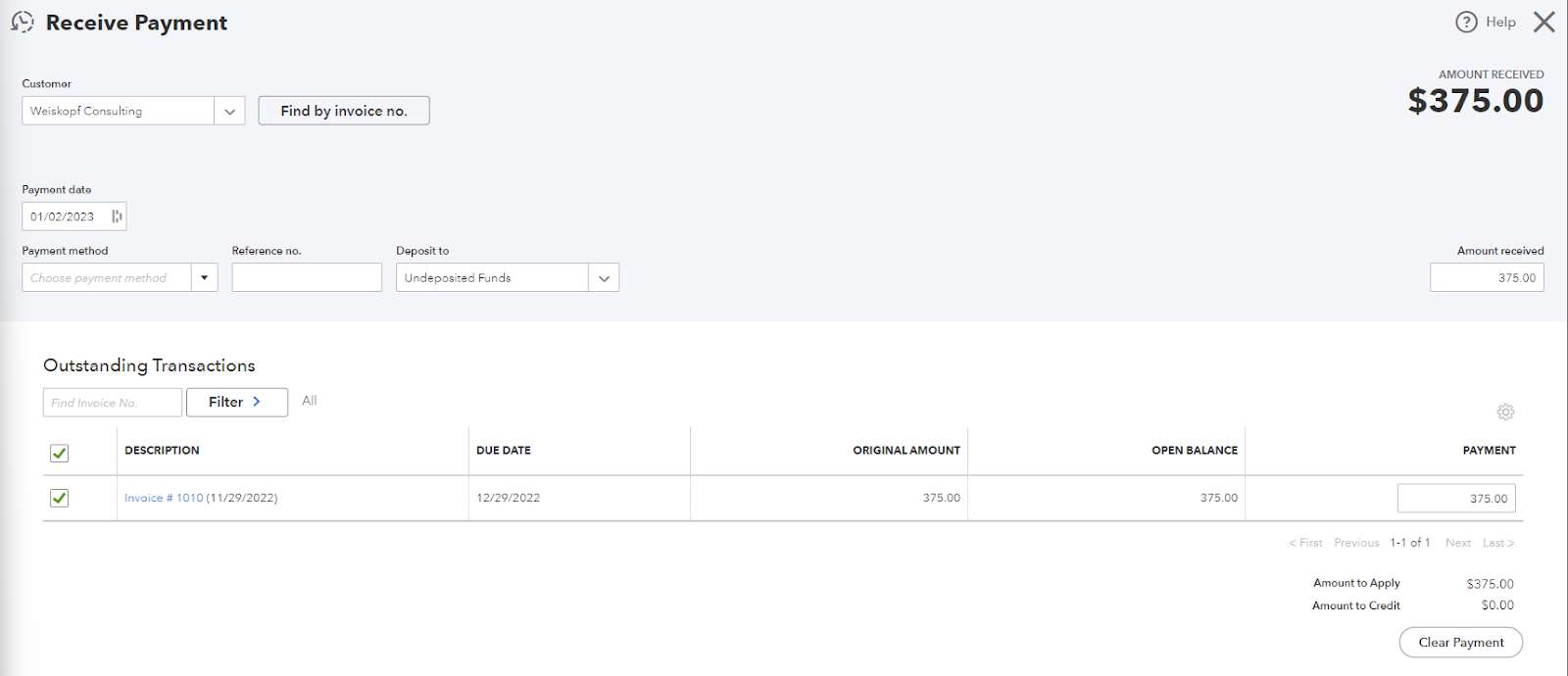
Using the Undeposited Funds account is a crucial workflow that acts as a temporary holding area for payments received but not yet deposited into your bank account. This practice is essential for accurate bank reconciliation.
For accurate financial reporting compliant with accounting standards, the processing fee should be categorized as an operating expense.
The core mechanism for recording the net deposit is identical (using a negative line item), but the execution takes place in slightly different interfaces.
| Feature | QuickBooks Online (QBO) | QuickBooks Desktop (QBD) |
| Transaction Form | Bank Deposit (accessed via + New menu) | Make Deposits (accessed via Banking menu) |
| Fee Entry Location | Under the “Add funds to this deposit” section. | As a negative line item on the deposit window. |
| User Access | Cloud-based, accessible from any device. | Installed software, typically limited to a single computer unless hosted. |
Both methods achieve the same goal: combining the gross payment and the negative fee into a single net deposit amount that matches the bank statement.
When you charge a fee to a customer (often called a convenience or surcharge fee), the service item you create for the invoice must be mapped to an Income account.
The most correct & compliant way to fix a missed fee is to record it directly in the reconciliation process as an expense dated for the current period, or by creating a missing Bank Deposit.
While a Journal Entry (JE) can manipulate account balances, it is not the recommended best practice for recording transaction fees and is advised against by most certified bookkeepers.
Seeing two distinct fee transactions can occur due to the specific way some third-party payment processors handle deposits, requiring a different approach in your bank feed.


