Migrating financial data from Sage MAS 90 (now Sage 100) to QuickBooks Desktop requires precise planning and adherence to strict technical prerequisites. The conversion tool mandates using Sage Version 2013 or higher and installing both applications on the same local machine to ensure the automated transfer functions correctly. Users must be aware that not all data transfers directly; complex, non-posting documents like sales orders and critical employee Year-to-Date (YTD) payroll history must be manually re-entered or reconciled after migration. The most common cause of failure is neglecting data cleanup and formatting verification within the CSV file before import, which is why seeking expert assistance is highly recommended to manage account mapping, reduce errors, and ensure financial integrity.
Key facts and required steps for migrating data from Sage MAS 90 to QuickBooks:
- Successful conversion requires Sage MAS 90 Version 2013 or higher and installation on the same device as QuickBooks Desktop (Pro, Premier, or Enterprise).
- The conversion utility fails if the system lacks the correct Microsoft .NET Framework or the required 2.5 GB of free hard drive space.
- Critical non-transferable data that must be manually handled post-migration includes: Employee Year-to-Date (YTD) information, sales/purchase orders, estimates, fixed assets, and paychecks.
- Payroll data transfers only as General Ledger account balances; individual employee history must be manually set up in the QuickBooks payroll module.
- The most crucial pre-import step is data cleanup and formatting verification on the exported CSV file to remove duplicates and standardize fields (dates, currencies), preventing errors during the QuickBooks import process.
- Sales tax codes are proprietary and do not convert automatically; they must be manually set up in QuickBooks to ensure accurate liability reporting.
- Expert assistance is strongly recommended to manage data cleanup, map accounts correctly, and perform the necessary post-conversion reconciliation.
Switch from Sage MAS 90 to QuickBooks
Customers using Sage MAS 90 may face challenges such as complexity, limited scalability, integration issues, and high costs. QuickBooks addresses these challenges by offering user-friendly interfaces, scalable solutions, seamless integration with other tools, and cost-effective pricing plans, providing a more accessible and streamlined accounting experience.
While QuickBooks is robust in many aspects, it does have its limitations. For instance, it might lack advanced customization features and scalability for complex financial models or extensive datasets. Moreover, businesses in regions with unreliable internet access could face challenges due to QuickBooks’ dependency on internet connectivity for certain functions. On the other hand, Sage MAS 90 offers a range of features including comprehensive accounting capabilities, inventory management, sales and purchase order processing, customizable reporting, and integration with third-party applications.
All About QuickBooks Data Conversion
QuickBooks offers adaptable solutions for businesses of every size, with desktop and cloud-based versions catering to diverse needs. Versions like Pro, Premier, and Enterprise deliver comprehensive features for accounting, payroll, and inventory management, tailored to specific industries.
QuickBooks Online provides cloud flexibility, real-time data synchronization, and collaborative tools via a subscription model, meeting contemporary business requirements. Both options emphasize strong security measures to protect financial data, allowing customers to select between the office-focused features of QuickBooks Desktop or the cloud convenience of QuickBooks Online, depending on their operational preferences.
Why you Need an Expert to Switch from Sage MAS 90 to QuickBooks Conversion
Moving from Sage MAS 90 to QuickBooks demands expertise to manage the intricacies of data conversion and maintain accuracy. Experts adeptly handle transferring financial data like accounts, transactions, and project details while preserving consistency and integrity. They resolve compatibility issues between platforms and tailor the migration to meet specific business requirements. With expert guidance, businesses streamline the process, reduce downtime, and ensure a successful transition to QuickBooks.
Additionally, experts provide invaluable training and support to ensure seamless adoption of QuickBooks functionalities post-migration. Their guidance empowers users to effectively navigate the new system, maximizing productivity and leveraging the full potential of QuickBooks for their business needs.
Sage MAS 90 to QuickBooks Data Conversion: Checklist
- Integrating Key Features: Focus on integrating critical functions like Payroll and Time Tracking after conversion to streamline business processes effectively.
- Browser Requirements: For smooth conversion, ensure stable internet access and utilize Google Chrome for optimal compatibility during the process.
- Sage MAS 90 Installation: Install Sage MAS 90 on the same device as QuickBooks to enable seamless data transfer between systems.
- Operating System Compatibility: Ensure compatibility with Windows 8, 10, or 11 to effectively support the conversion process.
- Processor Requirement: Maintain a minimum 500 MHz Intel Pentium II processor for efficient handling of conversion tasks.
- Memory (RAM) Requirement: Allocate a minimum of 512 MB of RAM to support the conversion process and prevent system slowdowns.
- Microsoft .NET Framework Compatibility: Confirm compatibility with Microsoft .NET Framework Version 2.0 to ensure seamless integration with conversion tools.
- Sage MAS 90 Version: Use Sage MAS 90 Version 2013 or higher to facilitate the conversion process without encountering compatibility issues.
- Hard Drive Space: Allocate at least 2.5 GB of free space on the hard drive to accommodate conversion files and ensure smooth operations.
- QuickBooks Compatibility: Verify compatibility with QuickBooks Desktop Pro, Premier, or Enterprise editions for seamless conversion and functionality.
- Cross-Region Conversions: Note that the QuickBooks Data Conversion tool cannot be utilized for cross-region conversions, ensuring compliance with data protection regulations.
- Storage Considerations: Ensure sufficient hard drive space to store both the QuickBooks database and associated files of Sage MAS 90 for efficient data management.
Process of Converting Sage MAS 90 to QuickBooks
- First, decide how the conversion process will take place. You are required to decide what kind of data you wish to convert, when you want to convert them and who will be doing the conversion.
- Now, remember to backup your data before starting the conversion process.
- Then, export the data from Sage MAS 90. After that, you can delete the backup. You also have the option of saving your data as comma-separated values (CVS) file, that is a format which is compatible with QuickBooks.
- You’re required to clean up your data before you import it into QuickBooks. This includes removing correcting errors, duplicate entries, and ensuring that all the data is in the correct format.
- Once you’ve successfully imported your data from a CSV file using the built-in feature of QuickBooks. You also have the option of using third-party software to help you with the conversion process.
- Make sure that your data is transferred accurately, by running the reports and comparing the results to the data in Sage MAS 90 account.
- Lastly, Choose the Yes button and replace the data by clicking the Replace button after you have replaced the data.
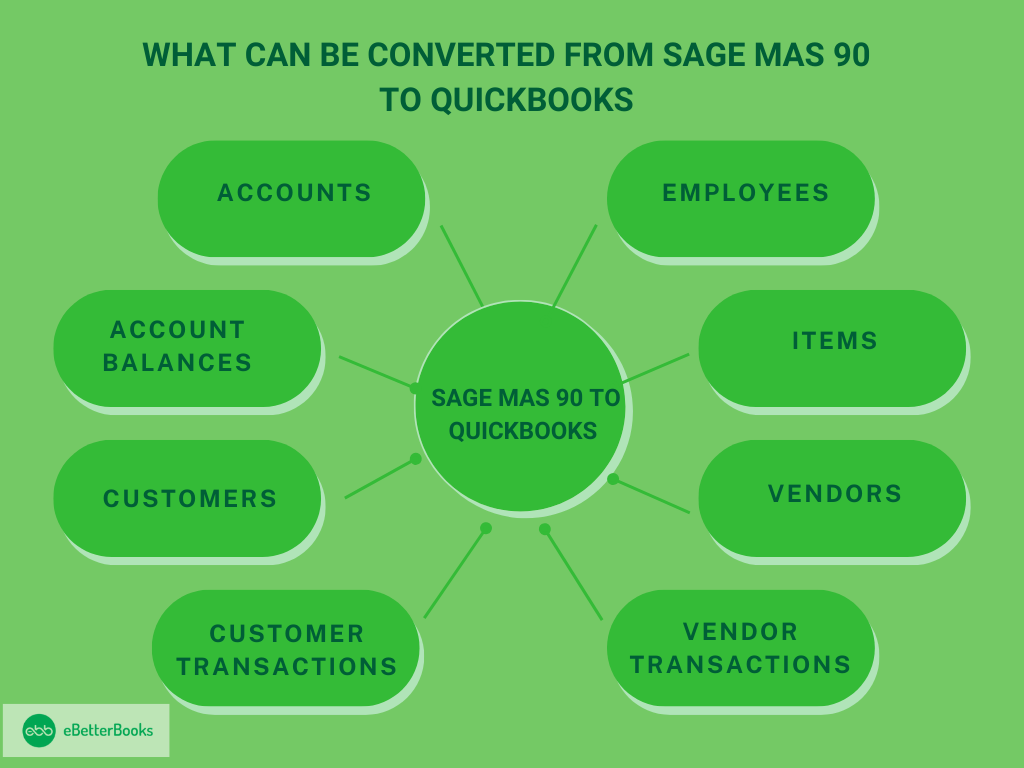
What Can Be Converted from Sage MAS 90 to QuickBooks

Common data which can be converted from Sage MAS 90 to QuickBooks are given below:
- Accounts
- Account balances
- Customers
- Customer transactions
- Employees
- Items
- Payroll general ledger account balance information
- Vendors
- Vendor transactions
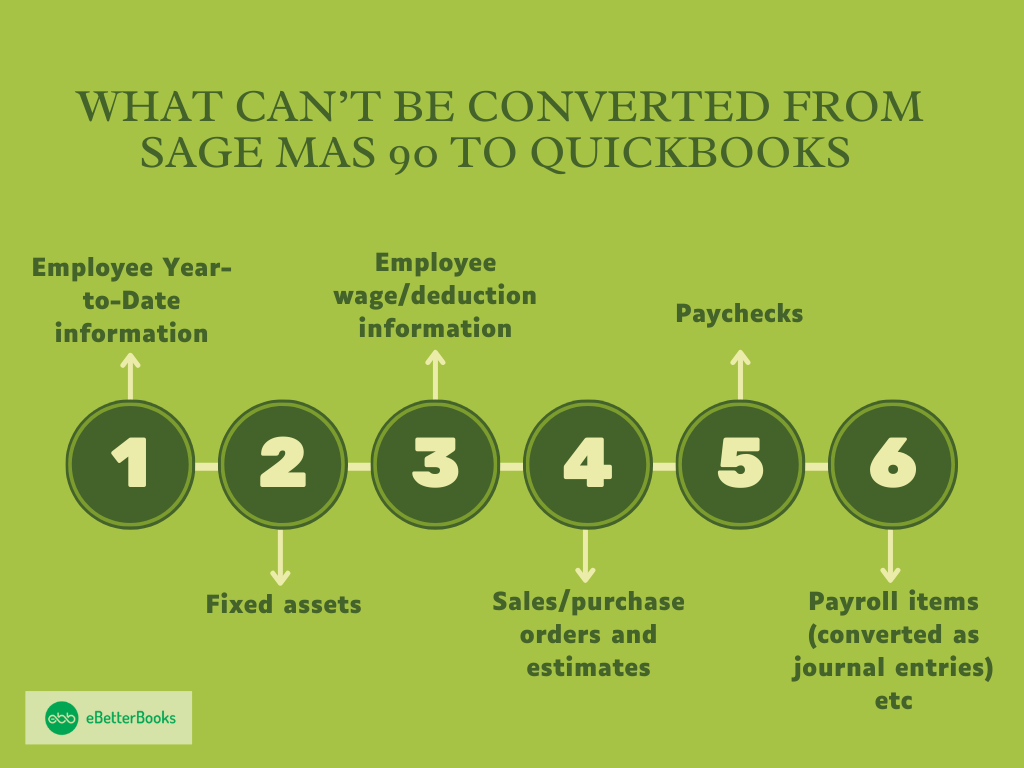
What Can’t be Converted from Sage MAS 90 to QuickBooks

Some data from Sage MAS 90 may not be directly transferable to QuickBooks due to differences in database structures and data formats. This could include complex customizations, historical data, or specialized modules unique to MAS 90 that don’t have direct equivalents in QuickBooks.
- Employee Year-to-Date information
- Fixed assets
- Employee wage/deduction information
- Sales/purchase orders and estimates
- Paychecks
- Payroll items (converted as journal entries) etc.
Common Errors Encountered in QuickBooks Data Conversion Process
Here’s the list of some common errors encountered in the QuickBooks data conversion process:
- Incomplete Data Transfers: Ensure all relevant data fields are mapped and transferred accurately to avoid missing information.
- Mismatched Account Mappings: Verify that accounts in the old system align correctly with those in QuickBooks to prevent confusion and errors in financial records.
- Duplicate Entries: Scan for duplicate transactions or records during the conversion process to prevent redundancy and maintain data integrity.
- Formatting Discrepancies: Check for inconsistencies in data formatting, such as date formats or currency symbols, to ensure uniformity across records.
- Data Validation: Implement thorough validation procedures to confirm the accuracy and completeness of transferred data before finalizing the migration.
- Expert Assistance: Seek guidance from experienced professionals to navigate complex conversion processes and address any unexpected challenges effectively.
Conclusion
Transitioning from Sage MAS 90 to QuickBooks requires meticulous planning and precise execution to achieve a seamless conversion process. Leveraging QuickBooks’ user-friendly interface and advanced features empowers businesses to enhance their financial management capabilities effortlessly. By prioritizing accuracy and leveraging the intuitive tools offered by QuickBooks, organizations can successfully navigate the conversion journey and unlock new levels of efficiency in managing their finances.
FAQs:
Q1. Why is having Sage MAS 90 Version 2013 or higher a strict requirement for a successful QuickBooks conversion?
The requirement for Sage MAS 90 Version 2013 or higher is strict because the QuickBooks conversion utility relies on specific data file structures and application programming interfaces (APIs) present only in later versions of Sage software.
- Conversion Utility Dependency: Older versions of Sage MAS 90 (now Sage 100) use proprietary data formats that the automated QuickBooks conversion tool cannot accurately read or map.
- Data Integrity: Using an outdated version increases the risk of incomplete data transfers and mismatched account mappings, which leads to errors in financial records.
- Expert Recommendation: If a business is running an older Sage version, the recommended process is to first upgrade Sage MAS 90 to a compatible version, then run the conversion, or hire an expert to manually export and clean data via CSV files.
Q2. Which three essential system requirements from the conversion checklist most often cause conversion failures?
The system requirements checklist is vital for a smooth conversion, but three technical points are frequently overlooked, leading to immediate failure or data corruption.
- Top 3 Failure Points:
- Microsoft .NET Framework Compatibility: The conversion tools are often built on this Microsoft framework. Ensuring the correct version (typically 2.0 or higher) is installed and active is non negotiable for the utility to run.
- Installation Location: Sage MAS 90 must be installed on the same computer as QuickBooks Desktop (Pro, Premier, or Enterprise). The conversion utility requires direct local access to the Sage data files and registry settings.
- Hard Drive Space: Running out of the minimum required 2.5 GB of free space during the data mapping and transfer process can cause the conversion to stop mid-process, leading to partially corrupt files.
Q3. Why must Employee Year to Date (YTD) information be excluded, and how is the payroll data transferred instead?
Employee Year to Date (YTD) information, including wage and deduction details, cannot be transferred directly because of fundamental structural differences between how Sage MAS 90 and QuickBooks handle proprietary payroll modules.
- Structural Difference: Sage payroll often uses complex, proprietary tables and codes for tracking YTD balances that do not map directly to QuickBooks’ payroll system structure.
- How Payroll Data is Transferred:
- Payroll General Ledger (GL) Account Balances: These balances (e.g., Gross Wages, Payroll Liabilities) can be converted and transfer as simple journal entries to the QuickBooks GL accounts.
- Individual Employee Data: YTD totals for individual employees must be manually entered or reconciled in QuickBooks using the Payroll Setup process after the conversion. This ensures the new payroll system calculates tax liabilities correctly moving forward.
Q4. What specific data from the Sage MAS 90 transactions module cannot be converted, and what is the required workaround?
Complex or incomplete transactional data from Sage MAS 90, particularly sales and purchase orders and estimates, often fails to convert directly because they represent non posting or future transactions.
- Non Convertible Transaction Data:
- Sales Orders and Estimates: These are commitments or proposals, not finalized transactions. QuickBooks’ conversion utility prioritizes posting transactions (Invoices, Bills, Payments).
- Purchase Orders: These are non posting documents representing future liability and generally do not transfer automatically.
- Workaround: Businesses must manually re enter these active, non posting documents into QuickBooks after the data conversion is complete. Alternatively, print and archive the open orders from Sage MAS 90 for reference until they are closed.
Q5. Why is seeking expert assistance for this conversion strongly recommended, even with an automated tool available?
Expert assistance is strongly recommended because the automated conversion tool only handles the initial data transfer, but experts manage the critical pre and post conversion phases that determine financial integrity.
- Expert Responsibilities:
- Data Cleanup and Mapping: Prior to migration, experts clean up duplicate entries and errors in Sage and ensure proper mapping of the Sage Chart of Accounts to the QuickBooks Chart of Accounts structure, preventing Mismatched Account Mappings.
- Post Conversion Reconciliation: Experts reconcile final reports in QuickBooks against the source data in Sage MAS 90 to guarantee accuracy, a step often missed by internal teams.
- Customization and Training: They set up new QuickBooks features (e.g., Inventory, Job Costing) and provide crucial training to ensure employees use the new system correctly.
Q6. If I have sales tax codes set up in Sage, do they convert automatically to QuickBooks?
No, sales tax codes set up in Sage MAS 90 generally do not convert automatically to QuickBooks and must be set up manually in the new system.
- Reason: Sales tax systems, including codes, rates, and tax agencies, are highly jurisdictional and proprietary. QuickBooks uses its own specific structure for calculating and reporting sales tax liability.
- Workaround: Businesses must first establish the correct Sales Tax Agencies and Sales Tax Items in QuickBooks. Then, during the import of customer transactions, the taxability status for each customer and item can be manually matched to the new QuickBooks codes.
- Risk: Failing to manually set up sales tax can lead to Formatting Discrepancies and incorrect liability reporting immediately after the conversion.
Q7. What critical step involving the CSV file must be performed after exporting data from Sage MAS 90 but before importing into QuickBooks?
The critical step that must be performed after exporting the Sage data but before importing into QuickBooks is data cleanup and formatting verification.
- Data Cleanup Tasks:
- Removing Corrupted or Duplicate Entries: Delete redundant vendors, customers, or transactions to prevent Duplicate Entries in QuickBooks.
- Standardizing Formatting: Ensure consistency in all dates (e.g., MM/DD/YYYY), currency symbols, and phone number formats to avoid Formatting Discrepancies during import.
- Verifying Account Mapping: The CSV file should be reviewed to confirm that source Sage accounts are correctly assigned to the intended target QuickBooks accounts.
- Tool: The export often creates a comma separated values (CSV) file, which can be easily opened and edited using spreadsheet software like Microsoft Excel before it is processed by the QuickBooks import tool.