Excerpt:
If you're facing QuickBooks Error 6143 while trying to access your company file, it may be due to a corrupted file, firewall issues, or improper installation. This article offers step-by-step solutions, such as closing unnecessary QuickBooks processes, launching the file locally, running QuickBooks File Doctor, and more, to help you resolve the issue and get back to managing your business finances smoothly.
 Add As A Preferred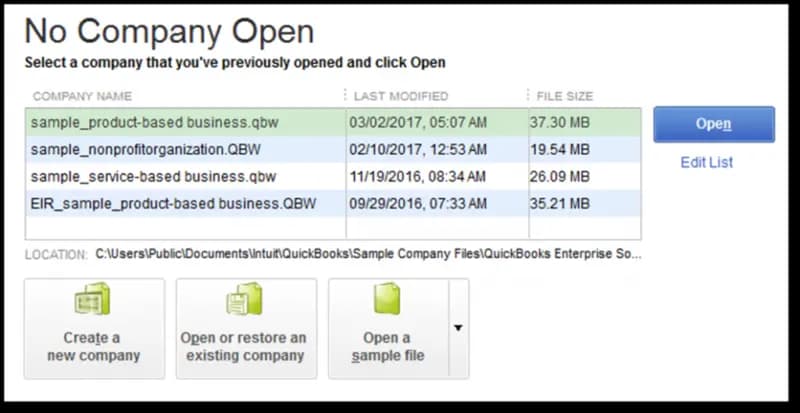
QuickBooks Error 6143 is a company file access error that restricts users from opening or working with their company file. Unlike simple installation glitches, Error 6143 belongs to the 6000 series of QuickBooks errors, which are tied to company file handling and network configurations. When this error occurs, QuickBooks encounters difficulty reading or updating the company file, the window might crash, or the software might crash.
Error 6143 can appear in several situations within QuickBooks Desktop, including when opening a company file, restoring a backup, or working in multi‑user mode. In each case, QuickBooks fails to establish a stable connection with the company data, resulting in crashes, freezes, or unexpected shutdowns.
Quickbooks generally shows a message stating “Sorry! Something went wrong! Please try starting over.”
This guide provides a solution framework for resolving QuickBooks Error 6143. It also outlines preventive strategies to safeguard your company files. Investing time in prevention is far less costly than repairing corrupted data later. For professional businesses, consistent QuickBooks maintenance should be treated as a critical financial control activity.
QuickBooks Error 6143 is primarily a company file access error, but the underlying triggers can vary. Understanding each cause helps in diagnosing the issue correctly and applying the right fix.
The table shows the quick summary:
| Step | Level | Action | Timeline | Risk |
| Open a Sample Company File | Beginner | Use the No Company Open window to test with a sample file. | 2–3 min | Low |
| Clear Spaces in Company File Name | Beginner | Rename the company file to remove spaces. | 3–5 min | Low |
| Run QuickBooks as Administrator | Beginner | Close QuickBooks → right‑click icon → Run as Administrator → accept UAC prompt. | 2–3 min | Low |
| Open the Company File Locally | Intermediate | Copy .QBW file to desktop → open via No Company Open window. | 5–7 min | Medium |
| Close All QuickBooks Processes | Intermediate | End QBW32.exe and related processes in Task Manager. | 5–10 min | Medium |
| Rename .ND and .TLG Files | Intermediate | Add .old suffix to .ND and .TLG files → restart QuickBooks. | 5–10 min | Medium |
| Scan Folder with Database Server Manager | Advanced | On server → Tool Hub → Network Issues → Database Server Manager → Browse → Start Scan → confirm hosting settings. | 10–15 min | Medium |
| Configure Antivirus and Firewall Ports | Advanced | Add QuickBooks folders as exceptions → configure firewall ports → test with antivirus disabled if needed. | 15–20 min | High |
| Reinstall QuickBooks Desktop | Advanced | Uninstall → download latest version → reinstall → restore company file. | 20–30 min | High |
1. Open a Sample Company File
2. Clear Spaces in the Company File Name
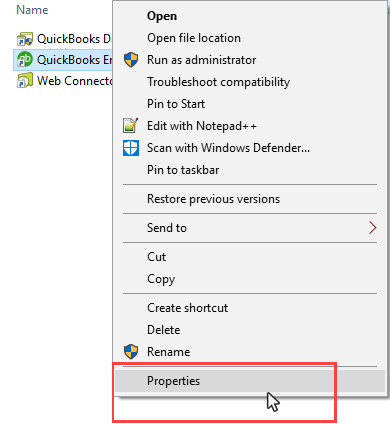
3. Run QuickBooks as Administrator
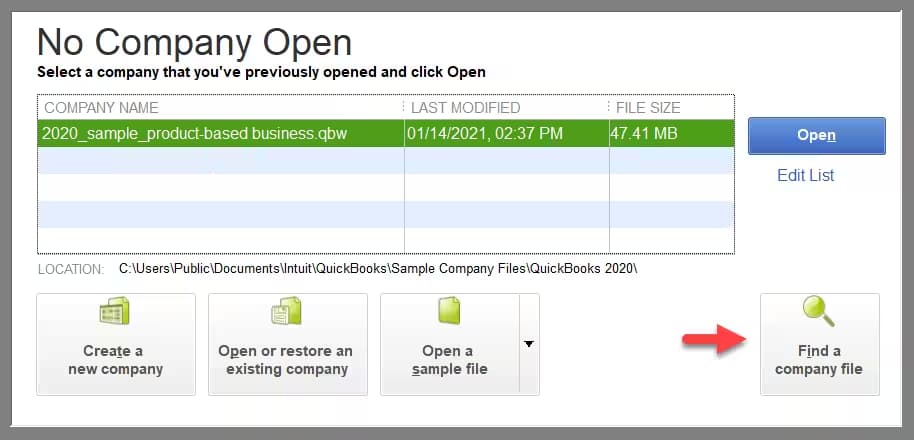
4. Open the Company File Locally
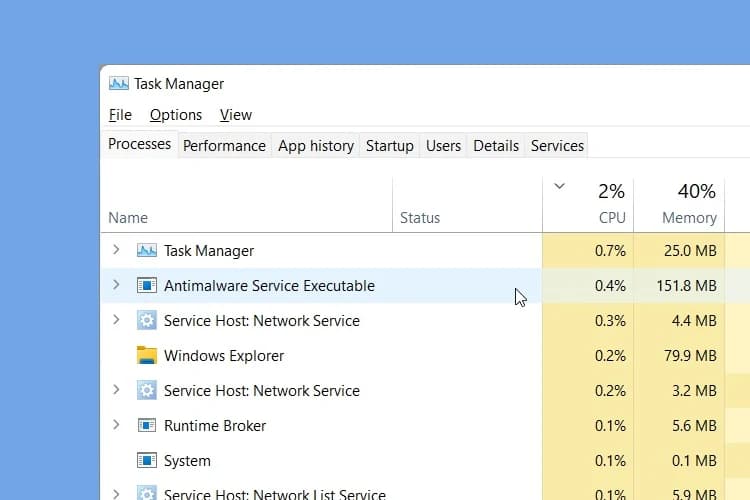
5. Close All QuickBooks Processes
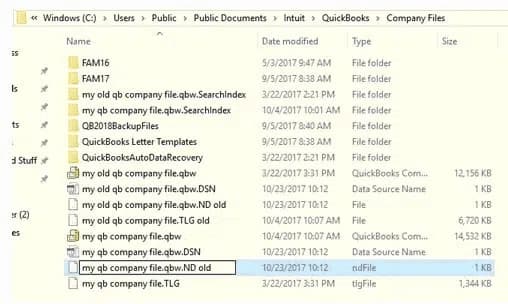
6. Rename .ND and .TLG Files
7. Configure Antivirus and Firewall Ports
8. Reinstall QuickBooks Desktop
9. Scan Folder with QuickBooks Database Server Manager
QuickBooks Error Code 6143 is triggered by corrupted system files, incomplete installations, or conflicts with antivirus/firewall settings. By following a stepwise troubleshooting approach starting with simple checks like opening a sample file or renaming the company file, moving to intermediate fixes like closing processes and renaming .ND/.TLG files, and finally applying advanced solutions like configuring antivirus/firewall or reinstalling QuickBooks users can resolve the issue effectively.
Hopefully, the information given above will be useful to you. But if you are still facing any kind of issues with your software and need professional assistance regarding accounting, bookkeeping & accounting software-related issues, then feel free to get technical support with us at +1-802-778-9005, or you can email us at support@ebetterbooks.com
It is recommended to create a manual backup of your QuickBooks company file (.QBW) at least once per week. Additionally, you should always create a new backup immediately before and after performing any major actions, such as installing a new QuickBooks update, performing a major data import, or running the Rebuild Data utility (which is sometimes necessary after fixing a corruption error like 6143).
Yes, the Auto Data Recovery (ADR) feature is a vital safety net. ADR automatically creates backup copies of your company file and the Transaction Log file (.TLG).
If your primary file is corrupted, you can often use the ADR files (found with the .adr extension) to restore your data to a recent state, minimizing data loss before or during the fix for Error 6143. However, you should always try to restore from a standard manual backup (.QBB) first, if one is available.
While QuickBooks is designed to allow multiple versions to co-exist on the same computer, having different versions installed can sometimes complicate file path permissions and lead to conflicts, especially if multiple versions try to access the same related program files or services.
➜Always ensure you are opening your specific company file (.QBW) with the correct, corresponding version of QuickBooks it was last updated in. Opening an older company file with a newer QuickBooks version prompts an update, which should be done with caution and a backup.
Yes, having an overly long path, special characters, or spaces in the company file name or folder path can interfere with QuickBooks’ ability to locate and open the file. Some community‑based guidance (and troubleshooting blogs) report this as a factor for 6143‑type issues.
➜Recommendation: Keep file names and folder paths simple; store the company file in a clean, shallow folder structure (e.g., C:\QBFiles\) rather than deeply nested or network‑shared folders.
Generally, no as long as you are not deleting the primary data file (.QBW) and you have a valid backup. Renaming auxiliary files (.ND, .TLG) or moving the company file location does not delete transaction or accounting data. This is a standard recommendation in 6143‑resolution guides.
Best practice: Always backup your company file before making structural changes (moving, renaming) so you have a fallback if restoration fails.
These are two key tools for company file maintenance:
➜Verify Data: You should run this first. It scans the company file for structural data issues or corruption (like that which causes Error 6143). If it finds an issue, it will recommend that you run the Rebuild Data utility.
➜Rebuild Data: You should only run this after Verify Data has identified problems. Rebuild Data attempts to repair the issues found in the file structure. Always create a backup (.QBB) immediately before running the Rebuild Data utility.


